




Explore Geographical Relationships in Claude Compliance Data with Power Map

The CData ODBC Driver for Claude Compliance is easy to set up and use with self-service analytics solutions like Power BI: Microsoft Excel provides built-in support for the ODBC standard. This article shows how to load the current Claude Compliance data into Excel and start generating location-based insights on Claude Compliance data in Power Map.
Create an ODBC Data Source for Claude Compliance
If you have not already, first specify connection properties in an ODBC DSN (data source name). This is the last step of the driver installation. You can use the Microsoft ODBC Data Source Administrator to create and configure ODBC DSNs.
The driver connects to Claude Compliance using a Compliance Access Key, the only supported authentication method. Set the following connection property:
- APIKey: The Compliance Access Key you created.
Creating a Compliance Access Key
- Enable the Compliance API for your organization.
- Sign in to claude.ai as a primary owner or organization owner and open Organization settings > API > Keys.
- Select Create Key and assign only the scopes your integration needs:
- read:compliance_activities for Activities and the typed activity views.
- read:compliance_org_data for organizations, roles, groups, and settings.
- read:compliance_user_data for users, chats, files, projects, and downloads.
- delete:compliance_user_data for the explicit Delete stored procedures.
- Create the key and copy it when it appears. The key starts with sk-ant-api01- and is shown only once.
Optionally, set OrganizationUUID to limit organization-scoped views (such as OrganizationUsers and ComplianceRoles) to a single linked organization. If it is left empty, those views default to the first available organization and do not include data from all linked organizations.
When you configure the DSN, you may also want to set the Max Rows connection property. This will limit the number of rows returned, which is especially helpful for improving performance when designing reports and visualizations.
When you configure the DSN, you may also want to set the Max Rows connection property. This will limit the number of rows returned, which is especially helpful for improving performance when designing reports and visualizations.
Import Claude Compliance Data into Excel
You can import data into Power Map either from an Excel spreadsheet or from Power Pivot. For a step-by-step guide to use either method to import Claude Compliance data, see the "Using the ODBC Driver" section in the help documentation.
Geocode Claude Compliance Data
After importing the Claude Compliance data into an Excel spreadsheet or into PowerPivot, you can drag and drop Claude Compliance entities in Power Map. To open Power Map, click any cell in the spreadsheet and click Insert -> Map.
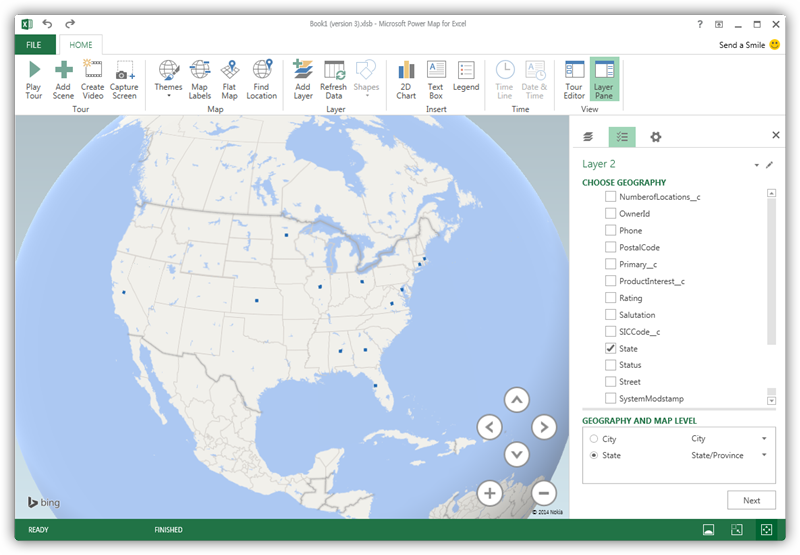
In the Choose Geography menu, Power Map detects the columns that have geographic information. In the Geography and Map Level menu in the Layer Pane, you can select the columns you want to work with. Power Map then plots the data. A dot represents a record that has this value. When you have selected the geographic columns you want, click Next.
Select Measures and Categories
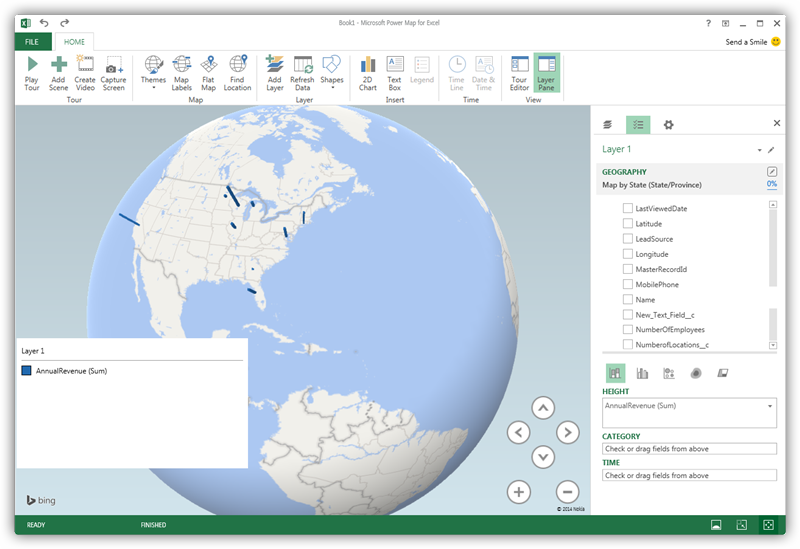
You can then simply select columns: Measures and categories are automatically detected. The available chart types are Stacked Column, Clustered Column, Bubble, Heat Map, and Region.
Ready to get started?
Download a free trial of the Claude Compliance ODBC Driver to get started:
Download NowLearn more:
 Claude Compliance ODBC Driver
The Claude Compliance ODBC Driver is a powerful tool that allows you to connect with live data from Claude Compliance, directly from any applications that support ODBC connectivity.
Access Claude Compliance data like you would a database - read Claude Compliance Activities, Chats, ChatMessages, CodeArtifacts, ComplianceRoles, Organizations, OrganizationUsers, Projects, etc. through a standard ODBC Driver interface.