




How to Seamlessly Import Claude Compliance Data into IBM SPSS Modeler

IBM SPSS Modeler is a powerful data mining and predictive analytics platform that enables organizations to extract valuable insights from their data. By connecting Claude Compliance data data to SPSS Modeler via the CData ODBC Driver for Claude Compliance, you can leverage real-time access for advanced data mining, predictive modeling, and statistical analysis.
This guide takes you through the steps of connecting IBM SPSS Modeler to Claude Compliance data, enabling seamless data import, preparation, and analysis. With the CData ODBC Driver for Claude Compliance, you can unlock the full potential of your Claude Compliance data data within IBM SPSS Modeler for actionable insights.
Overview
Here is an overview of the steps:
- CONFIGURE THE ODBC DRIVER: Set up a connection to Claude Compliance data in the CData ODBC Driver for Claude Compliance by entering the required connection properties.
- SET UP ODBC CONNECTION IN SPSS MODELER: Establish the ODBC connection within IBM SPSS Modeler by selecting the configured DSN.
- IMPORT AND PROCESS DATA: Import the Claude Compliance data data into SPSS Modeler, then review, filter, transform, and prepare the data for predictive analytics and statistical modeling.
Configure the Claude Compliance DSN Using the CData ODBC Driver
To start, configure the DSN (Data Source Name) for Claude Compliance data in your system using the CData ODBC Driver. Download and install a 30-day free trial with all the features from here.
Once installed, launch the ODBC Data Source Administrator:
- On Windows: Search for ODBC Data Source Administrator in the Start menu and open the application.
- On Mac: Open Applications, go to Utilities, and select ODBC Manager.
- On Linux: Use the command line to launch ODBC Data Source Administrator or use unixODBC if installed.
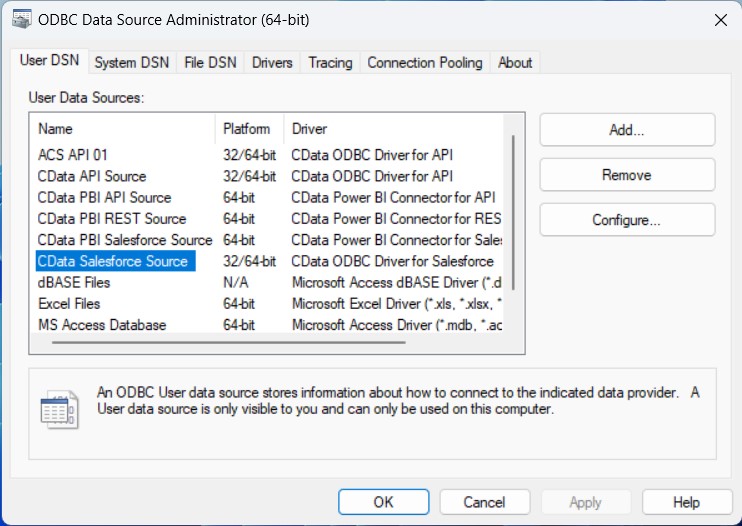
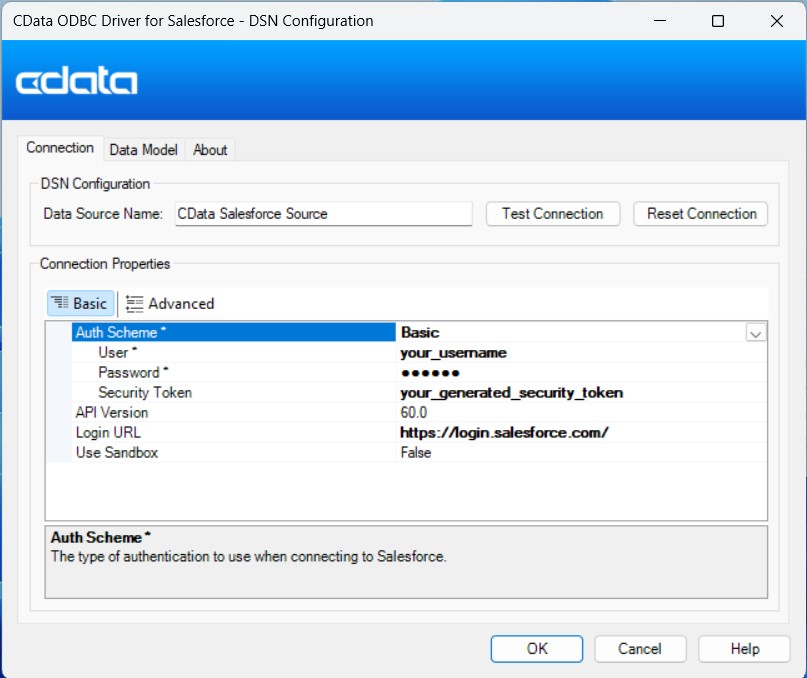
Once launched, double-click on the CData Claude Compliance data Source and enter the required values to establish a connection:
The driver connects to Claude Compliance using a Compliance Access Key, the only supported authentication method. Set the following connection property:
- APIKey: The Compliance Access Key you created.
Creating a Compliance Access Key
- Enable the Compliance API for your organization.
- Sign in to claude.ai as a primary owner or organization owner and open Organization settings > API > Keys.
- Select Create Key and assign only the scopes your integration needs:
- read:compliance_activities for Activities and the typed activity views.
- read:compliance_org_data for organizations, roles, groups, and settings.
- read:compliance_user_data for users, chats, files, projects, and downloads.
- delete:compliance_user_data for the explicit Delete stored procedures.
- Create the key and copy it when it appears. The key starts with sk-ant-api01- and is shown only once.
Optionally, set OrganizationUUID to limit organization-scoped views (such as OrganizationUsers and ComplianceRoles) to a single linked organization. If it is left empty, those views default to the first available organization and do not include data from all linked organizations.
Setup an ODBC Connection in IBM SPSS Modeler
After configuring the DSN, it's time to connect to it in IBM SPSS Modeler:
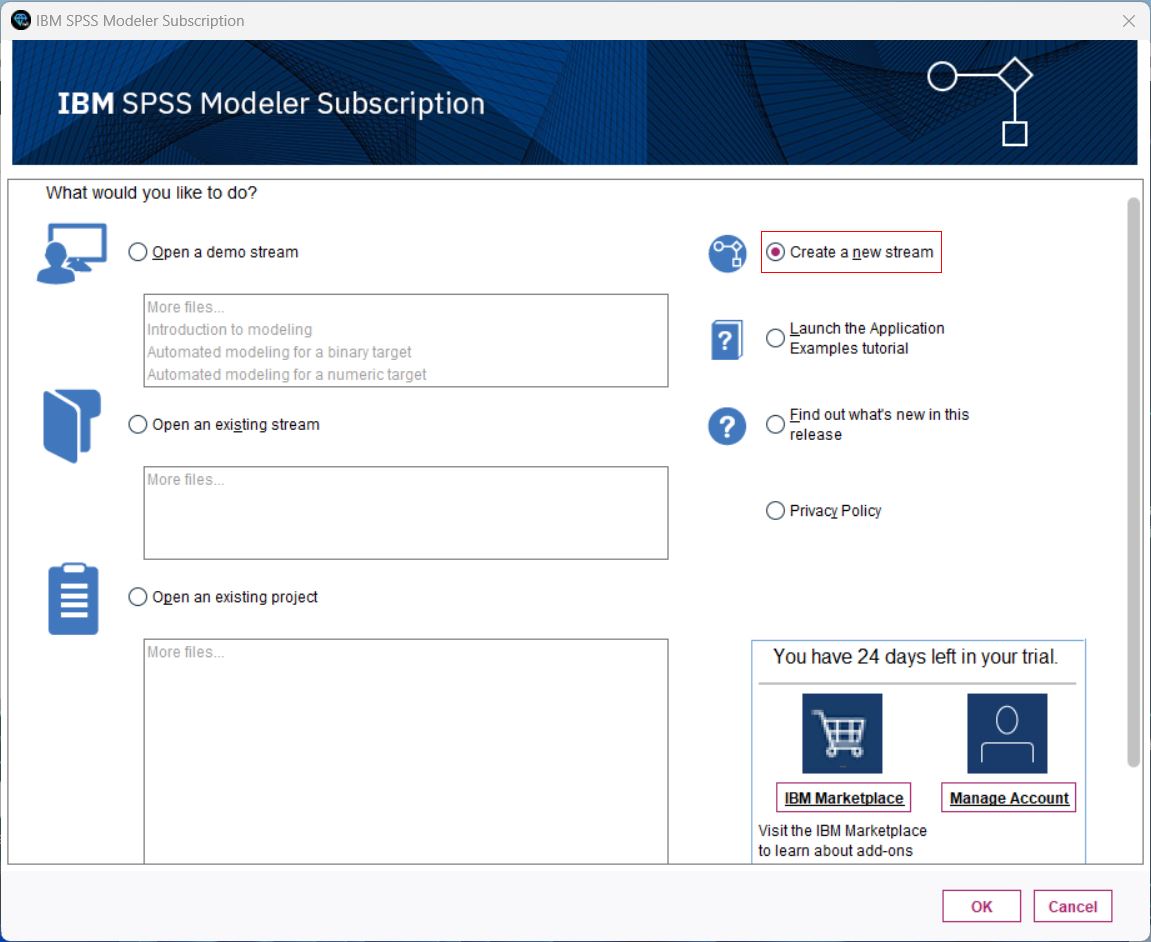
- Launch IBM SPSS Modeler, log in, and create a new stream.
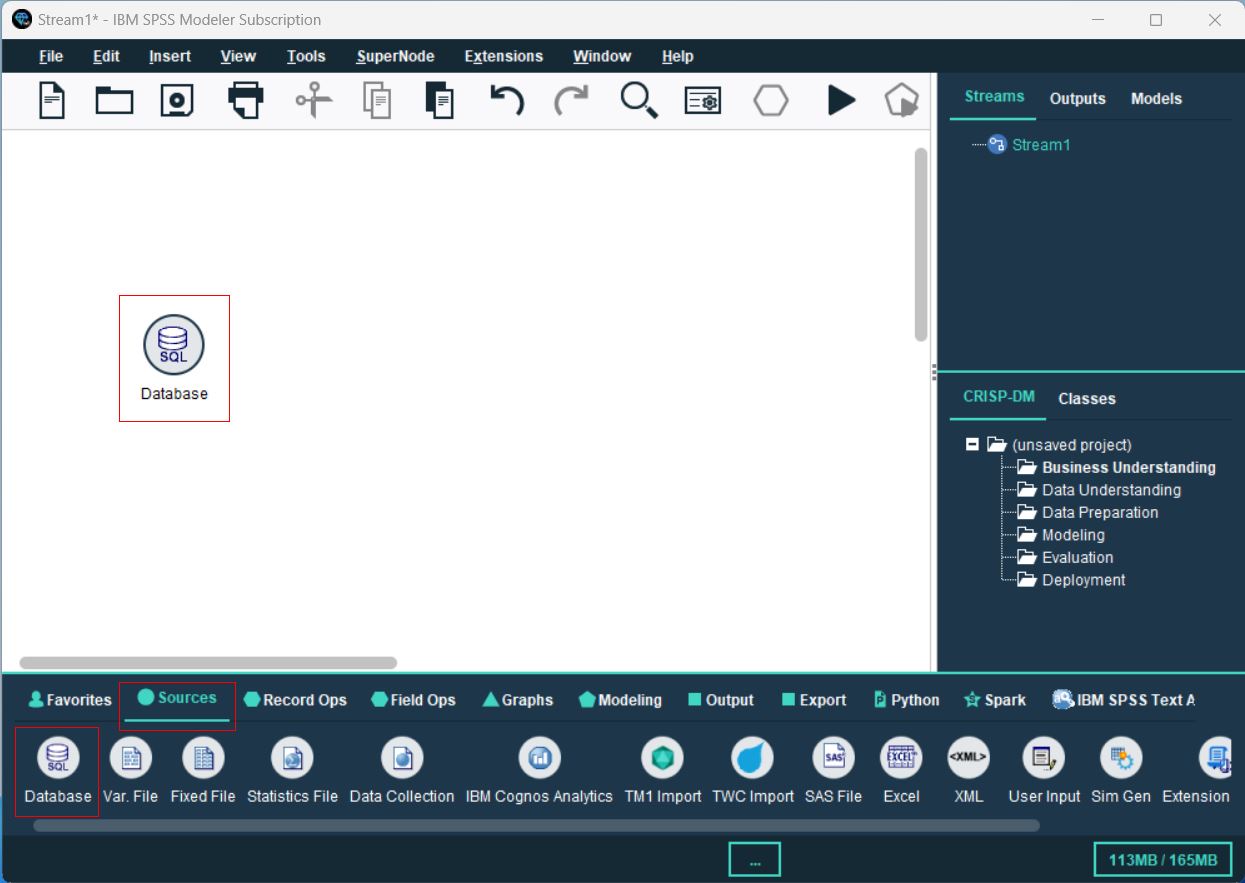
- From the Sources palette, locate the Database node, and drag it onto the canvas.
- Double-click the Database node to open the configuration dialog. Select
, browse to select the configured DSN, then click OK. - In the Database dialog, browse to select the table(s) you’d like to import, preview the data, and click OK to finalize.
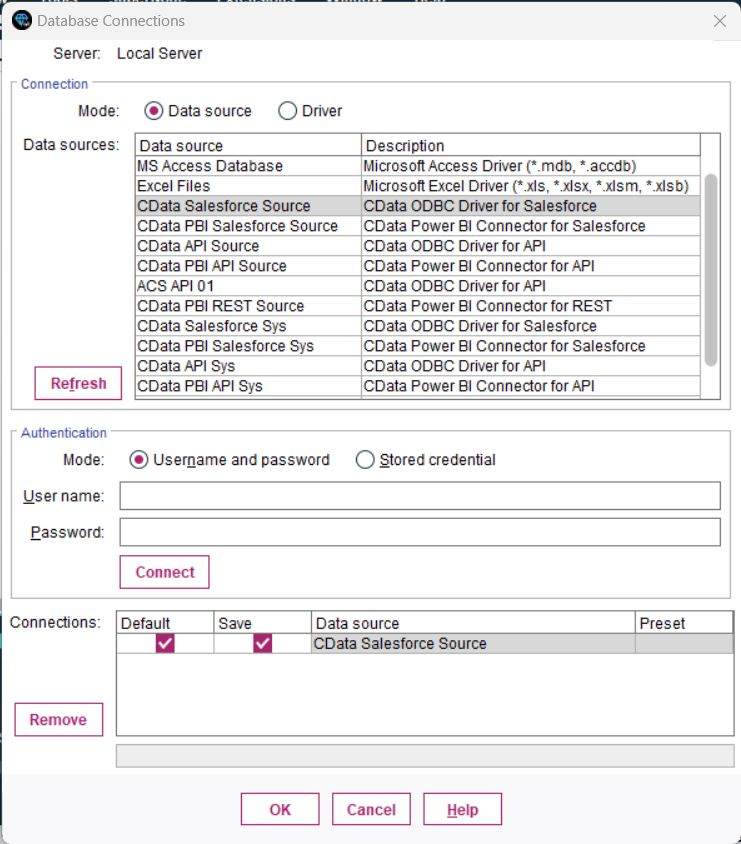
You are now ready to process and analyze the Claude Compliance data data in IBM SPSS Modeler.
Process Data: Filter, Categories, and Model
Once the tables are imported, you can refine, filter, categorize, and model your Claude Compliance data data in SPSS Modeler:
- Filtering: Double-click your Database connection, go to the Filter section, and select/deselect fields to focus on relevant data. This improves processing speed and model accuracy.
- Set Data Types and Roles: Categorize your fields and assign roles to each data type by navigating to the Types section.
- Perform a Basic Analysis: Drag and drop the Analysis node next to your Database node, connect them, and click the Play button to run the stream and analyze the data.
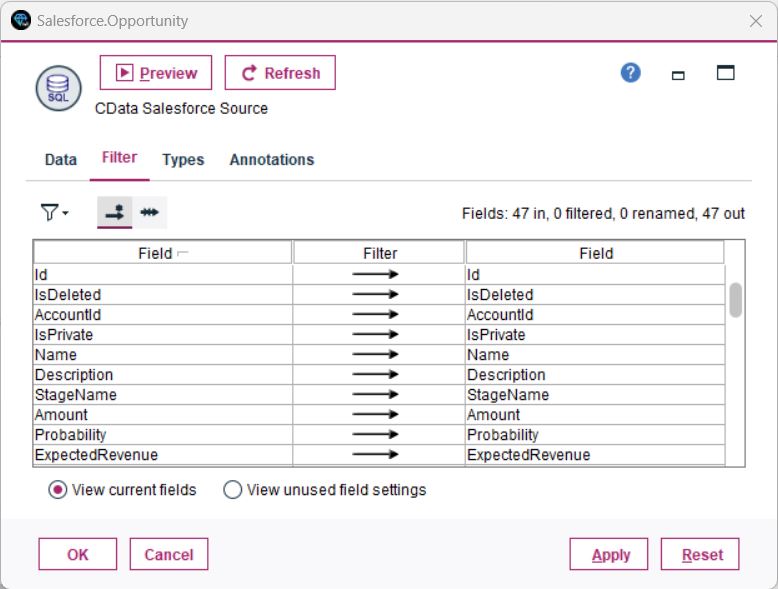
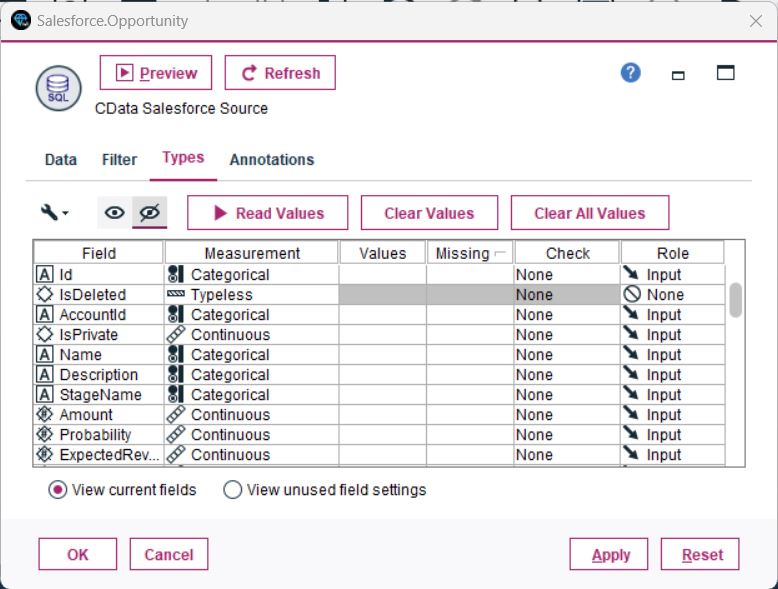
You have now performed a simple analysis, enabling SPSS Modeler to process and display insights from your database.
Unlock the Potential of Your Claude Compliance Data with CData
With the CData ODBC Driver for Claude Compliance, connecting Claude Compliance data data to IBM SPSS Modeler is seamless. Start your free trial today and unlock the full potential of your real-time data for advanced analytics and decision-making.
Ready to get started?
Download a free trial of the Claude Compliance ODBC Driver to get started:
Download NowLearn more:
 Claude Compliance ODBC Driver
The Claude Compliance ODBC Driver is a powerful tool that allows you to connect with live data from Claude Compliance, directly from any applications that support ODBC connectivity.
Access Claude Compliance data like you would a database - read Claude Compliance Activities, Chats, ChatMessages, CodeArtifacts, ComplianceRoles, Organizations, OrganizationUsers, Projects, etc. through a standard ODBC Driver interface.