




Build Data Flows from Claude Compliance to SQL Server using SSIS

Using SQL Server as a backup for critical business data provides an essential safety net against loss. Backing up data to SQL Server enables business users to more easily connect that data with features like reporting, analytics, and more.
This example demonstrates how to use the CData SSIS Tasks for Claude Compliance inside of a SQL Server SSIS workflow to transfer Claude Compliance data into a Microsoft SQL Server database.
Add the Components
To get started, add a new Claude Compliance source and SQL Server ADO.NET destination to a new data flow task.
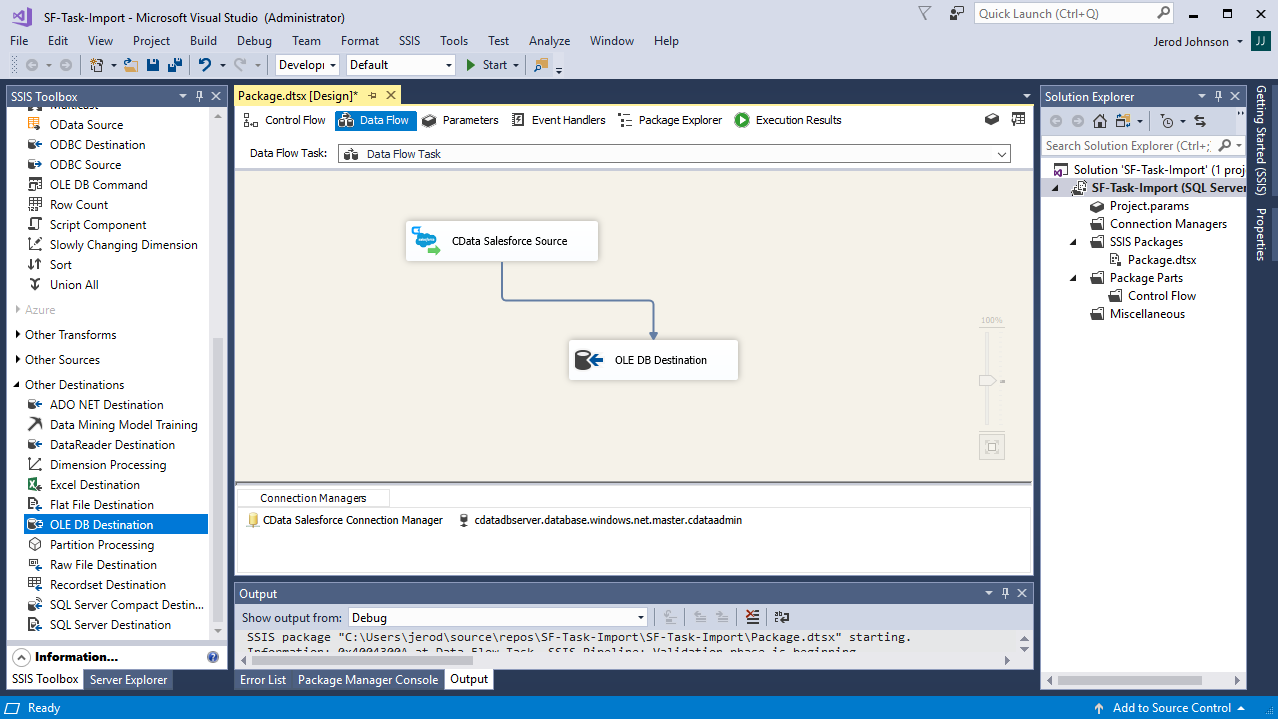
Create a New Connection Manager
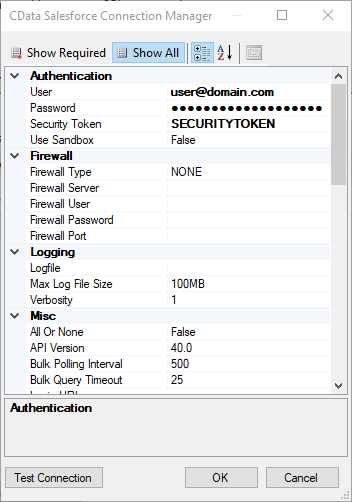
Follow the steps below to save Claude Compliance connection properties in a connection manager.
- In the Connection Manager window, right-click and then click New Connection. The Add SSIS Connection Manager dialog is displayed.
- In the Connection Manager type menu, select ClaudeCompliance. The CData Claude Compliance Connection Manager is displayed.
- Configure connection properties.
The driver connects to Claude Compliance using a Compliance Access Key, the only supported authentication method. Set the following connection property:
- APIKey: The Compliance Access Key you created.
Creating a Compliance Access Key
- Enable the Compliance API for your organization.
- Sign in to claude.ai as a primary owner or organization owner and open Organization settings > API > Keys.
- Select Create Key and assign only the scopes your integration needs:
- read:compliance_activities for Activities and the typed activity views.
- read:compliance_org_data for organizations, roles, groups, and settings.
- read:compliance_user_data for users, chats, files, projects, and downloads.
- delete:compliance_user_data for the explicit Delete stored procedures.
- Create the key and copy it when it appears. The key starts with sk-ant-api01- and is shown only once.
Optionally, set OrganizationUUID to limit organization-scoped views (such as OrganizationUsers and ComplianceRoles) to a single linked organization. If it is left empty, those views default to the first available organization and do not include data from all linked organizations.
Configure the Claude Compliance Source
Follow the steps below to specify the query to be used to extract Claude Compliance data.
- Double-click the Claude Compliance source to open the source component editor.
- In the Connection Manager menu, select the connection manager previously created.
- Specify the query to use for the data extraction. For example:
SELECT Id, Name FROM Projects WHERE OrganizationUuid = 'abcdef01-2345-6789-abcd-ef0123456789'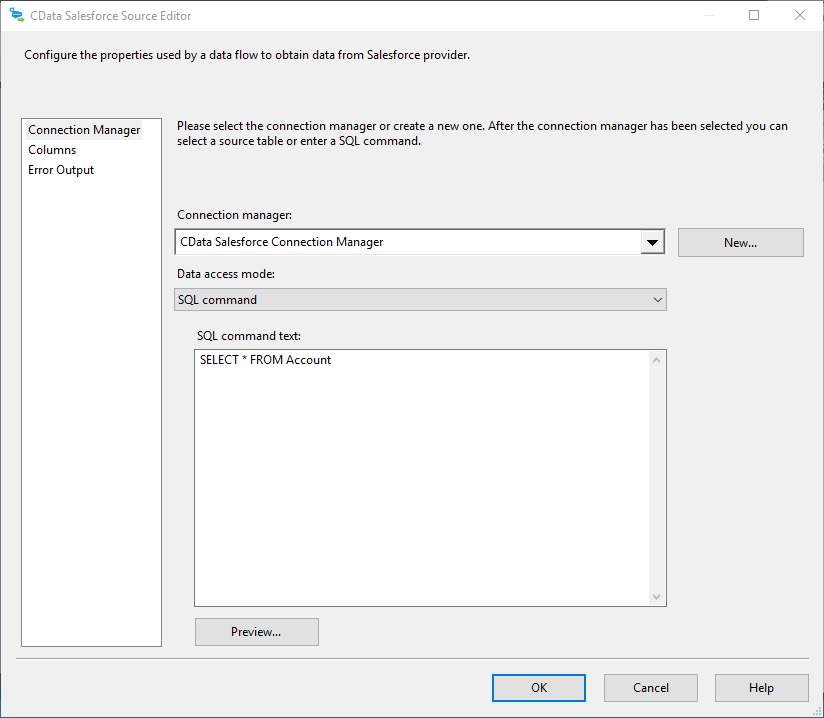
- Close the Claude Compliance Source control and connect it to the ADO.NET Destination.
Configure the SQL Server Destination
Follow the steps below to specify the SQL server table to load the Claude Compliance data into.
- Open the ADO.NET Destination and add a New Connection. Enter your server and database information here.
- In the Data access mode menu, select "table or view".
- In the Table Or View menu, select the table or view to populate.
- Configure any properties you wish to on the Mappings screen.
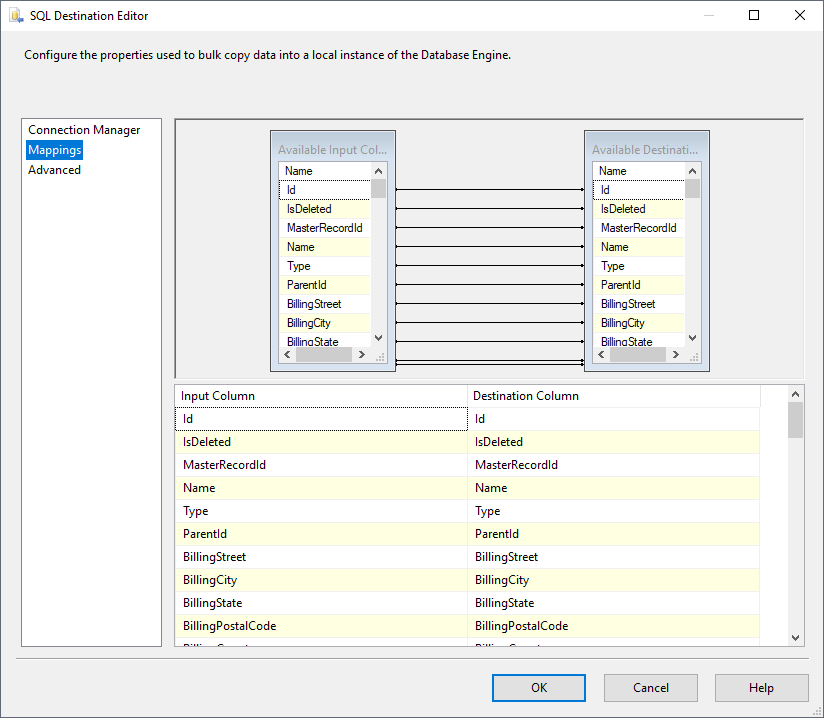
Run the Project
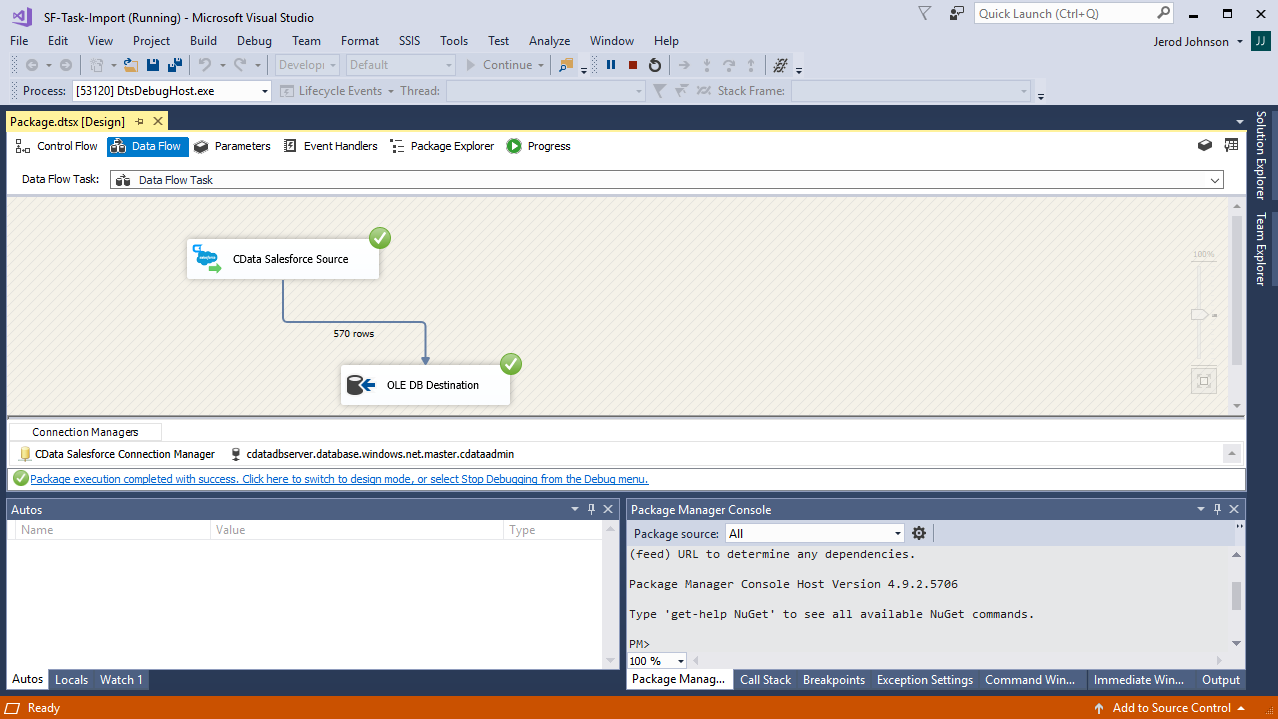
You can now run the project. After the SSIS Task has finished executing, your database will be populated with Claude Compliance data.
Ready to get started?
Download a free trial of the Claude Compliance SSIS Component to get started:
Download NowLearn more:
 Claude Compliance SSIS Components
Powerful SSIS Source Components that allow you to easily connect SQL Server with Claude Compliance through SSIS Workflows.
Use the Claude Compliance Data Flow Components to synchronize with Claude Compliance Activities, Chats, ChatMessages, CodeArtifacts, ComplianceRoles, Organizations, OrganizationUsers, Projects, and more. Perfect for data synchronization, local back-ups, workflow automation, and more!