





Access CleverPush Data from MySQL in HeidiSQL

HeidiSQL is an open-source database administration tool that natively supports MariaDB, MySQL, SQL Server, and PostgreSQL. When paired with the CData API Driver for ODBC and SQL Gateway, HediSQL's reach extends to include access to live CleverPush data. This article demonstrates how to connect to on-premise CleverPush and query CleverPush data in HeidiSQL.
Connect to CleverPush Data
If you have not already done so, provide values for the required connection properties in the data source name (DSN). You can use the built-in Microsoft ODBC Data Source Administrator to configure the DSN. This is also the last step of the driver installation. See the "Getting Started" chapter in the help documentation for a guide to using the Microsoft ODBC Data Source Administrator to create and configure a DSN.
Start by setting the Profile connection property to the location of the Cleverpush Profile on disk (e.g. C:\profiles\Cleverpush.apip). Next, set the ProfileSettings connection property to the connection string for Cleverpush (see below).
Cleverpush API Profile Settings
CleverPush uses private API keys to authenticate requests. Your API key is passed as the Authorization request header value on every API call.
You can find your private API key in the CleverPush dashboard under Settings > API. Use the private key (not the public key) for server-side access.
After setting the following connection properties, you are ready to connect:
- AuthScheme: Set this to APIKey.
- APIKey: Set this to your CleverPush private API key.
Optional Connection Properties
- ChannelId: Set this to your default CleverPush channel identifier. Most tables require a channel filter. Setting this property allows queries without specifying ChannelId in every WHERE clause.
When you configure the DSN, you may also want to set the Max Rows connection property. This will limit the number of rows returned, which is especially helpful for improving performance when designing reports and visualizations.
Configure the SQL Gateway
See the SQL Gateway Overview to set up connectivity to CleverPush data as a virtual MySQL database. You will configure a MySQL remoting service that listens for MySQL requests from clients. The service can be configured in the SQL Gateway UI.
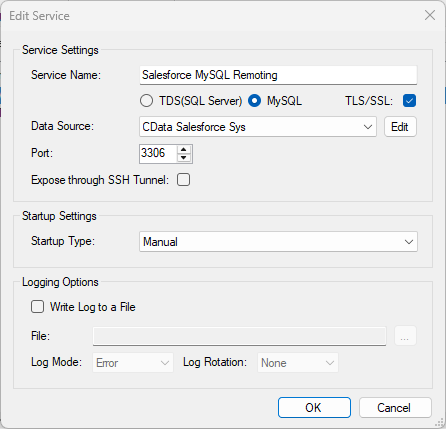
To connect to the SQL Gateway from HeidiSQL, you will need to run the SQL Gateway on a web-facing machine. After configuring the SQL Gateway, make note of the following information:
- The IP address or domain name of the machine hosting the SQL Gateway
- The data source name (likely CData API Sys) of the MySQL service
- The port number of the MySQL service
- The credentials of a SQL Gateway user with access to the service
Configure Remote Access
If your ODBC Driver and the remoting service are installed on-premise (and not accessible from HeidiSQL), you can use the reverse SSH tunneling feature to enable remote access. For detailed instructions, read our Knowledge Base article: SQL Gateway SSH Tunneling Capabilities.
Connect to CleverPush in HeidiSQL
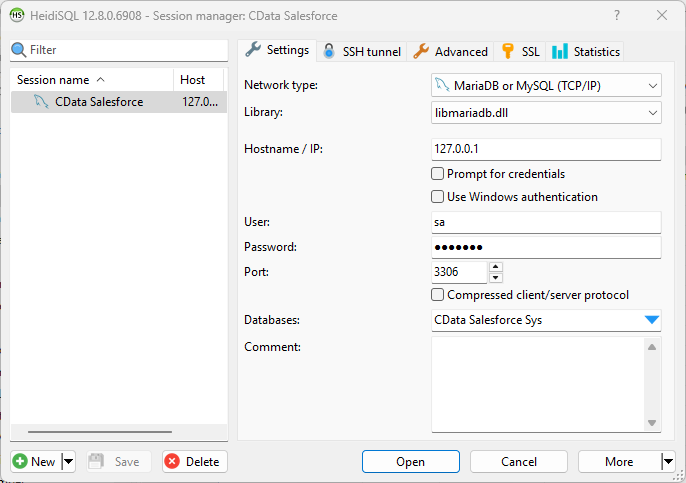
Once you have a MySQL Service configured for the CData API Driver for ODBC, you are ready to connect to the data in HeidiSQL. Start by creating a new connection Session in HeidiSQL, then choose the MySQL library type.
Configure the data set using the values for the MySQL service for CleverPush you configured in SQL Gateway (be sure to use the DSN for the database name). Validate your connection and click Open.
Query CleverPush from HeidiSQL
- In the database listing on the left, find your connection to CleverPush configured earlier.
- In the database listing on the left, expand the appropriate connection and to view individual tables or data objects present within CleverPush.
- Write custom SQL queries targeting these tables, treating the data source like any SQL Server database, or visually explore each tabular data set by selecting the relevant tables
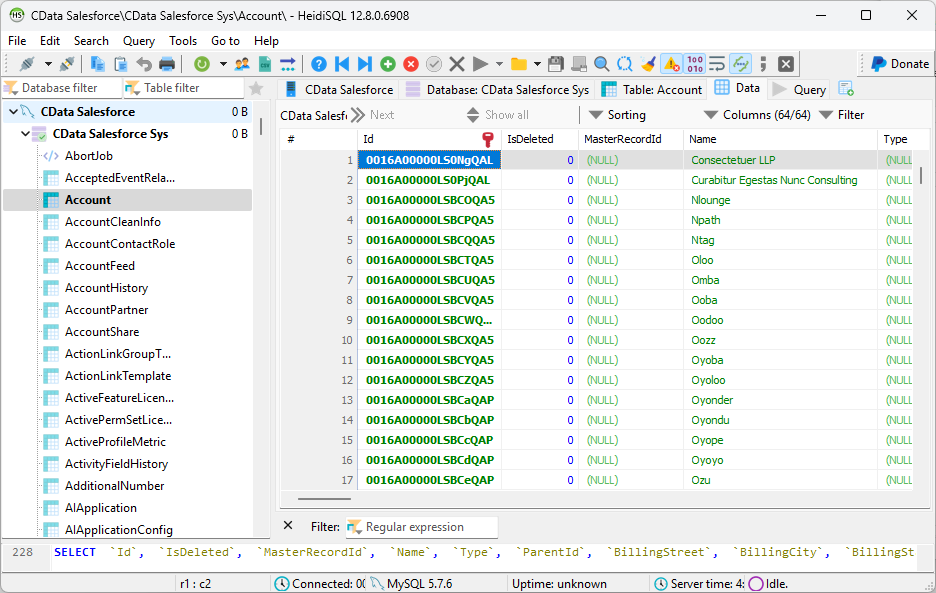
With the CData API Driver for ODBC and SQL Gateway, you are able to easily query data from CleverPush data in HeidiSQL. If you have any questions, such as needing to access your on-premises data from HeidiSQL, let our Support Team know.