






Use ChatGPT to Talk to Your Cosmos DB Data via CData Connect AI

ChatGPT is an AI chatbot developed by OpenAI, launched in November 2022. Based on large language models (LLMs), it enables users to refine and steer conversations through natural language processing. ChatGPT's developer mode, available to Plus and Pro subscribers, provides full Model Context Protocol (MCP) support for connecting to external data sources and tools.
CData Connect AI offers a dedicated cloud-to-cloud interface for connecting to Cosmos DB data. The CData Connect AI Remote MCP Server enables secure communication between ChatGPT and Cosmos DB. This allows you to ask questions and take actions on your Cosmos DB data using ChatGPT, all without the need for data replication to a natively supported database. With its inherent optimized data processing capabilities, CData Connect AI efficiently channels all supported SQL operations, including filters and JOINs, directly to Cosmos DB. This leverages server-side processing to swiftly deliver the requested Cosmos DB data.
Step 1: Configure Cosmos DB Connectivity for ChatGPT
Connectivity to Cosmos DB from ChatGPT is made possible through CData Connect AI Remote MCP. To interact with Cosmos DB data from ChatGPT, we start by creating and configuring a Cosmos DB connection in CData Connect AI.
- Log into Connect AI, click Sources, and then click Add Connection
- Select "Cosmos DB" from the Add Connection panel
-
Enter the necessary authentication properties to connect to Cosmos DB.
To obtain the connection string needed to connect to a Cosmos DB account using the SQL API, log in to the Azure Portal, select Azure Cosmos DB, and select your account. In the Settings section, click Connection String and set the following values:
- AccountEndpoint: The Cosmos DB account URL from the Keys blade of the Cosmos DB account
- AccountKey: In the Azure portal, navigate to the Cosmos DB service and select your Azure Cosmos DB account. From the resource menu, go to the Keys page. Find the PRIMARY KEY value and set AccountKey to this value.

- Click Save & Test


With the connection configured, we are ready to connect to Cosmos DB data from ChatGPT.
Step 2: Connect ChatGPT to CData Connect AI
Follow these steps to add a CData Connect AI connector in ChatGPT:
- Sign in to ChatGPT with a Plus or Pro subscription.
- Navigate to Settings > Connectors.
- Under the "Advanced settings" section, toggle on Developer mode.
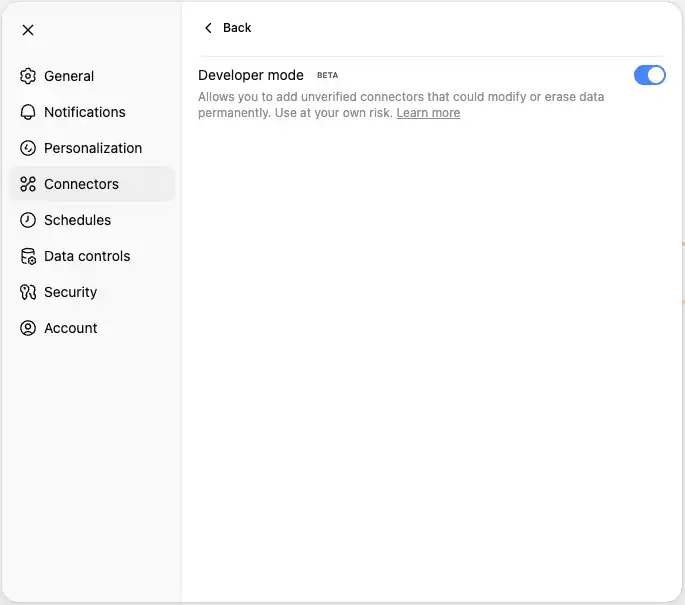
- Once developer mode is enabled, return to the Connectors page and click Create.
- Enter a name for the connector (such as Connect AI MCP).
- In the Remote MCP server URL field, enter:
https://mcp.cloud.cdata.com/mcp
- Set Authentication to "OAuth."
- Check I trust this application and click Create
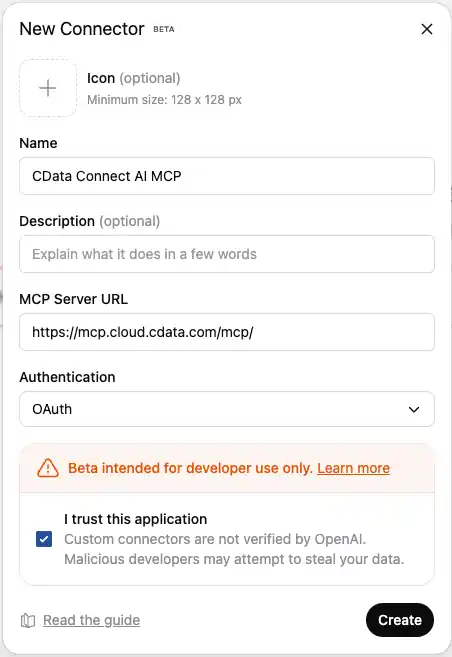
- You will be redirected to CData Connect AI's OAuth authorization page. Sign in with your Connect AI credentials.
- Review the permissions requested and click Authorize to grant ChatGPT access to your Connect AI resources.
- After successful authorization, you will be redirected back to ChatGPT.
- The Connect AI MCP Server will now appear in your available connectors list where you can manage the connector and enable/disable actions (tools).

Step 3: Explore Live Cosmos DB Data with ChatGPT
- Start a new conversation in ChatGPT.
- In the tool picker, enable "Developer Mode."
- Enable your Connect AI MCP Sever.
- You can now start exploring your data with natural language prompts. ChatGPT will use the Connect AI MCP server to query your live Cosmos DB data. Example prompts:
- "Show me all customers from the last 30 days"
- "What are my top performing products?"
- "Analyze sales trends for this quarter"
- "List all active projects and their current status"

- ChatGPT will translate your natural language queries into SQL and execute them against your Cosmos DB data through the Connect AI MCP server.
IMPORTANT: ChatGPT's developer mode provides full read/write MCP access. Be cautious when allowing write operations to your Cosmos DB data. Always review and confirm any data modifications before allowing them to proceed.
NOTE: Developer mode is in beta and only available to ChatGPT Plus and Pro subscribers. Refer to OpenAI's documentation for the latest setup information.
Get CData Connect AI
To get live data access to 300+ SaaS, Big Data, and NoSQL sources directly from your cloud applications, try CData Connect AI today!
