






Automated Continuous DB2 for i Replication to Microsoft Access

Always-on applications rely on automatic failover capabilities and real-time data access. CData Sync integrates live DB2 for i data into your Microsoft Access instance, allowing you to consolidate all of your data into a single location for archiving, reporting, analytics, machine learning, artificial intelligence and more.
Configure Microsoft Access as a Replication Destination
Using CData Sync, you can replicate DB2 for i data to Microsoft Access. To add a replication destination, navigate to the Connections tab.
- Click Add Connection.
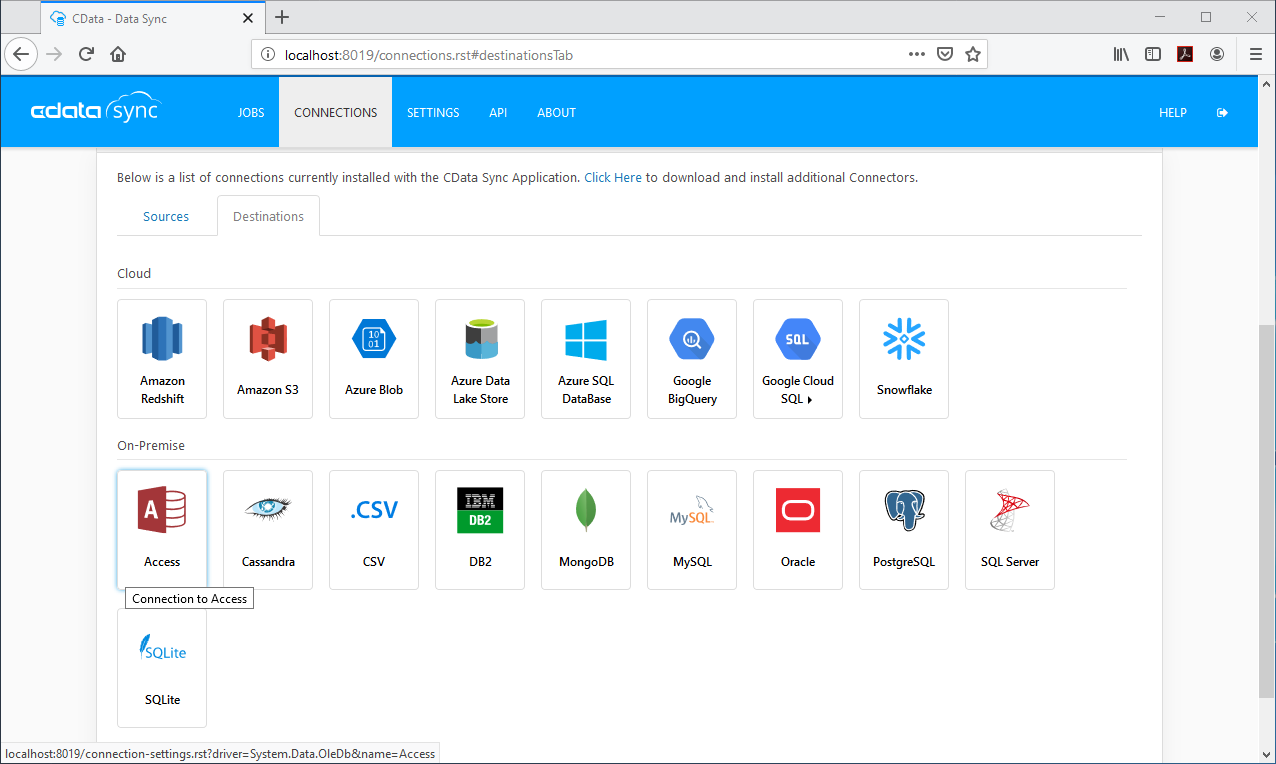
- Select Microsoft Access as a destination.
- Enter the necessary connection properties. To connect to Microsoft Access, set the following:
- Data Source: The path to the Access database. The application must have read/write permissions to the database.
- Provider: The OLEDB Provider. For MS Office 2007 and above, use Microsoft.ACE.OLEDB.12.0.
Windows Edition
Connecting to Access as a destination requires the Microsoft Access Database Engine, which can be downloaded from here.
Be sure to download the correct bitness of the driver as 64bit MS Office only works with the 64bit driver. If using 32bit MS Office, you will need to host DataSync in IIS and enable 32-bit applications. This can be set in the "Advanced Settings" for you Application Pool. Refer to Configuration in IIS for more information on hosting DataSync in IIS.
- Click Test Connection to ensure that the connection is configured properly.
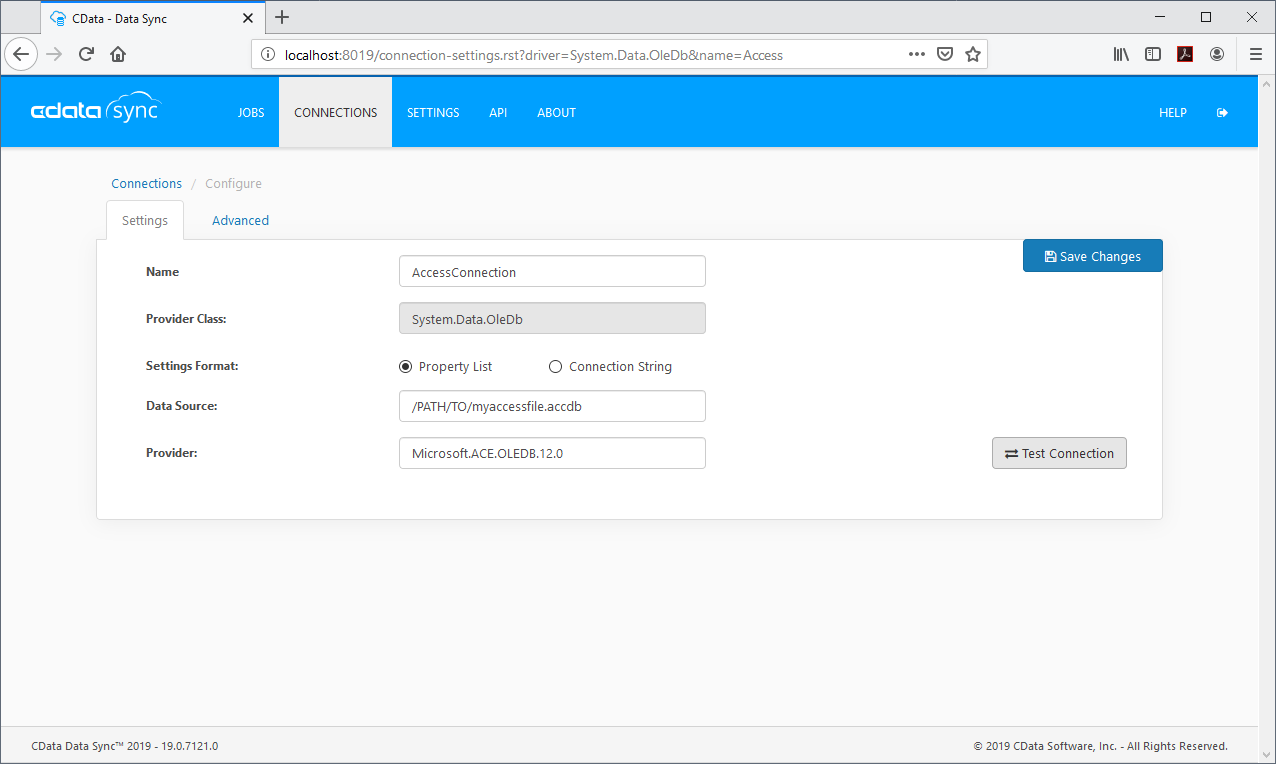
- Click Save Changes.
Configure the DB2 for i Connection
You can configure a connection to DB2 for i from the Connections tab. To add a connection to your DB2 for i account, navigate to the Connections tab.
- Click Add Connection.
- Select a source (DB2 for i).
- Configure the connection properties.
Prerequisites
Before setting up the DB2 for i source connector, configure DB2 for i for change data capture (CDC) using journal receivers. The following capabilities aren't supported in Sync:
- Remote journals or failover functionality.
- Large object types such as CLOB, XML, TEXT, and BLOB.
Authenticate to DB2 for i
Set the following required properties:
- Server: The address or host name of the DB2 for i server. The default server is localhost.
- Database: The name of your DB2 for i database.
- Port: The port number for your server. The default port is 446.
- User: The username that authenticates to the DB2 for i database.
- Password: The password that authenticates to the DB2 for i database.
For details on journal/schema selection and creating a CDC job, refer to the Help documentation.
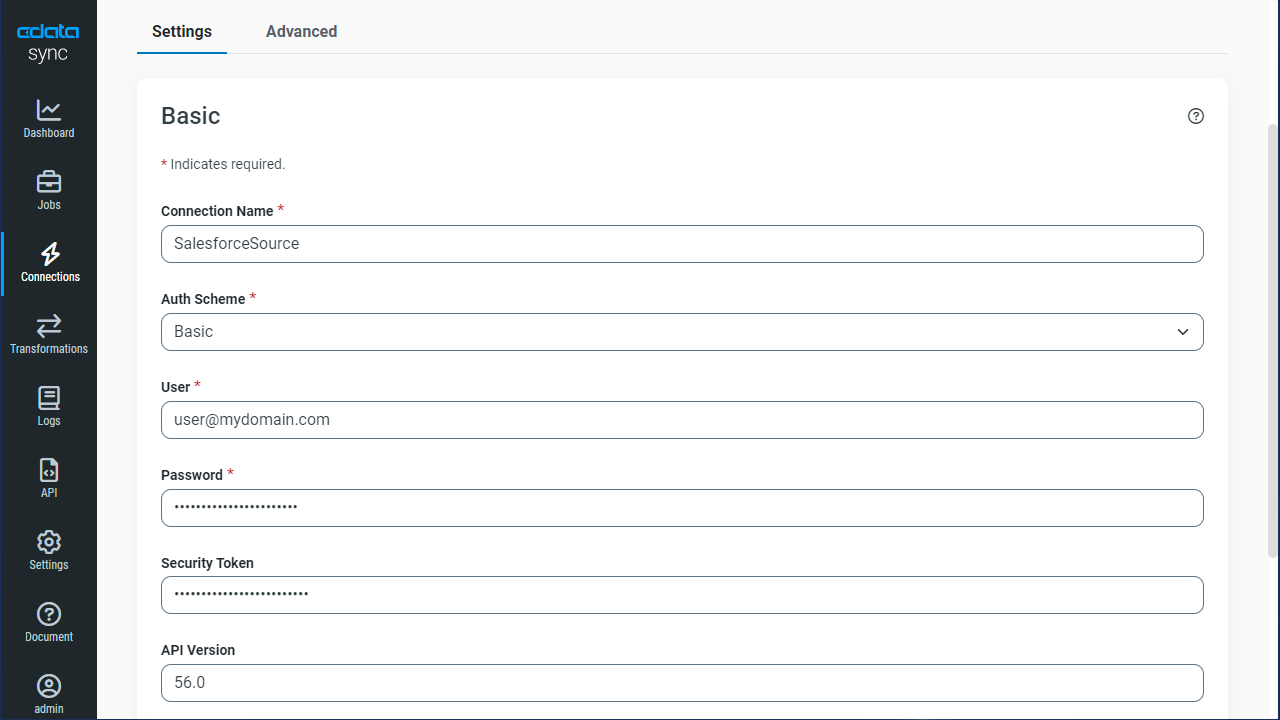
- Click Connect to ensure that the connection is configured properly.
- Click Save Changes.
Configure Replication Queries
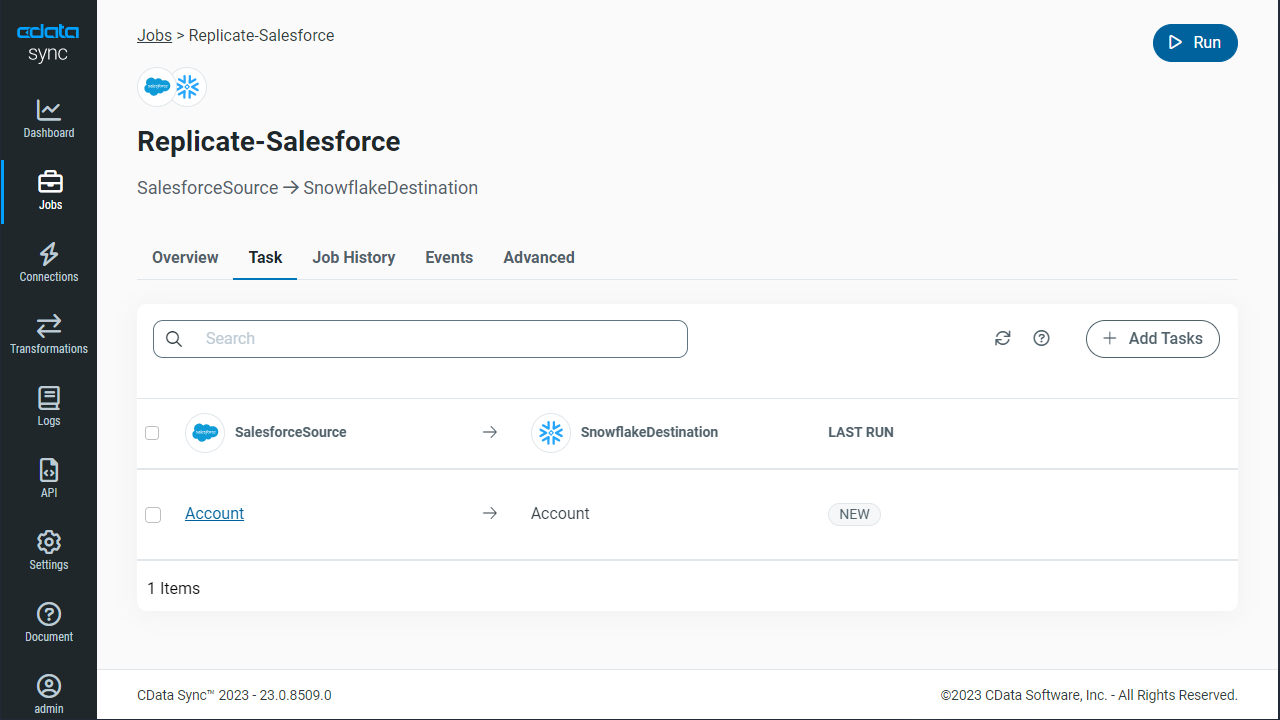
CData Sync enables you to control replication with a point-and-click interface and with SQL queries. For each replication you wish to configure, navigate to the Jobs tab and click Add Job. Select the Source and Destination for your replication.
Replicate Entire Tables
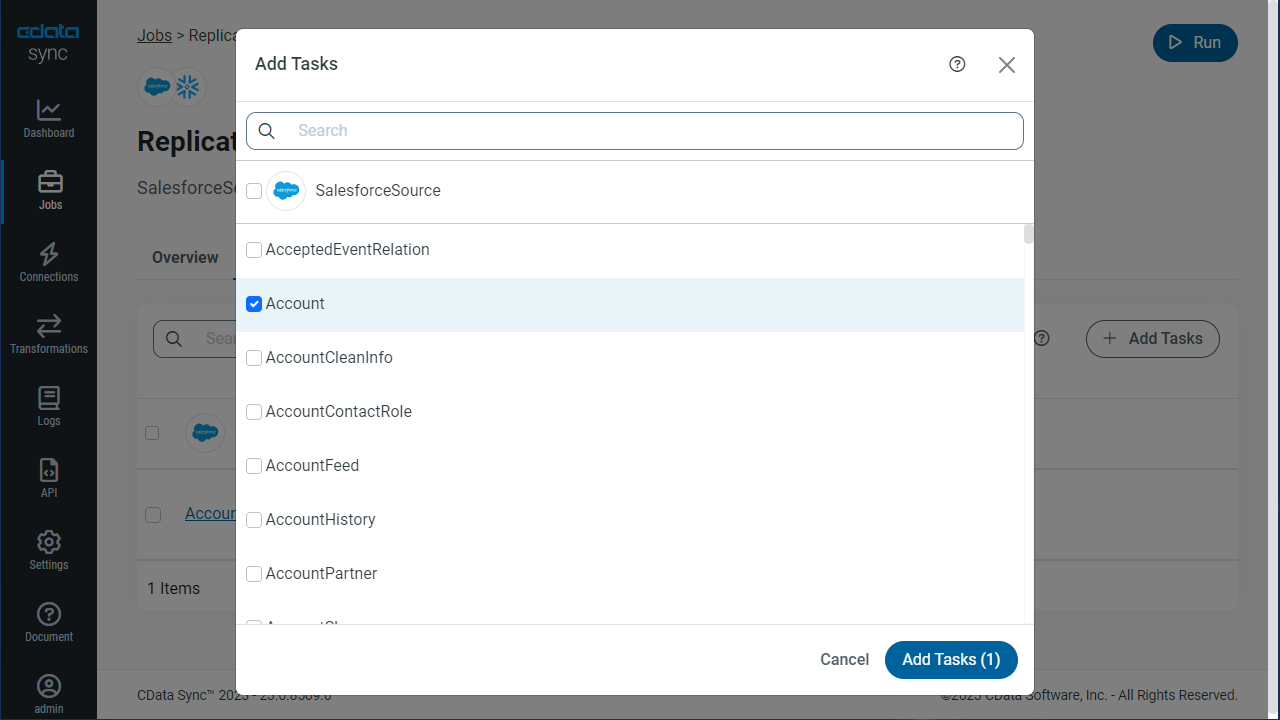
To replicate an entire table, click Add Tables in the Tables section, choose the table(s) you wish to replicate, and click Add Selected Tables.
Customize Your Replication
You can use the Columns and Query tabs of a task to customize your replication. The Columns tab allows you to specify which columns to replicate, rename the columns at the destination, and even perform operations on the source data before replicating. The Query tab allows you to add filters, grouping, and sorting to the replication.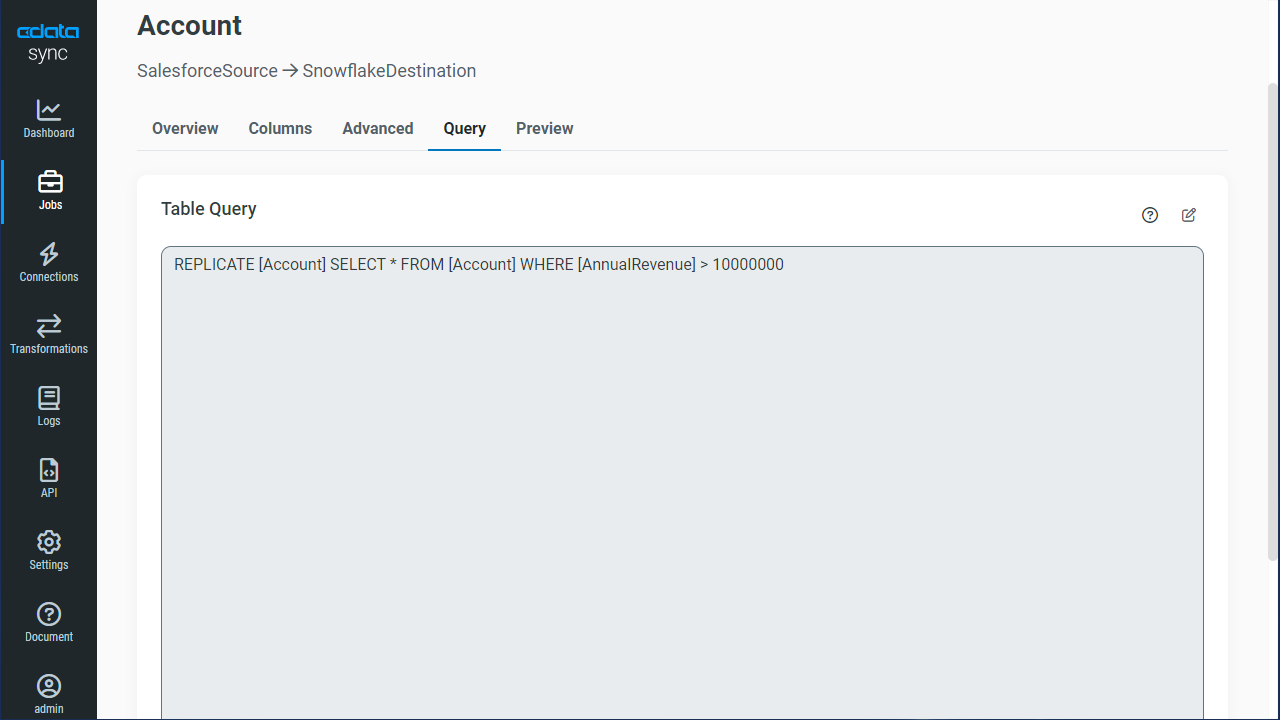
Schedule Your Replication
In the Schedule section, you can schedule a job to run automatically, configuring the job to run after specified intervals ranging from once every 10 minutes to once every month.
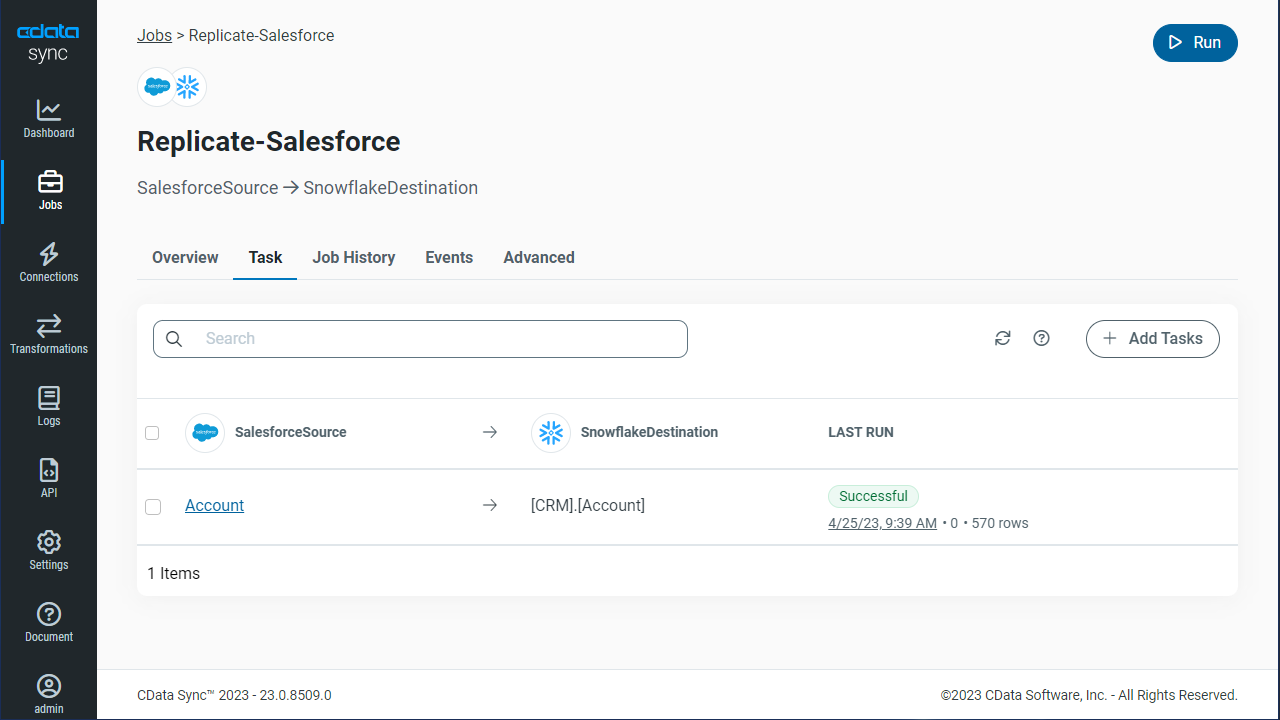
Once you have configured the replication job, click Save Changes. You can configure any number of jobs to manage the replication of your DB2 for i data to Microsoft Access.