Rapidly Develop Deel-Driven Apps with Active Query Builder

Write standard .NET to expose Deel data through an SQL interface: Active Query Builder helps developers write SQL interfaces; the CData ODBC Driver for Deel enables standards-based access to Deel. This integration uses the Microsoft ADO.NET Provider for ODBC as a bridge between the ODBC Driver and the Active Query Builder objects to build a visual SQL composer.
Connect to Deel as an ODBC Data Source
If you have not already, first specify connection properties in an ODBC DSN (data source name). This is the last step of the driver installation. You can use the Microsoft ODBC Data Source Administrator to create and configure ODBC DSNs.
To authenticate to Deel, you can use API Key (Bearer Token) authentication.
Using APIKey Authentication
You can authenticate using a Deel API Key. Create an API key in your Deel account settings under Settings > API or Developer Settings. Make sure to grant appropriate permissions based on the data you need to access (e.g., read access for invoices, timesheets, contracts, workers, etc.).
After creating your API Key, set the following connection properties:
- AuthScheme: Set this to APIKey.
- APIKey: Set this to your Deel API Key (Bearer token).
Example APIKey connection string
Profile=C:\profiles\Deel.apip;AuthScheme=APIKey;ProfileSettings='APIKey=your_deel_api_key';
Use SQL to Interact with Deel
Follow the steps below to create a WinForms visual query builder.
- Open Active Query Builder for .NET WinForms.
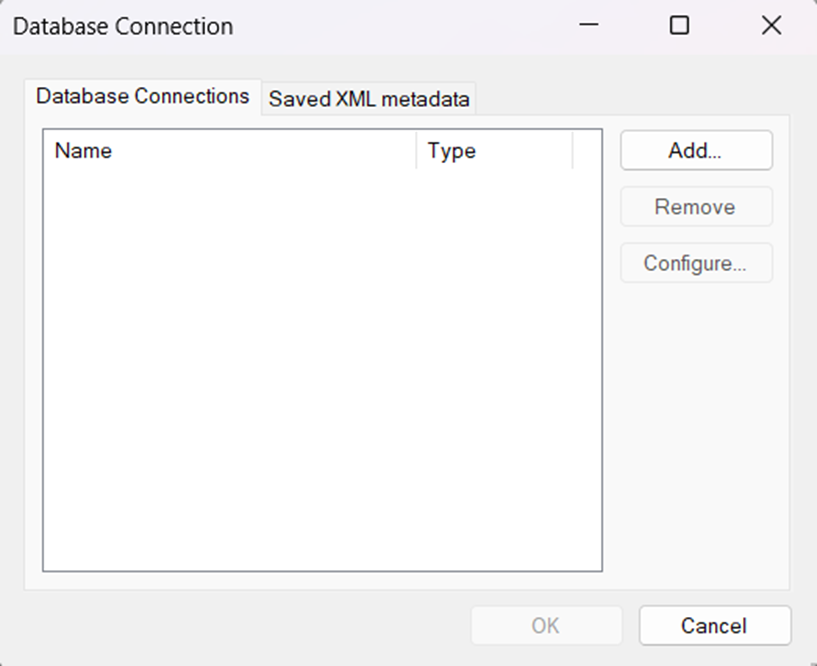
- In the new Windows Forms project go to the "File" menu and click "Connect..."
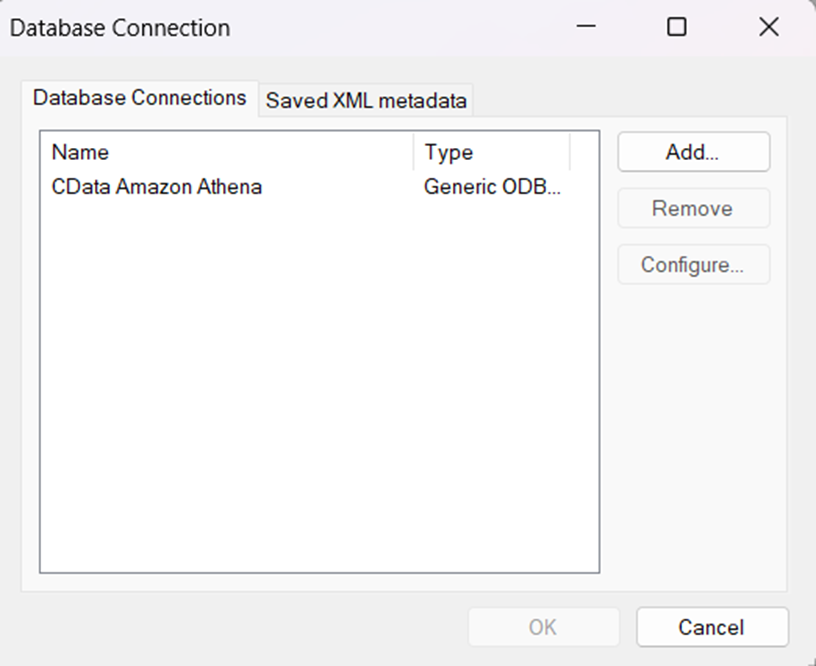
- Under Database Connections, click "Add..."
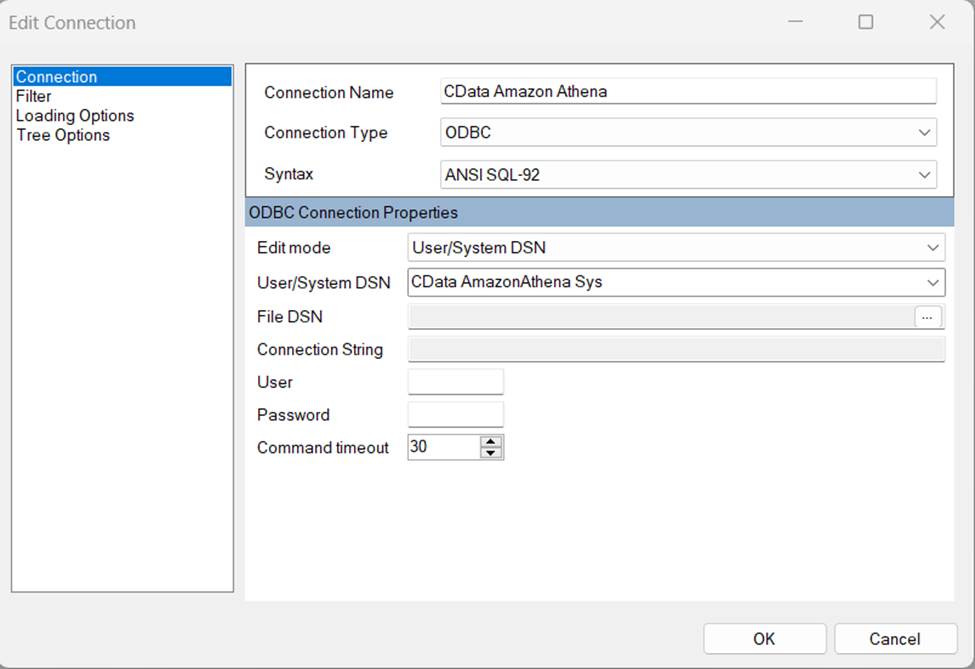
- Set your desired Connection Name (e.g. CData Deel), set Connection Type to "ODBC" and locate your previously configured DSN in the "User/System" DSN dropdown.
- Click "OK" to save the new connection.
- Back in the Database Connection wizard, select the newly created connection and click "OK."
- Click "File" > "New Query" to create a QueryBuilder
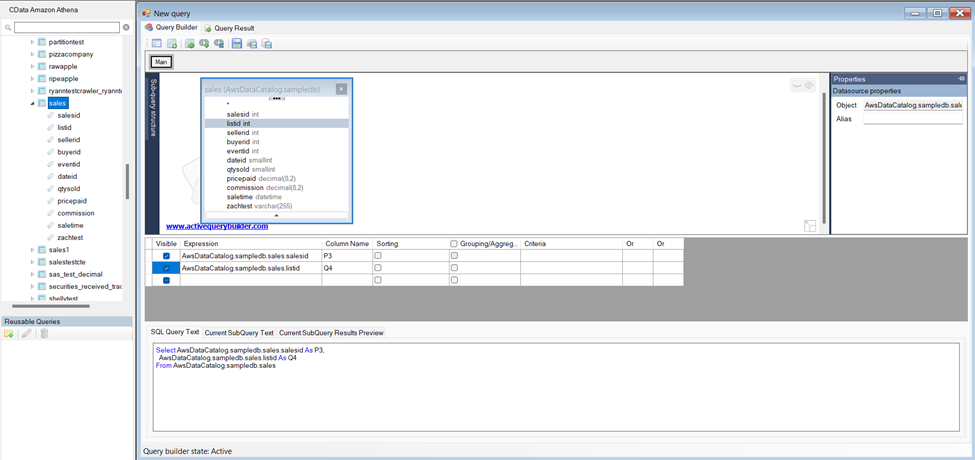
You can now build queries visually: Double-click a table in the Columns Pane Area and an entity/relationship diagram is displayed in the Query Building Area. Columns that you select in the diagram are added to the query.