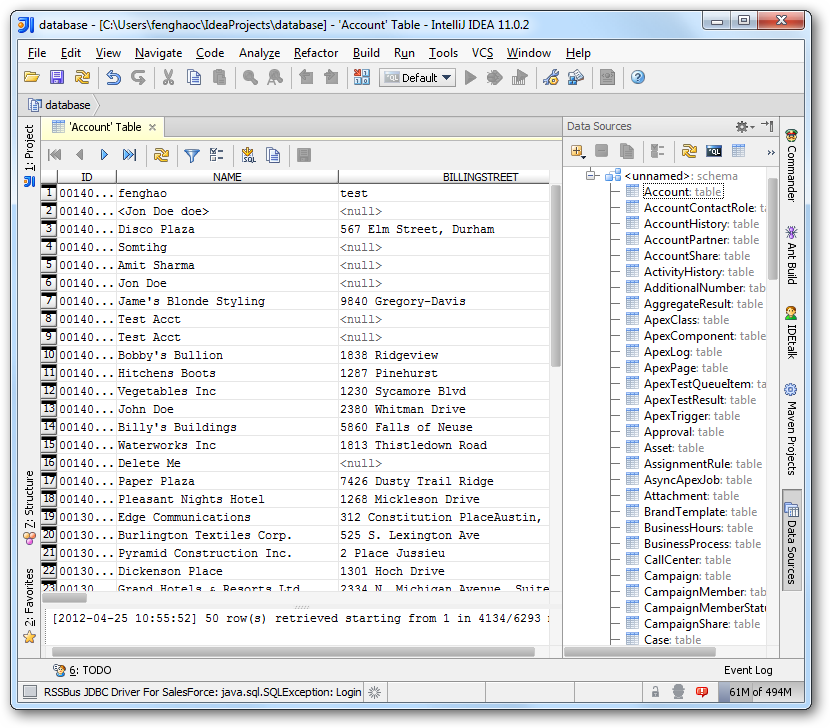
How to connect to Deepgram Data from IntelliJ

The CData JDBC Driver for Deepgram enables you to access Deepgram as a JDBC data source, providing integration with rapid development tools in IDEs. This article shows how to use the data source configuration wizard to connect to Deepgram data in IntelliJ.
Create a JBDC Data Source for Deepgram
Follow the steps below to add the driver JAR and define connection properties required to connect to Deepgram data.
- In the Data Sources window, right-click and then click Add Data Source -> DB Data Source.
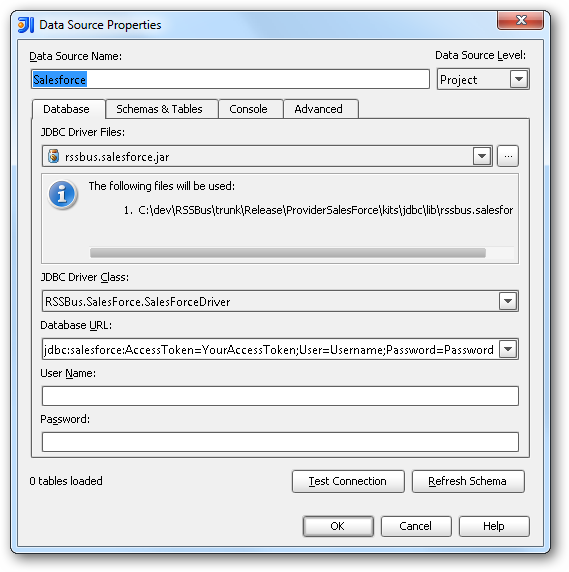
In the Data Source Properties dialog that appears, the following properties are required:
- JDBC Driver Files: Click the button next to this menu to add the JDBC Driver file cdata.jdbc.api.jar, located in the installation directory.
- JDBC Driver Class: In this menu, select cdata.jdbc.api.APIDriver from the list.
Database URL: Enter the connection URL in the JDBC URL property. The URL must start with jdbc:api: and includes connection properties separated with semicolons.
Start by setting the Profile connection property to the location of the Deepgram Profile on disk (e.g. C:\profiles\Deepgram.apip). Next, set the ProfileSettings connection property to the connection string for Deepgram (see below).
Deepgram API Profile Settings
Deepgram uses API key authentication for all endpoints. API keys are scoped to a project and carry permission scopes (member, administrator, or owner). Create and manage API keys in the Deepgram console.
After obtaining your API key, set the following connection properties:
- AuthScheme: Set this to APIKey.
- APIKey: Set this to your Deepgram API key.
Built-in Connection String Designer
For assistance in constructing the JDBC URL, use the connection string designer built into the Deepgram JDBC Driver. Either double-click the JAR file or execute the jar file from the command-line.
java -jar cdata.jdbc.api.jarFill in the connection properties and copy the connection string to the clipboard.

A typical JDBC URL is the following:
jdbc:api:Profile=C:\profiles\Deepgram.apip;AuthScheme=APIKey;ProfileSettings='APIKey=YOUR_DEEPGRAM_API_KEY';
Edit and Save Deepgram Data
To discover schema information, right-click the data source you just created and click Refresh Tables. To query a table, right-click it and then click Open Tables Editor.