




Using the CData ODBC Driver for Deepgram in PyCharm

The CData ODBC Drivers can be used in any environment that supports loading an ODBC Driver. In this tutorial we will explore using the CData ODBC Driver for Deepgram from within PyCharm. Included are steps for adding the CData ODBC Driver as a data source, as well as basic PyCharm code to query the data source and display results.
To begin, this tutorial will assume that you have already installed the CData ODBC Driver for Deepgram as well as PyCharm.
Add Pyodbc to the Project
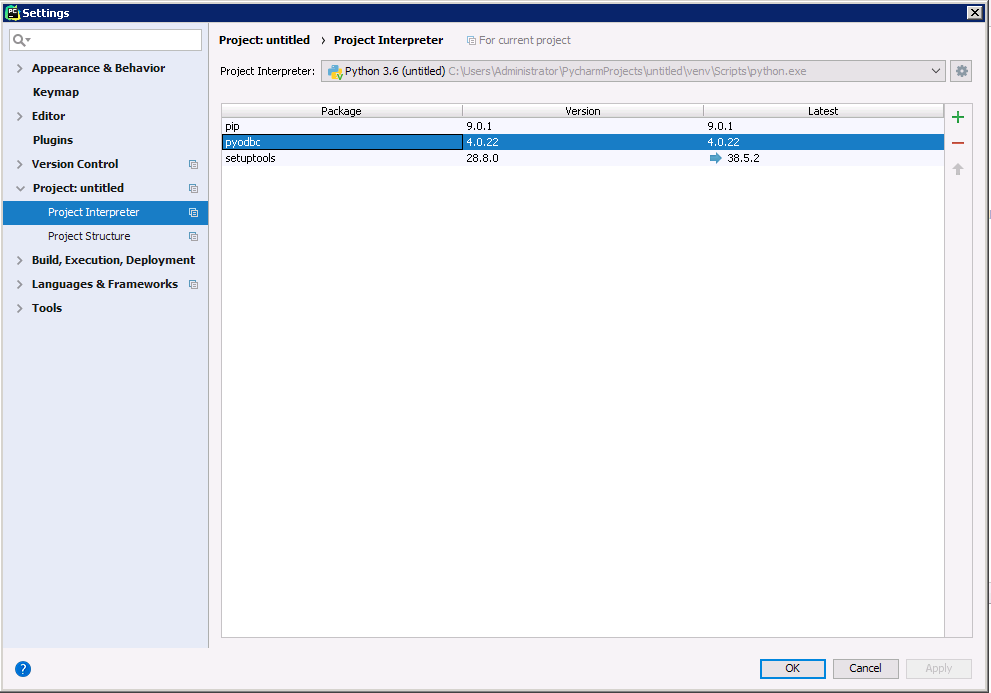
Follow the steps below to add the pyodbc module to your project.
- Click File -> Settings to open the project settings window.
- Click Project Interpreter from the Project: YourProjectName menu.
- To add pyodbc, click the + button and enter pyodbc.
- Click Install Package to install pyodbc.
Connect to Deepgram
You can now connect with an ODBC connection string or a DSN. See the Getting Started section in the CData driver documentation for a guide to creating a DSN on your OS.
Start by setting the Profile connection property to the location of the Deepgram Profile on disk (e.g. C:\profiles\Deepgram.apip). Next, set the ProfileSettings connection property to the connection string for Deepgram (see below).
Deepgram API Profile Settings
Deepgram uses API key authentication for all endpoints. API keys are scoped to a project and carry permission scopes (member, administrator, or owner). Create and manage API keys in the Deepgram console.
After obtaining your API key, set the following connection properties:
- AuthScheme: Set this to APIKey.
- APIKey: Set this to your Deepgram API key.
Below is the syntax for a DSN:
[CData API Source]
Driver = CData ODBC Driver for Deepgram
Description = My Description
Profile = C:\profiles\Deepgram.apip
AuthScheme = APIKey
ProfileSettings = 'APIKey = YOUR_DEEPGRAM_API_KEY'
Execute SQL to Deepgram
Instantiate a Cursor and use the execute method of the Cursor class to execute any SQL statement.
import pyodbc

cnxn = pyodbc.connect('DRIVER={CData ODBC Driver for API};Profile = C:\profiles\Deepgram.apip;AuthScheme = APIKey;ProfileSettings = 'APIKey = YOUR_DEEPGRAM_API_KEY';')
cursor = cnxn.cursor()
cursor.execute("SELECT ApiKeyId, MemberEmail FROM Keys WHERE ProjectId = 'your-project-id'")
rows = cursor.fetchall()
for row in rows:
  print(row.ApiKeyId, row.MemberEmail)
After connecting to Deepgram in PyCharm using the CData ODBC Driver, you will be able to build Python apps with access to Deepgram data as if it were a standard database. If you have any questions, comments, or feedback regarding this tutorial, please contact us at [email protected].