Connect to DeTrack Data in DBArtisan

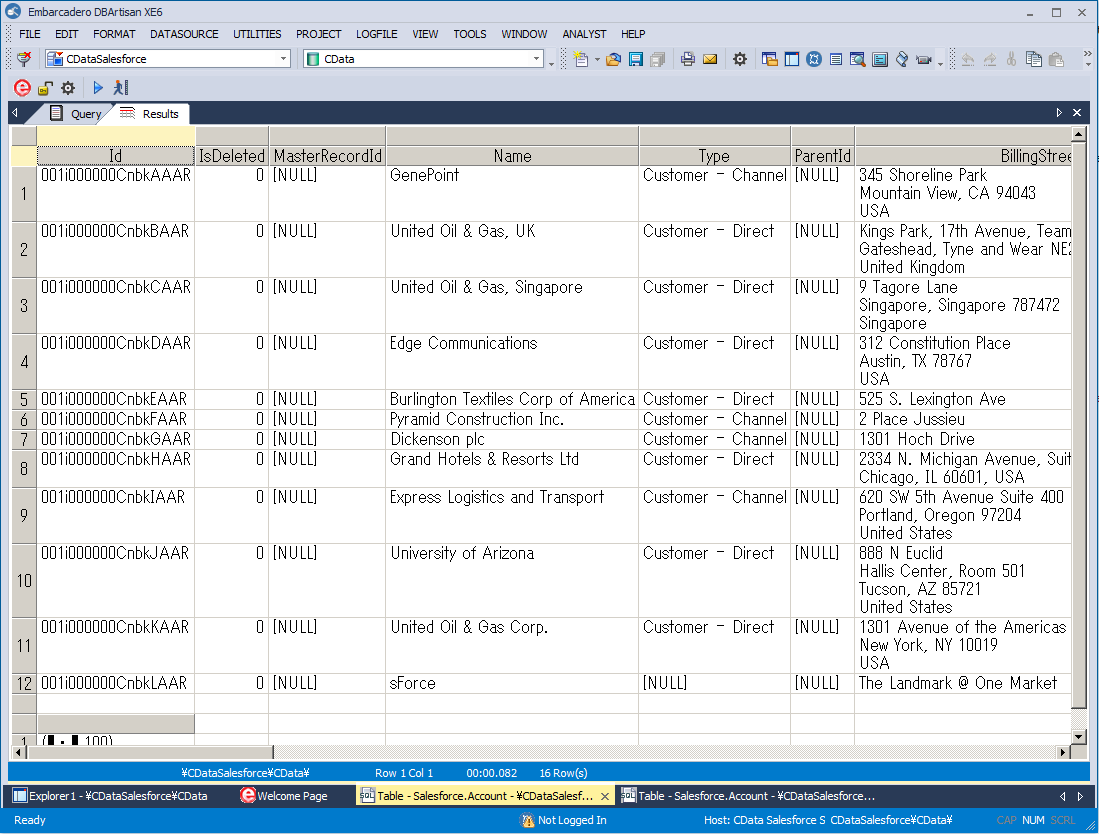
The CData ODBC Driver for DeTrack seamlessly integrates DeTrack data into database management tools like DBArtisan by enabling you to access DeTrack data as a database. This article shows how to create an data source for DeTrack in DBArtisan and execute queries. You can then edit data visually and execute standard SQL.
Integrate DeTrack Data into DBArtisan Projects
If you have not already, first specify connection properties in an ODBC DSN (data source name). This is the last step of the driver installation. You can use the Microsoft ODBC Data Source Administrator to create and configure ODBC DSNs.
Start by setting the Profile connection property to the location of the DeTrack Profile on disk (e.g. C:\profiles\DeTrack.apip). Next, set the ProfileSettings connection property to the connection string for DeTrack (see below).
DeTrack API Profile Settings
DeTrack uses API Key authentication. Your DeTrack API key is used to authenticate all requests via the X-API-Key header. You can obtain your API key from your DeTrack account settings at app.detrack.com under Settings > API & Webhooks.
After setting the following connection properties, you are ready to connect:
- AuthScheme: Set this to APIKey.
- APIKey: Set this to your DeTrack API key.
You can then follow the steps below to register DeTrack data as a database instance in your project:
- In DBArtisan, click Data Source -> Register Datasource.
- Select Generic ODBC.
- Enter a name for the data source and select the DSN.
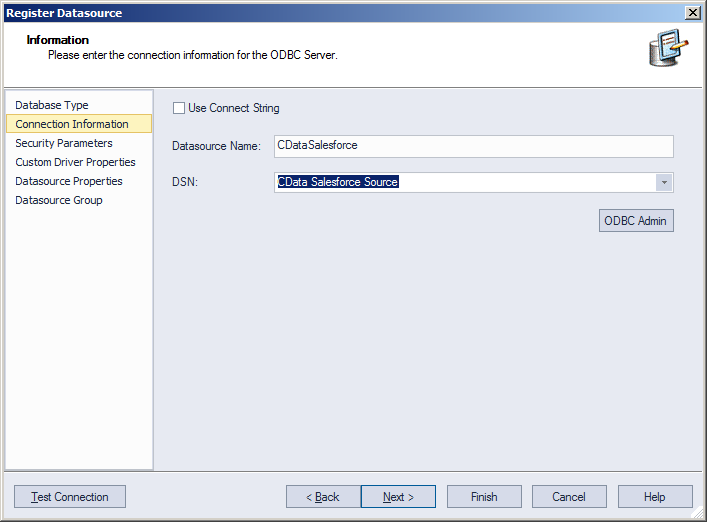
- Finish the wizard to connect to DeTrack data. DeTrack entities are displayed in the Datasource Explorer.
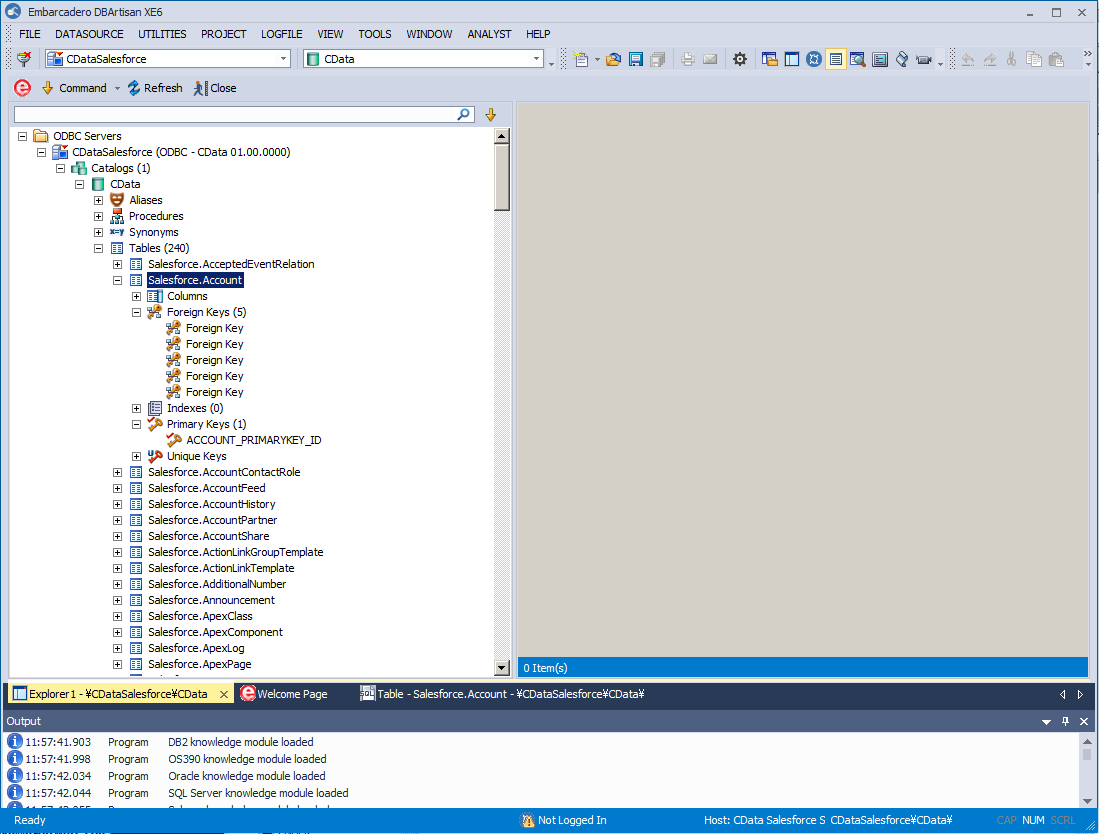
You can now work with DeTrack data as you work with any other database. See the driver help documentation for more information on the queries supported by the DeTrack API.