






Integrate Google's Antigravity Agent with Live HCL Domino Data via CData Connect AI

Antigravity is an AI-native development environment designed around autonomous and semi-autonomous agents. It allows developers to run agent-driven workflows directly inside the editor, combining planning, execution, and tool usage in a single interface.
By integrating Antigravity with CData Connect AI through the built-in MCP (Model Context Protocol) Server, agents gain governed, real-time access to live HCL Domino data. This enables Antigravity agents to explore schemas, query data, and perform actions without manual data movement or custom API wiring.
This article walks through configuring HCL Domino connectivity in Connect AI, generating required access token, registering the CData MCP Server in Antigravity, and validating the integration by querying live HCL Domino data from an agent-driven workflow.
Step 1: Configure HCL Domino connectivity for Antigravity
Connectivity to HCL Domino from Antigravity is made possible through CData Connect AI's Remote MCP Server. To interact with HCL Domino data from Antigravity, start by creating and configuring a HCL Domino connection in CData Connect AI.
- Log into Connect AI, click Sources, and then click Add Connection
- Select HCL Domino from the Add Connection panel
-
Enter the necessary authentication properties to connect to HCL Domino.
Connecting to Domino
To connect to Domino data, set the following properties:
- URL: The host name or IP of the server hosting the Domino database. Include the port of the server hosting the Domino database. For example: http://sampleserver:1234/
- DatabaseScope: The name of a scope in the Domino Web UI. The driver exposes forms and views for the schema governed by the specified scope. In the Domino Admin UI, select the Scopes menu in the sidebar. Set this property to the name of an existing scope.
Authenticating with Domino
Domino supports authenticating via login credentials or an Entra ID (formerly Azure AD) OAuth application:
Login Credentials
To authenticate with login credentials, set the following properties:
- AuthScheme: Set this to "OAuthPassword"
- User: The username of the authenticating Domino user
- Password: The password associated with the authenticating Domino user
The driver uses the login credentials to automatically perform an OAuth token exchange.
EntraID (formerly AzureAD)
This authentication method uses Entra ID (formerly Azure AD) as an IdP to obtain a JWT token. You need to create a custom OAuth application in Entra ID (formerly Azure AD) and configure it as an IdP. To do so, follow the instructions in the Help documentation. Then set the following properties:
- AuthScheme: Set this to "EntraID (formerly AzureAD)"
- InitiateOAuth: Set this to GETANDREFRESH. You can use InitiateOAuth to avoid repeating the OAuth exchange and manually setting the OAuthAccessToken.
- OAuthClientId: The Client ID obtained when setting up the custom OAuth application.
- OAuthClientSecret: The Client secret obtained when setting up the custom OAuth application.
- CallbackURL: The redirect URI defined when you registered your app. For example: https://localhost:33333
- AzureTenant: The Microsoft Online tenant being used to access data. Supply either a value in the form companyname.microsoft.com or the tenant ID.
The tenant ID is the same as the directory ID shown in the Azure Portal's Entra ID (formerly Azure AD) > Properties page.

- Click Save & Test
- Navigate to the Permissions tab and update user-based permissions



Add a Personal Access Token
A Personal Access Token (PAT) is used to authenticate the connection to Connect AI from Antigravity. It is best practice to create a separate PAT for each integration to maintain granular access control.
- Click the gear icon () at the top right of the Connect AI app to open Settings
- On the Settings page, go to the Access Tokens section and click Create PAT
- Give the PAT a descriptive name and click Create
- Copy the token when displayed and store it securely. It will not be shown again

With the HCL Domino connection configured and a PAT generated, Antigravity can now connect to HCL Domino data through the CData MCP Server.
Step 2: Configure the CData MCP Server in Antigravity
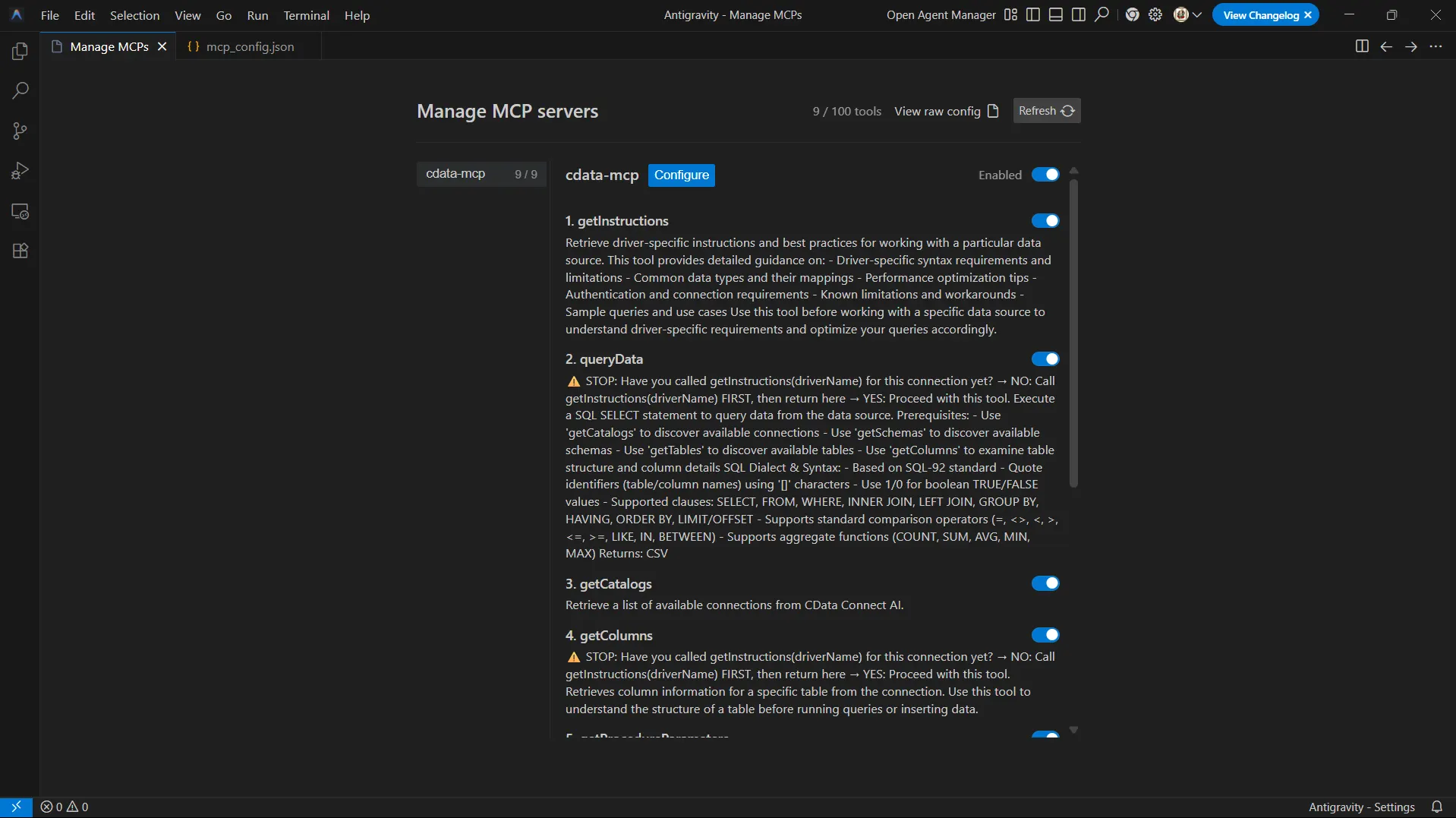
Next, register the CData MCP Server in Antigravity. Antigravity reads MCP server definitions from a raw configuration file, allowing agents to dynamically discover and invoke the sources exposed by Connect AI.
- Download the Antigravity desktop application and sign in using your Google account
-
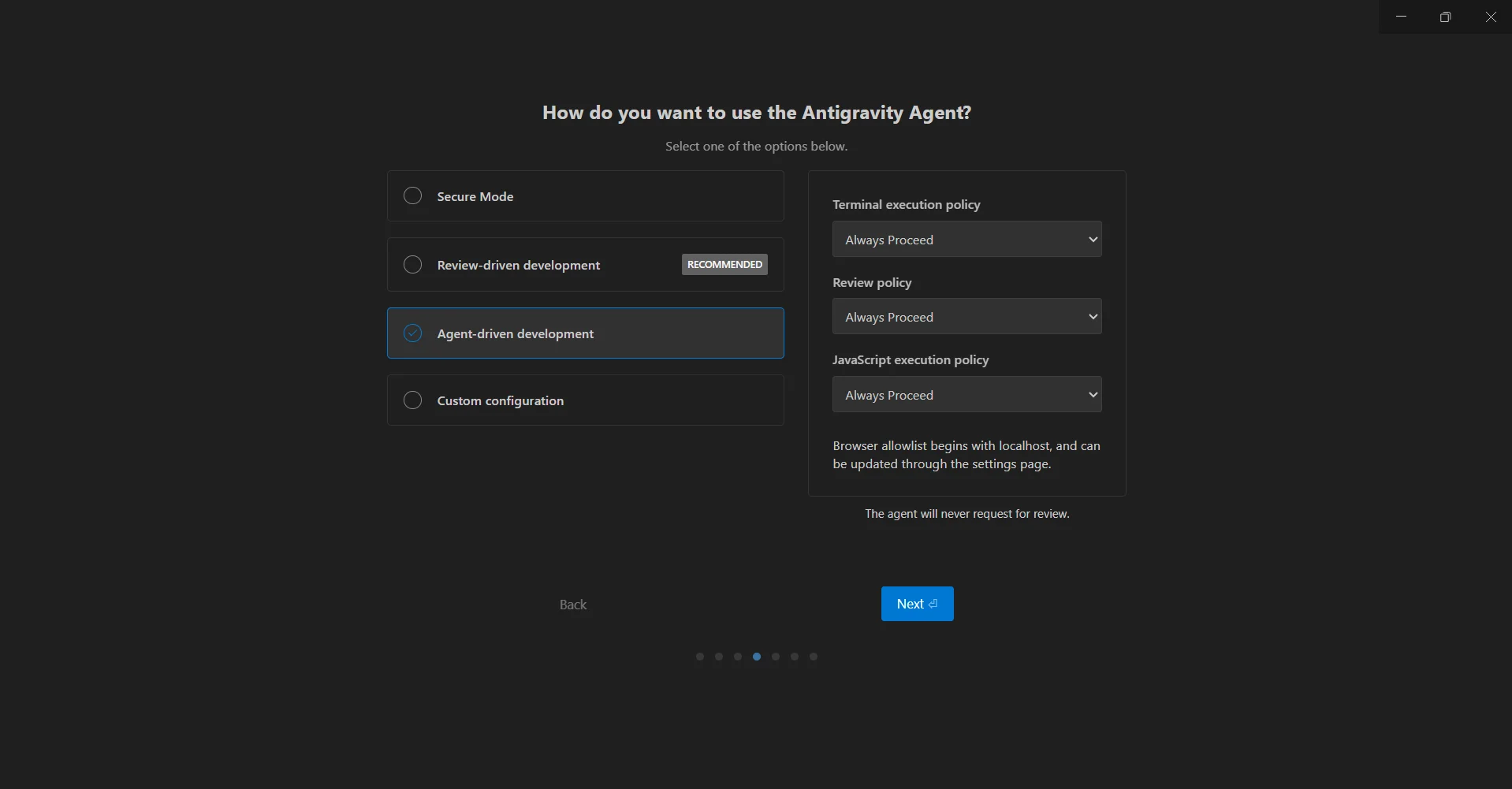
During the initial setup flow, select Agent-driven development when prompted. This mode enables autonomous agents with tool execution capabilities
- Once you have completed the Antigravity setup and the IDE is open, you can access the built-in agent interface to manage MCP servers. From the top menu, click Toggle Agent or press Ctrl + Alt + B to open the agent panel
-
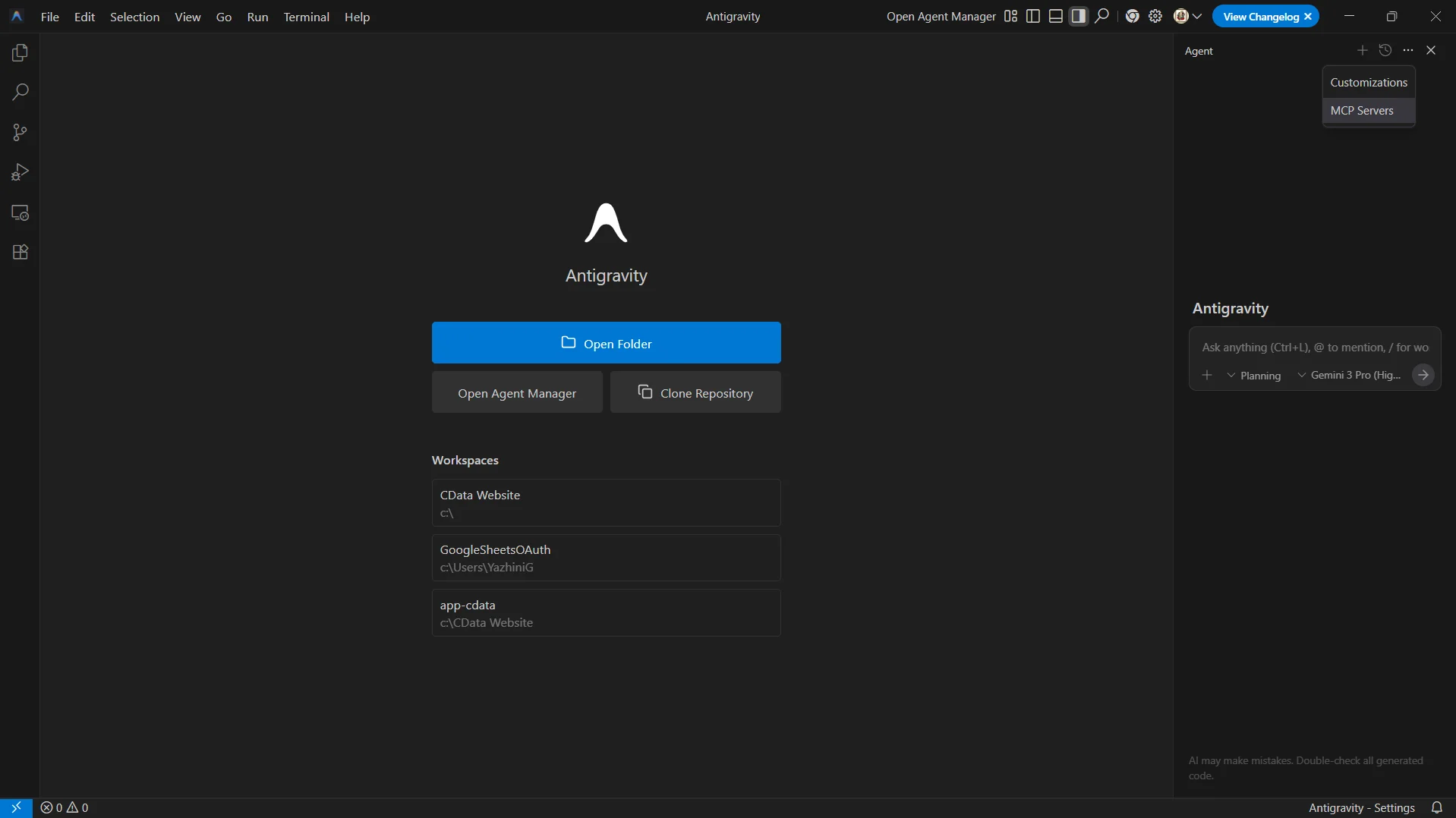
Once the agent panel opens, click the "..." and select MCP Servers from the dropdown
-
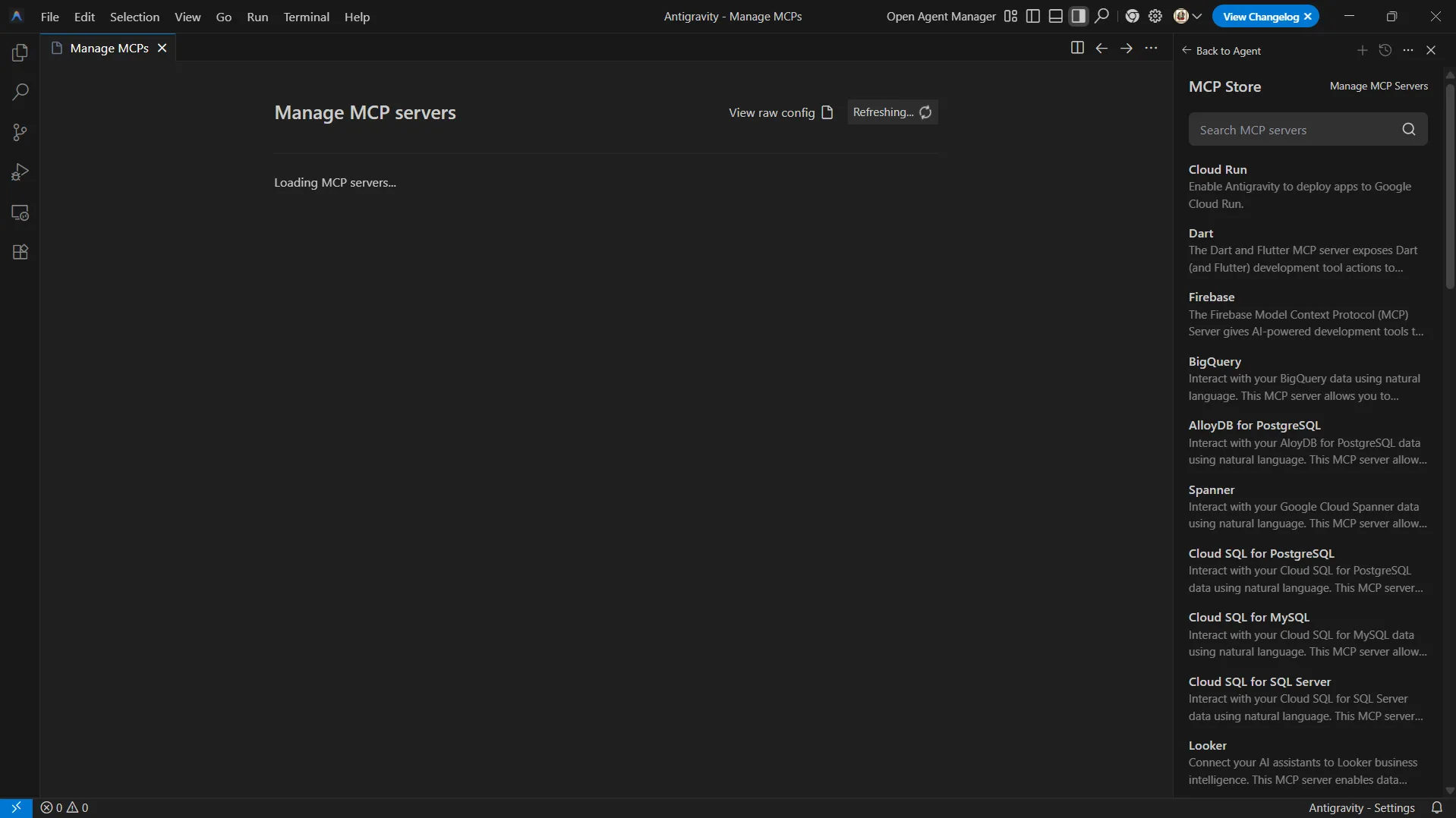
Select Manage MCP Servers from the MCP Store, and click View raw config to open the MCP configuration file
-
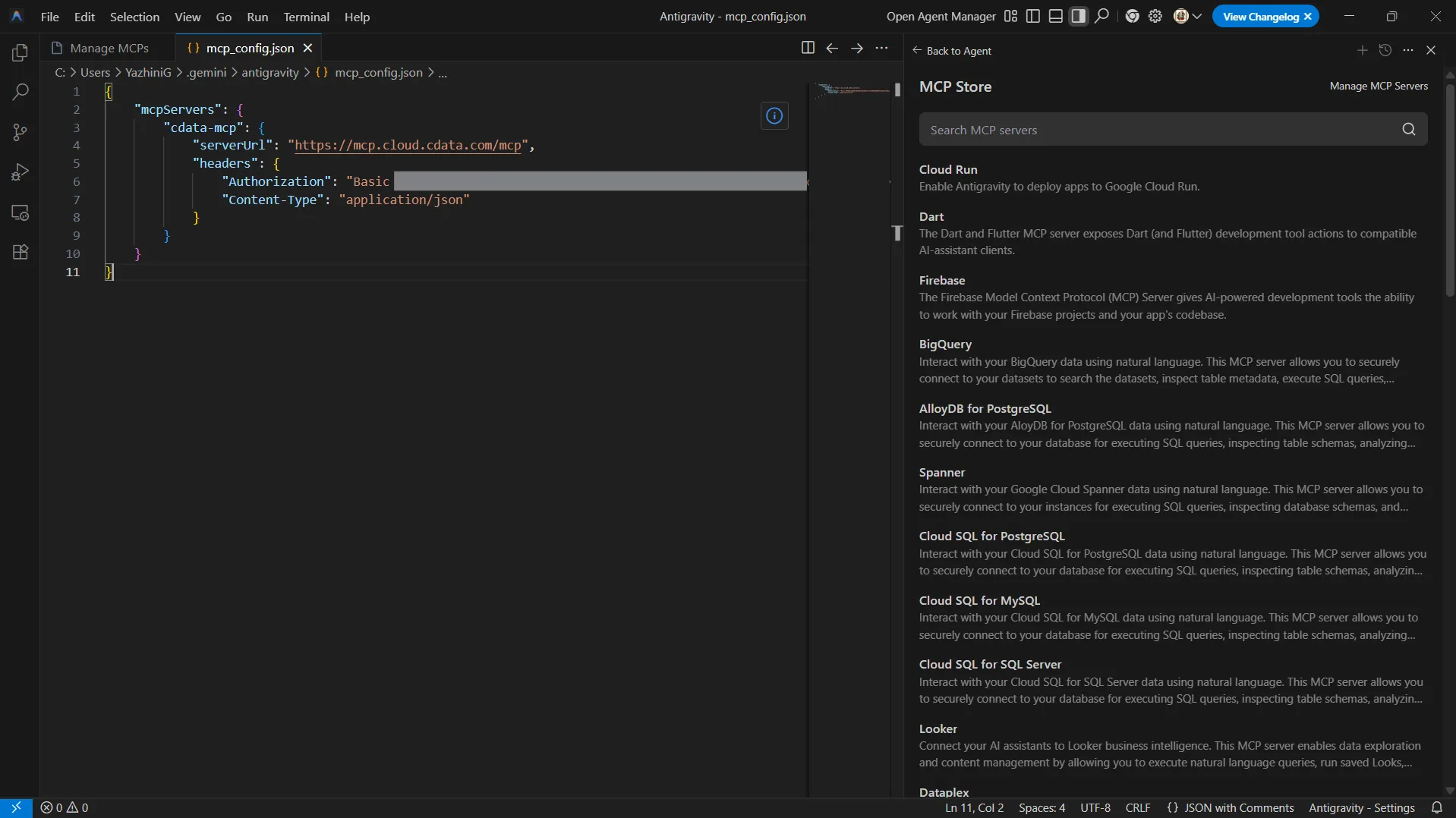
Paste the following json into the file:
{
    "mcpServers": {
        "cdata-mcp": {
            "serverUrl": "https://mcp.cloud.cdata.com/mcp",
            "headers": {
                "Authorization": "Basic your_base64_encoded_email_PAT",
                "Content-Type": "application/json"
            }
        }
    }
}
Note: Antigravity will use Basic authentication with Connect AI. Combine your Connect AI user email and the PAT you created earlier and base64 encode the value. For example, given username and PAT like [email protected]:ABC123...XYZ789, the value for the Authorization header is something like: Basic dXNlckBteWRvbWFpbjphSzkvbVB4Mi9Rcjd2TjQvTHc4Qi96WTZqQzMvRnQ1SGcxL0RzMFVlL01iWHdKdg==
- Save the configuration file
-
Return to the Manage MCP Servers view and click Refresh to load the new MCP server
Step 3: Query live HCL Domino data from Antigravity agent
With the MCP server registered, Antigravity agents can now interact with your live data sources exposed by Connect AI to explore schemas and run queries.
- Open the agent panel again using Toggle Agent
- Start a new conversation in the agent chat
-
Start interacting with the agent by entering prompts such as:
- List all catalogs in my cdata-mcp connection.
- Show schemas and tables available for HCL Domino.
- Query the top 3 records from a table in HCL Domino data.
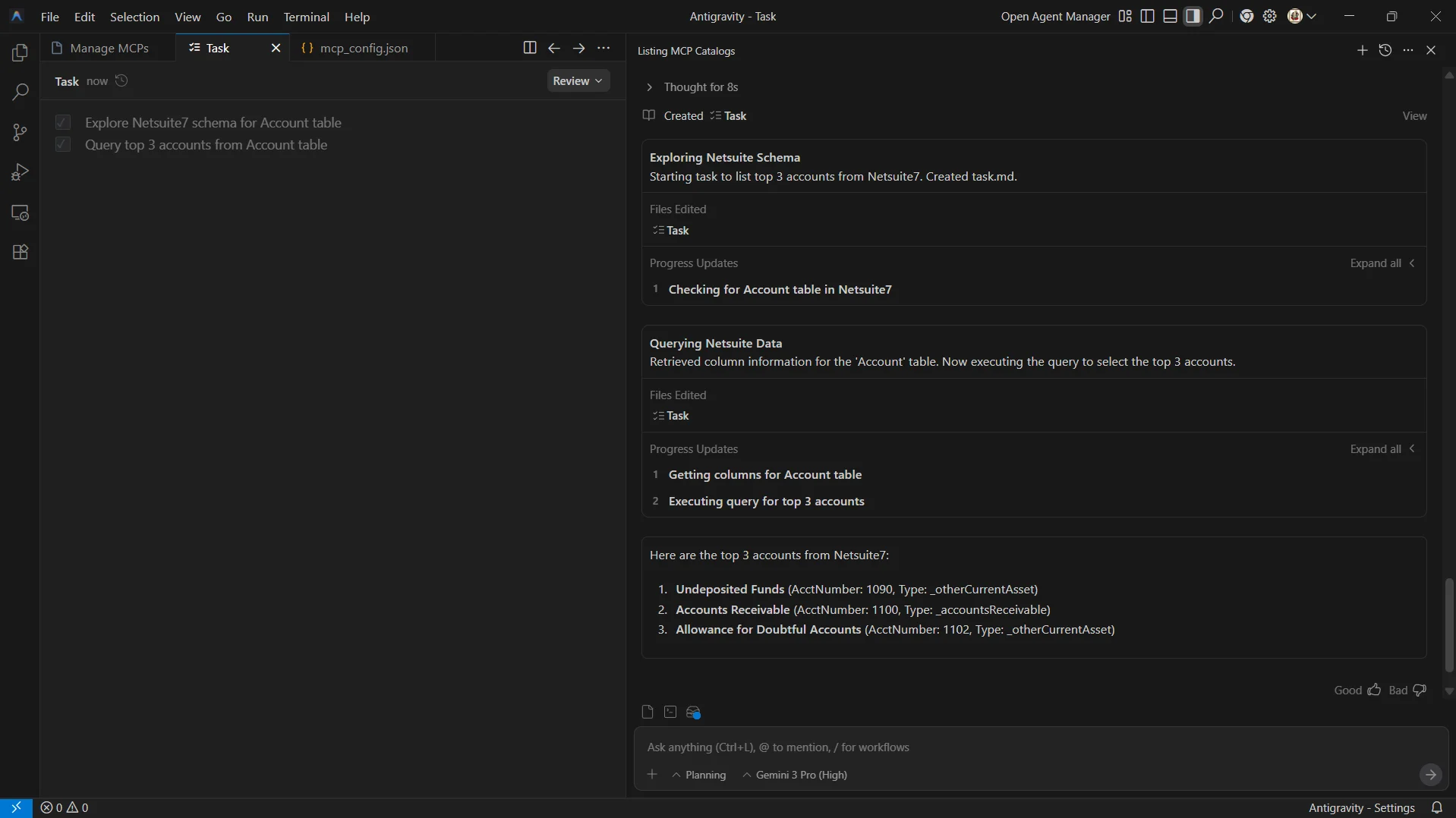
At this point, your Antigravity agent communicates with the CData Connect AI MCP Server and retrieves live HCL Domino data through remote MCP tools.
Get CData Connect AI
To access 300+ SaaS, Big Data, and NoSQL sources directly from your cloud applications, try CData Connect AI today!
