






Connecting GenSpark with Dynamics CRM Data via CData Connect AI MCP Server

GenSpark is built for developers and enterprise teams who want to create intelligent, conversational AI experiences powered by real-time data. It's flexible tooling and agentic capabilities make it easy to integrate LLMs, automate complex workflows, and build interactive applications that adapt to user intent. However, when these AI interactions require data beyond local context or predefined APIs, many implementations fall back on custom middleware, manual integrations, or scheduled ETL pipelines to sync information into local stores. This introduces unnecessary complexity, increases maintenance overhead, slows response times, and limits the real-time intelligence your GenSpark agents can provide.
CData Connect AI eliminates these barriers by delivering live, secure connectivity to more than 300 enterprise applications, databases, ERPs, and analytics platforms. Through CData Connect AI remote Model Context Protocol (MCP) Server, GenSpark agents can query, read, and act on real-time enterprise data without replication or custom integration code. The result is grounded, accurate responses, faster reasoning, and automated, cross-system decision-making all with stronger governance and fewer moving parts.
This guide outlines the steps required to configure CData Connect AI MCP connectivity, register the MCP Server in GenSpark, and enable your GenSpark agents to work seamlessly with live enterprise data in real time.
About Dynamics CRM Data Integration
CData simplifies access and integration of live Microsoft Dynamics CRM data. Our customers leverage CData connectivity to:
- Read and write data in the Dynamics CRM 2011+ Services and Dynamics CRM Online.
- Extend the native features of Dynamics CRM with customizable caching and intelligent query aggregation and separation.
- Authenticate securely with Dynamics CRM in a variety of ways, including Azure Active Directory, Azure Managed Service Identity credentials, and Azure Service Principal using either a client secret or a certificate.
CData customers use our Dynamics CRM connectivity solutions for a variety of reasons, whether they're looking to replicate their data into a data warehouse (alongside other data sources) or analyze live Dynamics CRMa data from their preferred data tools inside the Microsoft ecosystem (Power BI, Excel, etc.) or with external tools (Tableau, Looker, etc.).
Getting Started
Prerequisites
Before starting, ensure you have:
- A CData Connect AI account
- Access to GenSpark
- Access to Dynamics CRM
Credentials checklist
Ensure you have these credentials ready for the connection:
- USERNAME: Your CData email login
- PAT: Connect AI, go to Settings and click on Access Tokens (copy once)
- MCP_BASE_URL: https://mcp.cloud.cdata.com/mcp
Step 1: Configure Dynamics CRM connectivity for GenSpark
Connectivity to Dynamics CRM from GenSpark is made possible through CData Connect AI Remote MCP. To interact with Dynamics CRM data from GenSpark, we start by creating and configuring a Dynamics CRM connection in CData Connect AI.
- Log into Connect AI, click Sources, and then click Add Connection
- Select "Dynamics CRM" from the Add Connection panel
-
Enter the necessary authentication properties to connect to Dynamics CRM.
The connection string options meet the authentication and connection requirements of different Dynamics CRM instances. To connect to your instance, set the User and Password properties, under the Authentication section, to valid Dynamics CRM user credentials and set the Url to a valid Dynamics CRM server organization root. Additionally, set the CRMVersion property to 'CRM2011+' or 'CRMOnline'. IFD configurations are supported as well; set InternetFacingDeployment to true.
Additionally, you can provide the security token service (STS) or AD FS endpoint in the STSURL property. This value can be retrieved with the GetSTSUrl stored procedure. Office 365 users can connect to the default STS URL by simply setting CRMVersion.

- Click Save & Test
-
Navigate to the Permissions tab in the Add Dynamics CRM Connection page and update the User-based permissions.



Add a Personal Access Token
A Personal Access Token (PAT) is used to authenticate the connection to Connect AI from GenSpark. It is best practice to create a separate PAT for each service to maintain granularity of access.
- Click on the Gear icon () at the top right of the Connect AI app to open the settings page.
- On the Settings page, go to the Access Tokens section and click Create PAT.
-
Give the PAT a name and click Create.

- The personal access token is only visible at creation, so be sure to copy it and store it securely for future use.
With the connection configured and a PAT generated, we are ready to connect to Dynamics CRM data from GenSpark.
Step 2: Configure MCP Server in GenSpark
- Log in to GenSpark
- Below the chat interface, click the Tools icon
- Select Add new MCP server
Fill in the server configuration:
NOTE: Use Basic authentication, where you combine your Connect AI email address (e.g. [email protected]) with the PAT you generated earlier (e.g. AbC123...xYz890) with a colon (:) in the Authorization header.
Field Value Name CData MCP Server (or any name you prefer) Server Type SteamableHttp Server URL https://mcp.cloud.cdata.com/mcp Request Header {"Authorization": "Basic [email protected]:AbC123...xYz890"} - Click Add Server
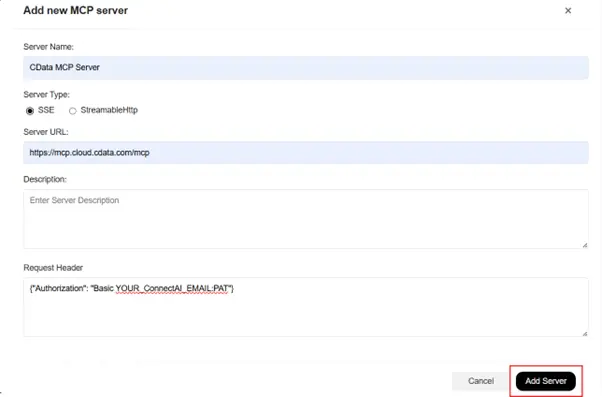
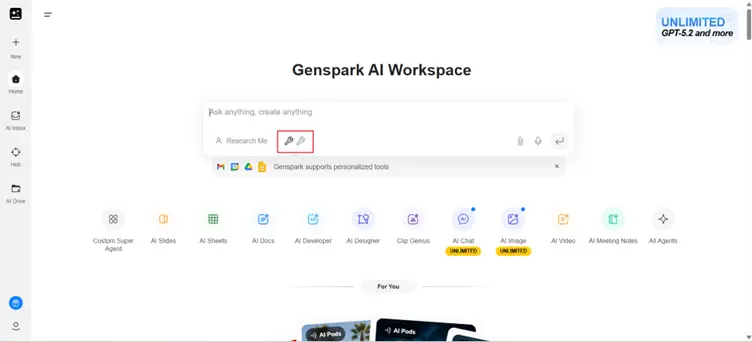
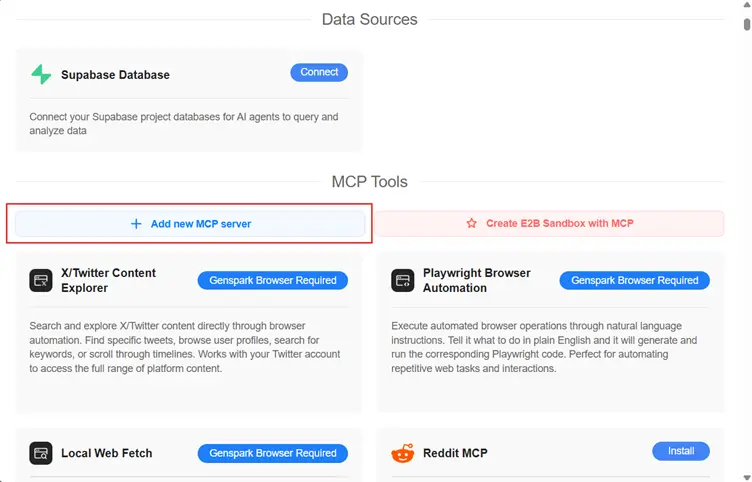
Once added, GenSpark will automatically load all MCP tools exposed through your Connect AI workspace.
Step 3: Query data in GenSpark
In GenSpark chat interface enter any sample prompt:
List the tools present in CData Connect AI MCP Server.
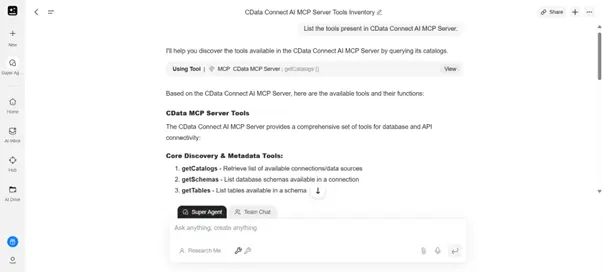
Build real-time, data-aware agents with GenSpark and CData
GenSpark and CData Connect AI together enable intelligent, AI-driven workflows where agents can securely access live enterprise data and operate with real-time awareness without ETL pipelines, data sync jobs, or custom integration logic. This streamlined approach delivers stronger governance, lower operational overhead, and faster, more grounded responses from your AI tools.
Start your free trial today to see how CData can empower GenSpark with live, secure access to 300+ external systems.
