





Use Updategrams with Oracle Eloqua Reporting Data

In this article, you will create updategrams that can be executed by the CData BizTalk Adapter for Oracle Eloqua Reporting. You will design a schema and use it as a template for generating insert, update, and delete updategrams.
Add the Adapter for Oracle Eloqua Reporting to Your Project
Use the Add Adapter wizard to add the adapter to a BizTalk Server project in Visual Studio. You will use the adapter to query Oracle Eloqua Reporting for metadata about the table you want to modify.
- Right-click on the project in the Solution Explorer and click Add -> Add Generated Items.
- Select Add Adapter Metadata in the resulting dialog box.
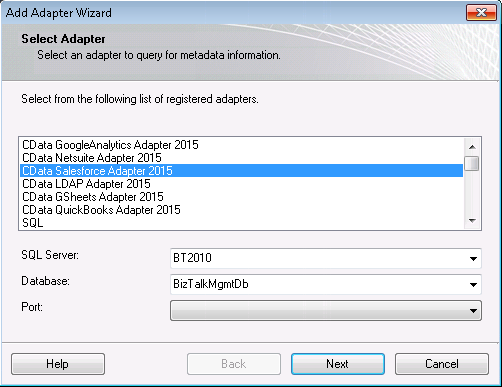
- In the resulting Add Adapter Wizard, select the CData BizTalk Adapter for Oracle Eloqua Reporting from the list view.
- In the Port menu, leave the selection blank. Or, select a receive location or send port that has been configured to use the adapter.
- When you click Next, the Schema Wizard is displayed.
Generate a Schema for an Updategram
Follow the steps below to create a schema in a BizTalk Server project in Visual Studio.
- If you have not already done so, add the Oracle Eloqua Reporting adapter to your project.
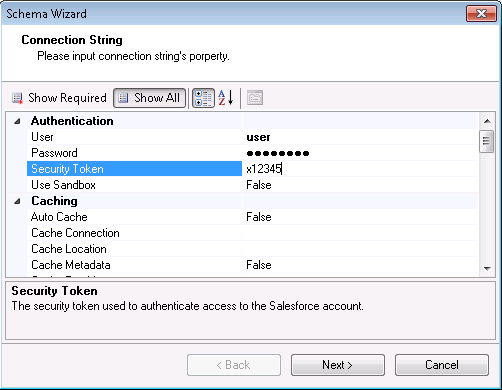
- On the Connection String page of the Add Adapter wizard, enter authentication credentials and other connection properties, if they were not already configured in the send port or receive location. Below is a typical connection string:
AuthScheme=Basic;User=user;Password=password;Company=MyCompany;
Oracle Eloqua Reporting supports the following authentication methods:
- Basic authentication (User and Password)
- OAuth 2.0 code grant flow
- OAuth 2.0 password grant flow
Basic Authentication (User and Password)
To perform authentication with a user and password, specify these properties:
- AuthScheme: Basic.
- Company: The company name associated with your Oracle Eloqua Reporting account.
- User: Your login account name.
- Password: Your login password.
OAuth Authentication (Code Grant Flow)
To authenticate with the OAuth code grant flow, you must set AuthScheme to OAuth and create a custom OAuth application. For information about how to create a custom OAuth application, see the Help documentation.
Then set the following properties:
- InitiateOAuth: GETANDREFRESH. Used to automatically get and refresh the OAuthAccessToken.
- OAuthClientId: The client Id assigned when you registered your application.
- OAuthClientSecret: The client secret that was assigned when you registered your application.
- CallbackURL: The redirect URI that was defined when you registered your application.
When you connect, the driver opens Oracle Eloqua Reporting's OAuth endpoint in your default browser. Log in and grant permissions to the application. When the access token expires, the driver refreshes it automatically.
OAuth Authentication (Password Grant Flow)
With the OAuth password grant flow, you can use your OAuth application's credentials alongside your user credentials to authenticate without the need to grant permission manually via a browser prompt. You must create an OAuth app (see the Help documentation) to use this authentication method.
Set the following properties:
- AuthScheme: OAuthPassword
- Company: The company's unique identifier.
- User: Your login account name.
- Password: Your login password.
- OAuthClientId: The client Id assigned when you registered your custom OAuth application.
- OAuthClientSecret: The client secret assigned when you registered your custom OAuth application.
See the "BizTalk Configuration" chapter in the help documentation for more information on the required connection properties.
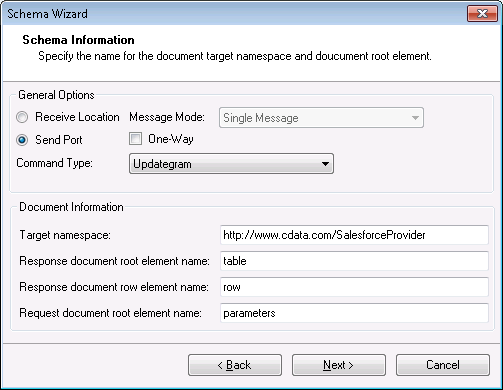
- On the Schema Information page, click Send Port in the General Options section. Select Updategram from the CommandType menu. If you are using the adapter in a solicit-response send port, disable the One-Way option.
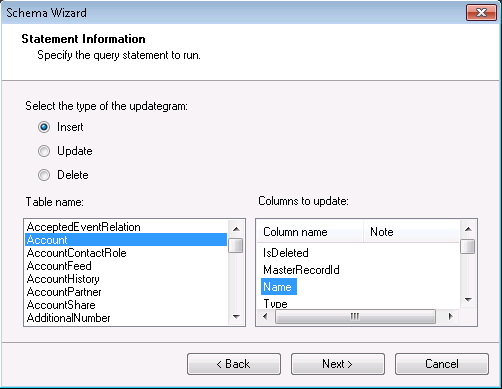
On the next page, Statement Information, select the type of the updategram: Insert, Update, or Delete. Select the Table name and the columns you want to include in the schema. If you want to update or delete, the Id column is required.
Note: When you create the updategram, you are limited to modifying the columns you include in the schema.
- Click Next to view a summary of the schema and finish the wizard to create the schema. The resulting .xsd file is added to your project.
Generate Insert, Update, and Delete Instance Messages
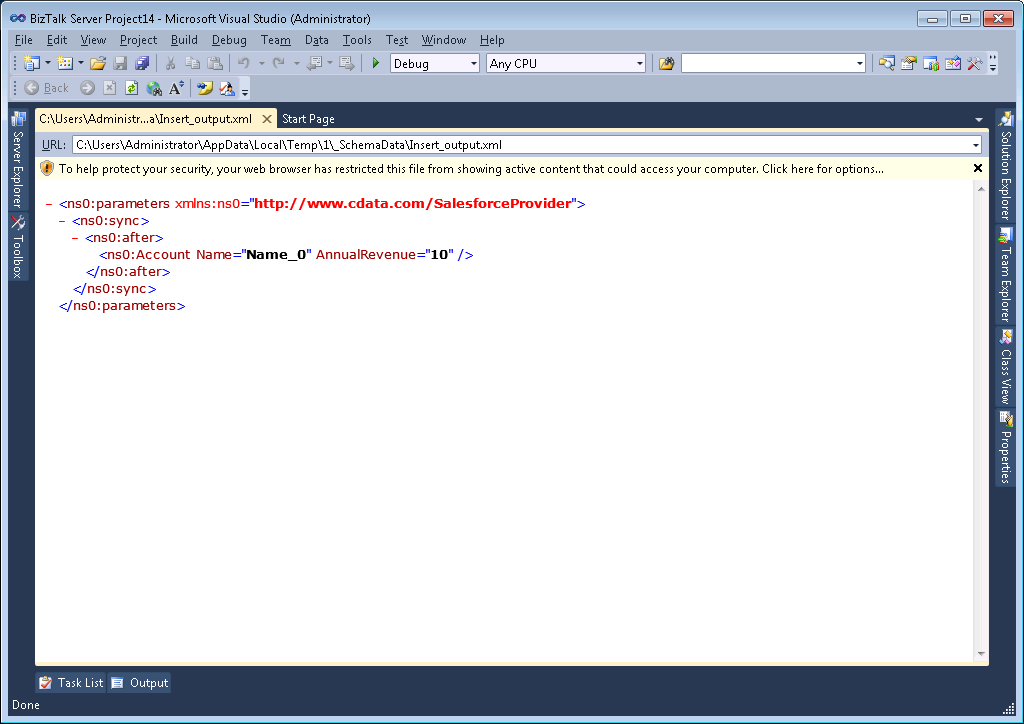
After you create the updategram schema, you can use the .xsd file to generate the updategram: Right-click the .xsd file and select Generate Instance. You can also use this file as a template to manually create updategrams. Below are example generated updategram instances for inserts, updates, and deletes:
Insert
An example of INSERT is below. In this instance, there is only an after block, which specifies how the data will change.
<ns0:parameters xmlns:ns0="http://www.cdata.com/OracleEloquaReportingProvider">
  <ns0:sync>
    <ns0:before></ns0:before>
    <ns0:after>
      <ns0: ="_0" ="_1" />
    </ns0:after>
  </ns0:sync>
</ns0:parameters>
Update
An example of UPDATE is below. In this instance, there is both a before block (how the data currently exists in the table) and an after block (how the data will change).
<ns0:parameters xmlns:ns0="http://www.cdata.com/OracleEloquaReportingProvider">
  <ns0:sync>
    <ns0:before>
      <ns0: Id=001d000000YBRseAAH></ns0:>
    </ns0:before>
    <ns0:after>
      <ns0: ="_0" ="_1" ></ns0:>
    </ns0:after>
  </ns0:sync>
</ns0:parameters>
Delete
An example for DELETE is below. The after block will be empty to show that it is removing the item.
<ns0:parameters xmlns:ns0="http://www.cdata.com/OracleEloquaReportingProvider">
  <ns0:sync>
    <ns0:before>
      <ns0: Id=001d000000YBRseAAH></ns0:>
    </ns0:before>
    <ns0:after></ns0:after>
  </ns0:sync>
</ns0:parameters>
Processing Schemas
To use updategrams to insert, update, or delete Oracle Eloqua Reporting records, see the tutorial.