






Object-Relational Mapping (ORM) with Oracle Eloqua Reporting Data Entities in Java

You can use Hibernate to map object-oriented domain models to a traditional relational database. The tutorial below shows how to use the CData JDBC Driver for Oracle Eloqua Reporting to generate an ORM of your Oracle Eloqua Reporting repository with Hibernate.
Though Eclipse is the IDE of choice for this article, the CData JDBC Driver for Oracle Eloqua Reporting works in any product that supports the Java Runtime Environment. In the Knowledge Base you will find tutorials to connect to Oracle Eloqua Reporting data from IntelliJ IDEA and NetBeans.
Install Hibernate
Follow the steps below to install the Hibernate plug-in in Eclipse.
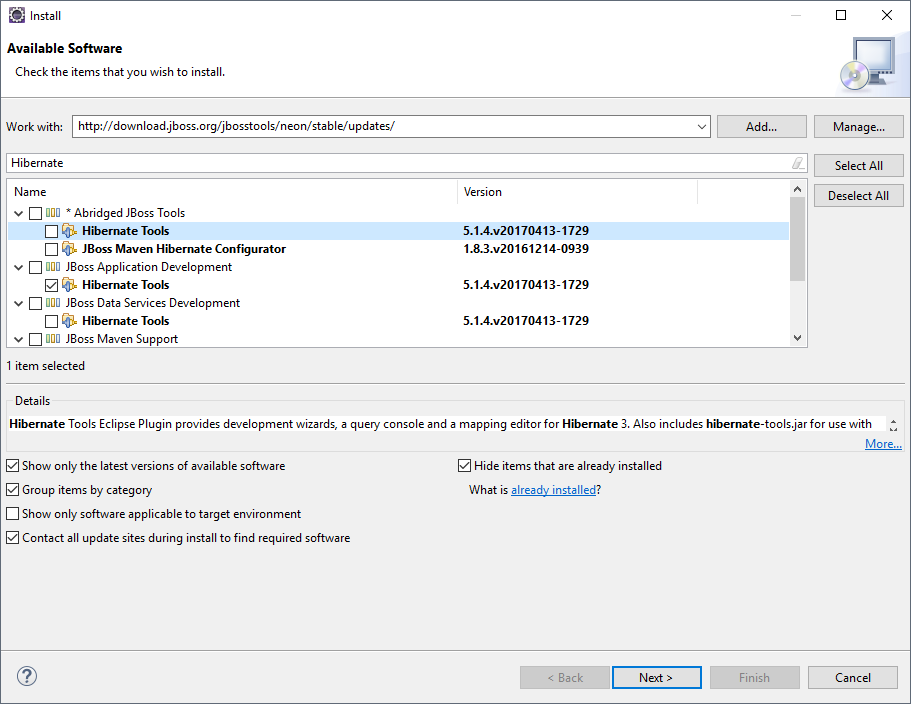
- In Eclipse, navigate to Help -> Install New Software.
- Enter "http://download.jboss.org/jbosstools/neon/stable/updates/" in the Work With box.
- Enter "Hibernate" into the filter box.
- Select Hibernate Tools.
Start A New Project
Follow the steps below to add the driver JARs in a new project.
- Create a new project. Select Java Project as your project type and click Next. Enter a project name and click Finish.
- Right-click the project and click Properties. Click Java Build Path and then open the Libraries tab.
- Click Add External JARs to add the cdata.jdbc.oracleeloquareporting.jar library, located in the lib subfolder of the installation directory.
Add a Hibernate Configuration File
Follow the steps below to configure connection properties to Oracle Eloqua Reporting data.
- Right-click on the new project and select New -> Hibernate -> Hibernate Configuration File (cfg.xml).
- Select src as the parent folder and click Next.
Input the following values:
- Hibernate version:: 5.2
- Database dialect: Derby
- Driver class: cdata.jdbc.oracleeloquareporting.OracleEloquaReportingDriver
Connection URL: A JDBC URL, starting with jdbc:oracleeloquareporting: and followed by a semicolon-separated list of connection properties.
Oracle Eloqua Reporting supports the following authentication methods:
- Basic authentication (User and Password)
- OAuth 2.0 code grant flow
- OAuth 2.0 password grant flow
Basic Authentication (User and Password)
To perform authentication with a user and password, specify these properties:
- AuthScheme: Basic.
- Company: The company name associated with your Oracle Eloqua Reporting account.
- User: Your login account name.
- Password: Your login password.
OAuth Authentication (Code Grant Flow)
To authenticate with the OAuth code grant flow, you must set AuthScheme to OAuth and create a custom OAuth application. For information about how to create a custom OAuth application, see the Help documentation.
Then set the following properties:
- InitiateOAuth: GETANDREFRESH. Used to automatically get and refresh the OAuthAccessToken.
- OAuthClientId: The client Id assigned when you registered your application.
- OAuthClientSecret: The client secret that was assigned when you registered your application.
- CallbackURL: The redirect URI that was defined when you registered your application.
When you connect, the driver opens Oracle Eloqua Reporting's OAuth endpoint in your default browser. Log in and grant permissions to the application. When the access token expires, the driver refreshes it automatically.
OAuth Authentication (Password Grant Flow)
With the OAuth password grant flow, you can use your OAuth application's credentials alongside your user credentials to authenticate without the need to grant permission manually via a browser prompt. You must create an OAuth app (see the Help documentation) to use this authentication method.
Set the following properties:
- AuthScheme: OAuthPassword
- Company: The company's unique identifier.
- User: Your login account name.
- Password: Your login password.
- OAuthClientId: The client Id assigned when you registered your custom OAuth application.
- OAuthClientSecret: The client secret assigned when you registered your custom OAuth application.
Built-in Connection String Designer
For assistance in constructing the JDBC URL, use the connection string designer built into the Oracle Eloqua Reporting JDBC Driver. Either double-click the JAR file or execute the jar file from the command-line.
java -jar cdata.jdbc.oracleeloquareporting.jar
Fill in the connection properties and copy the connection string to the clipboard.
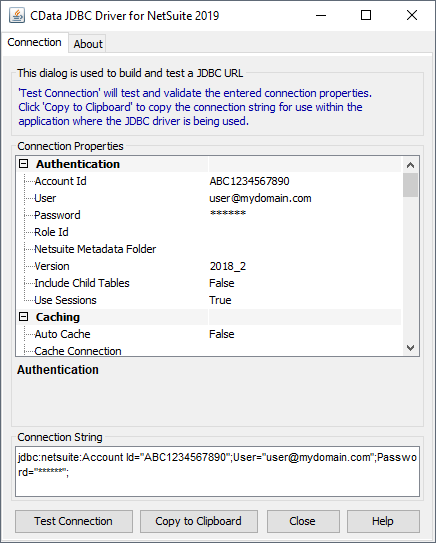
A typical JDBC URL is below:
jdbc:oracleeloquareporting:AuthScheme=Basic;User=user;Password=password;Company=MyCompany;
Connect Hibernate to Oracle Eloqua Reporting Data
Follow the steps below to select the configuration you created in the previous step.
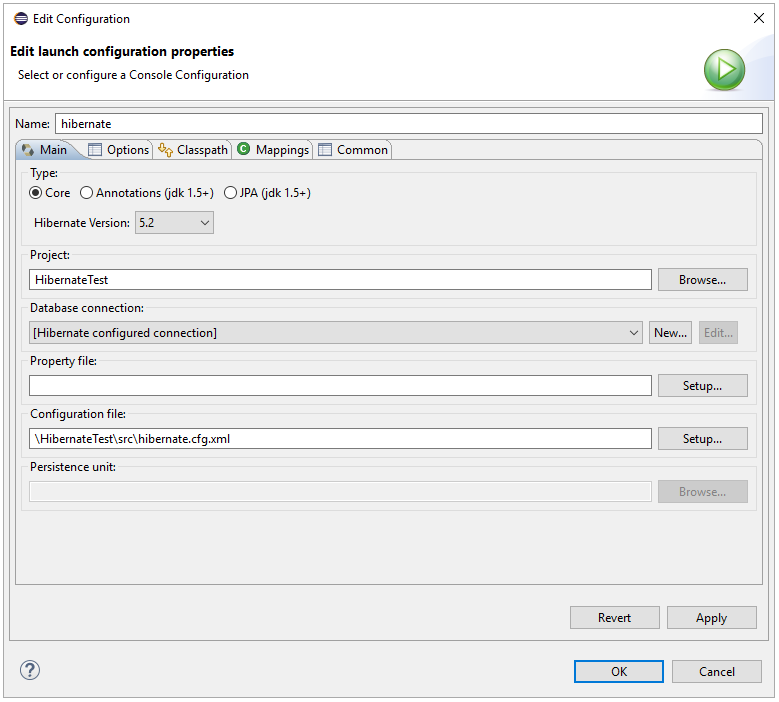
- Switch to the Hibernate Configurations perspective: Window -> Open Perspective -> Hibernate.
- Right-click on the Hibernate Configurations panel and click Add Configuration.
- Set the Hibernate version to 5.2.
- Click the Browse button and select the project.
- For the Configuration file field, click Setup -> Use Existing and select the location of the hibernate.cfg.xml file (inside src folder in this demo).
- In the Classpath tab, if there is nothing under User Entries, click Add External JARS and add the driver jar once more. Click OK once the configuration is done.
- Expand the Database node of the newly created Hibernate configurations file.
Reverse Engineer Oracle Eloqua Reporting Data
Follow the steps below to generate the reveng.xml configuration file. You will specify the tables you want to access as objects.
- Switch back to the Package Explorer.
- Right-click your project, select New -> Hibernate -> Hibernate Reverse Engineering File (reveng.xml). Click Next.
- Select src as the parent folder and click Next.
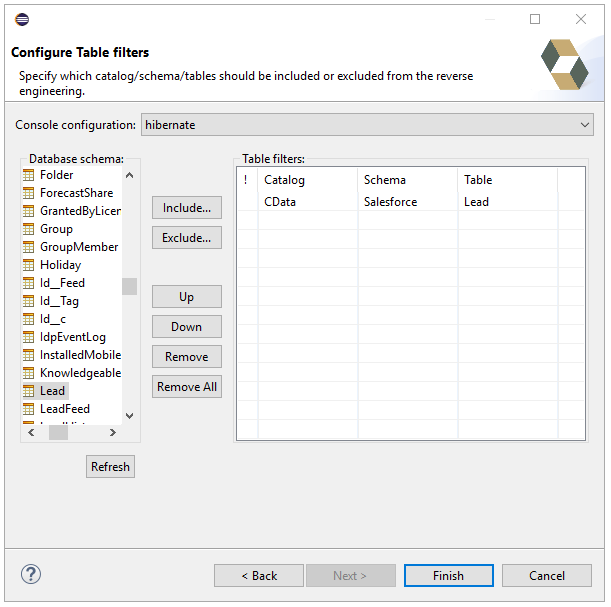
- In the Console configuration drop-down menu, select the Hibernate configuration file you created above and click Refresh.
- Expand the node and choose the tables you want to reverse engineer. Click Finish when you are done.
Configure Hibernate to Run
Follow the steps below to generate plain old Java objects (POJO) for the Oracle Eloqua Reporting tables.
- From the menu bar, click Run -> Hibernate Code Generation -> Hibernate Code Generation Configurations.
- In the Console configuration drop-down menu, select the Hibernate configuration file you created in the previous section. Click Browse by Output directory and select src.
- Enable the Reverse Engineer from JDBC Connection checkbox. Click the Setup button, click Use Existing, and select the location of the hibernate.reveng.xml file (inside src folder in this demo).
- In the Exporters tab, check Domain code (.java) and Hibernate XML Mappings (hbm.xml).
- Click Run.
One or more POJOs are created based on the reverse-engineering setting in the previous step.
Insert Mapping Tags
For each mapping you have generated, you will need to create a mapping tag in hibernate.cfg.xml to point Hibernate to your mapping resource. Open hibernate.cfg.xml and insert the mapping tags as so:
      cdata.oracleeloquareporting.OracleEloquaReportingDriver


      jdbc:oracleeloquareporting:AuthScheme=Basic;User=user;Password=password;Company=MyCompany;


      org.hibernate.dialect.SQLServerDialect
Execute SQL
Using the entity you created from the last step, you can now search Oracle Eloqua Reporting data:
import java.util.*;
import org.hibernate.Session;
import org.hibernate.cfg.Configuration;
import org.hibernate.query.Query;

public class App {
  public static void main(final String[] args) {
    Session session =  new
    Configuration().configure().buildSessionFactory().openSession();
    String SELECT = "FROM   WHERE  = :";
    Query q = session.createQuery(SELECT, .class);
    q.setParameter("","");
    List<> resultList = (List<>) q.list();

    for( s: resultList){
      System.out.println(s.get());
      System.out.println(s.get());
    }
  }
}
Ready to get started?
Download a free trial of the Oracle Eloqua Reporting Driver to get started:
Download NowLearn more:
 Oracle Eloqua Reporting JDBC Driver
Rapidly create and deploy powerful Java applications that integrate with Oracle Eloqua Reporting.
