






Use the CData JDBC Driver for Oracle Eloqua Reporting in MicroStrategy

MicroStrategy is an analytics and mobility platform that enables data-driven innovation. When you pair MicroStrategy with the CData JDBC Driver for Oracle Eloqua Reporting, you gain database-like access to live Oracle Eloqua Reporting data from MicroStrategy, expanding your reporting and analytics capabilities. In this article, we walk through creating a database instance for Oracle Eloqua Reporting in MicroStrategy Developer and create a Warehouse Catalog for the Oracle Eloqua Reporting data.
The CData JDBC Driver offers unmatched performance for interacting with live Oracle Eloqua Reporting data in MicroStrategy due to optimized data processing built into the driver. When you issue complex SQL queries from MicroStrategy to Oracle Eloqua Reporting, the driver pushes supported SQL operations, like filters and aggregations, directly to Oracle Eloqua Reporting and utilizes the embedded SQL engine to process unsupported operations (often SQL functions and JOIN operations) client-side. With built-in dynamic metadata querying, you can visualize and analyze Oracle Eloqua Reporting data using native MicroStrategy data types.
Connect to Oracle Eloqua Reporting in MicroStrategy Developer
You can connect to Oracle Eloqua Reporting in MicroStrategy Developer by adding a database instance based on the CData JDBC Driver for Oracle Eloqua Reporting.* Before you begin, you will need to install the JDBC Driver for Oracle Eloqua Reporting on the machine hosting the MicroStrategy Intelligence Server that your instance of MicroStrategy Developer is connected to.
- Open MicroStrategy Developer and select a Project Source.
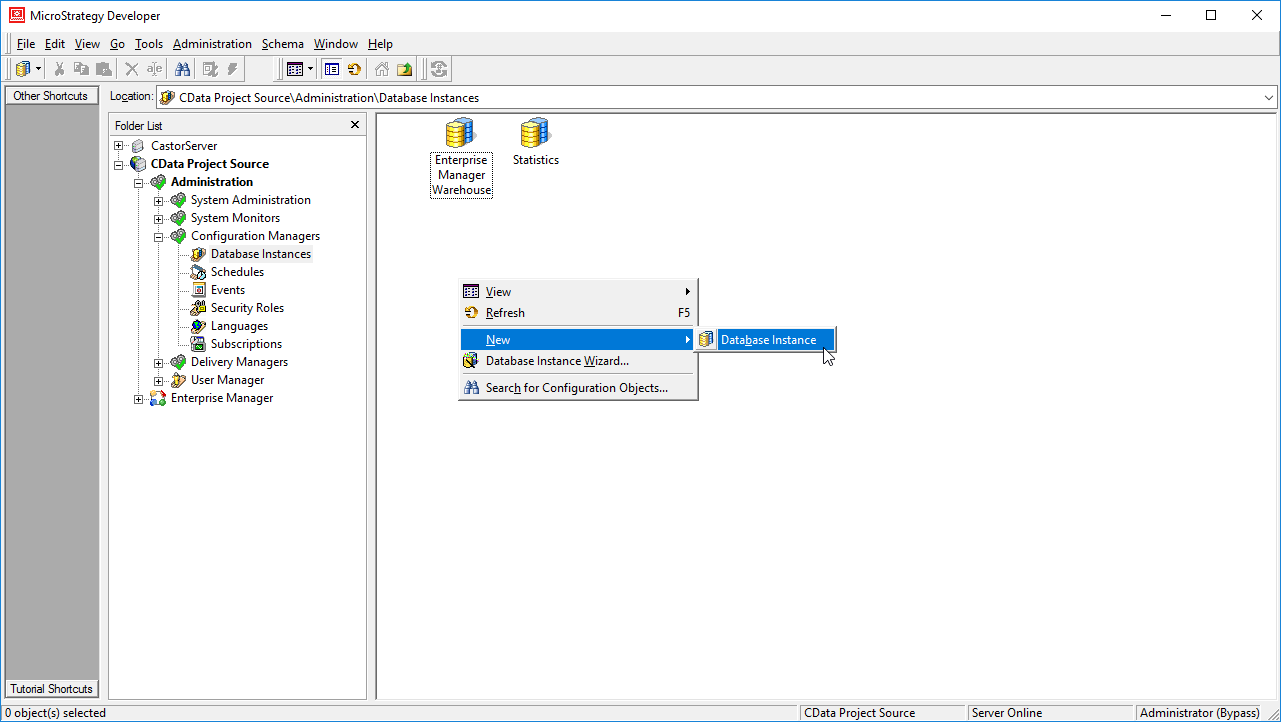
- Navigate to Administration -> Configuration Managers -> Database Instances and right-click to add a new instance.
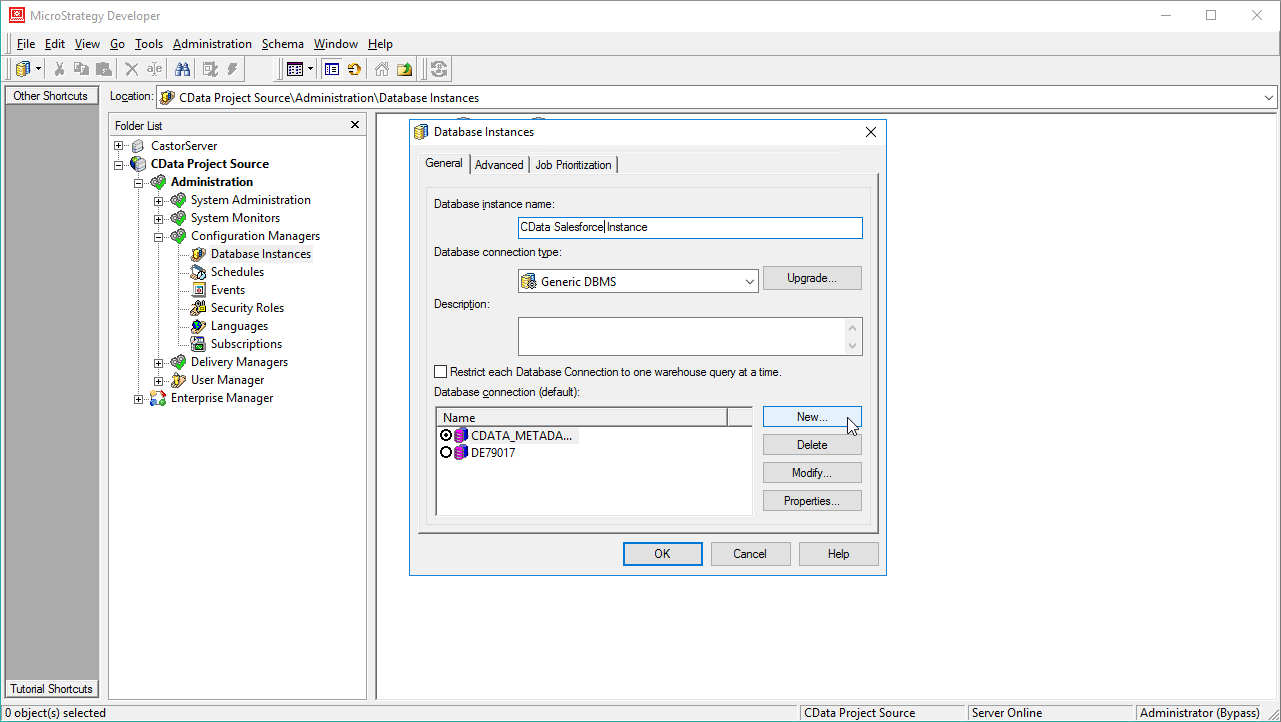
- Name the instance, select Generic DBMS as the database connection type, and create a new database connection.
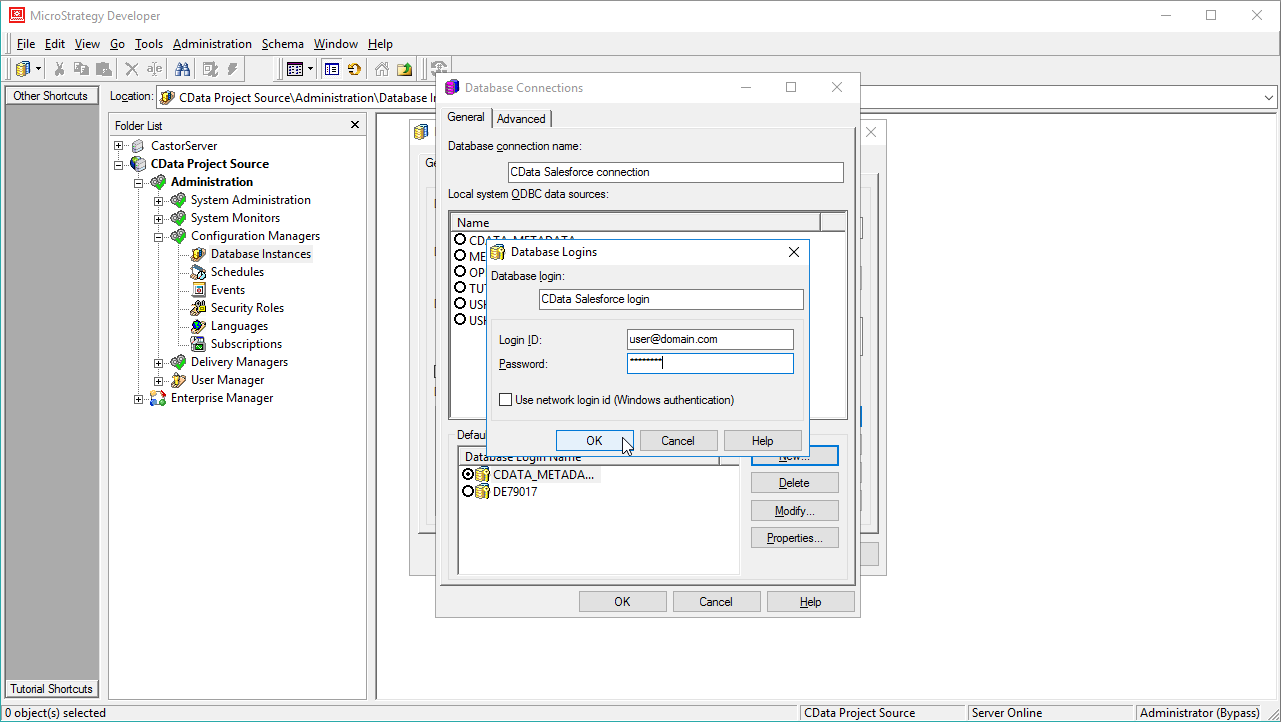
- In the database connection wizard, name the connection and create a new Database Login name, setting the user and password for Oracle Eloqua Reporting.
- On the Advanced tab for the connection wizard, set the additional connection string parameters as follows.
- Add the JDBC keyword to the connection string.
- Set MSTR_JDBC_JAR_FOLDER to the path of the directory containing the JAR file for the JDBC driver. (C:\Program Files\CData JDBC Driver for Oracle Eloqua Reporting\lib\ on Windows.)
- Set DRIVER to cdata.jdbc.oracleeloquareporting.OracleEloquaReportingDriver, the driver class.
- Set URL to the JDBC URL for the Oracle Eloqua Reporting driver, which contains the necessary connection properties.
Oracle Eloqua Reporting supports the following authentication methods:
- Basic authentication (User and Password)
- OAuth 2.0 code grant flow
- OAuth 2.0 password grant flow
Basic Authentication (User and Password)
To perform authentication with a user and password, specify these properties:
- AuthScheme: Basic.
- Company: The company name associated with your Oracle Eloqua Reporting account.
- User: Your login account name.
- Password: Your login password.
OAuth Authentication (Code Grant Flow)
To authenticate with the OAuth code grant flow, you must set AuthScheme to OAuth and create a custom OAuth application. For information about how to create a custom OAuth application, see the Help documentation.
Then set the following properties:
- InitiateOAuth: GETANDREFRESH. Used to automatically get and refresh the OAuthAccessToken.
- OAuthClientId: The client Id assigned when you registered your application.
- OAuthClientSecret: The client secret that was assigned when you registered your application.
- CallbackURL: The redirect URI that was defined when you registered your application.
When you connect, the driver opens Oracle Eloqua Reporting's OAuth endpoint in your default browser. Log in and grant permissions to the application. When the access token expires, the driver refreshes it automatically.
OAuth Authentication (Password Grant Flow)
With the OAuth password grant flow, you can use your OAuth application's credentials alongside your user credentials to authenticate without the need to grant permission manually via a browser prompt. You must create an OAuth app (see the Help documentation) to use this authentication method.
Set the following properties:
- AuthScheme: OAuthPassword
- Company: The company's unique identifier.
- User: Your login account name.
- Password: Your login password.
- OAuthClientId: The client Id assigned when you registered your custom OAuth application.
- OAuthClientSecret: The client secret assigned when you registered your custom OAuth application.
Built-in Connection String Designer
For assistance in constructing the JDBC URL, use the connection string designer built into the Oracle Eloqua Reporting JDBC Driver. Either double-click the JAR file or execute the jar file from the command-line.
java -jar cdata.jdbc.oracleeloquareporting.jar
Fill in the connection properties and copy the connection string to the clipboard.

When you configure the JDBC URL, you may also want to set the Max Rows connection property. This will limit the number of rows returned, which is especially helpful for improving performance when designing reports and visualizations.
Typical additional connection string properties follow:
JDBC;MSTR_JDBC_JAR_FOLDER=PATH\TO\JAR\;DRIVER=cdata.jdbc.oracleeloquareporting.OracleEloquaReportingDriver;URL={jdbc:oracleeloquareporting:AuthScheme=Basic;User=user;Password=password;Company=MyCompany;};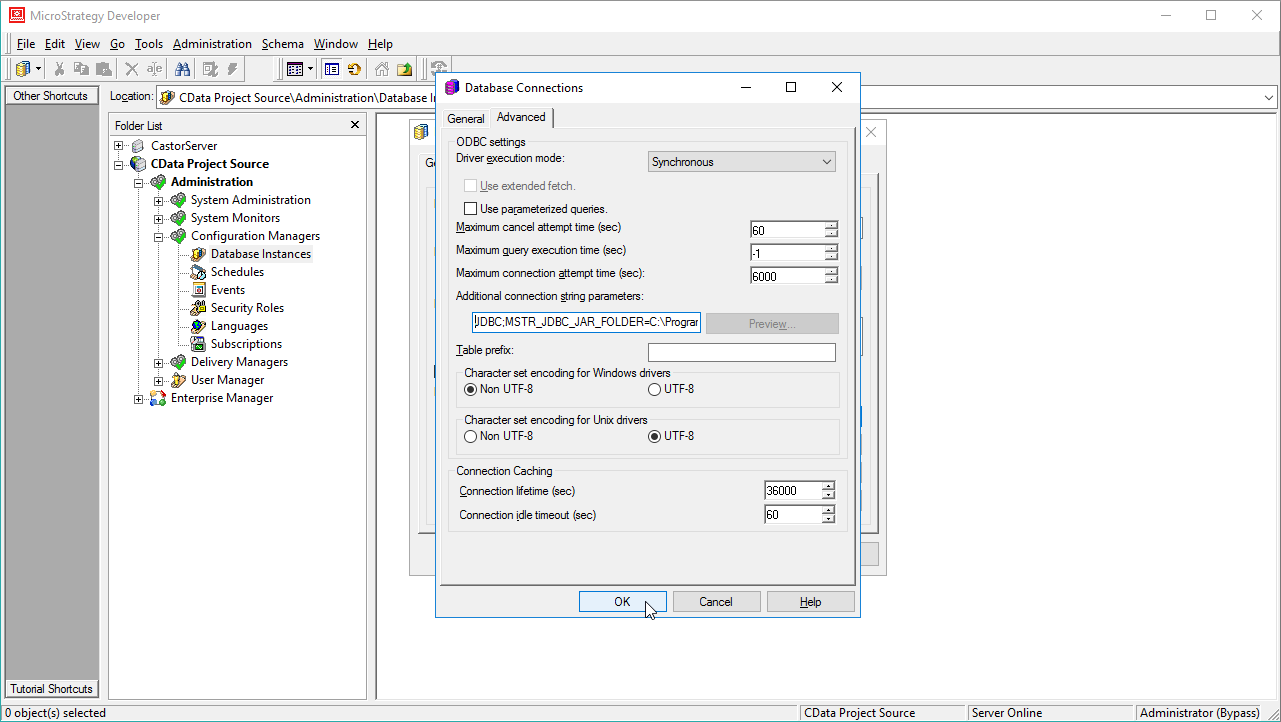
- Ensure that you have not selected an ODBC data source (this will trigger MicroStrategy to use the additional connection string parameters to build the database instance) and click OK.
- Click OK to close the database instance wizard.
- In the Project Source, right-click the project and open the Project configuration.
- Navigate to Database Instances, select the newly created database instance, and click OK.
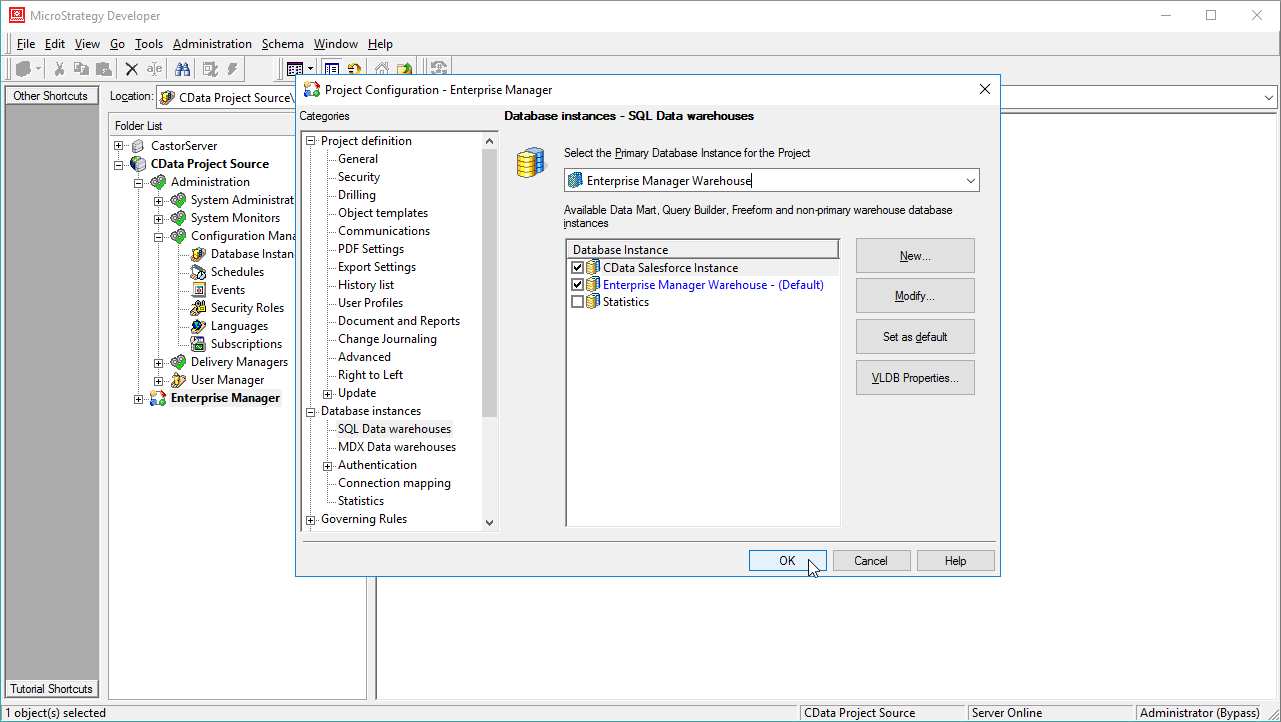
- Close MicroStrategy Developer and restart the connected MicroStrategy Intelligence Server to complete the database instance creation.
With the database instance configured, you will now be able to connect to Oracle Eloqua Reporting data from the Warehouse Catalog and Data Import.
Connect to Oracle Eloqua Reporting Data from the Warehouse Catalog
Once you have created a database instance based on the JDBC Driver for Oracle Eloqua Reporting, you can connect to data from the Warehouse Catalog.
- Select your project and click Schema -> Warehouse Catalog.
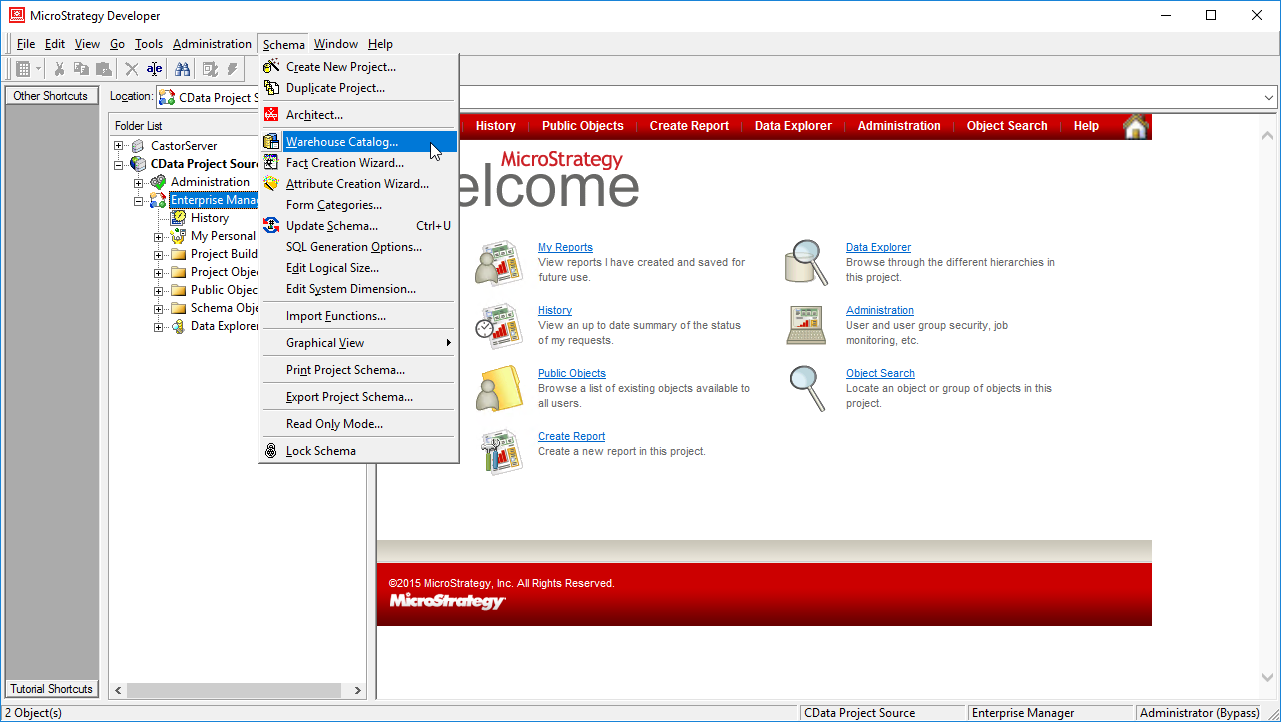
- In the Read Settings for the Catalog, click Settings and set the queries to retrieve the schema:
- To retrieve the list of tables, use the following query:
SELECT * FROM SYS_TABLES - To retrieve the list of columns for selected tables, use the following query:
SELECT DISTINCT
  CatalogName NAME_SPACE,
  TableName TAB_NAME,
  ColumnName COL_NAME,
  DataTypeName DATA_TYPE,
  Length DATA_LEN,
  NumericPrecision DATA_PREC,
  NumericScale DATA_SCALE
FROM
  SYS_TABLECOLUMNS
WHERE
  TableName IN (#TABLE_LIST#)
ORDER BY
  1,2,3

- To retrieve the list of tables, use the following query:
- Select tables to be used in the project.
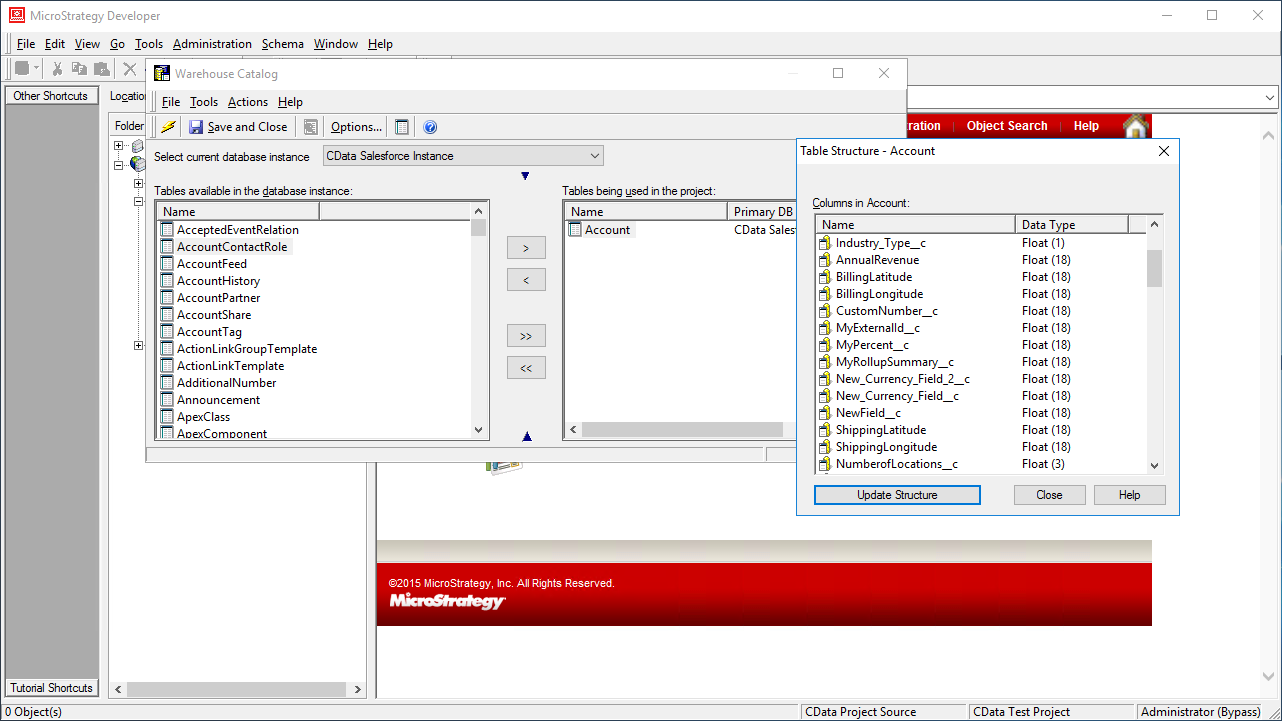
Using the CData JDBC Driver for Oracle Eloqua Reporting in MicroStrategy, you can easily create robust visualizations and reports on Oracle Eloqua Reporting data. Read our other articles on connecting to Oracle Eloqua Reporting in MictroStrategy Web and connecting to Oracle Eloqua Reporting in MicroStrategy Desktop for more information.
Note: Connecting using a JDBC Driver requires a 3- or 4-Tier Architecture.
Ready to get started?
Download a free trial of the Oracle Eloqua Reporting Driver to get started:
Download NowLearn more:
 Oracle Eloqua Reporting JDBC Driver
Rapidly create and deploy powerful Java applications that integrate with Oracle Eloqua Reporting.
