






Access Live Oracle Eloqua Reporting Data in Tableau with CData API Server

Tableau is one of the leading BI platforms for connecting, visualizing, and sharing data insights.
With the CData API Server and the Oracle Eloqua Reporting Connector (or any of the 270+ available), you can quickly create APIs that expose live data from multiple sources, using industry standards like OData and Swagger for seamless integration with Tableau.
In this article, we'll create a simple Tableau dashboard with live data from Oracle Eloqua Reporting, without moving or replicating data.
Let's get started!
Prerequisites
- CData API Server: Download a free trial here.
- Tableau: Sign in, sign up, or download from here.
- An active Oracle Eloqua Reporting account with access to your data.
Overview
Here's a quick overview of the steps we'll follow:
- Install the CData API Server, configure a connection to Oracle Eloqua Reporting, and use the OData endpoints.
- Connect to these endpoints in Tableau to build live dashboards and reports.
Step 1: Install the API Server and Add a Connection to Oracle Eloqua Reporting
1.1 Install the API Server
If you haven't already, download an installer for your machine from the CData API Server page. Follow the installation instruction to complete the setup.
Once installed, you can start the server in the following ways:
- Windows: CData API Server runs as a service by default. Make sure the service is running, then open the http://hostname:port (e.g., http://localhost:8080/) in your browser to access the API Server admin console.
- Linux/Mac: You can run the server manually or as a service. To start it manually, navigate to the installation directory and run java -jar apiserver.jar.
- Alternatively, run service.sh with root privileges to set up API Server as a Linux system service.
1.2 Enable CORS
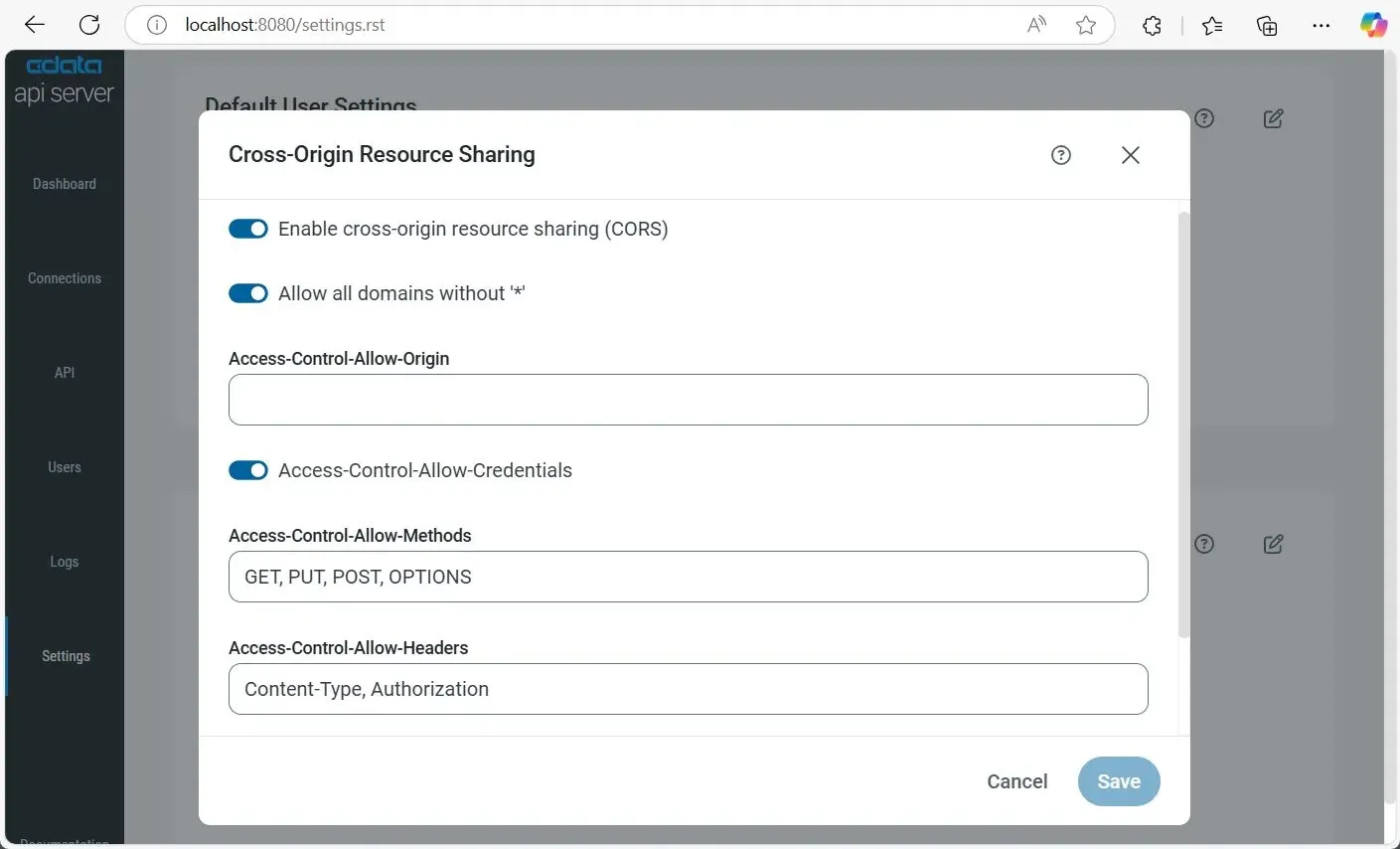
When Tableau and the CData API Server are hosted on different domains, CORS (Cross-Origin Resource Sharing) must be enabled to allow Tableau to access the data endpoints. To enable CORS in the API Server:
- Go to Settings and click the icon to edit CORS settings.
- Enable Cross-Origin Resource Sharing (CORS).
- Enable Allow all domains without '*' to accept any origin.
- In Access-Control-Allow-Origin, enter your Tableau origin domain, or use * to allow all domains (suitable for public APIs).
- Enable Access-Control-Allow-Credentials to allow cookies and auth headers.
- In Access-Control-Allow-Methods, enter GET, PUT, POST, OPTIONS.
- In Access-Control-Allow-Headers, enter Authorization, Content-Type.
- Set Access-Control-Max-Age (default: 3600 seconds) to cache preflight requests.
- Click Save.
1.3 Add a Oracle Eloqua Reporting Connection in the API Server
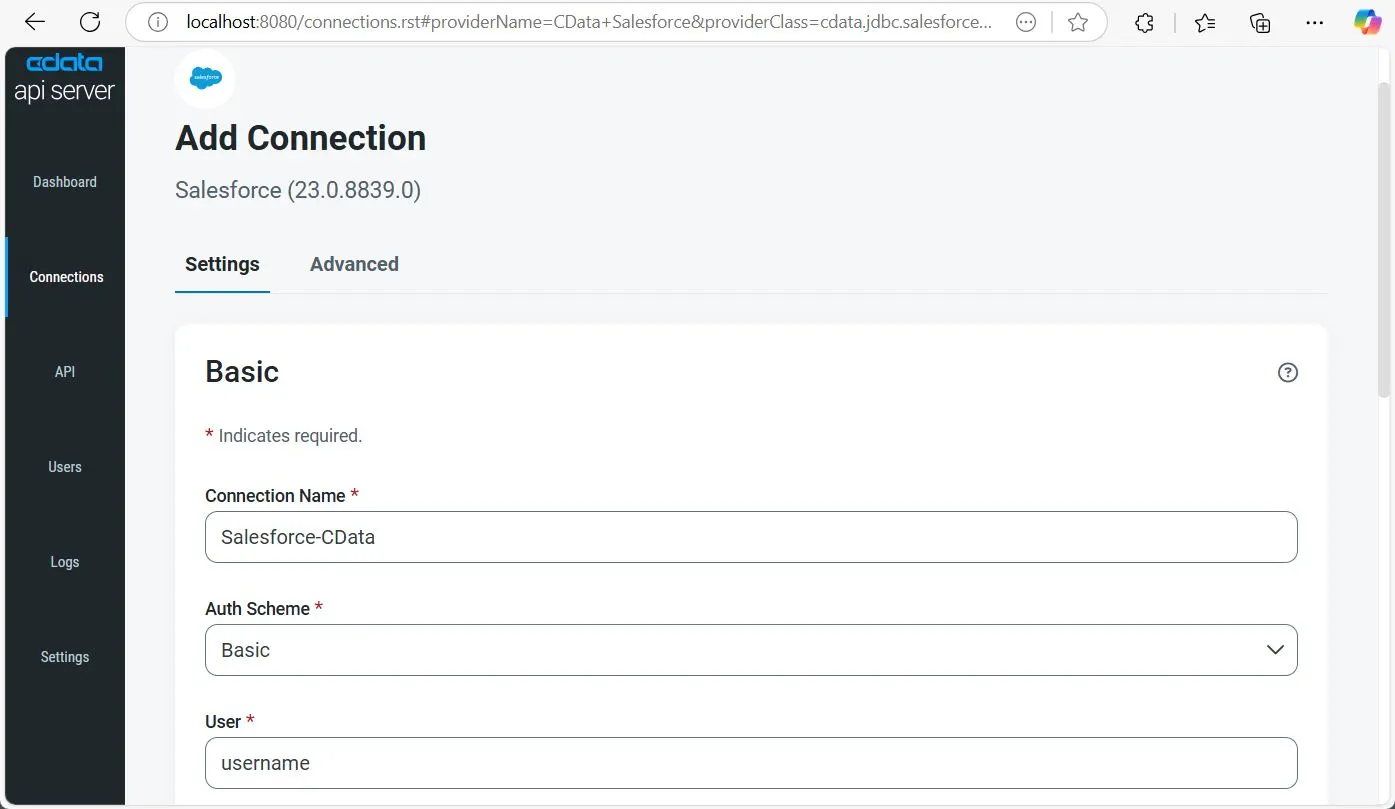
- Go to Settings and click Add Connection in the top-right.
- Select Oracle Eloqua Reporting. If it's not visible, toggle off Only Installed to view all connectors.
- Click Install Connector to auto-install. For a manual setup, choose Manual Install and upload the downloaded ZIP file.
- Once installed, click Oracle Eloqua Reporting again to open its connection settings and configure using the details below.
- Basic authentication (User and Password)
- OAuth 2.0 code grant flow
- OAuth 2.0 password grant flow
- AuthScheme: Basic.
- Company: The company name associated with your Oracle Eloqua Reporting account.
- User: Your login account name.
- Password: Your login password.
- InitiateOAuth: GETANDREFRESH. Used to automatically get and refresh the OAuthAccessToken.
- OAuthClientId: The client Id assigned when you registered your application.
- OAuthClientSecret: The client secret that was assigned when you registered your application.
- CallbackURL: The redirect URI that was defined when you registered your application.
- AuthScheme: OAuthPassword
- Company: The company's unique identifier.
- User: Your login account name.
- Password: Your login password.
- OAuthClientId: The client Id assigned when you registered your custom OAuth application.
- OAuthClientSecret: The client secret assigned when you registered your custom OAuth application.
- Click Save & Test to validate and complete the connection setup.
Oracle Eloqua Reporting supports the following authentication methods:
Basic Authentication (User and Password)
To perform authentication with a user and password, specify these properties:
OAuth Authentication (Code Grant Flow)
To authenticate with the OAuth code grant flow, you must set AuthScheme to OAuth and create a custom OAuth application. For information about how to create a custom OAuth application, see the Help documentation.
Then set the following properties:
When you connect, the driver opens Oracle Eloqua Reporting's OAuth endpoint in your default browser. Log in and grant permissions to the application. When the access token expires, the driver refreshes it automatically.
OAuth Authentication (Password Grant Flow)
With the OAuth password grant flow, you can use your OAuth application's credentials alongside your user credentials to authenticate without the need to grant permission manually via a browser prompt. You must create an OAuth app (see the Help documentation) to use this authentication method.
Set the following properties:
1.4 Add and Configure Users
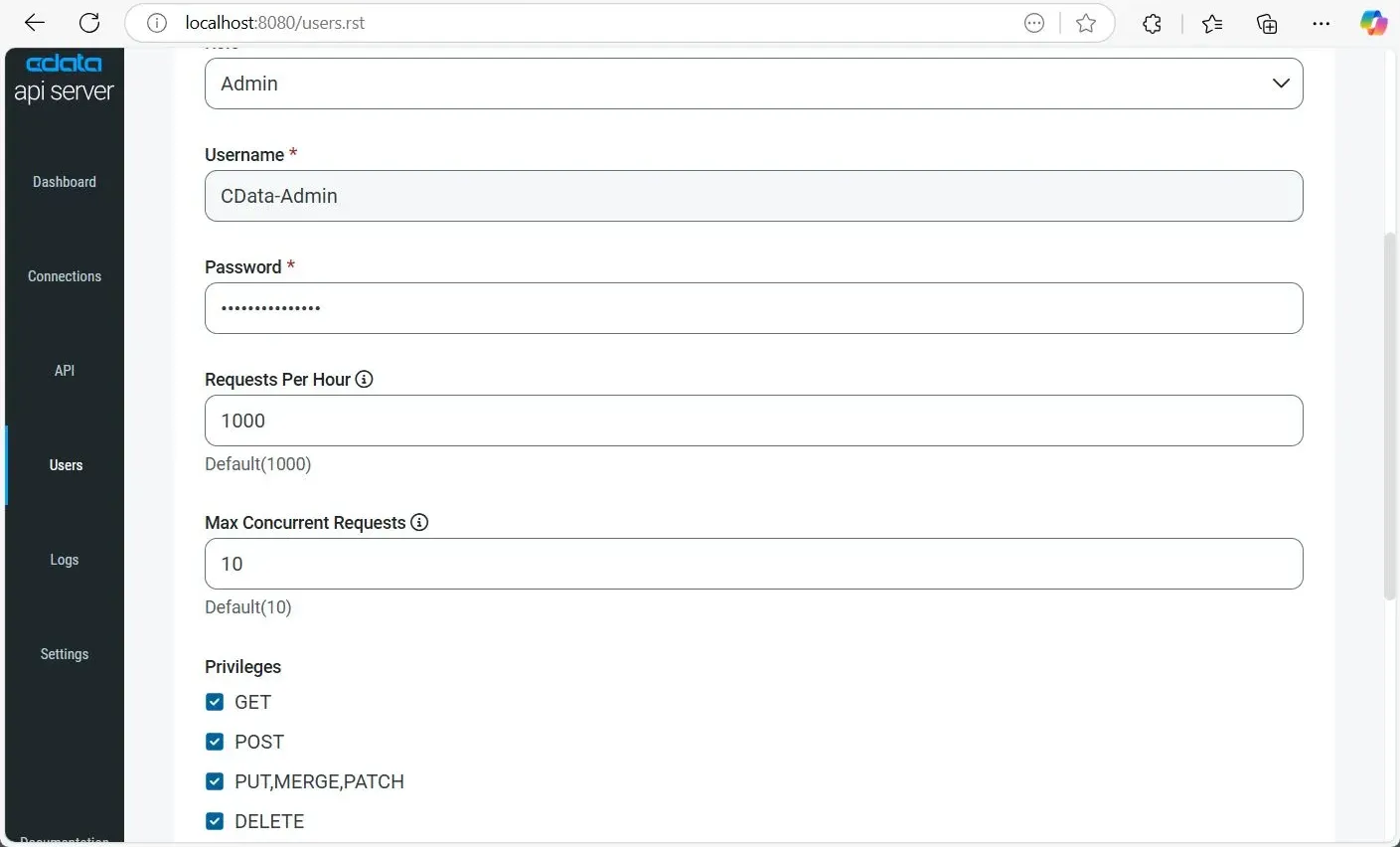
To allow secure access to the created OData endpoints, create and configure Users in the CData API Server. Each user has authentication credentials and role-based access control, ensuring that only authorized users with appropriate roles can query the connected data.
- Go to Users from the navigation pane, then click Add User in the top-right corner.
- Enter a Username and set a secure Password for the user.
- Select a Role:
- Admin: Full access to all features, including settings and connections.
- Query: Limited to data access via API endpoints (suitable for Tableau use).
- (Optional) Configure rate limits:
- Requests Per Hour: Number of allowed API calls per hour (default: 1000).
- Max Concurrent Requests: Number of parallel API requests allowed (default: 10).
- Define Privileges for the user:
- GET: Allows data retrieval.
- POST: Allows creation of new records.
- PUT, MERGE, PATCH: Allows updates to existing records.
- DELETE: Allows deletion of records.
- Click Add User to save and activate the user account.
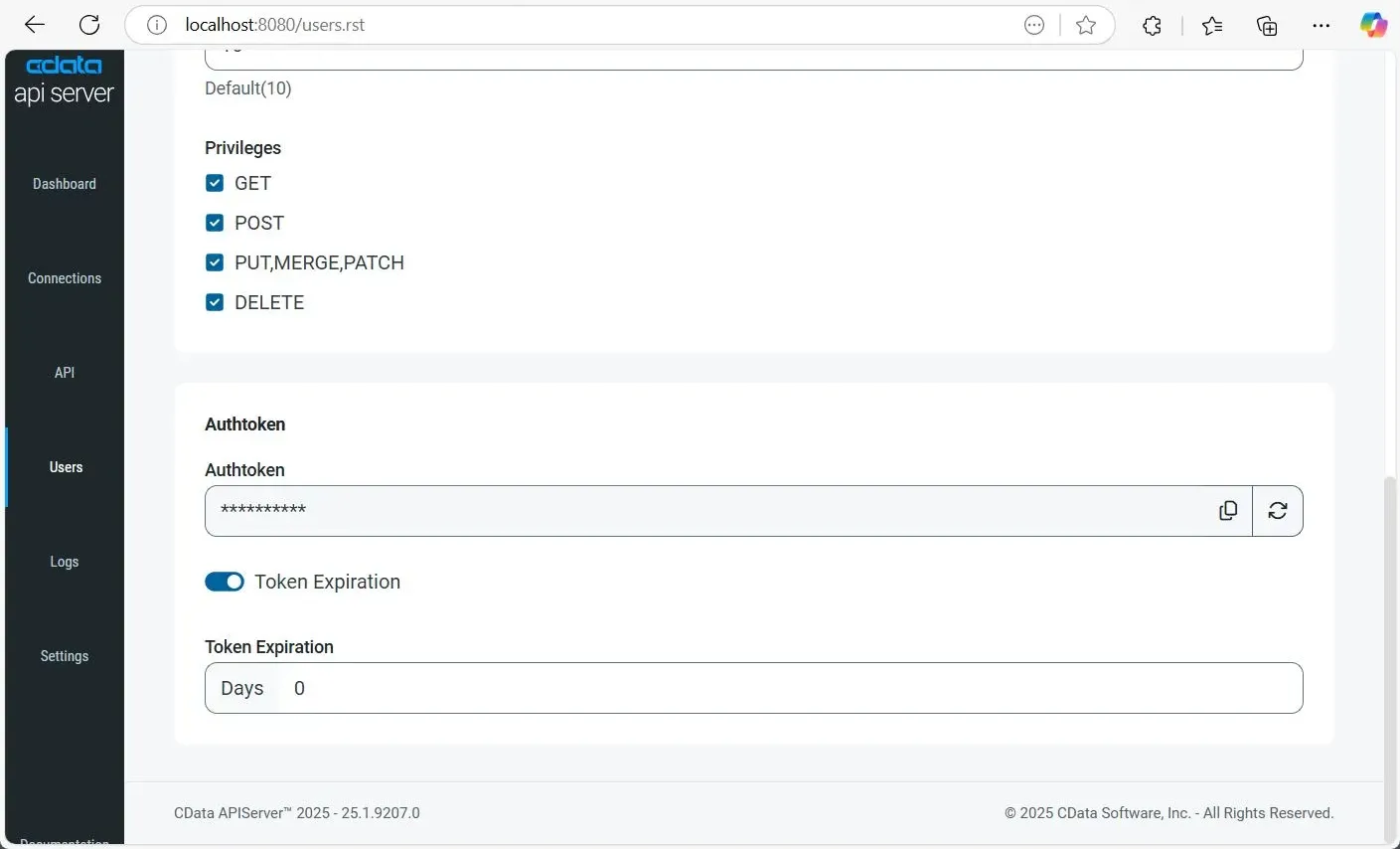
Once a user is added, an Authtoken is automatically generated. This token can be used in API requests as a secure authentication method instead of a password.
You can also refresh the Authtoken, disable it, or set expiration rules (e.g., number of days until expiry) by enabling the Token Expiration option in the user settings.
1.5 Add Tables for the Endpoint
To make data from Oracle Eloqua Reporting available in Tableau via OData, you need to expose your desired tables through the API Server. Here's how:
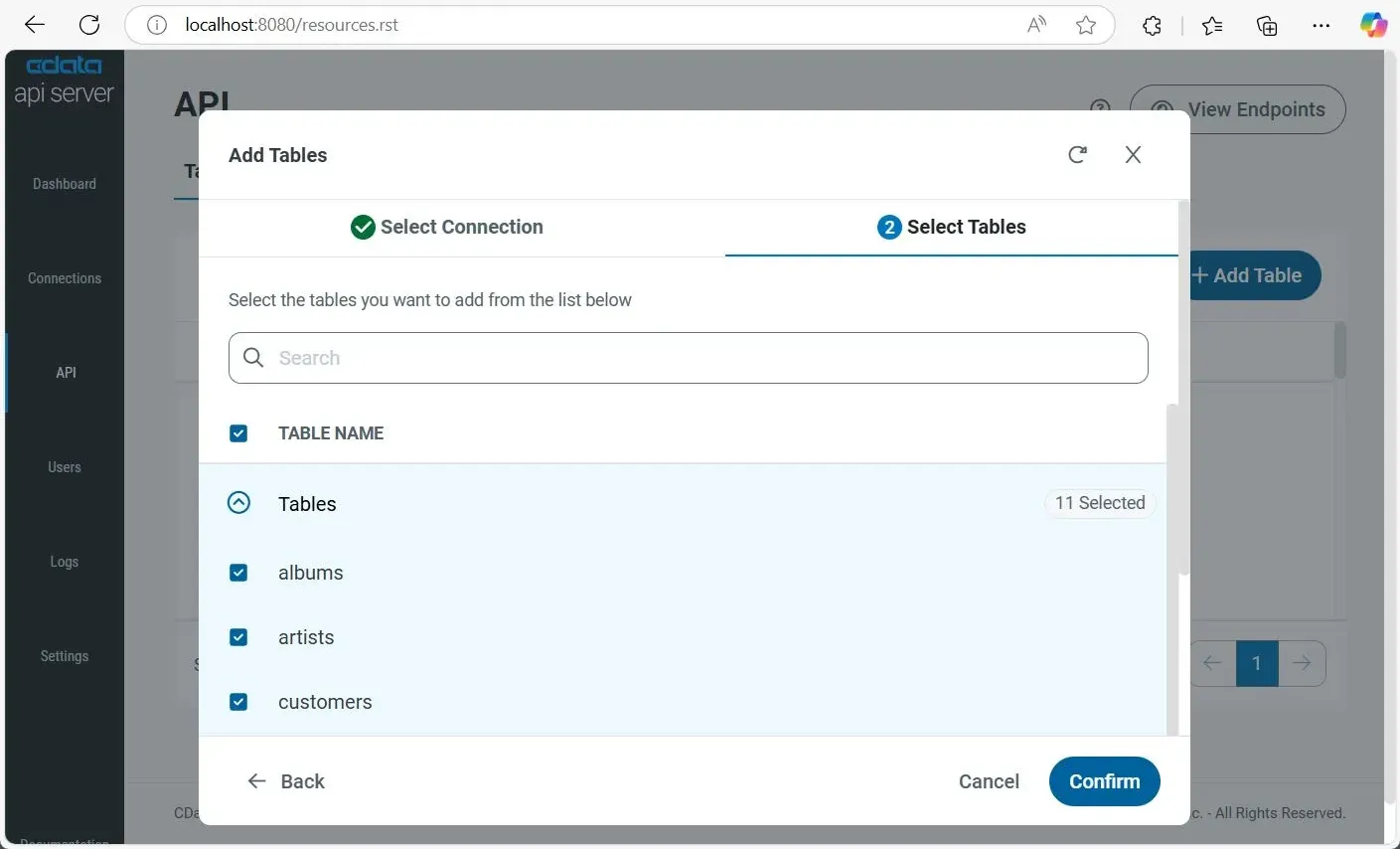
- In the CData API Server, go to API from the left navigation, then click Add Table at the top-right.
- Select the Oracle Eloqua Reporting connection you configured earlier, then click Next.
- Browse available entities and schema by expanding the Tables section. Select individual tables, or click the TABLE NAME checkbox at the top to select all. Then click Confirm.
1.6 Access the Endpoints in Tableau
Now that your API is configured, you can connect Tableau directly to the OData endpoints to visualize live data. Below are the URL formats for the OData endpoints:
| Endpoint | URL | |
|---|---|---|
| Entity List | http://address:port/api.rsc/ | |
| Table Metadata (e.g., albums) | http://address:port/api.rsc/albums/$metadata?@json | |
| Table Data (e.g., albums) | http://address:port/api.rsc/albums |
These OData endpoints can now be connected to Tableau to create live dashboards, charts, and reports.
The CData API Server supports full OData filtering capabilities (OData ABNF). For refined queries, you can append standard OData query parameters like $select, $filter, $orderby, $top, and $skip to the requests.
Step 2: Create a Simple Dashboard in Tableau
With your CData API Server exposing OData endpoints for Oracle Eloqua Reporting data, you can now connect Tableau to the API and build a real-time dashboard. Here's how to do it.
For this article, we'll use Tableau Desktop on Windows, but the steps should work with all Tableau versions.
2.1. Connect to the OData Endpoint
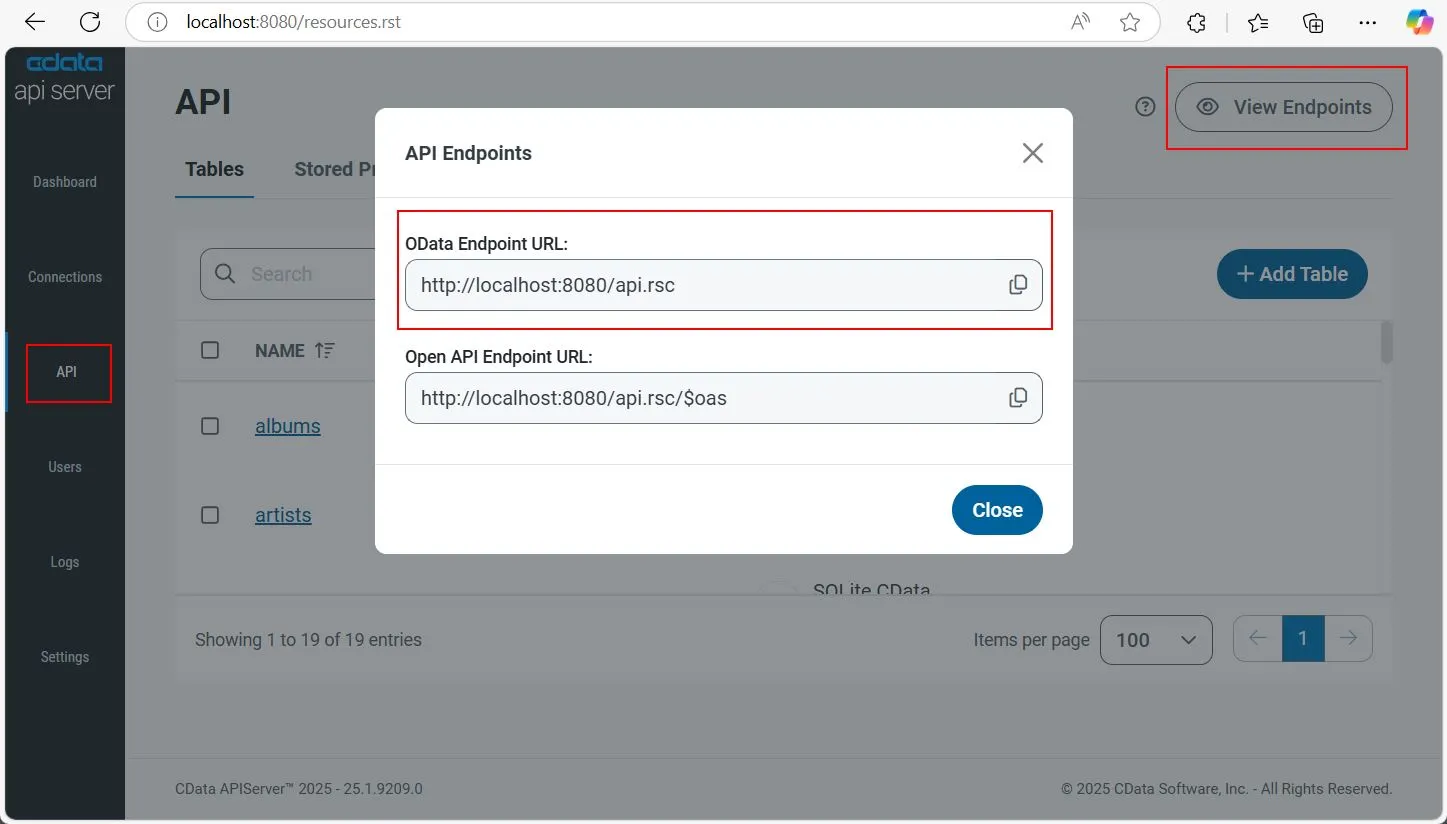
- Get the CData API Endpoint URL by logging into your CData API Server. Go to API from the left navigation, then click View Endpoints at the top-right.
- Copy the URL (e.g., http://localhost:8080/api.rsc).
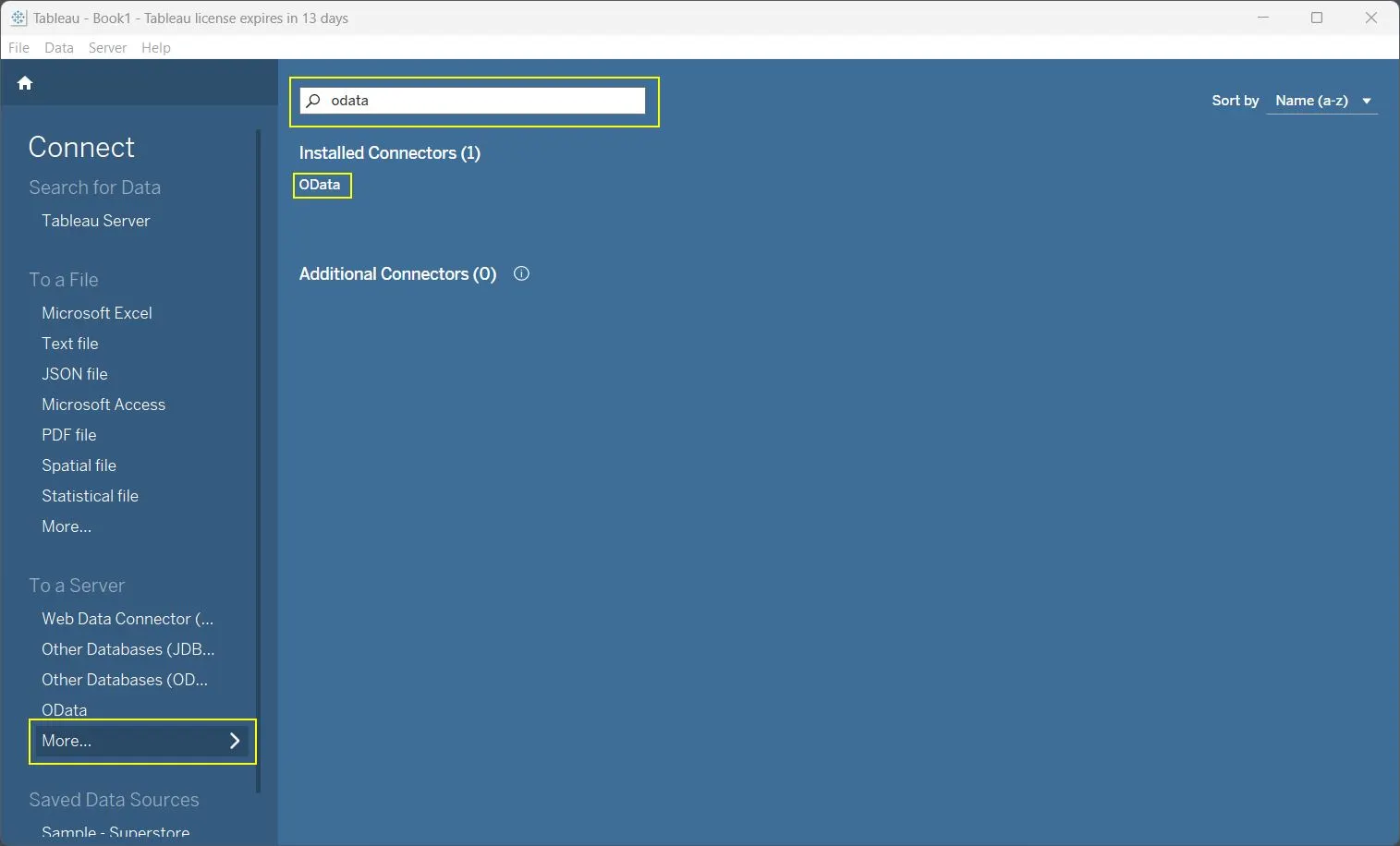
- Launch Tableau and log in to your account.
- On the left under To a Server, click More, then search for OData and select it.
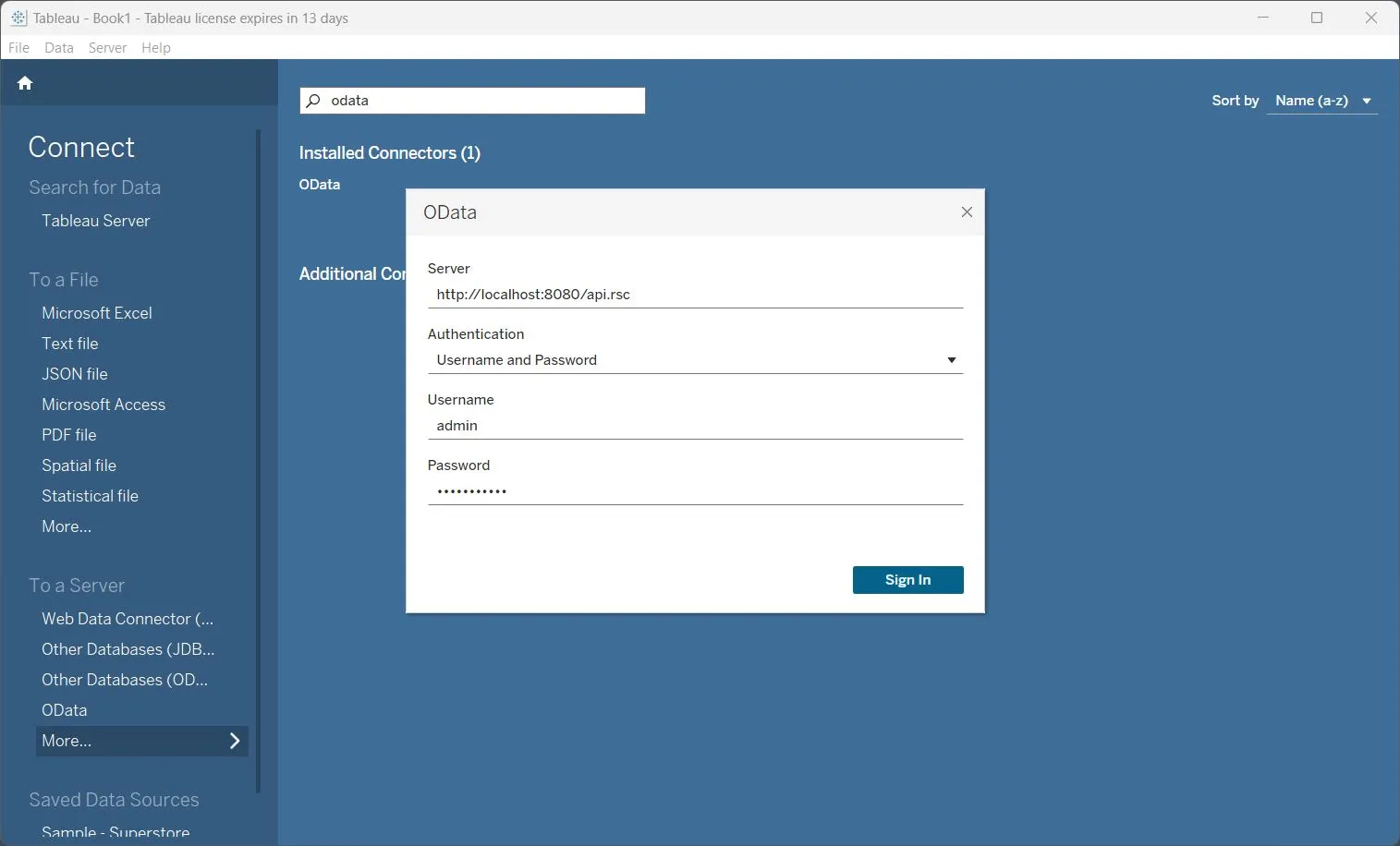
- Add the following details:
- Server: Your CData API Server Endpoint URL (e.g., http://localhost:8080/api.rsc)
- Authentication: Select Username and Password.
- Username: Enter your CData Server API Username.
- Password: Enter your CData API Server Password.
2.2. Create a Dashboard
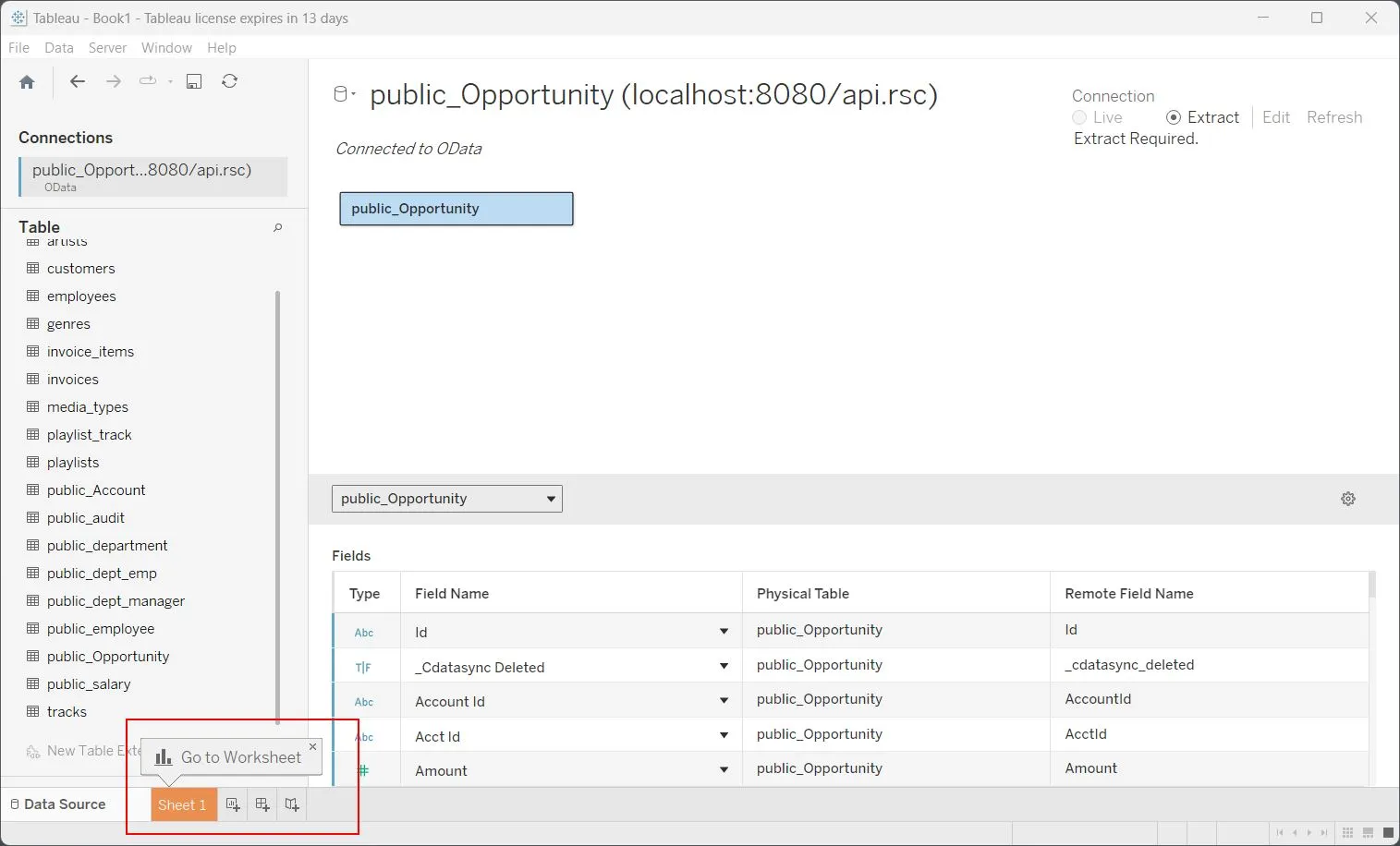
- On the left under Tables, drag your desired table to the canvas, then click on Sheet 1 at the bottom left.
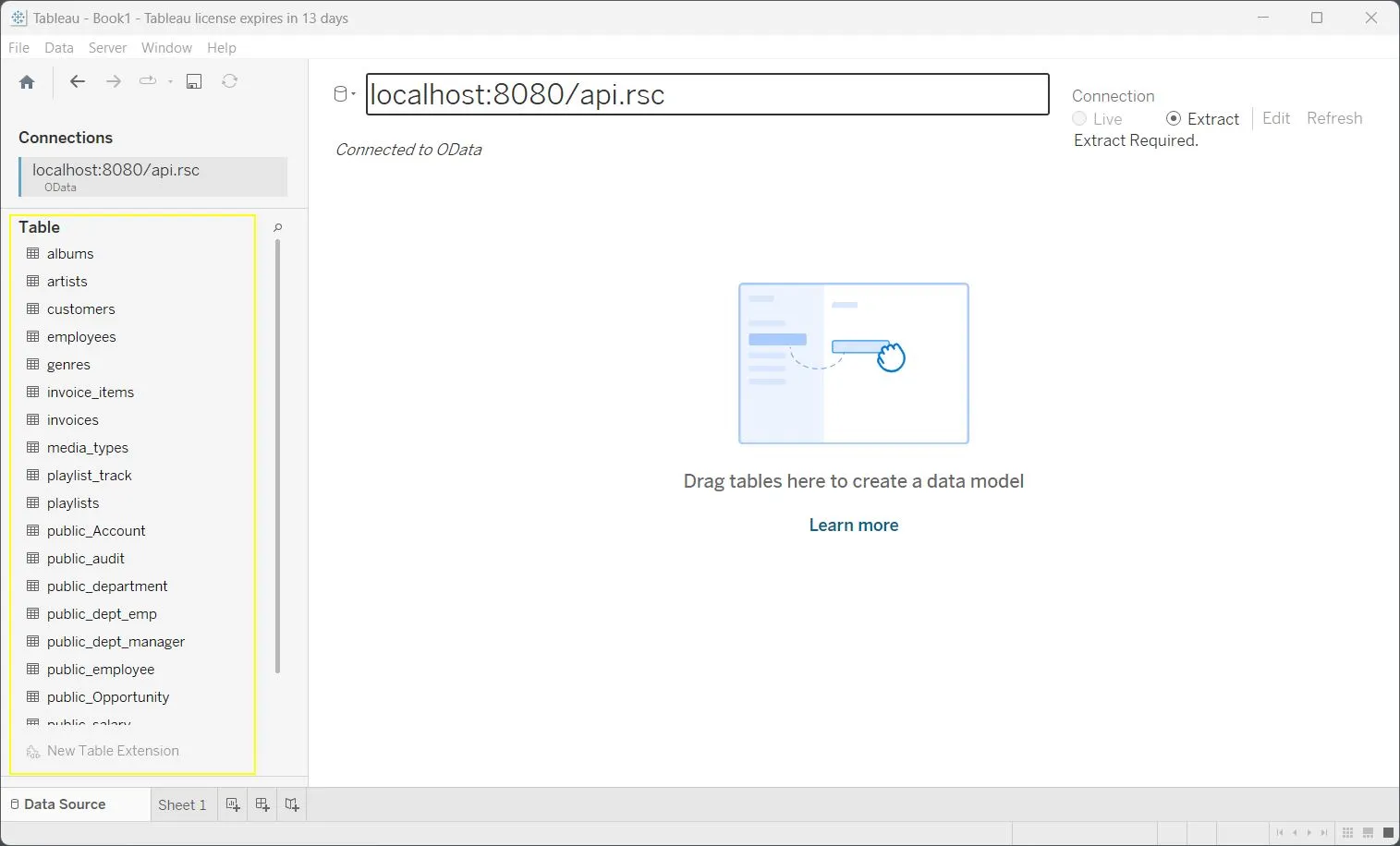
- In Sheet 1, on the left under Tables, double-click your desired columns from the selected table to add them to the view.
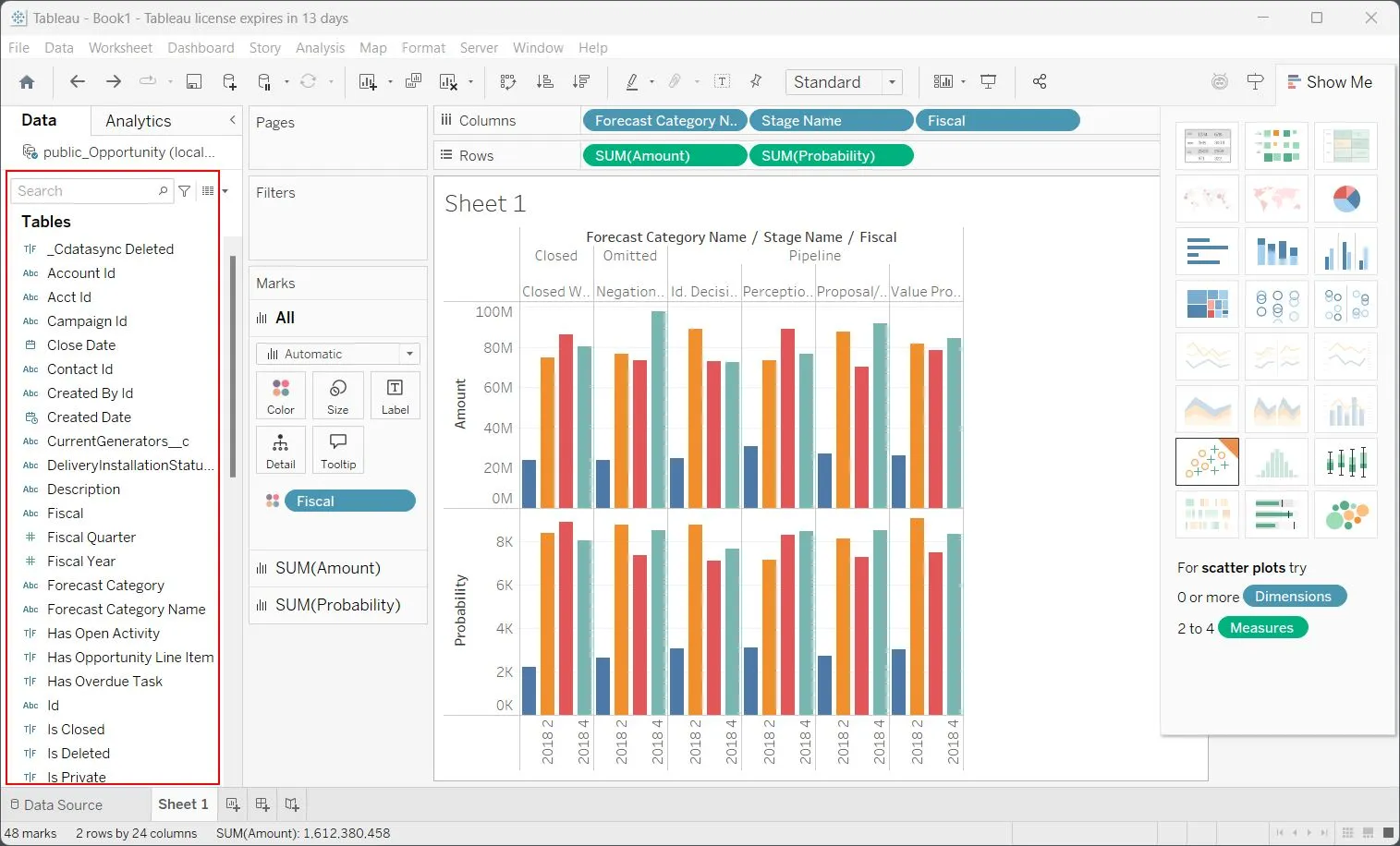
- Drag and drop columns into the Columns and Rows sections at the top to create a visualization. In this example, we have created a simple forecasting bar chart.
2.3. Refine Your Dashboard
Continue refining your dashboard by adding filters, formatting, and combining multiple sheets. You can create more complex visualizations and interactive dashboards based on your live API data.
Try CData API Server Free for 30 Days
Build OData REST APIs with a low-code/no-code platform and unlock seamless integration with your live data. Try CData API Server free for 30 days and experience how easily you can connect live Oracle Eloqua Reporting data (or any of the 270+ available connectors) directly into Tableau for real-time dashboards and analytics.