






Connect to Oracle Eloqua Reporting Data Using the Script Function in Claris FileMaker Pro

Claris FileMaker is a low-code database application development tool that enables users to create custom apps for managing and organizing data. It combines a powerful relational database engine with an intuitive interface, allowing both technical and non-technical users to design and deploy applications across desktop, web, and mobile platforms.
In this article, we'll explore how to use the CData ODBC Driver for Oracle Eloqua Reporting and FileMaker scripting to connect to Oracle Eloqua Reporting data.
Create an ODBC Data Source for Oracle Eloqua Reporting
If you have not already, first specify connection properties in an ODBC DSN (data source name). This is the last step of the driver installation. You can use the Microsoft ODBC Data Source Administrator to create and configure ODBC DSNs.
Oracle Eloqua Reporting supports the following authentication methods:
- Basic authentication (User and Password)
- OAuth 2.0 code grant flow
- OAuth 2.0 password grant flow
Basic Authentication (User and Password)
To perform authentication with a user and password, specify these properties:
- AuthScheme: Basic.
- Company: The company name associated with your Oracle Eloqua Reporting account.
- User: Your login account name.
- Password: Your login password.
OAuth Authentication (Code Grant Flow)
To authenticate with the OAuth code grant flow, you must set AuthScheme to OAuth and create a custom OAuth application. For information about how to create a custom OAuth application, see the Help documentation.
Then set the following properties:
- InitiateOAuth: GETANDREFRESH. Used to automatically get and refresh the OAuthAccessToken.
- OAuthClientId: The client Id assigned when you registered your application.
- OAuthClientSecret: The client secret that was assigned when you registered your application.
- CallbackURL: The redirect URI that was defined when you registered your application.
When you connect, the driver opens Oracle Eloqua Reporting's OAuth endpoint in your default browser. Log in and grant permissions to the application. When the access token expires, the driver refreshes it automatically.
OAuth Authentication (Password Grant Flow)
With the OAuth password grant flow, you can use your OAuth application's credentials alongside your user credentials to authenticate without the need to grant permission manually via a browser prompt. You must create an OAuth app (see the Help documentation) to use this authentication method.
Set the following properties:
- AuthScheme: OAuthPassword
- Company: The company's unique identifier.
- User: Your login account name.
- Password: Your login password.
- OAuthClientId: The client Id assigned when you registered your custom OAuth application.
- OAuthClientSecret: The client secret assigned when you registered your custom OAuth application.
When you configure the DSN, you may also want to set the Max Rows connection property. This will limit the number of rows returned, which is especially helpful for improving performance when designing reports and visualizations.
Connect and Sync Oracle Eloqua Reporting data with FileMaker Using Scripts
In this section, we walk through the steps to connect live Oracle Eloqua Reporting data to FileMaker using the CData ODBC Driver for Oracle Eloqua Reporting and the Script function. During the initial import, FileMaker brings in all data from the external data source. From the second import onward, it updates only the data that has changed in the external source (a differential update). You can also replace the data in the current record order and schedule these differential updates for automated syncing.
You can download and install the latest version of FileMaker Pro for your Mac/Windows/Linux systems from this link.
Connect and sync Oracle Eloqua Reporting data with FileMaker using scripts
Scripting in FileMaker automates complex tasks and workflows by running a sequence of actions with a single command. By using scripting to integrate with Oracle Eloqua Reporting, you can automatically connect to, import, update, and replace Oracle Eloqua Reporting data within your FileMaker applications, streamlining data management and improving efficiency.
First-time importing and adding Oracle Eloqua Reporting data using script
In this section, we'll use scripts to import Oracle Eloqua Reporting data into FileMaker by following these steps:
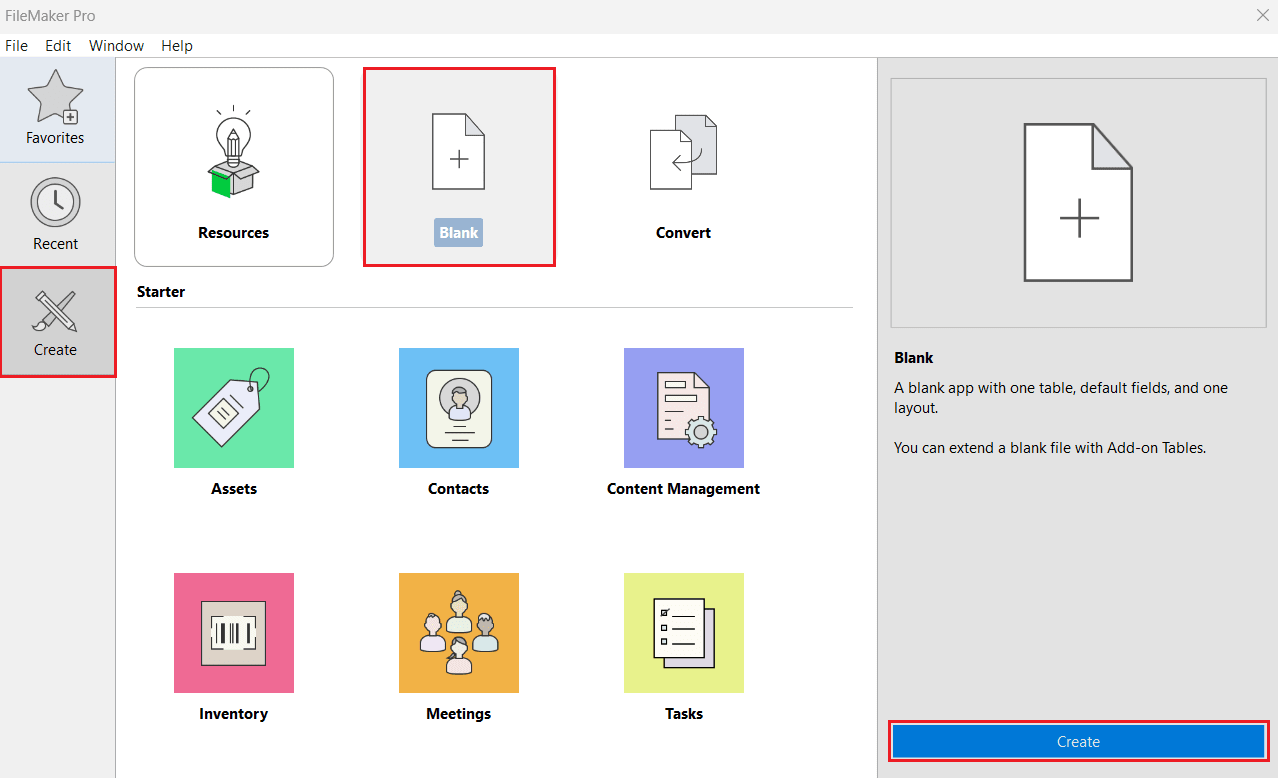
- Open FileMaker Pro. Navigate to Create from the left panel and select Blank > Create.
- Enter a filename of your choice and click Save.
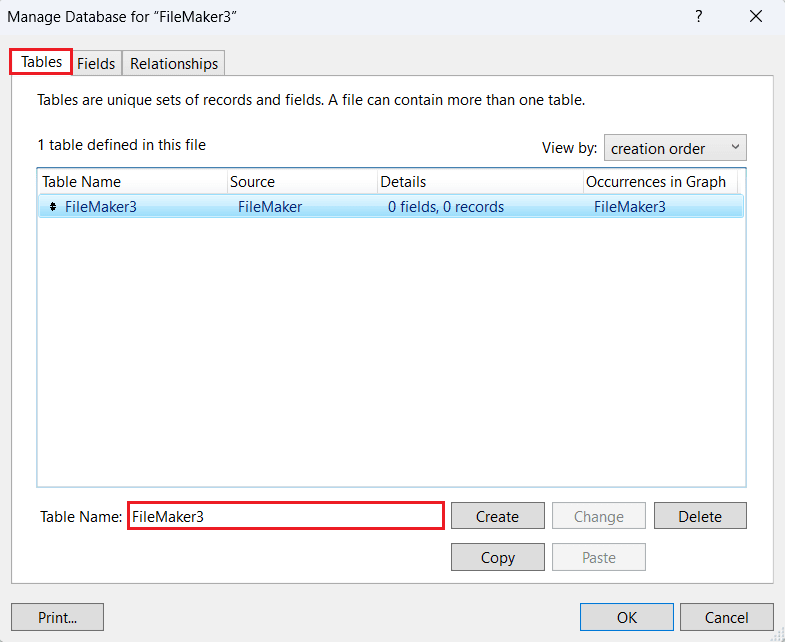
- In the Manage Database window, go to the Tables tab and create or rename the table where you want to display the Oracle Eloqua Reporting data.
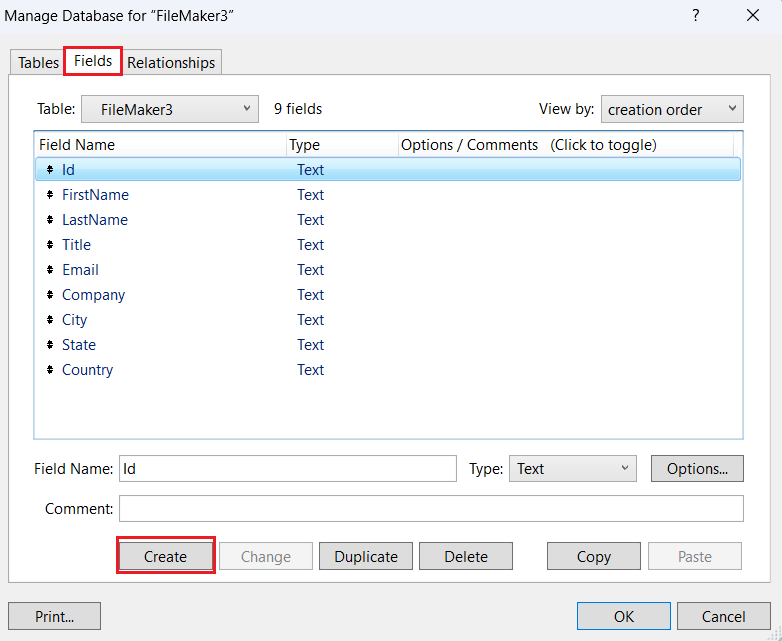
- In the Fields tab, create and add the fields you want to use in the table.
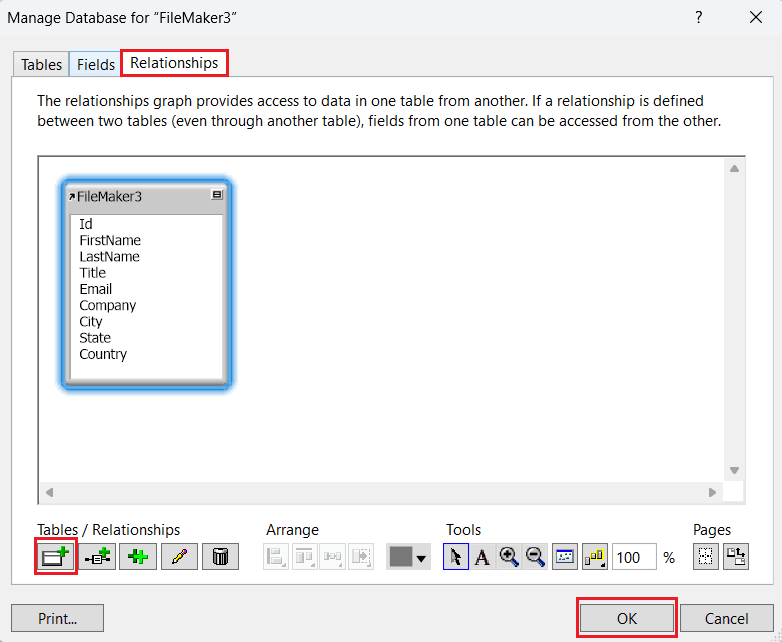
- In the Relationships tab, add table relationships if there are multiple tables, then click OK.
- To reopen and modify the table structure, go to File > Manage > Database.
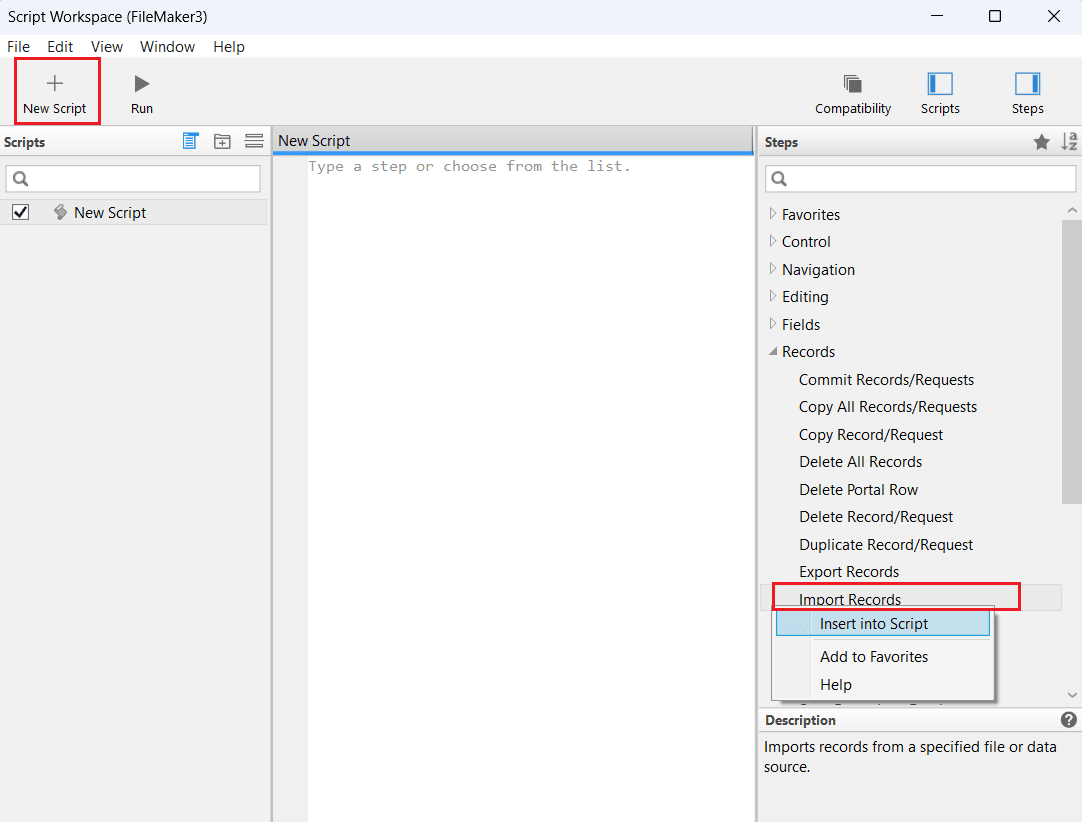
- Navigate to Scripts > Script Workspace.
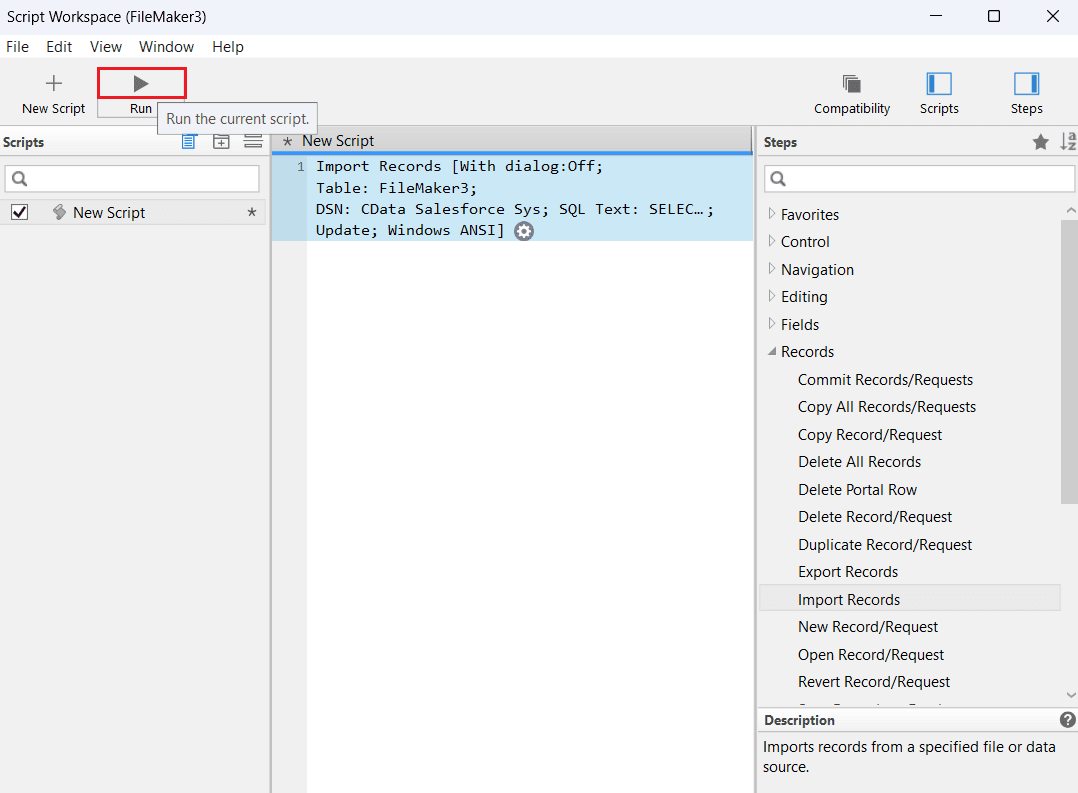
- Select New Script to open a new script workspace.
- From the Steps panel on the right, select Records > Import Records > Insert into Script.
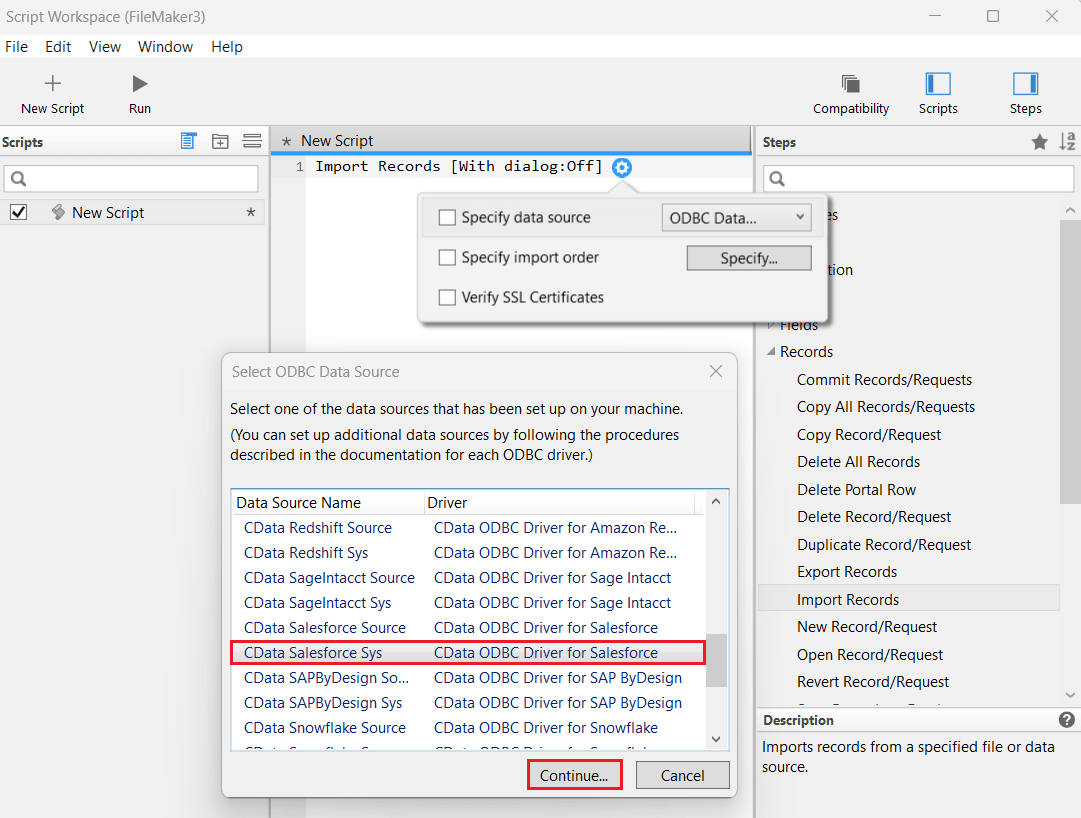
- In the Specify Data Source dropdown, choose ODBC Data.
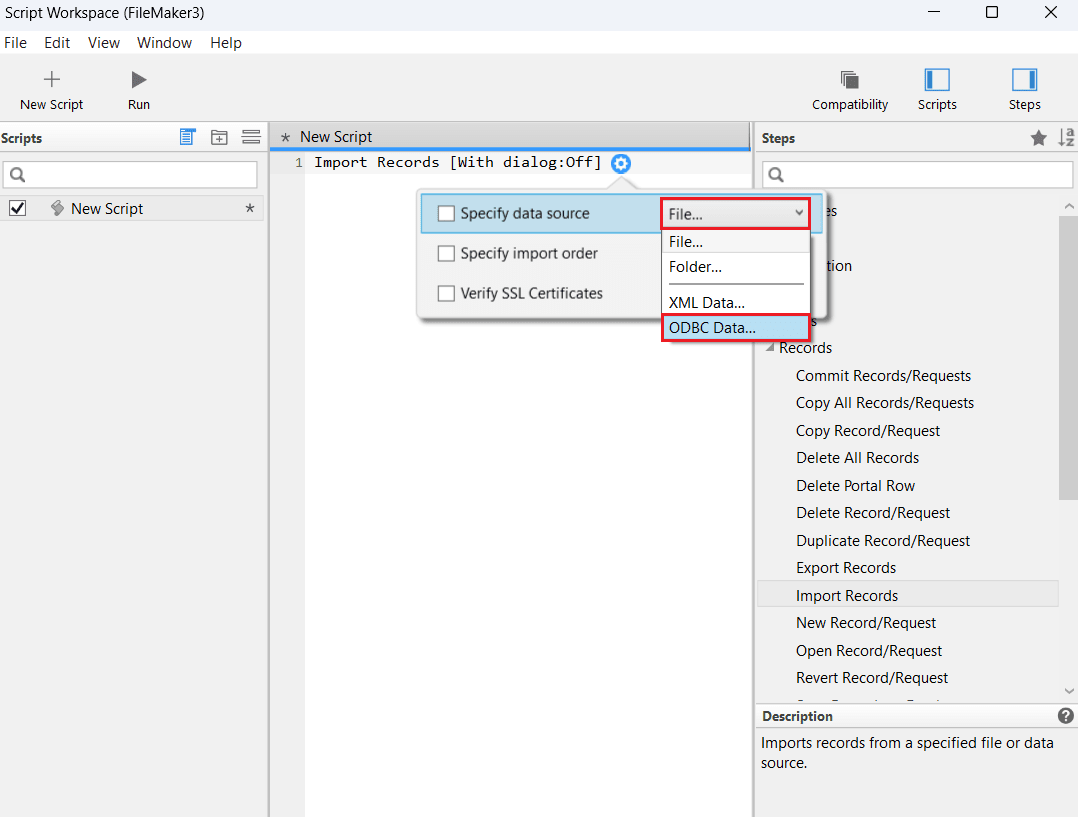
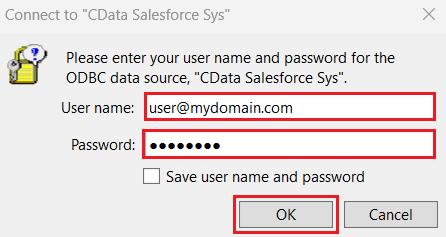
- Select CData OracleEloquaReporting Sys from the Select ODBC Data Source window, and click Continue. Enter your Oracle Eloqua Reporting credentials and click OK.
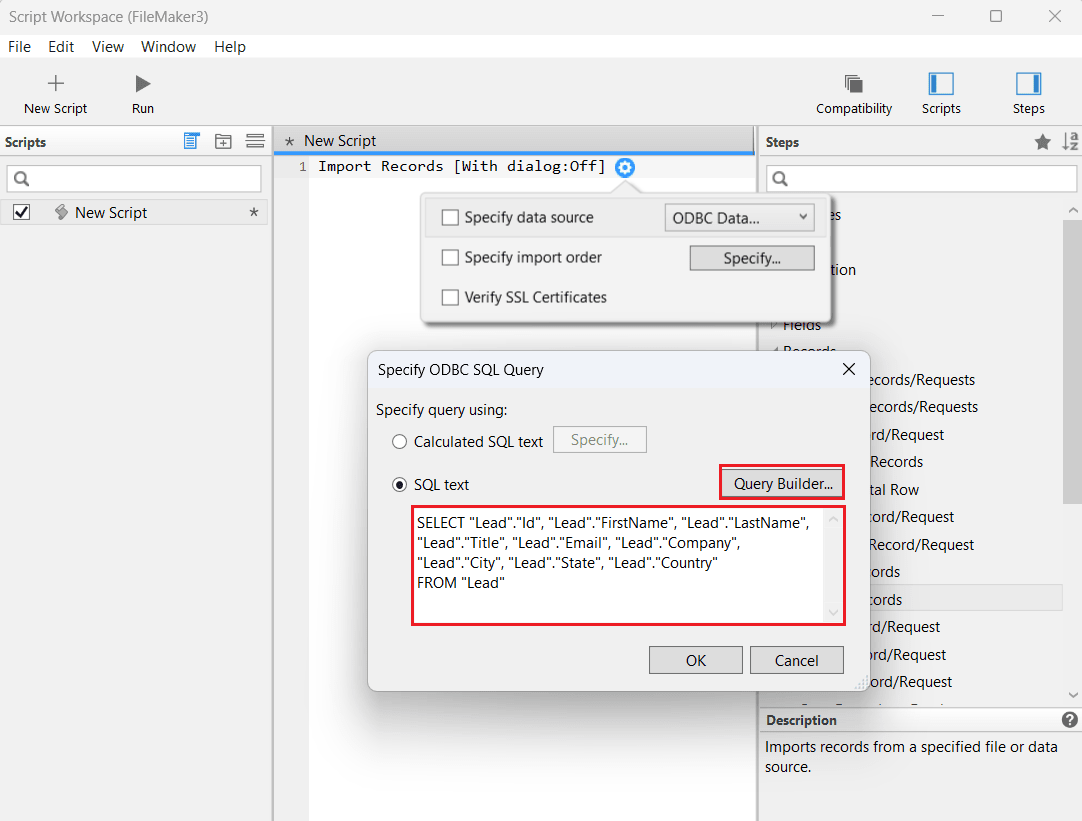
- In the Specify ODBC SQL Query dialog, enter the SQL query in the SQL text editor to import the desired Oracle Eloqua Reporting data.
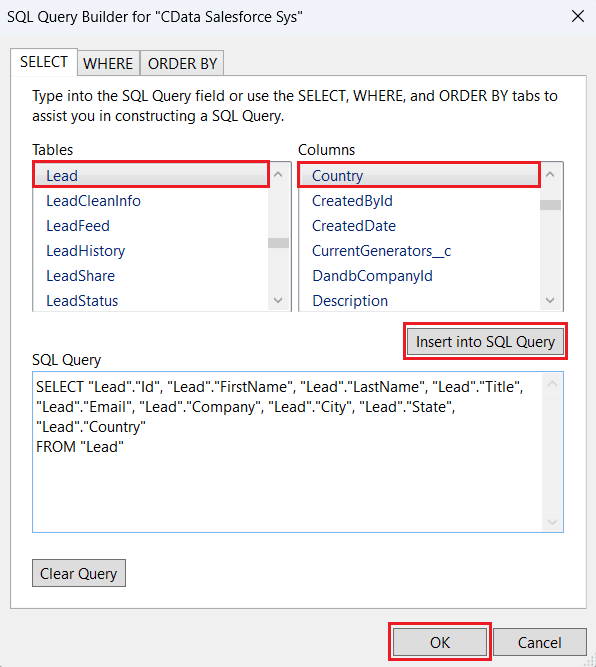
- Alternatively, select Query Builder to open the SQL Query Builder window. Choose the target table from the Tables section and relevant columns from the Columns section. Click Insert into SQL Query after each selection to auto-generate the query. You can also manually edit the query using WHERE and ORDER BY clauses or the designated tabs. Click OK to finalize the query.
- Click OK.
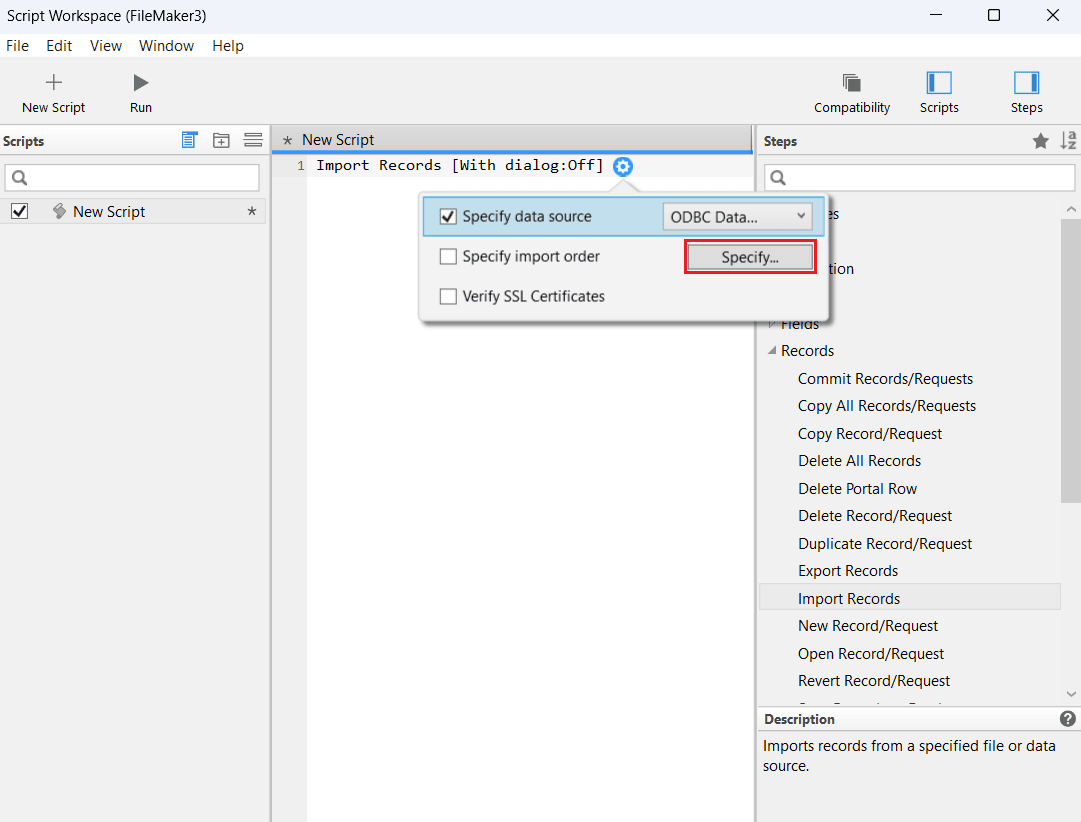
- In the Specify import order option, click Specify and enter the Oracle Eloqua Reporting credentials.
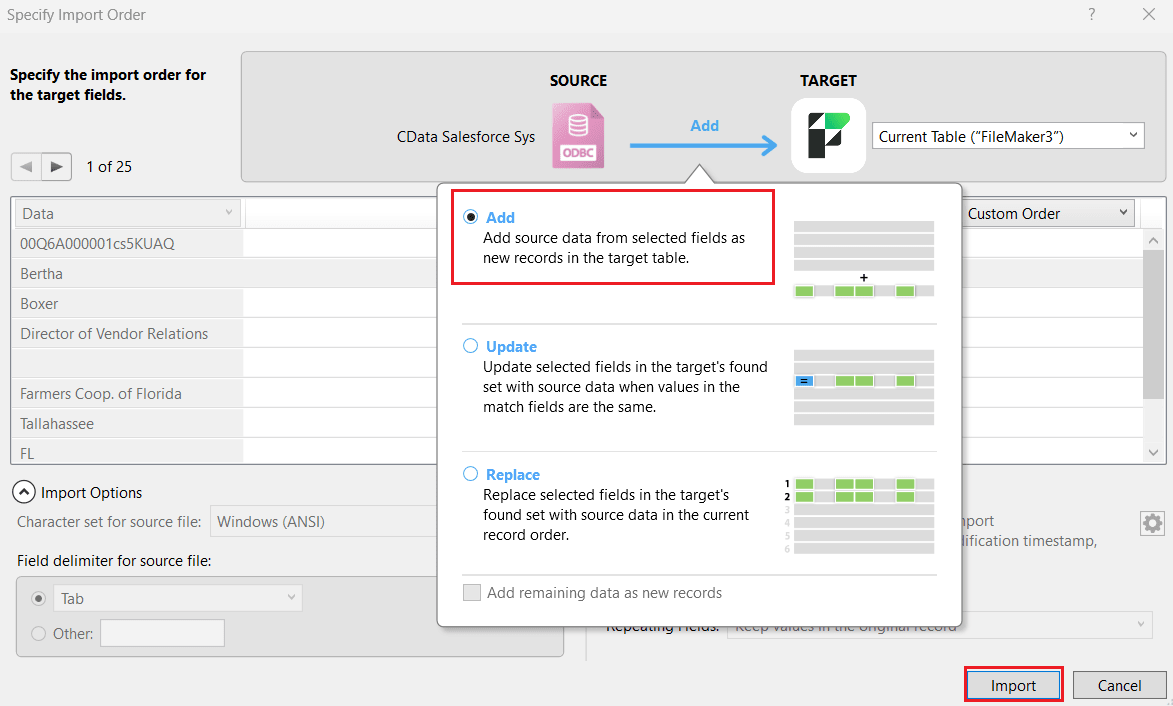
- In the Specify Import Order window, define the import order for the target fields you added earlier. Select Add between the source and target fields to insert the Oracle Eloqua Reporting data as new records in the table. Click Import.
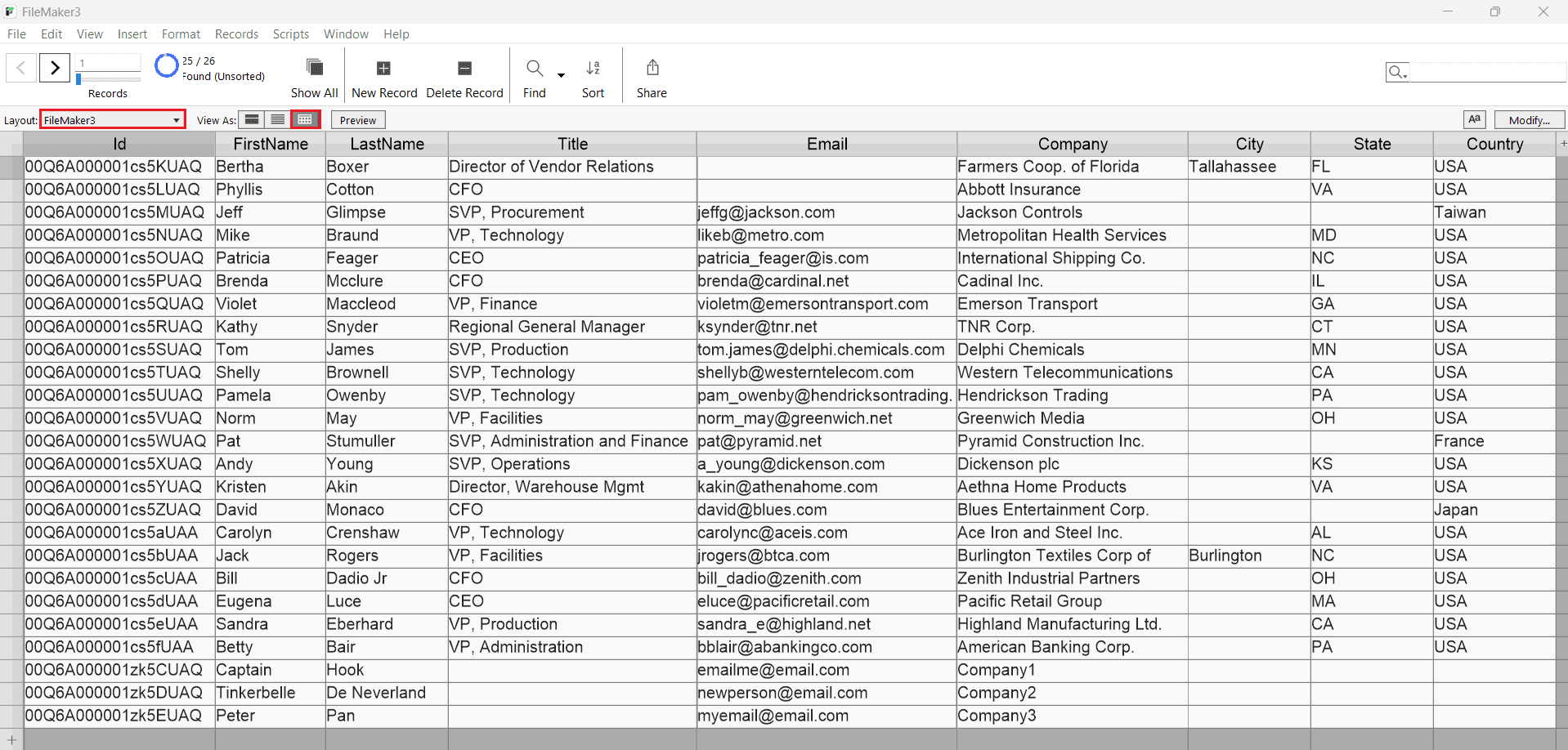
- The script now appears in the workspace. Click Run to execute the script and process the import.
- FileMaker imports the Oracle Eloqua Reporting data as a table.

Update or Replace Imported Oracle Eloqua Reporting data Using a Script
After importing the Oracle Eloqua Reporting data into FileMaker, use scripts to update or replace any changes made in Oracle Eloqua Reporting by following this process:
- Go back to the Script Workspace by following the steps mentioned in the earlier section.
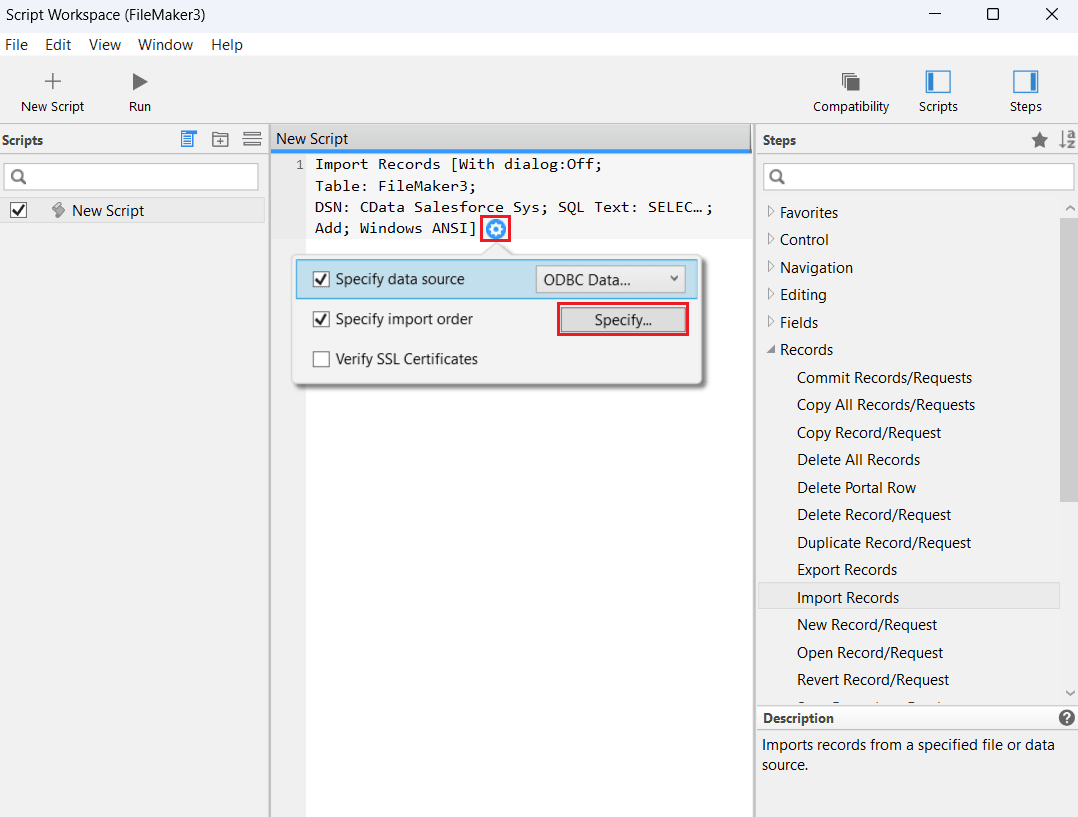
- Select the existing script, click the settings button, choose Specify under Specify Import Order, and re-enter the Oracle Eloqua Reporting credentials to authenticate.
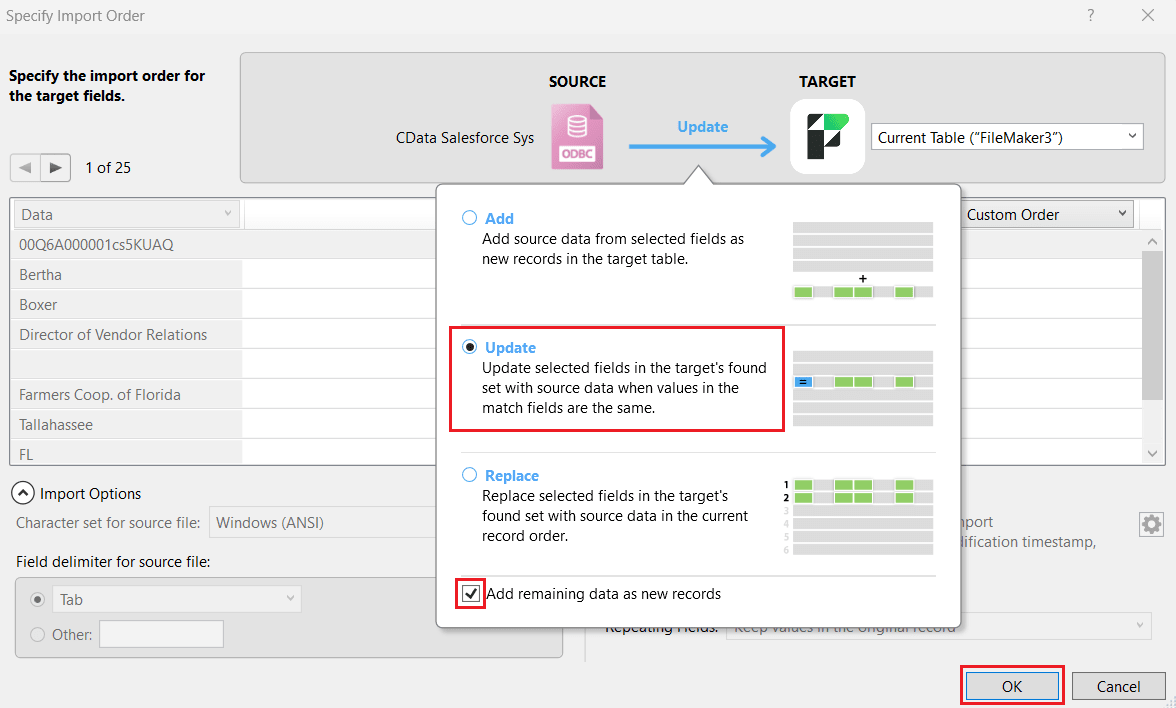
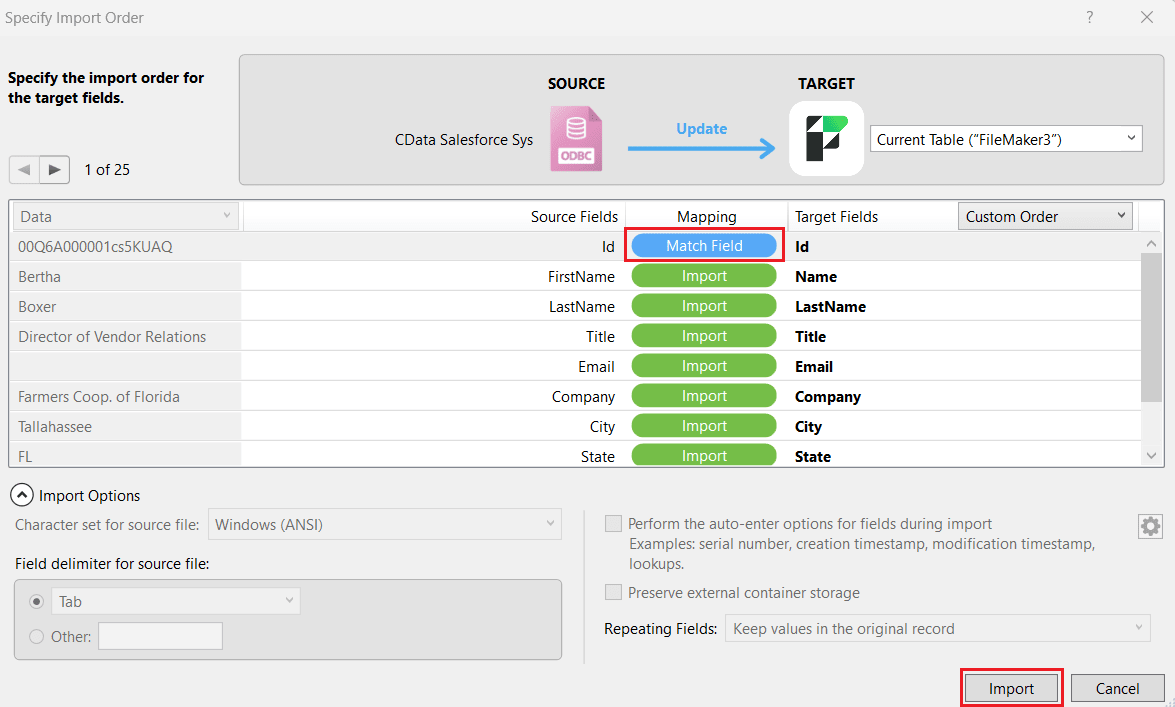
- In the Specify Import Order window, choose Update between source and target to update the imported Oracle Eloqua Reporting data. This updates the target's found set with Oracle Eloqua Reporting data values from selected fields when the match fields have the same values. You must define at least one match field in the mapping and select the checkbox Add remaining data as new records. Click Import.
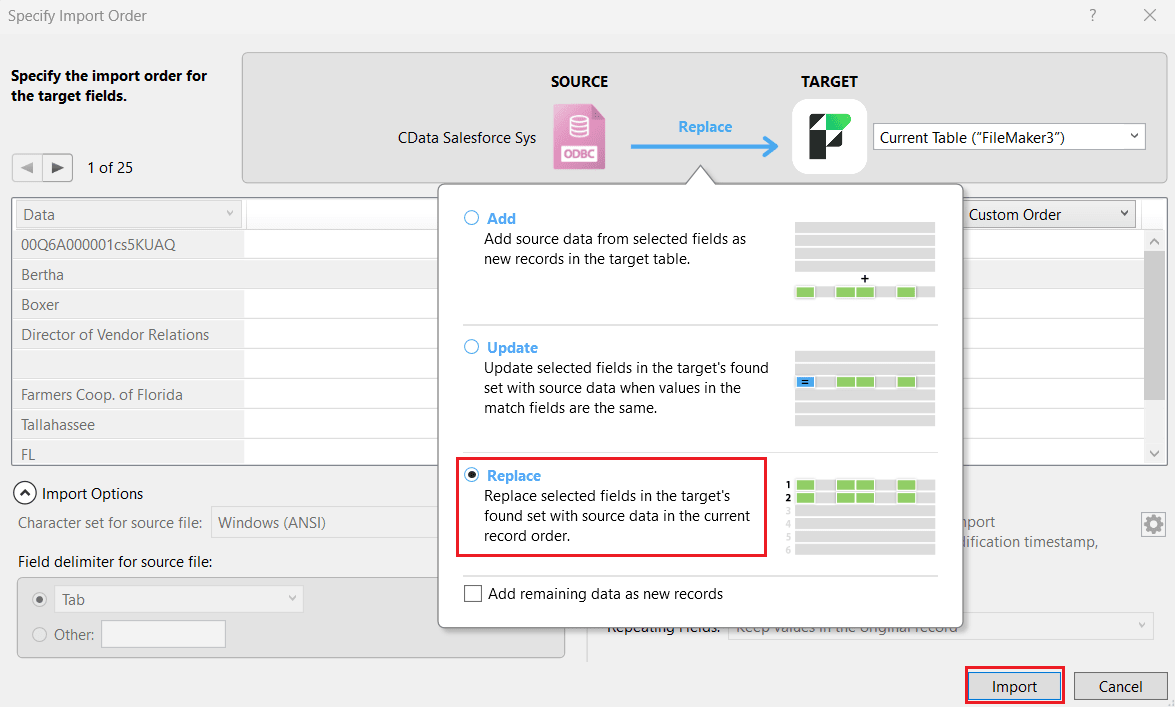
- Alternatively, choose the Replace option instead of Update, based on your use case. This replaces the selected fields in the target's found set with Oracle Eloqua Reporting data in the current record order. Click Import.
- FileMaker adds the script to the workspace. Click Run to execute the script and process the import query.
- FileMaker imports the updated or replaced Oracle Eloqua Reporting data as a table.
Get Started Today
Download a free 30-day trial of CData ODBC Driver for Oracle Eloqua Reporting to integrate Oracle Eloqua Reporting data into Claris FileMaker and work with Oracle Eloqua Reporting data in your FileMaker applications.
Reach out to our Support Team if you have any questions.
Ready to get started?
Download a free trial of the Oracle Eloqua Reporting ODBC Driver to get started:
Download NowLearn more:
 Oracle Eloqua Reporting ODBC Driver
The Oracle Eloqua Reporting ODBC Driver is a powerful tool that allows you to connect with live data from Oracle Eloqua Reporting, directly from any applications that support ODBC connectivity.
Access Oracle Eloqua Reporting data like you would a database - read, write, and update Oracle Eloqua Reporting 0, etc. through a standard ODBC Driver interface.
