






Use the CData ODBC Driver for Oracle Eloqua Reporting from SharePoint Excel Services

The CData ODBC Driver for Oracle Eloqua Reporting can be accessed using the built-in data access tools in Excel. This article demonstrates how to use the CData ODBC Driver for Oracle Eloqua Reporting to connect to Oracle Eloqua Reporting data from Excel spreadsheets in on-premises editions of SharePoint.
Connect to Oracle Eloqua Reporting as an ODBC Data Source
If you have not already, first specify connection properties in an ODBC DSN (data source name). This is the last step of the driver installation. You can use the Microsoft ODBC Data Source Administrator to create and configure ODBC DSNs.
Oracle Eloqua Reporting supports the following authentication methods:
- Basic authentication (User and Password)
- OAuth 2.0 code grant flow
- OAuth 2.0 password grant flow
Basic Authentication (User and Password)
To perform authentication with a user and password, specify these properties:
- AuthScheme: Basic.
- Company: The company name associated with your Oracle Eloqua Reporting account.
- User: Your login account name.
- Password: Your login password.
OAuth Authentication (Code Grant Flow)
To authenticate with the OAuth code grant flow, you must set AuthScheme to OAuth and create a custom OAuth application. For information about how to create a custom OAuth application, see the Help documentation.
Then set the following properties:
- InitiateOAuth: GETANDREFRESH. Used to automatically get and refresh the OAuthAccessToken.
- OAuthClientId: The client Id assigned when you registered your application.
- OAuthClientSecret: The client secret that was assigned when you registered your application.
- CallbackURL: The redirect URI that was defined when you registered your application.
When you connect, the driver opens Oracle Eloqua Reporting's OAuth endpoint in your default browser. Log in and grant permissions to the application. When the access token expires, the driver refreshes it automatically.
OAuth Authentication (Password Grant Flow)
With the OAuth password grant flow, you can use your OAuth application's credentials alongside your user credentials to authenticate without the need to grant permission manually via a browser prompt. You must create an OAuth app (see the Help documentation) to use this authentication method.
Set the following properties:
- AuthScheme: OAuthPassword
- Company: The company's unique identifier.
- User: Your login account name.
- Password: Your login password.
- OAuthClientId: The client Id assigned when you registered your custom OAuth application.
- OAuthClientSecret: The client secret assigned when you registered your custom OAuth application.
Configure Excel Services
Once the ODBC DSN is configured, you can configure Excel Services to use the DSN to connect. To do this, you will need to set up the OLE DB provider as a trusted data source. You will also want to decide if you want to use a Secure Store Service to enable single sign-on functionality with the ODBC driver. If you prefer, you can use the Excel Services Unattended account and skip to step 3 below.
- First, set up a secure store application to use single sign-on. In SharePoint Central Administration, go to Application Management -> Manage Service Applications. Select your secure store service application or create a new one. Click Manage on the Edit menu to begin editing the application.
- Create a new target application. You will be able to set the list of users who have access to this application. After the application is created, you will need to set the credentials on the application so that you can use this later for single sign-on.
- Navigate to Application Management -> Manage Service Applications in SharePoint Central Administration. Select the Excel Services application used by your organization or create one if it does not already exist. Click Manage. If you create a new app, check the option to add the service application's proxy to the farm's default proxy list.
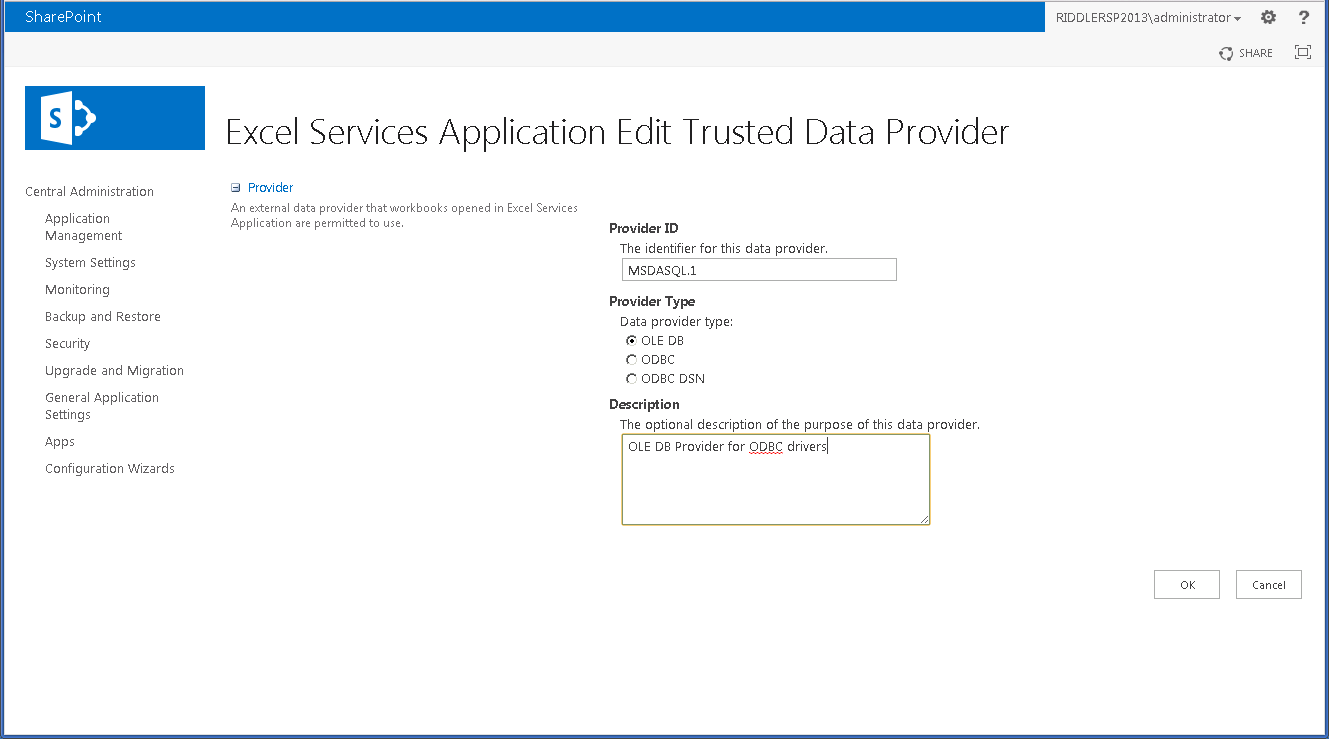
- Click on Trusted Data Providers and add a new trusted provider. Set 'MSDASQL.1' for the Provider ID and leave the type as 'OLE DB'. Click OK to add this new provider to the list of trusted providers.
Connect to and Import Oracle Eloqua Reporting Data in Excel
After you have enabled and secured access to the DSN, you can access the data source from the ribbon in Excel.
- In an Excel spreadsheet, open the Data tab and click From Other Sources -> From Data Connection Wizard.
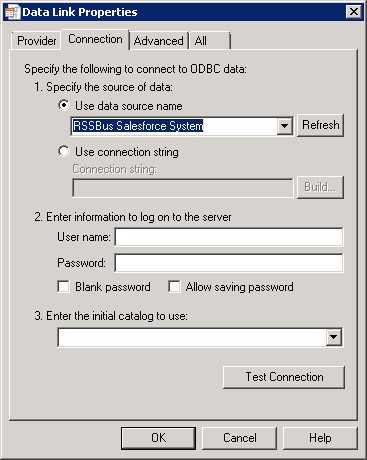
- Select 'Other/Advanced' for the type and on the next screen, select the 'Microsoft OLE DB Provider for ODBC Drivers'. On the Connection tab, select CData OracleEloquaReporting Sys, the system DSN. The driver installation automatically creates matching user and system DSNs: The system DSN is needed to connect from SharePoint.
- Select the table you would like to connect to.
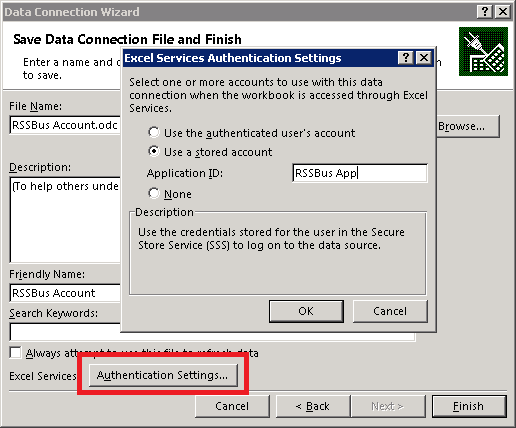
- On the last step of the wizard, click the 'Authentication Settings' button. Select the 'Use a stored account' and enter the name of the secure store target application you created earlier. Or, if you want to use the Unattended Service Account, select None.
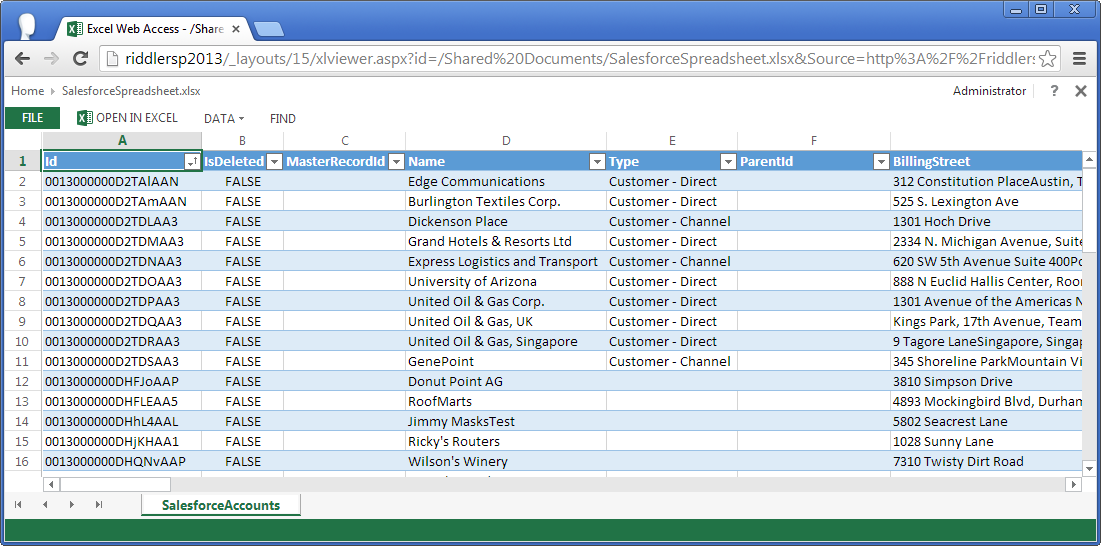
- After you finish the wizard, the data is imported into the spreadsheet. You can now update and save Oracle Eloqua Reporting data directly in SharePoint.
Ready to get started?
Download a free trial of the Oracle Eloqua Reporting ODBC Driver to get started:
Download NowLearn more:
 Oracle Eloqua Reporting ODBC Driver
The Oracle Eloqua Reporting ODBC Driver is a powerful tool that allows you to connect with live data from Oracle Eloqua Reporting, directly from any applications that support ODBC connectivity.
Access Oracle Eloqua Reporting data like you would a database - read, write, and update Oracle Eloqua Reporting 0, etc. through a standard ODBC Driver interface.
