






Import Real-Time Flowlu Data via JDBC in ColdFusion to Build Applications

Adobe ColdFusion is a web and mobile application development platform. It uses its own scripting language, ColdFusion Markup Language (CFML), to create data-driven websites as well as generate remote services, such as REST.
When ColdFusion is paired with the CData API Driver for JDBC, you can link your ColdFusion web and mobile applications to operational Flowlu data. This allows for your applications to be more robust and complete. This article details how to use the JDBC driver to create a table populated with Flowlu data from within a ColdFusion markup file.
With built-in optimized data processing, the CData JDBC Driver offers unmatched performance for interacting with live Flowlu data. When you issue complex SQL queries to Flowlu, the driver pushes supported SQL operations, like filters and aggregations, directly to Flowlu and utilizes the embedded SQL engine to process unsupported operations client-side (often SQL functions and JOIN operations). Its built-in dynamic metadata querying allows you to work with and analyze Flowlu data using native data types.
Configuring the Connection to Flowlu
You will need a JDBC connection string to establish a connection between Coldfusion and Flowlu.
Start by setting the Profile connection property to the location of the Flowlu Profile on disk (e.g. C:\profiles\Flowlu.apip). Next, set the ProfileSettings connection property to the connection string for Flowlu (see below).
Flowlu API Profile Settings
In your Flowlu account, navigate to System Settings > API Settings > Create to generate an API key. Your Company name is the subdomain from your Flowlu account URL.
Built-in Connection String Designer
For assistance in constructing the JDBC URL, use the connection string designer built into the Flowlu JDBC Driver. Either double-click the JAR file or execute the jar file from the command-line.
java -jar cdata.jdbc.api.jar

Adding a Data Source and Creating a Table
After configuring the connection, follow the steps below to add the CData JDBC Driver to ColdFusion's lib directory, add a new data source, test the connection, create a ColdFusion markup file, and, finally, make a real-time connection with Flowlu data and display it in a table written in the ColdFusion Markup Language, or CFML:
-
Copy the JDBC Driver for Flowlu and lic file from "C:\Program Files\CData[product_name]\lib" to
"C:\ColdFusion2021\cfusion\wwwroot\WEB-INF\lib".
            cdata.jdbc.api.jar
            cdata.jdbc.api.lic
Note: If you do not copy the .lic file with the jar, you will see a licensing error that indicates you do not have a valid license installed. This is true for both the trial and full versions.
-
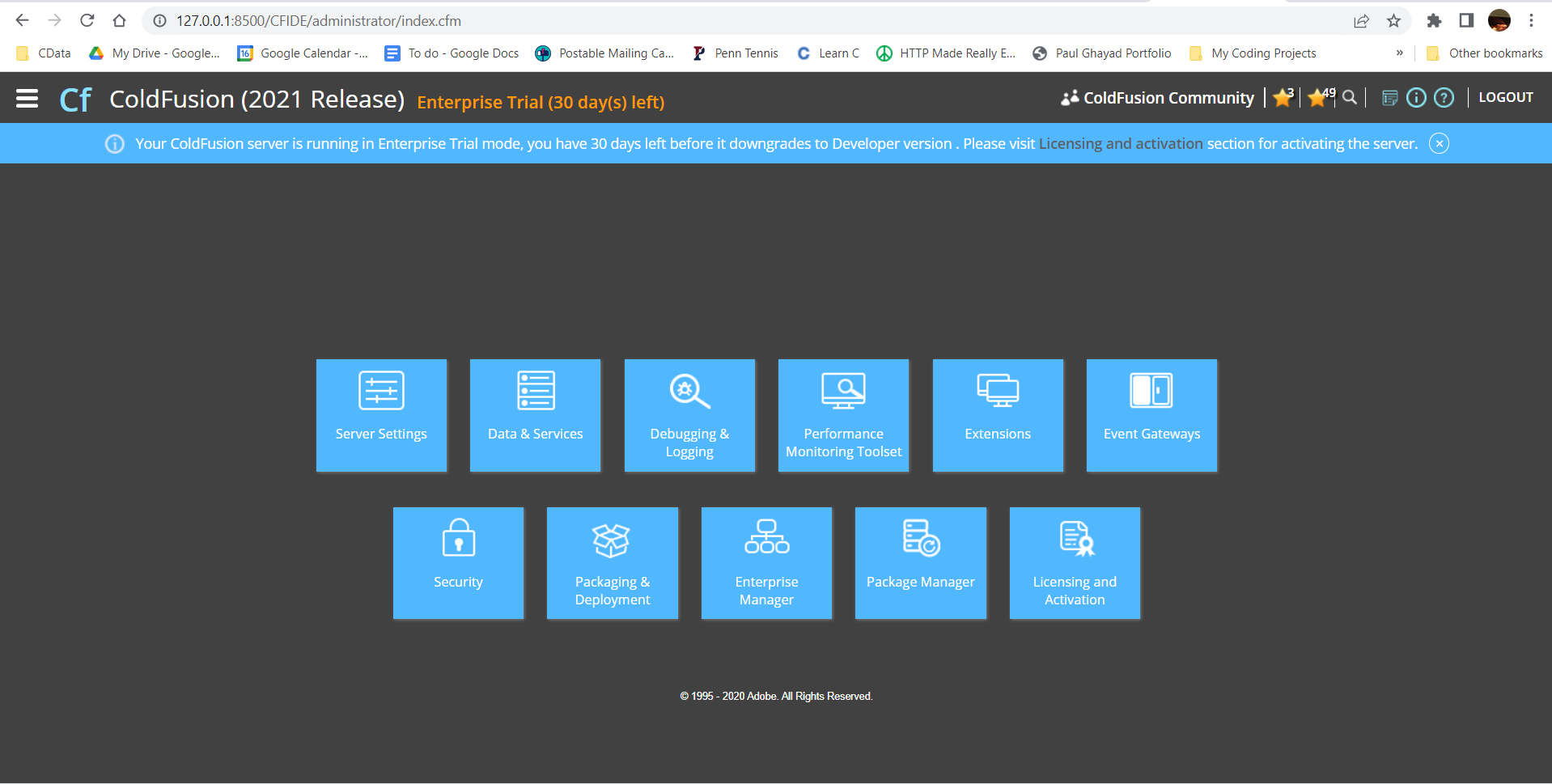
From the ColdFusion administrator interface, choose Data & Services.
-
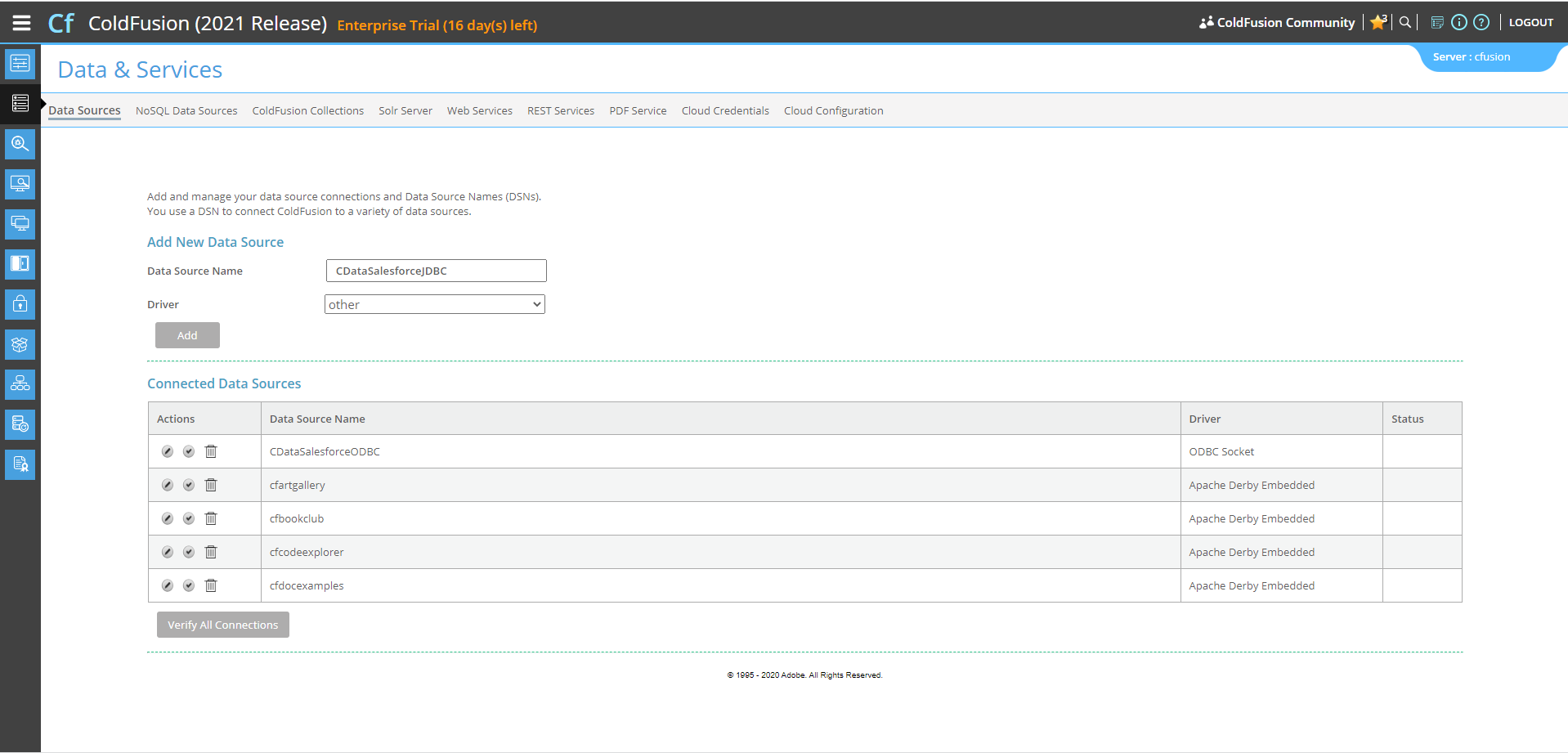
Here, we can "Add New Data Source". The data source name can be any name, provided it conforms to the ColdFusion
variable naming conventions. For our JDBC driver, choose "other", then click the "Add" button.
-
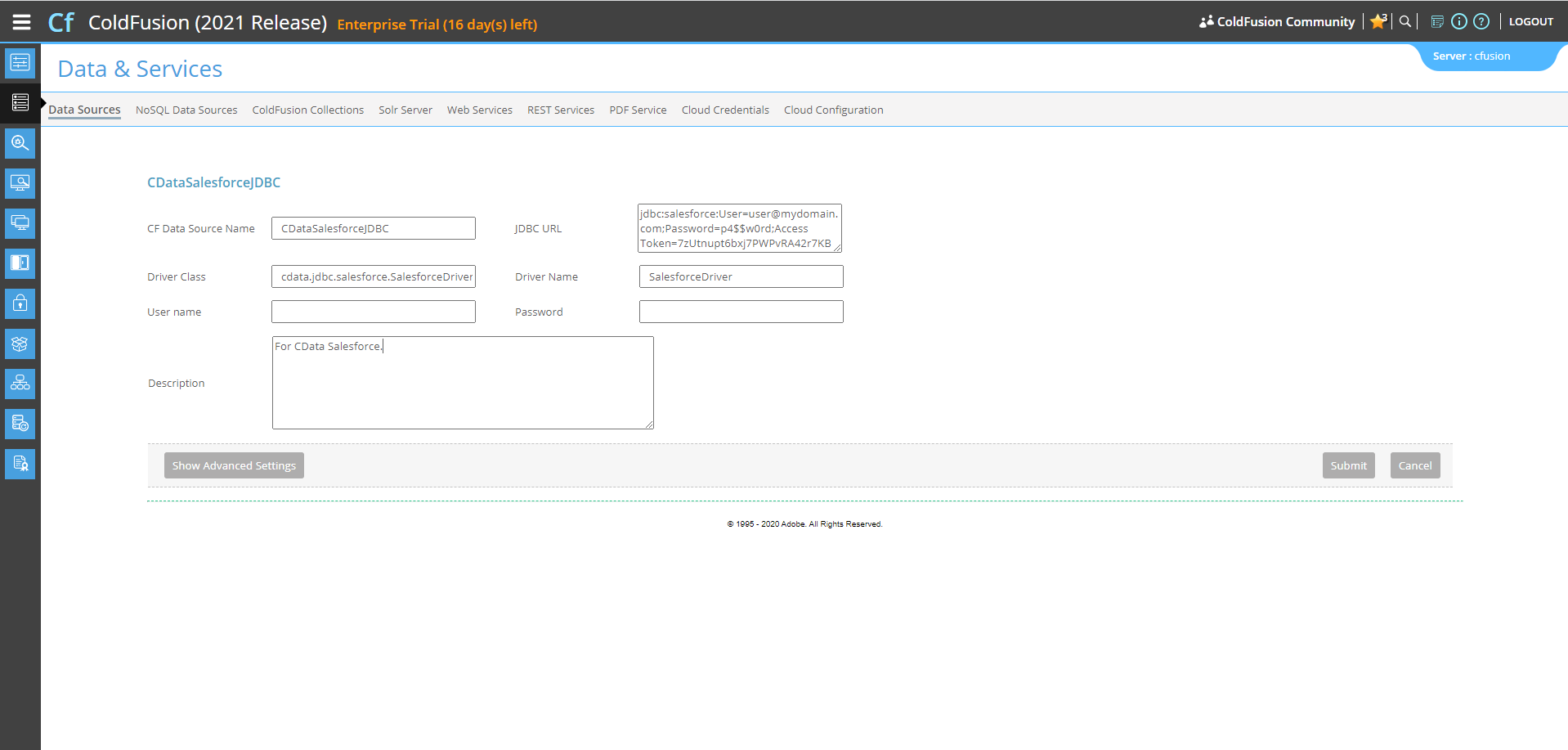
Next, populate the driver properties.
- JDBC URL will need to be in the format: jdbc:api:|connectionString|.
- A typical connection string looks like this:
jdbc:api:Profile=C:\profiles\Flowlu.apip;ProfileSettings='APIKey=your_api_key;Company=your_company_subdomain';
- The Driver Class is: cdata.jdbc.api.APIDriver
- The Driver Name is arbitrary and simply used to recognize the data source in the ColdFusion administration console.
-
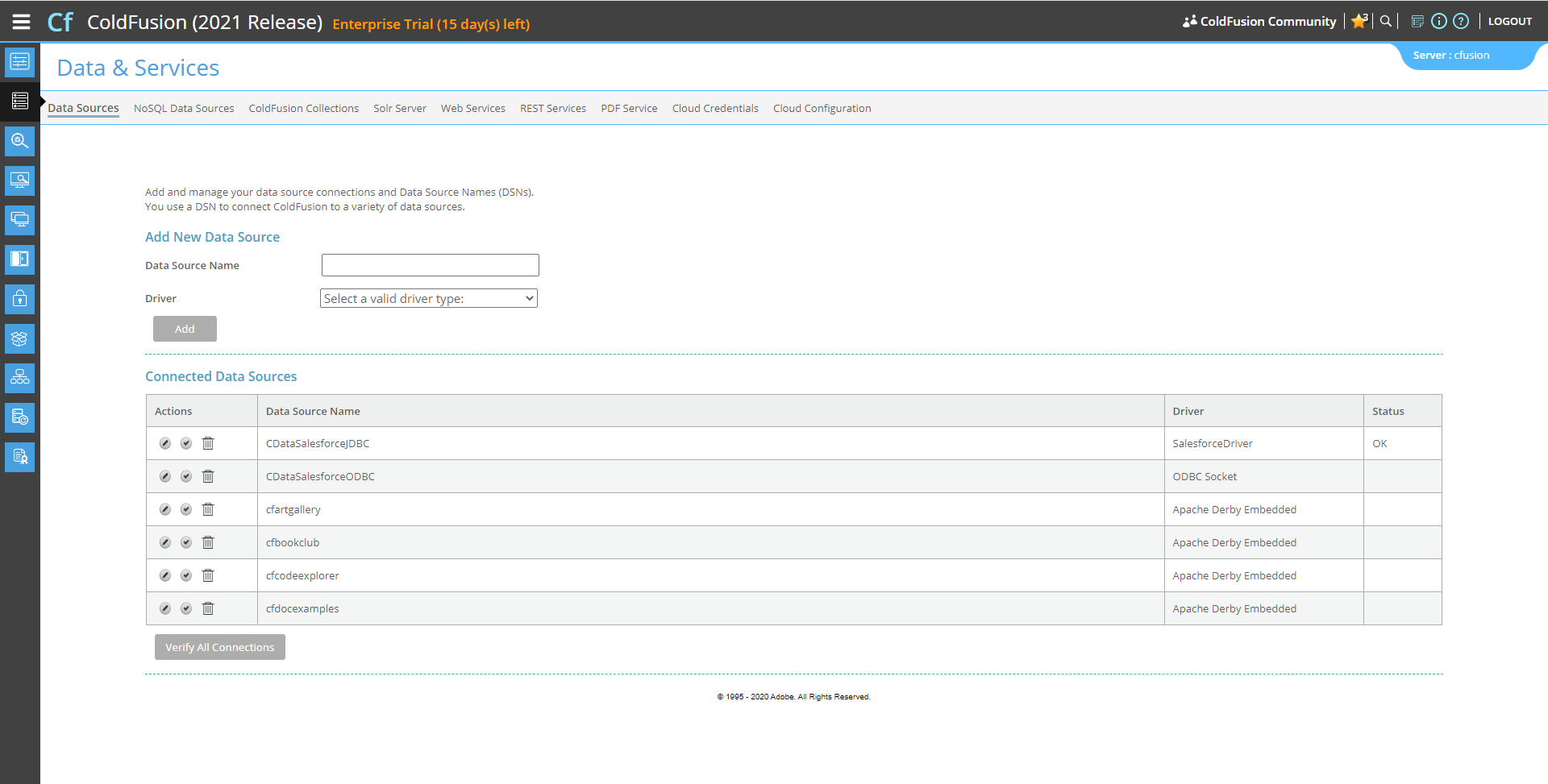
Now, test the connection by clicking the check mark to the left of the CDataFlowluJDBC data source you just created.
When the data source reports an "OK" status, it is ready for use.
-
Next, create a new ColdFusion Markup file (.cfm) and place it in the wwwroot directory ("C:\ColdFusion2021\cfusion\wwwroot")
for ColdFusion.
The following code queries the data source:
        <cfquery name="FlowluQuery" dataSource="CDataFlowluJDBC">
          SELECT * FROM AgileCategories
        </cfquery>
And a CFTable can be used to quickly output the table in HTML:<cftable query = "FlowluQuery" border = "1" colHeaders colSpacing = "2" headerLines = "2" HTMLTable maxRows = "500" startRow = "1"> <cfcol header="<b>Id</b>" align="Left" width=2 text="Id"/> <cfcol header="<b>Name</b>" align="Left" width=15 text="Name"/> ... </cftable>Full code, including the HTML portion is available below:<html> <head><title>CData Software | Flowlu AgileCategories Table Demo </title></head> <body> <cfoutput>#ucase("Flowlu AgileCategories Table Demo")#</cfoutput> <cfquery name="FlowluQuery" dataSource="CDataFlowluJDBC"> SELECT * FROM AgileCategories </cfquery> <cftable query = "FlowluQuery" border = "1" colHeaders colSpacing = "2" headerLines = "2" HTMLTable maxRows = "500" startRow = "1"> <cfcol header="<b>Id</b>" align="Left" width=2 text="Id"/> <cfcol header="<b>Name</b>" align="Left" width=15 text="Name"/> ... </cftable> </body> </html> -
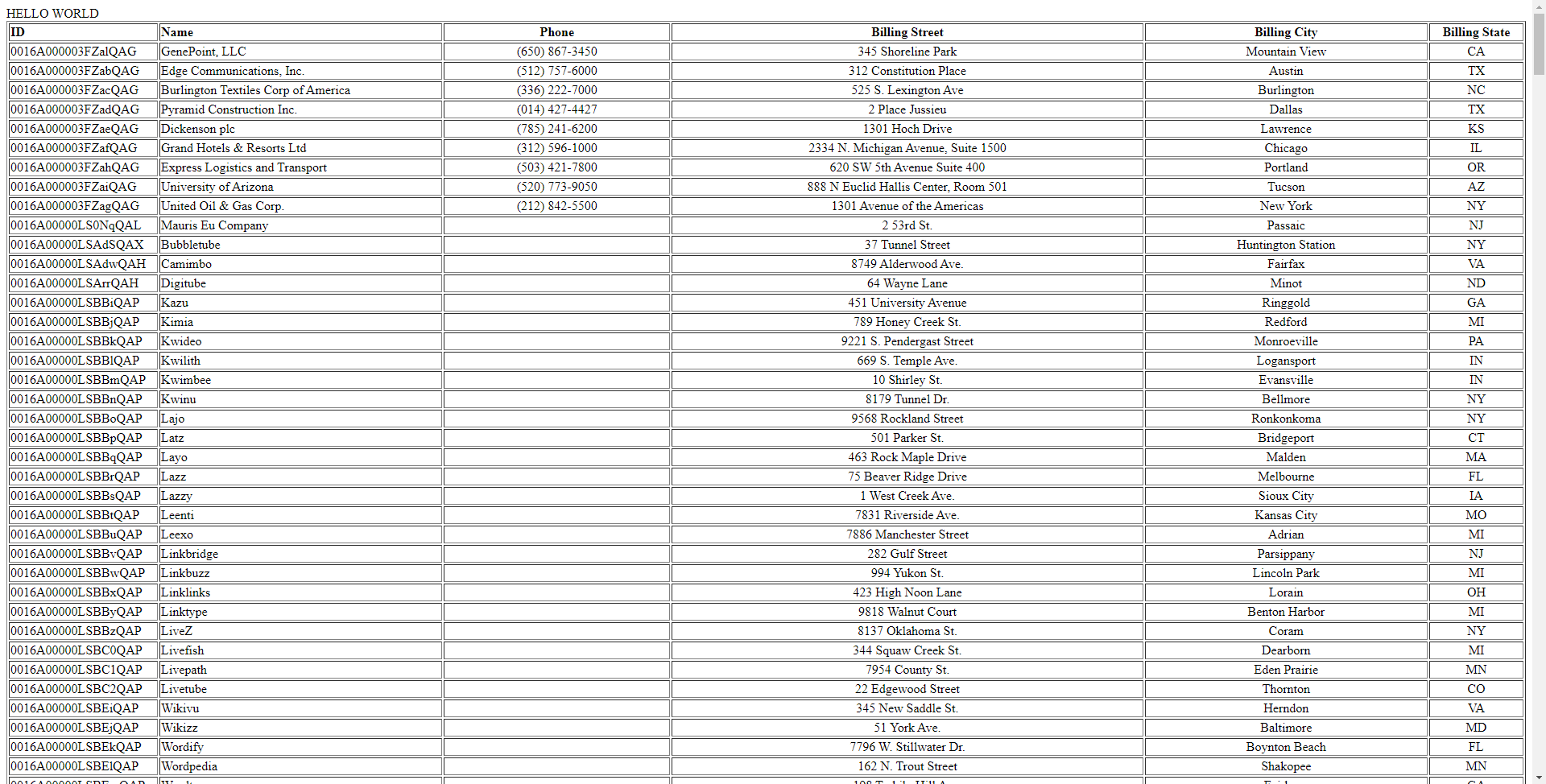
Finally, run the code locally in a browser at the default port of 8500. It produces a table populated with Flowlu data!
As a note, the CData JDBC Drivers also support parameterized queries using the cfqueryparam element. For example:
SELECT * FROM Account WHERE name =
Get Started Today
Download a free, 30-day trial of the CData JDBC Driver for Flowlu and start building Flowlu-connected applications with Adobe ColdFusion. Reach out to our Support Team if you have any questions.