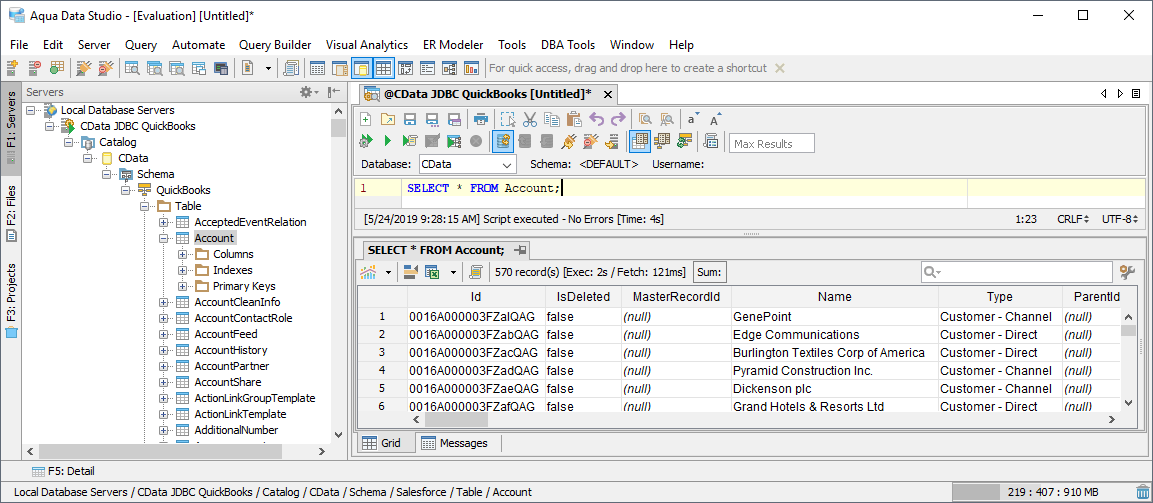
Connect to Foursquare Data in Aqua Data Studio

The CData JDBC Driver for Foursquare integrates Foursquare data with wizards and analytics in IDEs like Aqua Data Studio. This article shows how to connect to Foursquare data through the connection manager and execute queries.
Create a JDBC Data Source
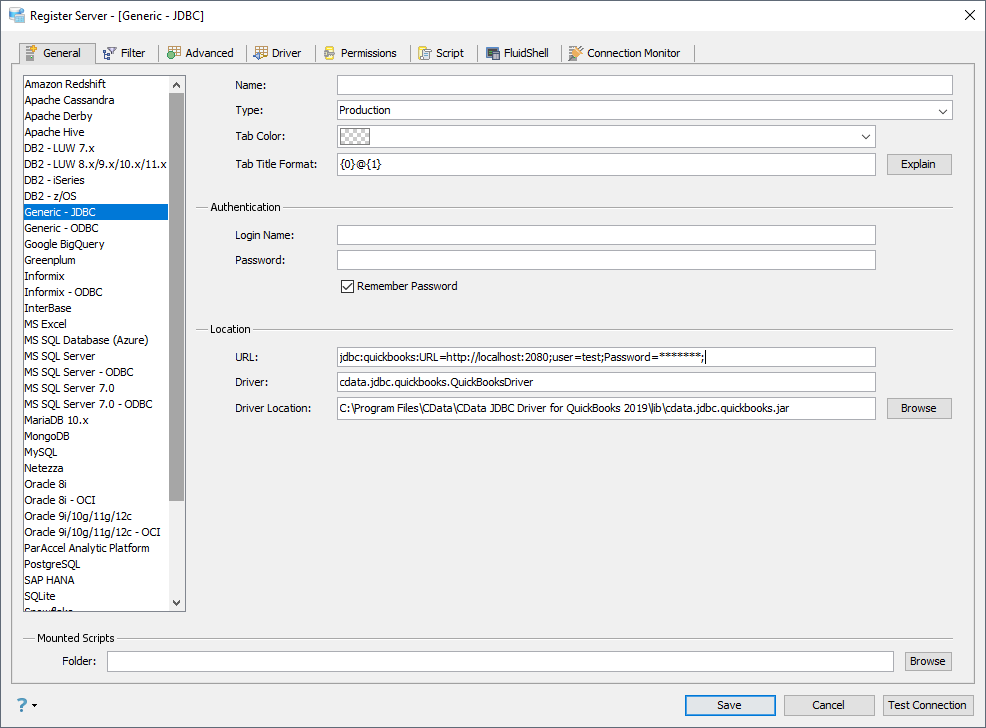
You can use the connection manager to define connection properties and save them in a new JDBC data source. The Foursquare data source can then be accessed from Aqua Data Studio tools.
- In Aqua Data Studio, select Register Server from the Servers menu.
- In the Register Server form, select the 'Generic - JDBC' connection.
- Enter the following JDBC connection properties:
- Name: Enter a name for the data source; for example, Foursquare.
- Driver Location: Click the Browse button and select the cdata.jdbc.api.jar file, located in the lib subfolder of the installation directory.
- Driver: Enter the Driver's class name, cdata.jdbc.api.APIDriver.
URL: Enter the JDBC URL, which starts with jdbc:api: and is followed by a semicolon-separated list of connection properties.
Using API Key Authentication
Foursquare Places API uses Service Key (Bearer token) authentication. To obtain a Service Key:
- Go to the Foursquare Developer Console at https://foursquare.com/developers/
- Create a new project or select an existing one
- Navigate to the API Keys section
- Generate a new Service Key for the Places API
After setting the following connection properties, you are ready to connect:
- AuthScheme: Set this to APIKey.
- ServiceKey: Set this to your Foursquare Service Key obtained from the Developer Console.
- XPlacesApiVersion: (Optional) Set this to the API version date. Defaults to 2025-06-17.
Example APIKey connection string
Profile=C:\profiles\Foursquare.apip;AuthScheme=APIKey;ProfileSettings='APIKey=your_personal_access_token';
Built-in Connection String Designer
For assistance in constructing the JDBC URL, use the connection string designer built into the Foursquare JDBC Driver. Either double-click the JAR file or execute the jar file from the command-line.
java -jar cdata.jdbc.api.jar
Fill in the connection properties and copy the connection string to the clipboard.
 A typical JDBC URL is below:
jdbc:api:Profile=C:\profiles\Foursquare.apip;AuthScheme=APIKey;ProfileSettings='APIKey=your_personal_access_token';
Query Foursquare Data
You can now query the tables exposed.