Analyze Foursquare Data in R via JDBC

Access Foursquare data with pure R script and standard SQL on any machine where R and Java can be installed. You can use the CData JDBC Driver for Foursquare and the RJDBC package to work with remote Foursquare data in R. By using the CData Driver, you are leveraging a driver written for industry-proven standards to access your data in the popular, open-source R language. This article shows how to use the driver to execute SQL queries to Foursquare and visualize Foursquare data by calling standard R functions.
Install R
You can match the driver's performance gains from multi-threading and managed code by running the multithreaded Microsoft R Open or by running open R linked with the BLAS/LAPACK libraries. This article uses Microsoft R Open 3.2.3, which is preconfigured to install packages from the Jan. 1, 2016 snapshot of the CRAN repository. This snapshot ensures reproducibility.
Load the RJDBC Package
To use the driver, download the RJDBC package. After installing the RJDBC package, the following line loads the package:
library(RJDBC)
Connect to Foursquare as a JDBC Data Source
You will need the following information to connect to Foursquare as a JDBC data source:
- Driver Class: Set this to cdata.jdbc.api.APIDriver
- Classpath: Set this to the location of the driver JAR. By default this is the lib subfolder of the installation folder.
The DBI functions, such as dbConnect and dbSendQuery, provide a unified interface for writing data access code in R. Use the following line to initialize a DBI driver that can make JDBC requests to the CData JDBC Driver for Foursquare:
driver <- JDBC(driverClass = "cdata.jdbc.api.APIDriver", classPath = "MyInstallationDir\lib\cdata.jdbc.api.jar", identifier.quote = "'")
You can now use DBI functions to connect to Foursquare and execute SQL queries. Initialize the JDBC connection with the dbConnect function.
Using API Key Authentication
Foursquare Places API uses Service Key (Bearer token) authentication. To obtain a Service Key:
- Go to the Foursquare Developer Console at https://foursquare.com/developers/
- Create a new project or select an existing one
- Navigate to the API Keys section
- Generate a new Service Key for the Places API
After setting the following connection properties, you are ready to connect:
- AuthScheme: Set this to APIKey.
- ServiceKey: Set this to your Foursquare Service Key obtained from the Developer Console.
- XPlacesApiVersion: (Optional) Set this to the API version date. Defaults to 2025-06-17.
Example APIKey connection string
Profile=C:\profiles\Foursquare.apip;AuthScheme=APIKey;ProfileSettings='APIKey=your_personal_access_token';
Built-in Connection String Designer
For assistance in constructing the JDBC URL, use the connection string designer built into the Foursquare JDBC Driver. Either double-click the JAR file or execute the jar file from the command-line.
java -jar cdata.jdbc.api.jar
Fill in the connection properties and copy the connection string to the clipboard.

Below is a sample dbConnect call, including a typical JDBC connection string:
conn <- dbConnect(driver,"jdbc:api:Profile=C:\profiles\Foursquare.apip;AuthScheme=APIKey;ProfileSettings='APIKey=your_personal_access_token';")
Schema Discovery
The driver models Foursquare APIs as relational tables, views, and stored procedures. Use the following line to retrieve the list of tables:
dbListTables(conn)
Execute SQL Queries
You can use the dbGetQuery function to execute any SQL query supported by the Foursquare API:
autocomplete <- dbGetQuery(conn,"SELECT , FROM Autocomplete WHERE Query = 'abc'")
You can view the results in a data viewer window with the following command:
View(autocomplete)
Plot Foursquare Data
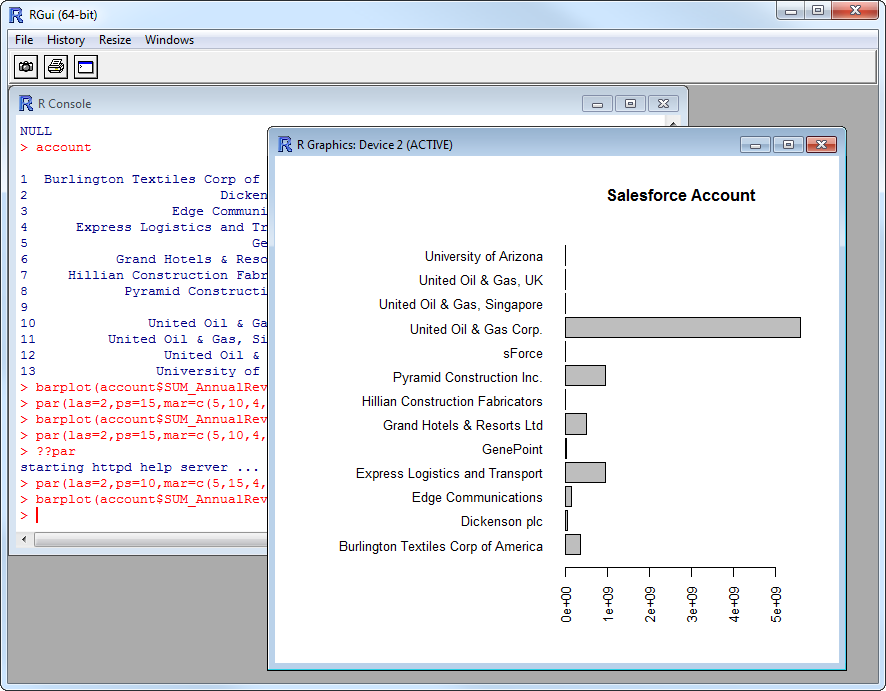
You can now analyze Foursquare data with any of the data visualization packages available in the CRAN repository. You can create simple bar plots with the built-in bar plot function:
par(las=2,ps=10,mar=c(5,15,4,2))
barplot(autocomplete$, main="Foursquare Autocomplete", names.arg = autocomplete$, horiz=TRUE)