






Integrate Cursor with Live Freshdesk Data via CData Connect AI

Cursor is an AI-powered code editor that embeds conversational and agent-style assistance alongside your development workflow. By extending Cursor with MCP (Model Context Protocol) tools, you can give its AI agents secure access to external systems such as APIs and databases.
Integrating Cursor with CData Connect AI via the built-in CData MCP Server allows the editor's AI to query, analyze, and act on live Freshdesk data without copying data into the IDE. The result is a development experience where you can chat with your governed enterprise data directly from Cursor.
This article outlines how to configure Freshdesk connectivity in Connect AI, generate the required access token, register the CData MCP Server in Cursor, and then use the AI chat pane to explore live Freshdesk data.
Step 1: Configure Freshdesk connectivity for Cursor
Connectivity to Freshdesk from Cursor is made possible through CData Connect AI's Remote MCP Server. To interact with Freshdesk data from Cursor, start by creating and configuring a Freshdesk connection in CData Connect AI.
- Log into Connect AI, click Sources, and then click Add Connection
- Select Freshdesk from the Add Connection panel
-
Enter the necessary authentication properties to connect to Freshdesk.
FreshDesk makes use of basic authentication. To connect to data, set the following connection properties:
- Domain: Set this to the domain associated with your FreshDesk account. For example, in your URL: https://my_domain.freshdesk.com.
- APIKey: Set this to the API key associated with your FreshDesk account. To retrieve your API key, Log into your support Portal -> Click on profile picture in the top right corner -> profile settings page. The API key will be available below the change password section to the right.

- Click Save & Test
- Navigate to the Permissions tab and update user-based permissions



Add a Personal Access Token
A Personal Access Token (PAT) is used to authenticate the connection to Connect AI from Cursor. It is best practice to create a separate PAT for each integration to maintain granular access control.
- Click the gear icon () at the top right of the Connect AI app to open Settings
- On the Settings page, go to the Access Tokens section and click Create PAT
- Give the PAT a descriptive name and click Create
- The personal access token is only visible at creation, so be sure to copy it and store it securely for future use

With the Freshdesk connection configured and a PAT generated, Cursor can now connect to Freshdesk data through the CData MCP Server.
Step 2: Configure the CData MCP Server in Cursor
Next, configure Cursor to use the CData MCP Server. Cursor reads MCP configuration from an mcp.json file in the user configuration directory and exposes the registered servers under the Tools & MCP settings. Once configured, Cursor's AI chat can call the tools exposed by CData Connect AI.
- Download the Cursor desktop application and complete the sign-up flow for your account
-
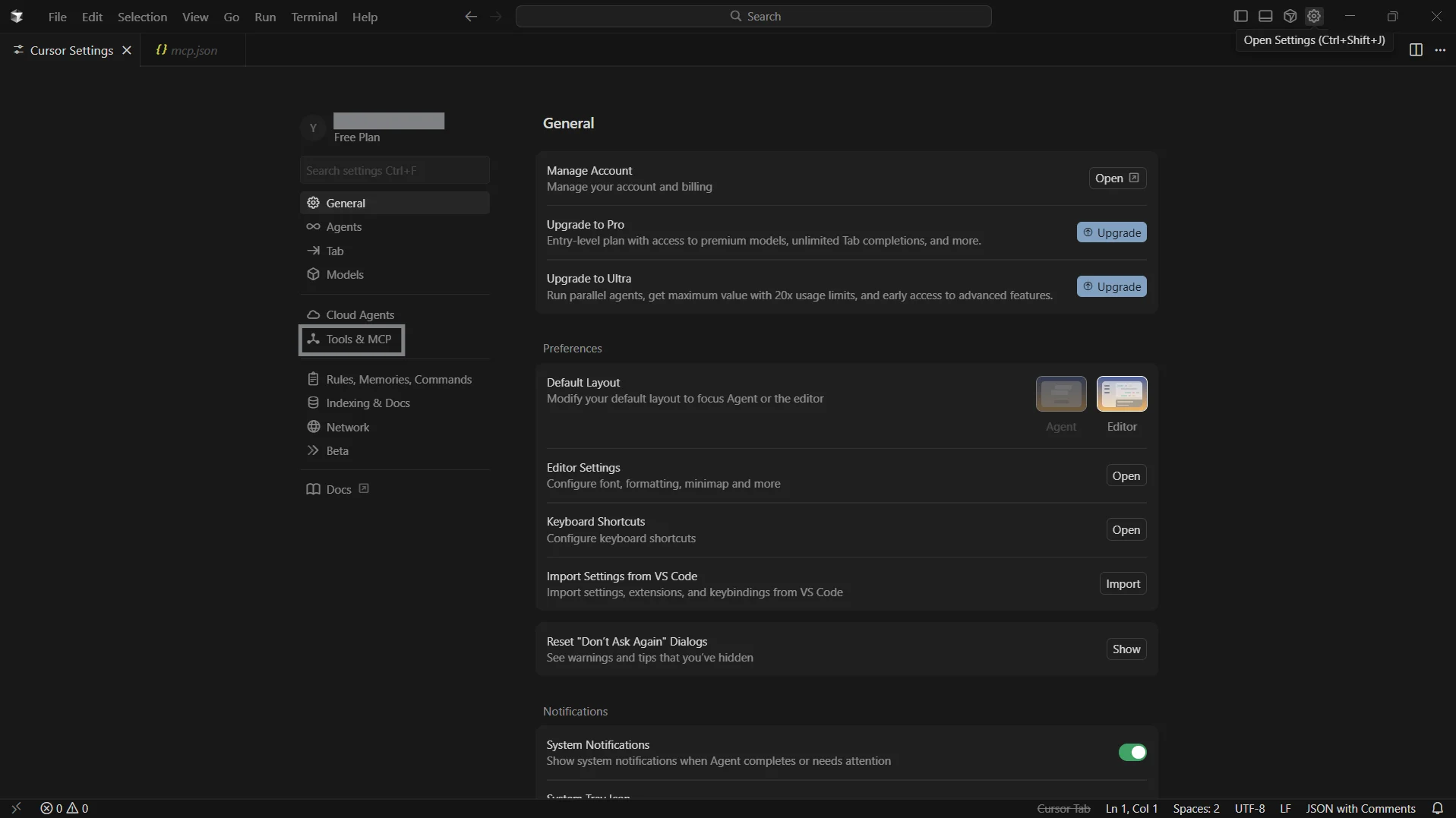
From the top menu, click Settings to open the settings panel
-
In the left navigation, open the Tools & MCP tab and click Add Custom MCP
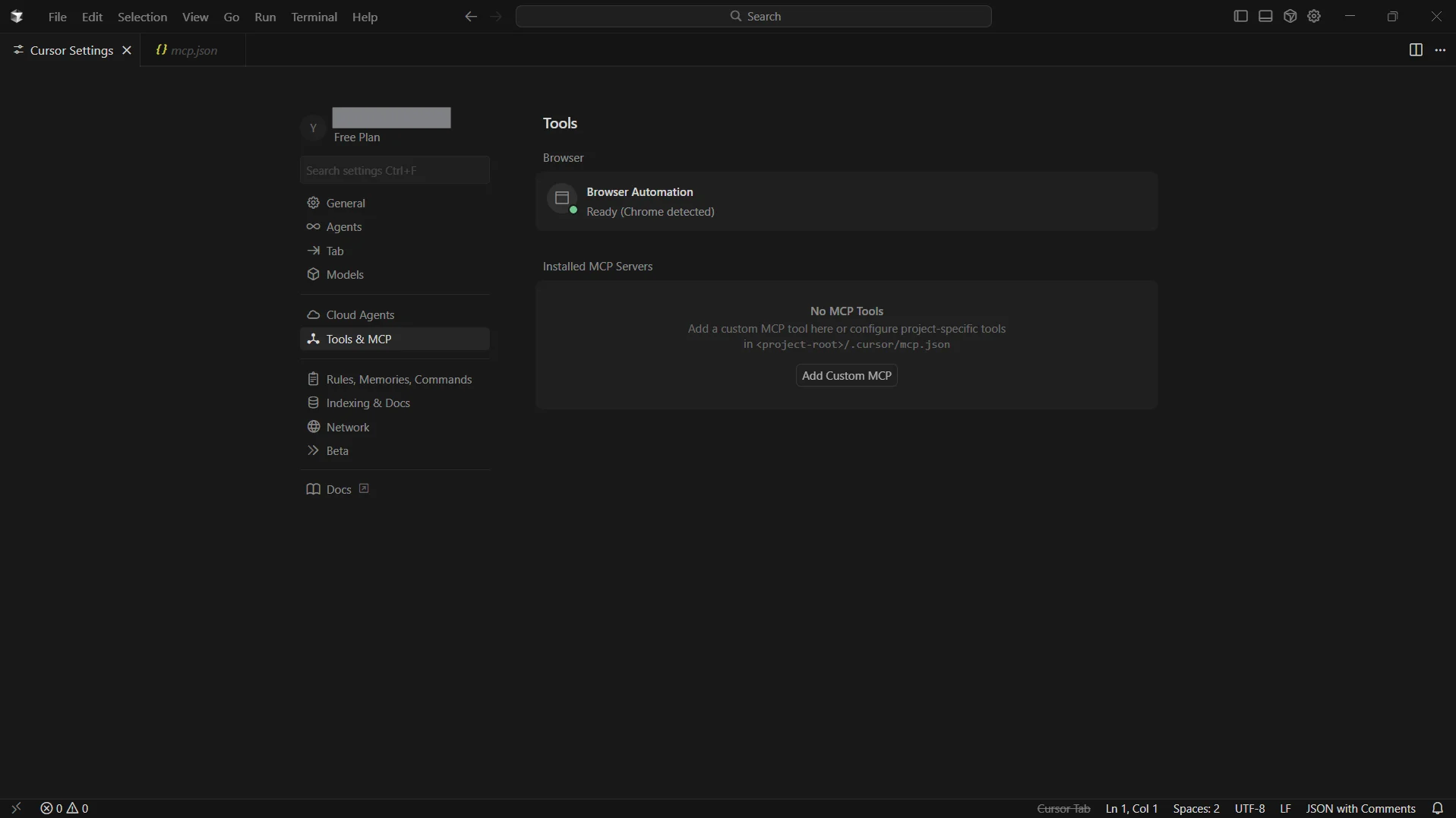
- Cursor opens an mcp.json file in the editor
-
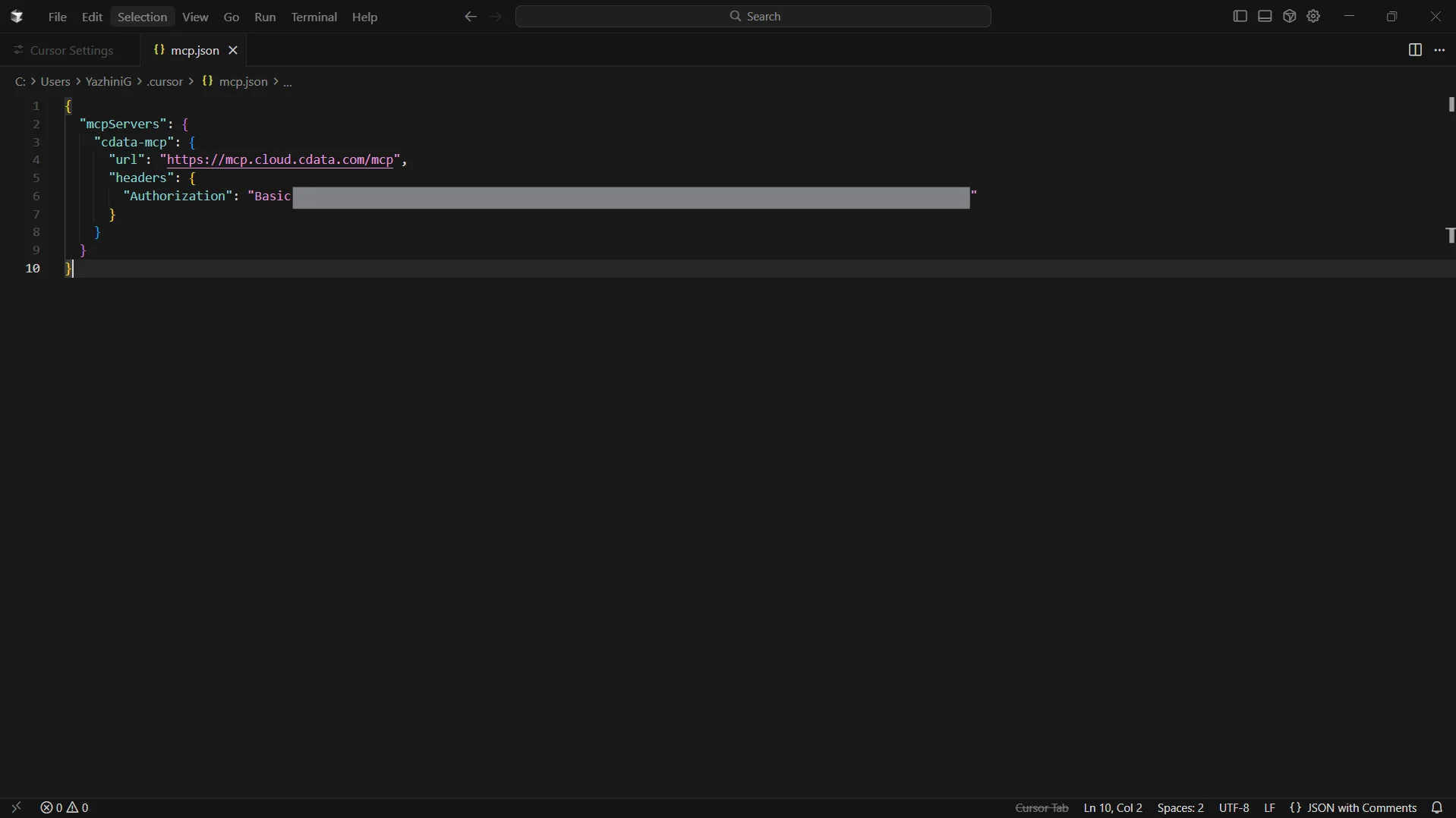
Add the following configuration. Make sure to base64-encode your email:PAT before inserting into the header:
{
  "mcpServers": {
    "cdata-mcp": {
      "url": "https://mcp.cloud.cdata.com/mcp",
      "headers": {
        "Authorization": "Basic your_base64_encoded_email_PAT"
      }
    }
  }
}
- Save the file
-
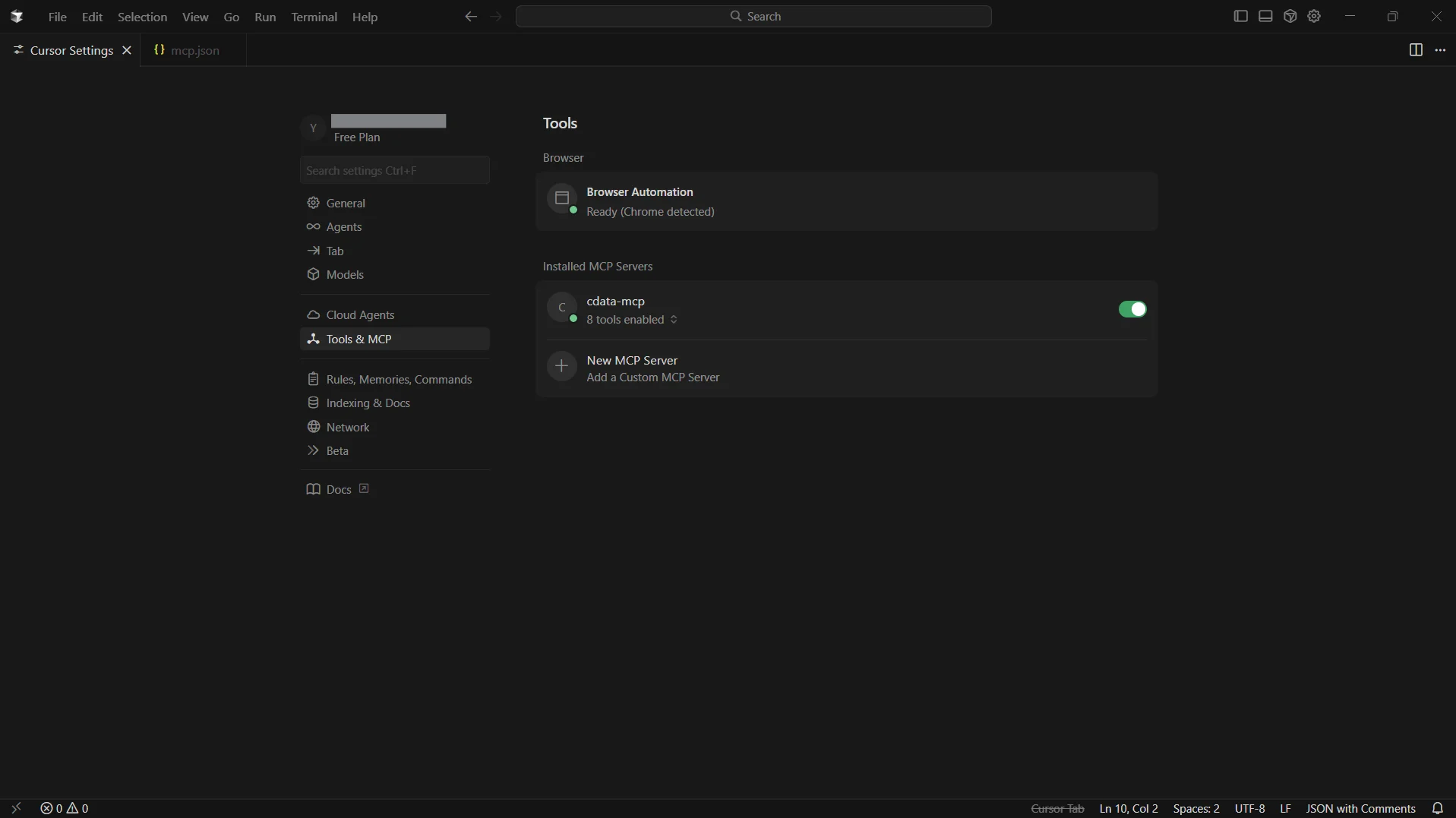
Return to Settings and then select Tools & MCP. You can now see cdata-mcp enabled with an active indicator
Step 3: Chat with CData Connect AI from Cursor
-
From the top bar, click Toggle AI Pane to open the chat window
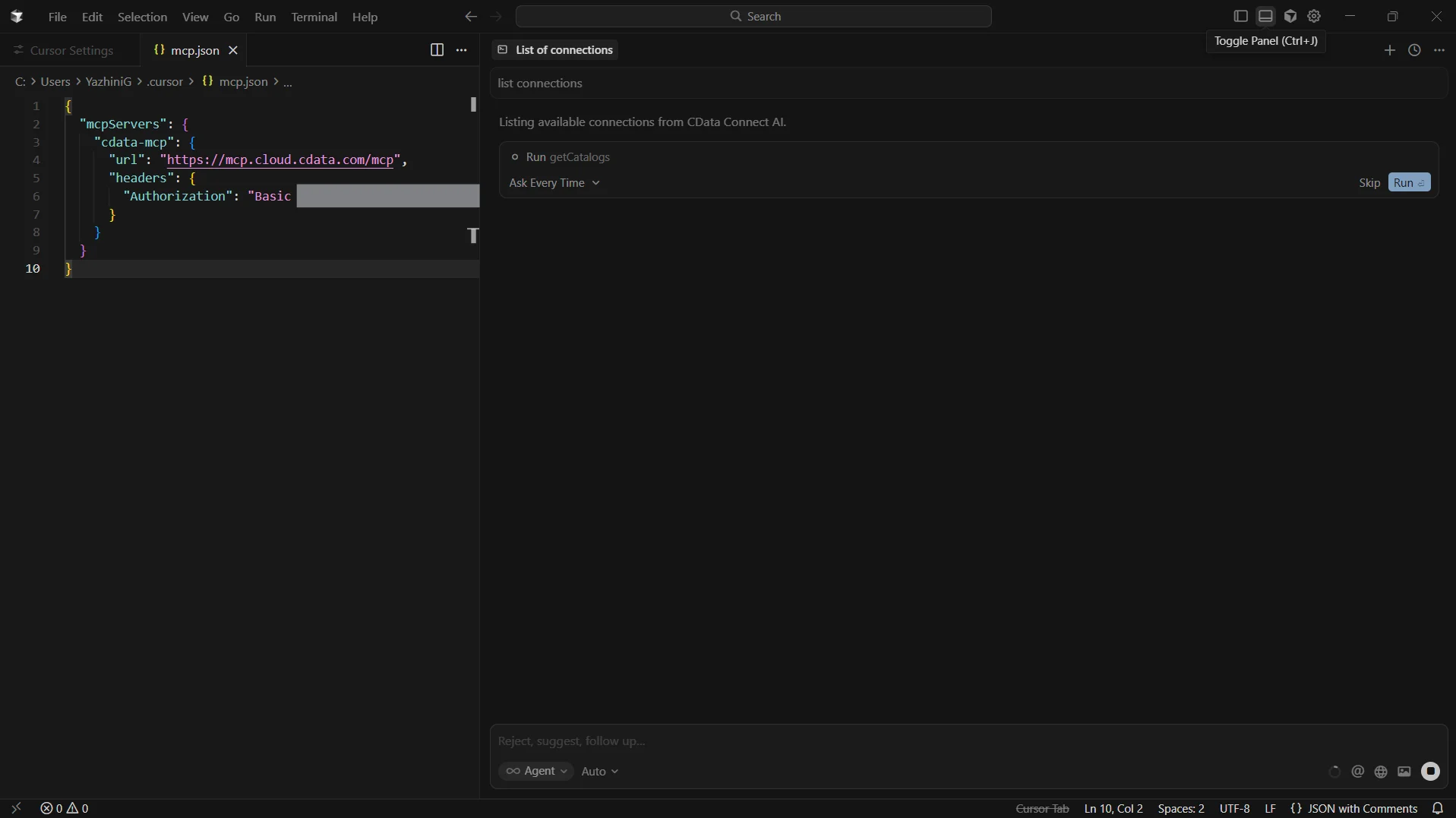
- Test the connection by entering "List connections"
-
You can also run queries like "Query Freshdesk data and list the high priority accounts"
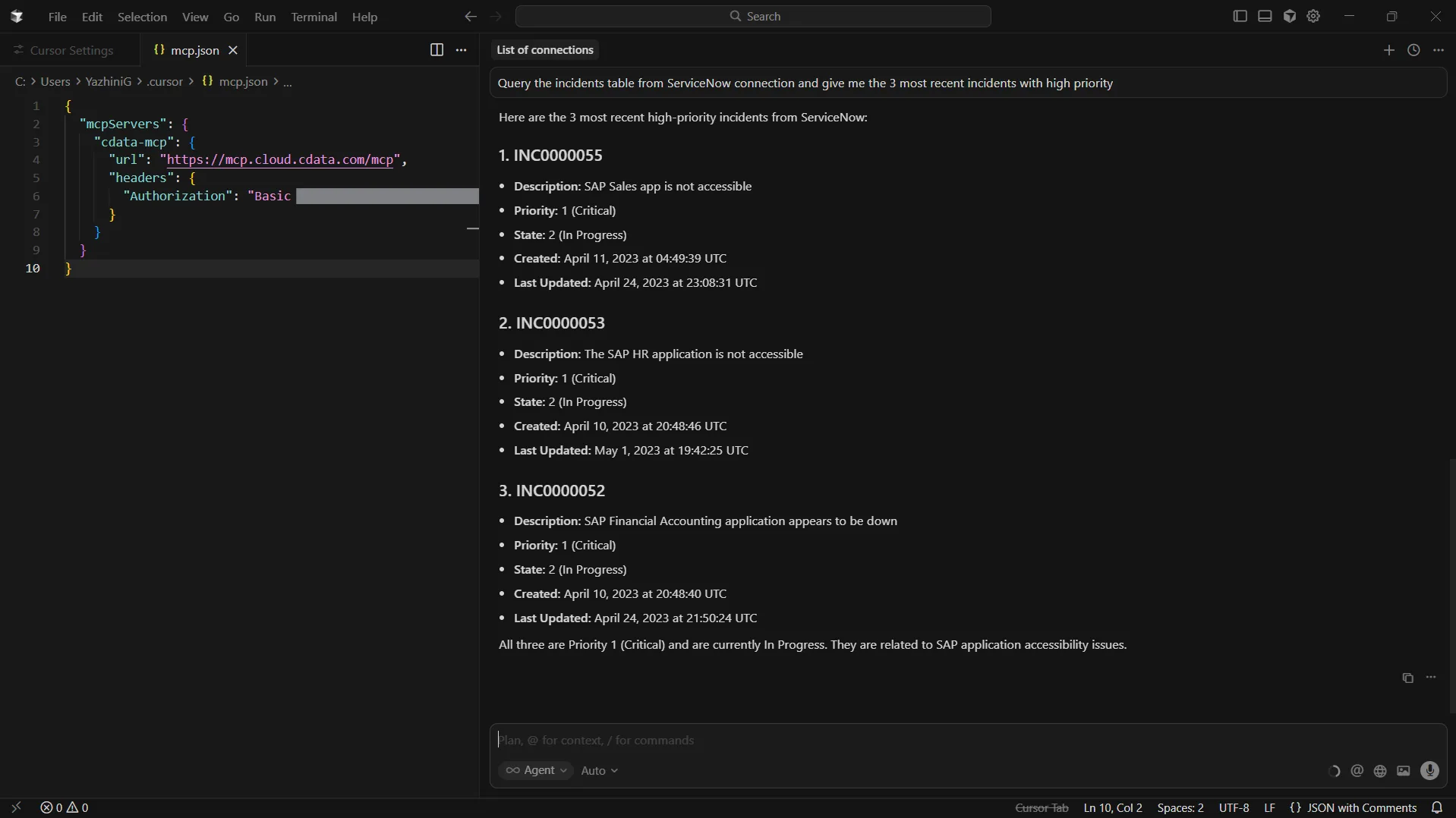
Cursor is now fully integrated with the CData Connect AI MCP Server and can act on live Freshdesk data directly from the editor.
Get CData Connect AI
To access 300+ SaaS, Big Data, and NoSQL sources directly from your development tools, try CData Connect AI today!
