





Integrate Front Data into Automated Tasks with Power Automate

Microsoft Power Automate is an online service that automates events (known as workflows) across the most common apps and services. When paired with CData Connect AI, you get instant, cloud-to-cloud access to Front data for visualizations, dashboards, and more. This article shows how to connect to Connect AI from Power Automate and integrate live Front data into your workflows and tasks.
CData Connect AI provides a pure SQL, cloud-to-cloud interface for Front, allowing you to easily integrate with live Front data in Power Automate — without replicating the data. CData Connect AI looks exactly like a SQL Server database to Power Automate and uses optimized data processing out of the box to push all supported SQL operations (filters, JOINs, etc) directly to Front, leveraging server-side processing to quickly return Front data.
Configure Front Connectivity for Power Automate
Connectivity to Front from Power Automate is made possible through CData Connect AI. To work with Front data from Power Automate, we start by creating and configuring a Front connection.
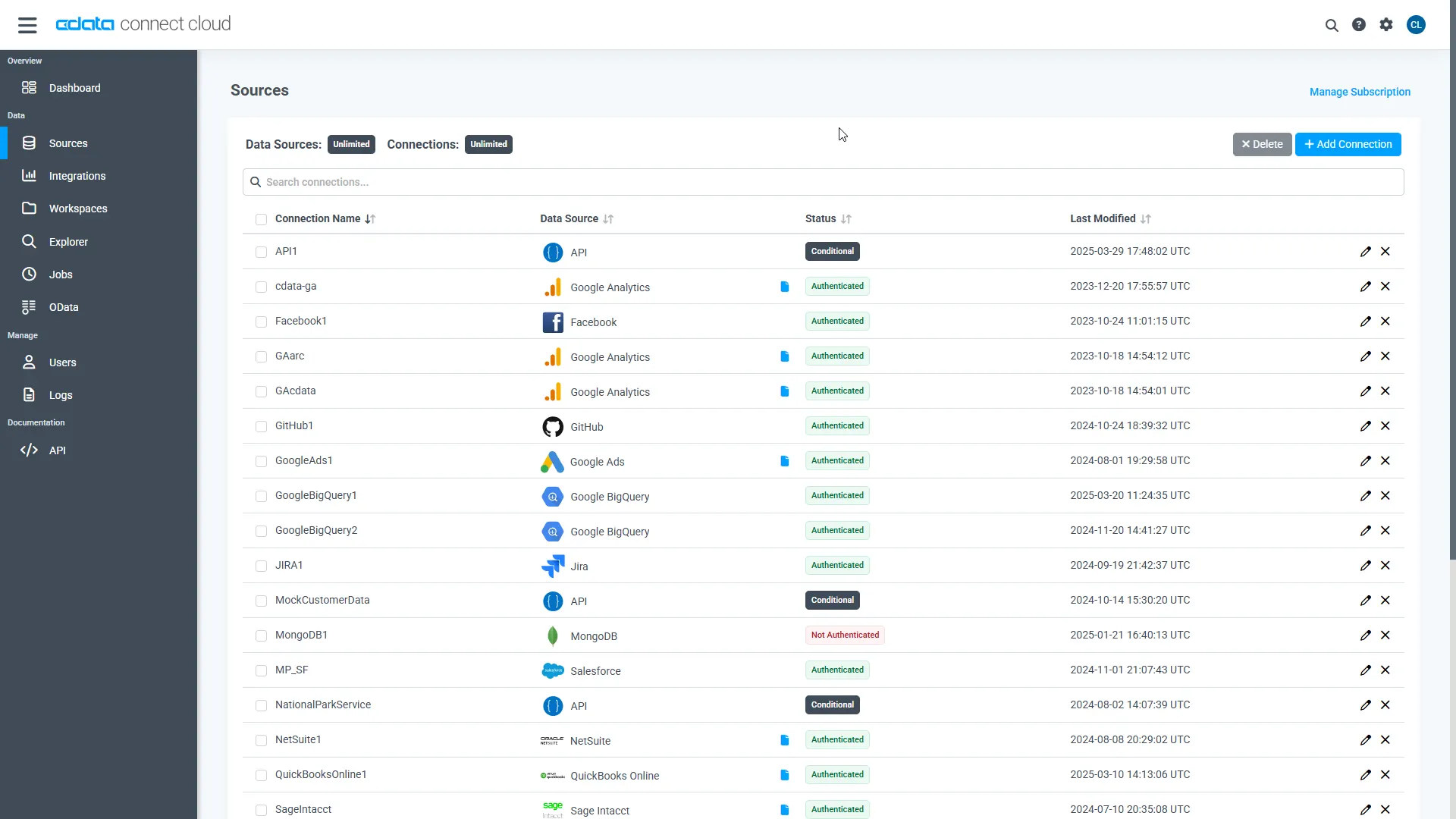
- Log into Connect AI, click Sources, and then click Add Connection
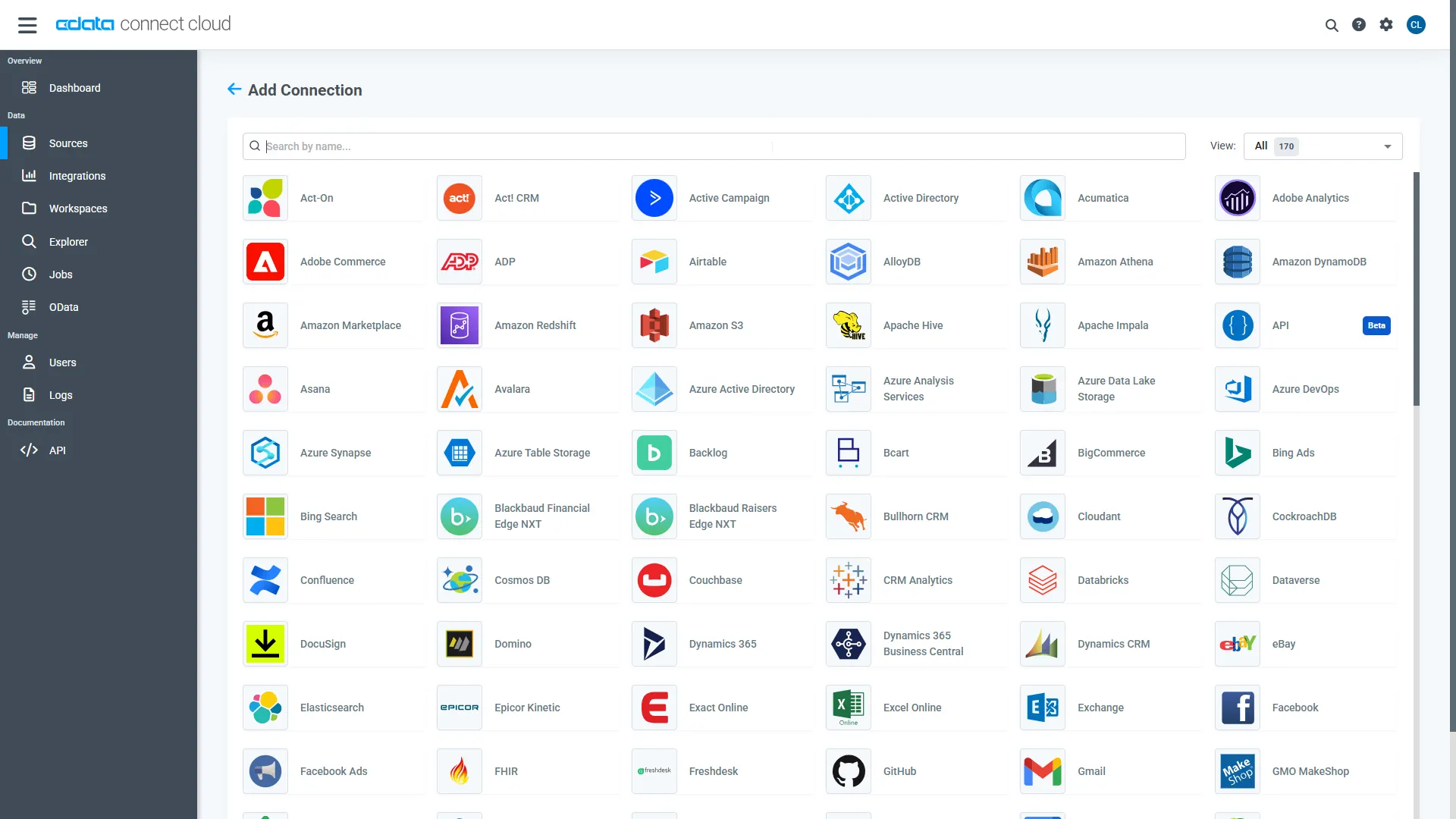
- Select "Front" from the Add Connection panel
-
Enter the necessary authentication properties to connect to Front.
Start by setting the Profile connection property to the location of the Front Profile on disk (e.g. C:\profiles\Front.apip). Next, set the ProfileSettings connection property to the connection string for Front (see below).
Front API Profile Settings
Generate an API key in Front by navigating to Settings > Plugins & API > API.
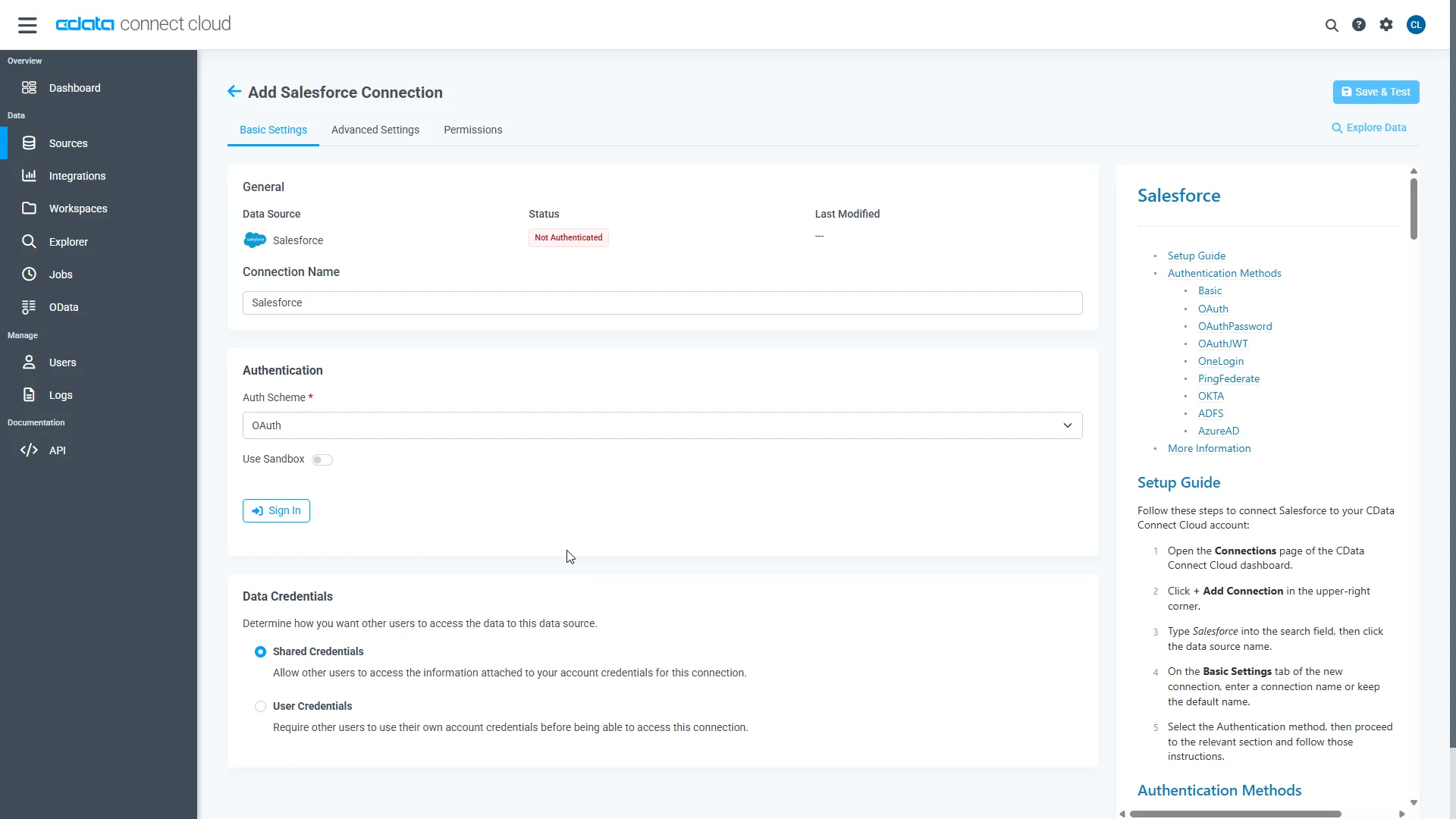
- Click Save & Test
-
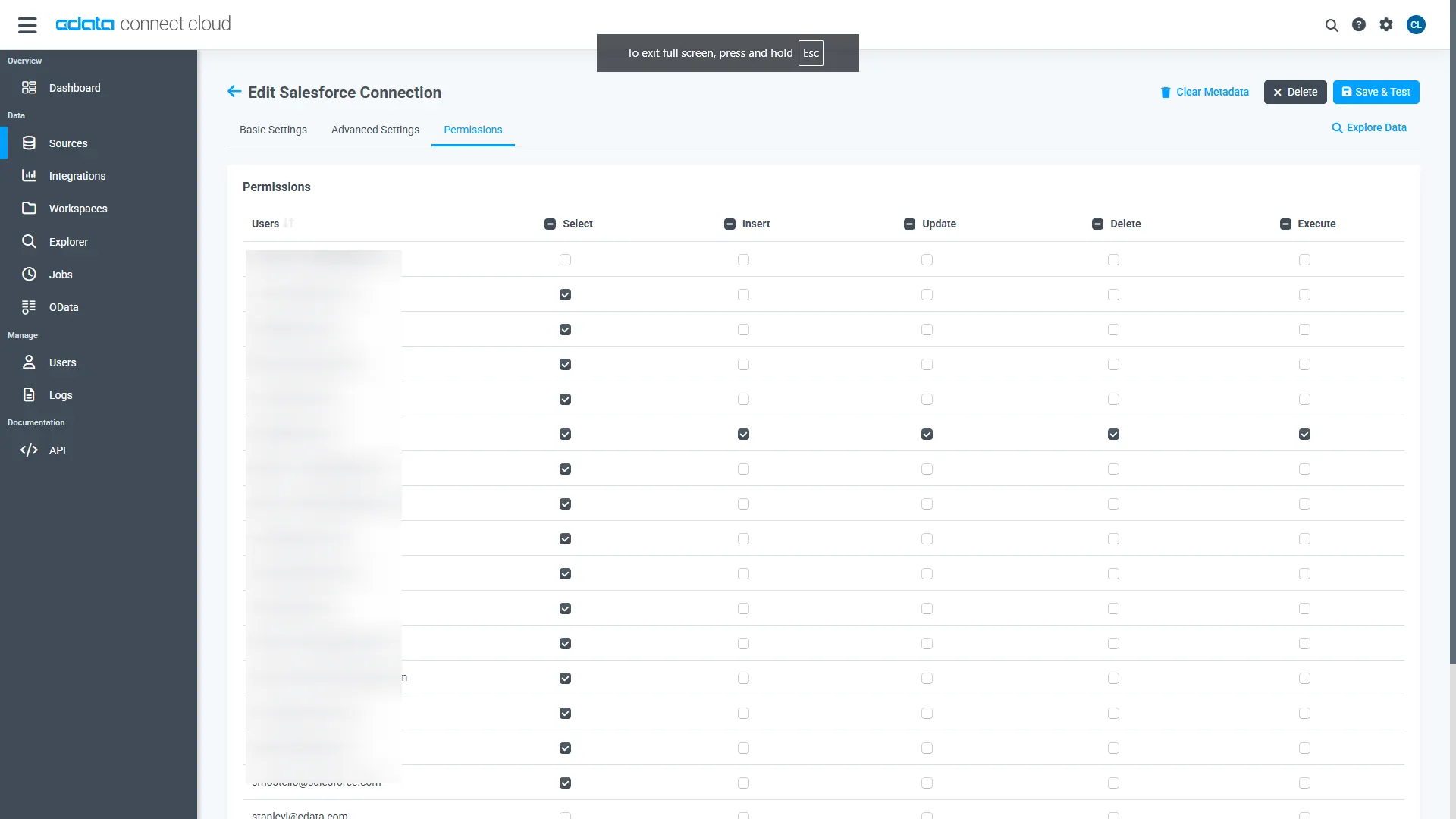
Navigate to the Permissions tab in the Add Front Connection page and update the User-based permissions.
Add a Personal Access Token
When connecting to Connect AI through the REST API, the OData API, or the Virtual SQL Server, a Personal Access Token (PAT) is used to authenticate the connection to Connect AI. It is best practice to create a separate PAT for each service to maintain granularity of access.
- Click on the Gear icon () at the top right of the Connect AI app to open the settings page.
- On the Settings page, go to the Personal Access Tokens section and click Create PAT.
-
Give the PAT a name and click Create.
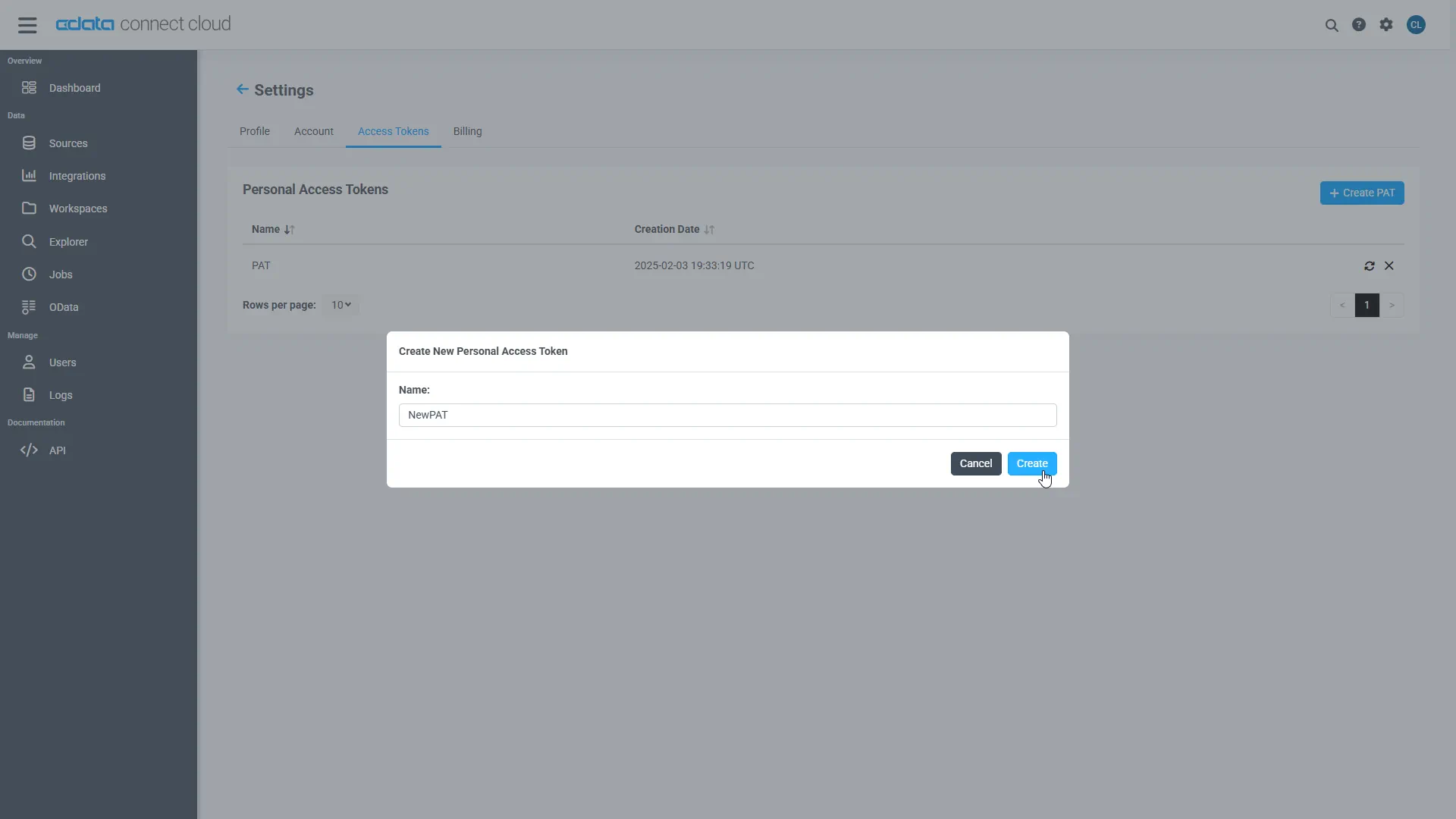
- The personal access token is only visible at creation, so be sure to copy it and store it securely for future use.
With the connection configured and a PAT generated, you are ready to connect to Front data from Power Automate.
Connecting to CData Connect AI
To use Connect AI to integrate Front data into your Power Automate tasks, you need a new SQL Server connection:
- Log in to Power Automate
- Click Data -> Connections -> New connection
- Select SQL Server
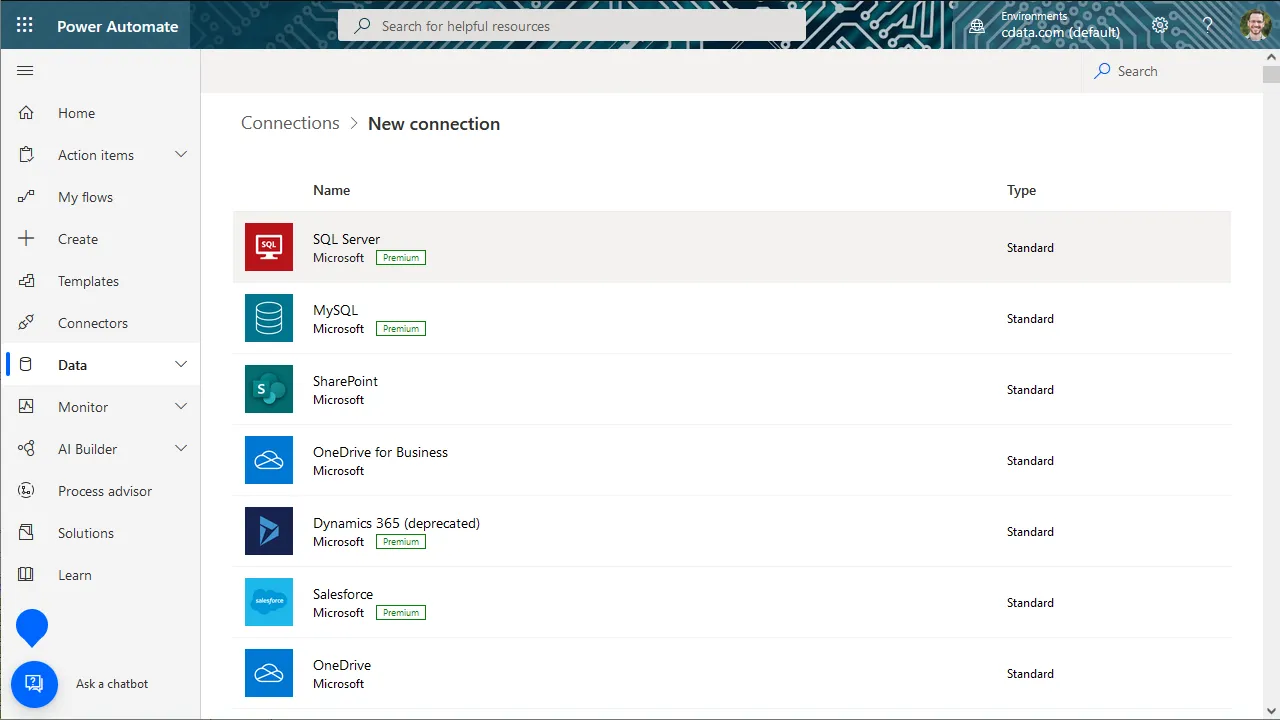
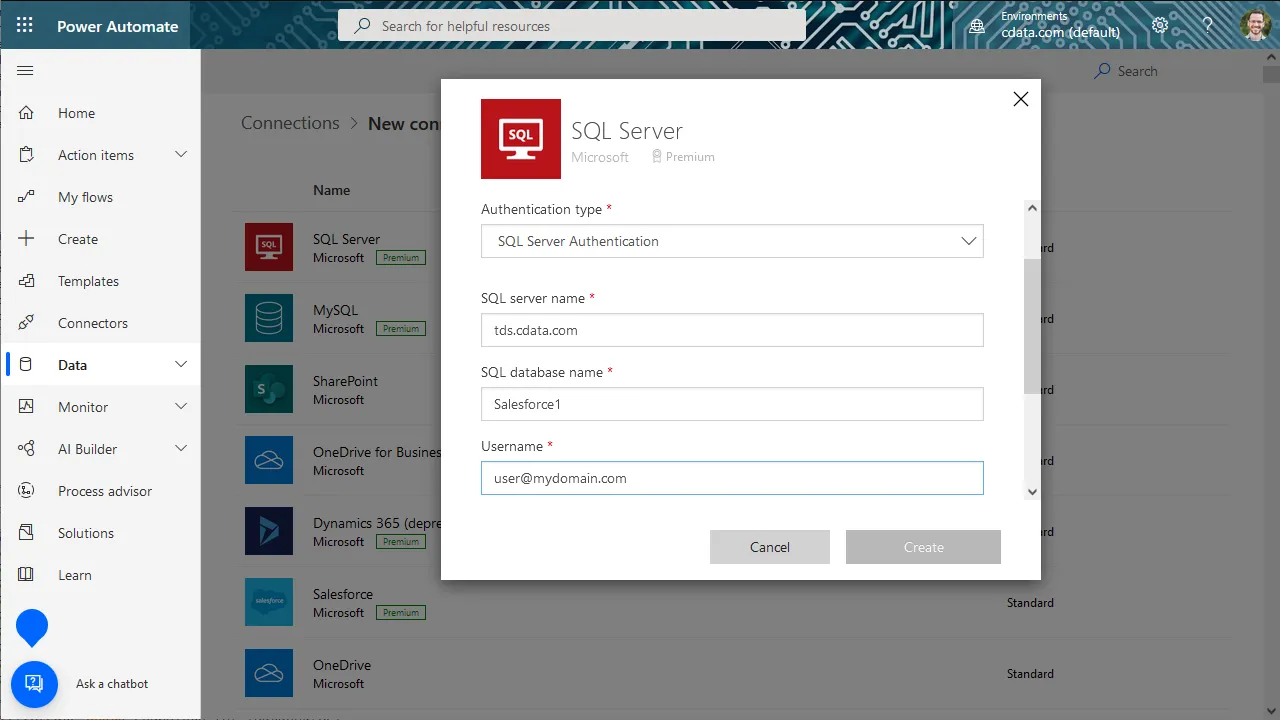
- In the connection wizard:
- Choose to connect directly
- Set SQL server name to tds.cdata.com,14333
- Set SQL database name to the name of the Front connection (e.g. API1)
- Set Username to a Connect AI user (e.g. [email protected])
- Set Password to the PAT for the above user
- Click Create
Integrating Front Data into Power Automate Tasks
With the connection to Connect AI configured, you are ready to integrate live Front data into your Power Automate tasks.
- Log in to Power Automate
- Click My flows -> New flow and choose to create the flow from blank or template
- Add (or configure) a SQL Server action (like Get rows) and configure the action to connect to your Connect AI connection
- Select a Table to work with (from the drop-down menu) and configure any advanced options (like filters, orders, etc)
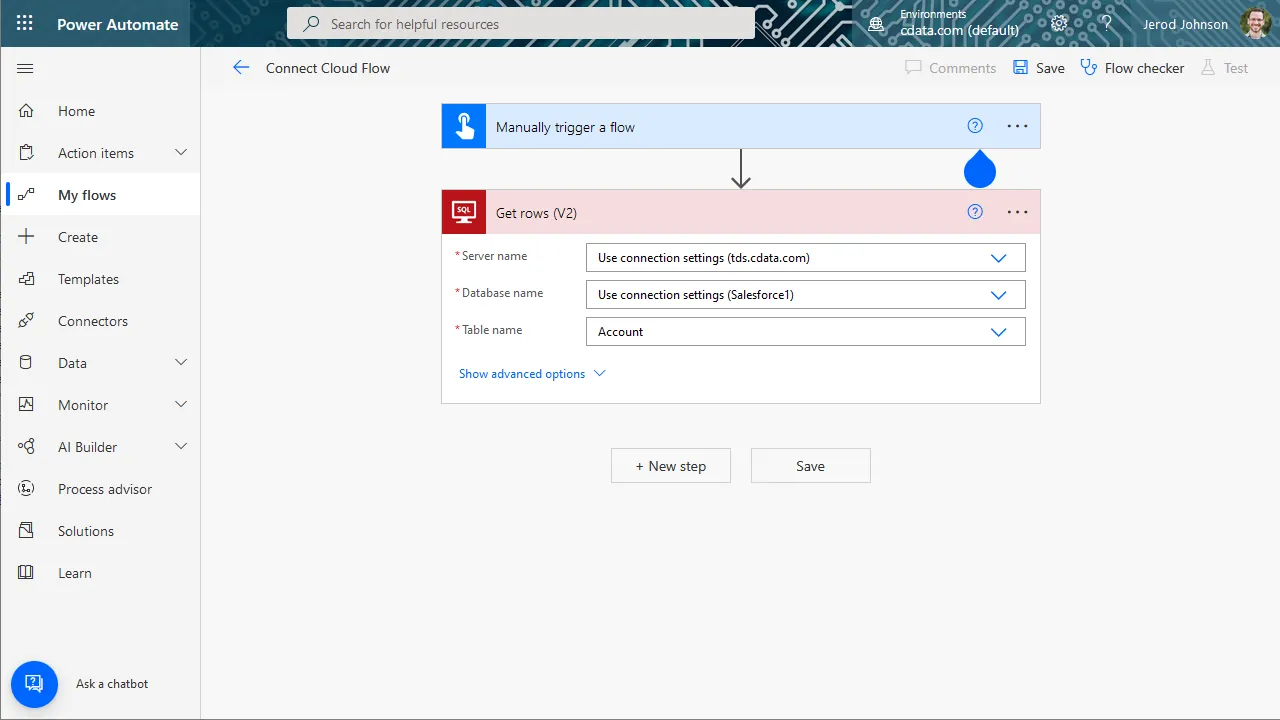
- Configure any actions to follow and test, then save the flow
SQL Access to Front Data from Cloud Applications
Now you have a direct connection to live Front data from Power Automate tasks. You can create more connections and workflows to drive business — all without replicating Front data.
To get SQL data access to hundreds of SaaS, Big Data, and NoSQL sources directly from your cloud applications, sign up for a free trial of CData Connect AI.
Related Power Automate Articles
This article explains how to use CData Connect AI with Power Automate (Online). Check out our other articles for more ways to work with Power Automate Desktop: