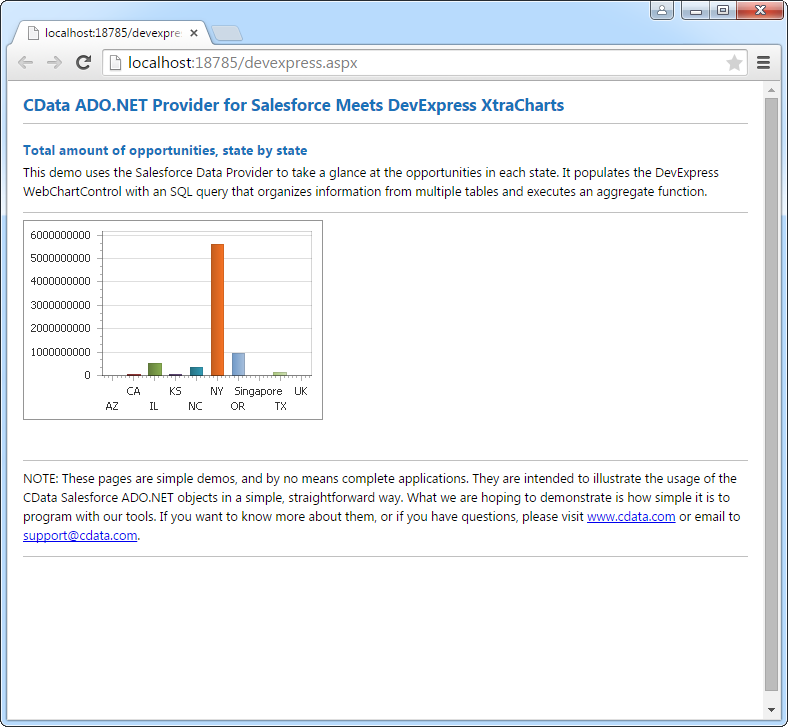
DataBind Google Translate Data to the DevExpress Data Grid

The CData API Driver for ADO.NET incorporates conventional ADO.NET data access components compatible with third-party controls. You can adhere to the standard ADO.NET data binding procedures to establish two-way access to real-time data through UI controls. This article will demonstrate the utilization of CData components for data binding with DevExpress UI Controls (Windows Forms and Web controls), specifically binding to a chart that visualizes live data.
Authentication
Google Cloud Translation API requires OAuth 2.0 authentication to ensure secure access to translation services, datasets, glossaries, and adaptive MT resources. This authentication method allows you to securely connect to your Google Cloud project and manage translation resources with proper authorization.
OAuth 2.0 Setup and Configuration
Step 1: Create Google Cloud Project and Enable API
To set up OAuth authentication:
- Visit the Google Cloud Console
- Create a new project or select an existing project
- Note down your Project ID (required for all API calls)
- Navigate to "APIs & Services" > "Library"
- Search for and enable the "Cloud Translation API"
- Go to "APIs & Services" > "Credentials"
- Click "Create Credentials" and select "OAuth Client ID"
- Configure the OAuth consent screen if prompted
- Select "Desktop application" or "Web application" as appropriate
- Set the authorized redirect URI (CallbackURL)
- Copy the Client ID and Client Secret for use in your connection
Required Connection Properties
- AuthScheme: Set this to OAuth (required)
- OAuthClientId: Client ID from Google Cloud Console (required)
- OAuthClientSecret: Client secret from Google Cloud Console (required)
- CallbackURL: Redirect URI specified in your OAuth application (required)
- InitiateOAuth: Set to GETANDREFRESH for automatic token management (recommended)
- ProjectId: Your Google Cloud project ID or project number (required for queries)
Required OAuth Scopes
The Google Cloud Translation API Profile requires the following OAuth scope:
- https://www.googleapis.com/auth/cloud-translation - Full access to Cloud Translation API resources including translation, datasets, glossaries, and adaptive MT
Windows Forms Controls
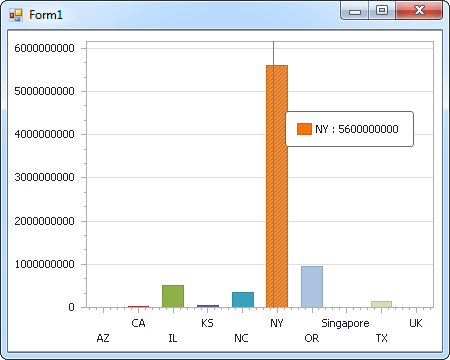
The code below shows how to populate a DevExpress chart with Google Translate data. The APIDataAdapter binds to the Series property of the chart control. The Diagram property of the control defines the x- and y-axes as the column names.
using (APIConnection connection = new APIConnection(
"Profile=C:\profiles\GoogleTranslate.apip;AuthScheme=OAuth;InitiateOAuth=GETANDREFRESH;OAuthClientId=your_client_id;OAuthClientSecret=your_client_secret;CallbackUrl=your_callback_url;")) {
  APIDataAdapter dataAdapter = new APIDataAdapter(
  "SELECT LanguageCode, DisplayName FROM SupportedLanguages WHERE ProjectId = 'my-project-12345'", connection);

  DataTable table = new DataTable();
  dataAdapter.Fill(table);
  DevExpress.XtraCharts.Series series = new DevExpress.XtraCharts.Series();
  chartControl1.Series.Add(series);
  series.DataSource = table;
  series.ValueDataMembers.AddRange(new string[] { "DisplayName" });
  series.ArgumentScaleType = DevExpress.XtraCharts.ScaleType.Qualitative;
  series.ArgumentDataMember = "LanguageCode";
  series.ValueScaleType = DevExpress.XtraCharts.ScaleType.Numerical;
  chartControl1.Legend.Visibility = DevExpress.Utils.DefaultBoolean.False;
  ((DevExpress.XtraCharts.SideBySideBarSeriesView)series.View).ColorEach = true;
}
Web Controls
The code below shows how to populate a DevExpress Web control with Google Translate data. The APIDataAdapter binds to the Series property of the chart; the Diagram property defines the x- and y-axes as the column names.
using DevExpress.XtraCharts;

using (APIConnection connection = new APIConnection(
"Profile=C:\profiles\GoogleTranslate.apip;AuthScheme=OAuth;InitiateOAuth=GETANDREFRESH;OAuthClientId=your_client_id;OAuthClientSecret=your_client_secret;CallbackUrl=your_callback_url;"))
{
  APIDataAdapter APIDataAdapter1 = new APIDataAdapter("SELECT LanguageCode, DisplayName FROM SupportedLanguages WHERE ProjectId = 'my-project-12345'", connection);
  DataTable table = new DataTable();
  APIDataAdapter1.Fill(table);
  DevExpress.XtraCharts.Series series = new Series("Series1", ViewType.Bar);
  WebChartControl1.Series.Add(series);
  series.DataSource = table;
  series.ValueDataMembers.AddRange(new string[] { "DisplayName" });
  series.ArgumentScaleType = ScaleType.Qualitative;
  series.ArgumentDataMember = "LanguageCode";
  series.ValueScaleType = ScaleType.Numerical;
  ((DevExpress.XtraCharts.SideBySideBarSeriesView)series.View).ColorEach = true;
}