






Back Up Google Translate data to SQL Server through SSIS

This article illustrates using the Google Translate ADO.NET Data Provider within a SQL Server SSIS workflow for the direct transfer of Google Translate data to a Microsoft SQL Server database. It's worth noting that the identical process detailed below is applicable to any CData ADO.NET Data Providers, enabling the direct connection of SQL Server with remote data through SSIS.
- Open Visual Studio and create a new Integration Services project.
- Add a new Data Flow task from the toolbox onto the Control Flow screen.
In the Data Flow screen, add an ADO.NET Source and an OLE DB Destination from the toolbox.
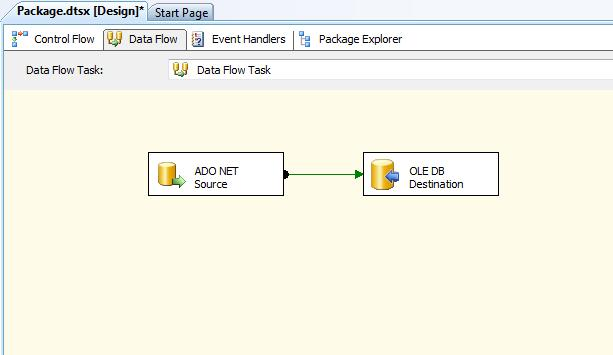
- Add a new connection and select .NET Providers\CData ADO.NET Provider for Google Translate.
In the connection manager, enter the connection details for Google Translate data.
Authentication
Google Cloud Translation API requires OAuth 2.0 authentication to ensure secure access to translation services, datasets, glossaries, and adaptive MT resources. This authentication method allows you to securely connect to your Google Cloud project and manage translation resources with proper authorization.
OAuth 2.0 Setup and Configuration
Step 1: Create Google Cloud Project and Enable API
To set up OAuth authentication:
- Visit the Google Cloud Console
- Create a new project or select an existing project
- Note down your Project ID (required for all API calls)
- Navigate to "APIs & Services" > "Library"
- Search for and enable the "Cloud Translation API"
- Go to "APIs & Services" > "Credentials"
- Click "Create Credentials" and select "OAuth Client ID"
- Configure the OAuth consent screen if prompted
- Select "Desktop application" or "Web application" as appropriate
- Set the authorized redirect URI (CallbackURL)
- Copy the Client ID and Client Secret for use in your connection
Required Connection Properties
- AuthScheme: Set this to OAuth (required)
- OAuthClientId: Client ID from Google Cloud Console (required)
- OAuthClientSecret: Client secret from Google Cloud Console (required)
- CallbackURL: Redirect URI specified in your OAuth application (required)
- InitiateOAuth: Set to GETANDREFRESH for automatic token management (recommended)
- ProjectId: Your Google Cloud project ID or project number (required for queries)
Required OAuth Scopes
The Google Cloud Translation API Profile requires the following OAuth scope:
- https://www.googleapis.com/auth/cloud-translation - Full access to Cloud Translation API resources including translation, datasets, glossaries, and adaptive MT
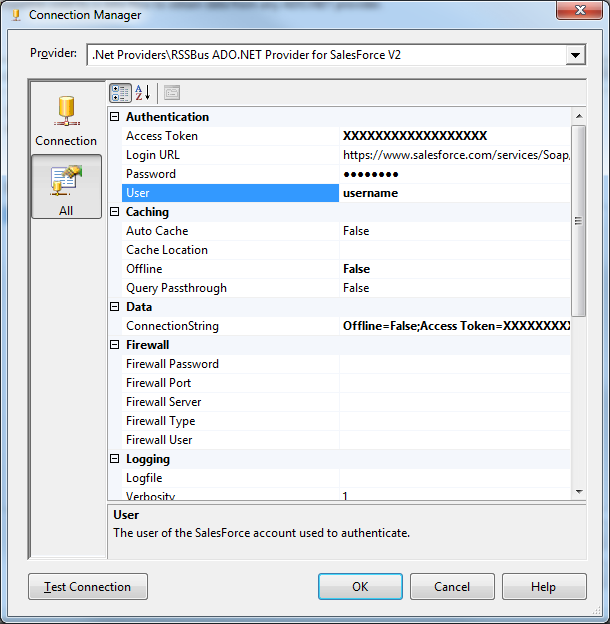
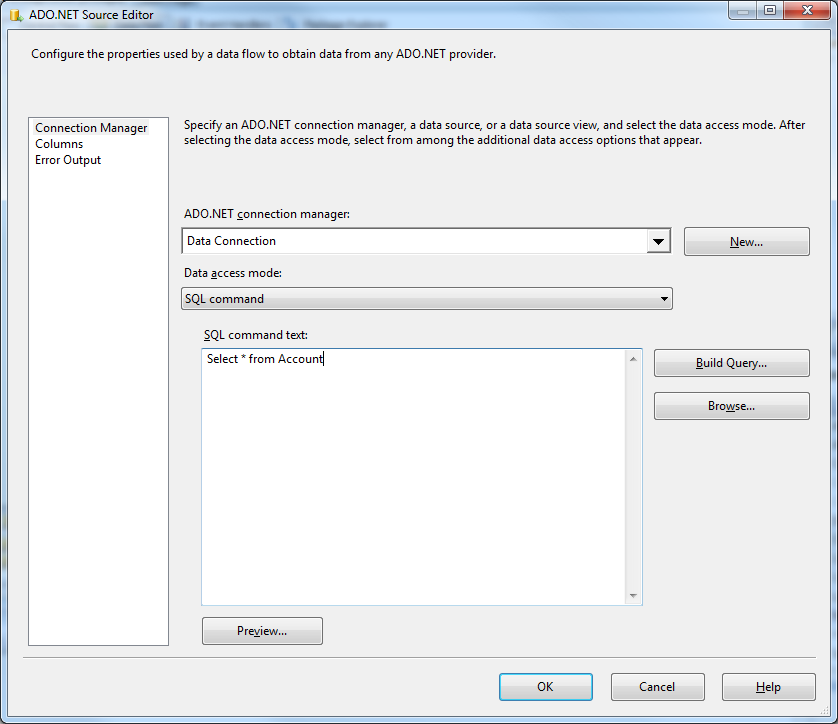
Open the DataReader editor and set the following information:
- ADO.NET connection manager: In the Connection Managers menu, select the Data Connection you just created.
- Data access mode: Select 'SQL command'.
- SQL command text: In the DataReader Source editor, open the Component Properties tab and enter a SELECT command, such as the one below:
SELECT LanguageCode, DisplayName FROM SupportedLanguages WHERE ProjectId = 'my-project-12345'
- Close the DataReader editor and drag the arrow below the DataReader Source to connect it to the OLE DB Destination.
Open the OLE DB Destination and enter the following information in the Destination Component Editor.
- Connection manager: Add a new connection. Enter your server and database information here. In this example, SQLExpress is running on a separate machine.
- Data access mode: Set your data access mode to "table or view" and select the table or view to populate in your database.
Configure any properties you wish on the Mappings screen.
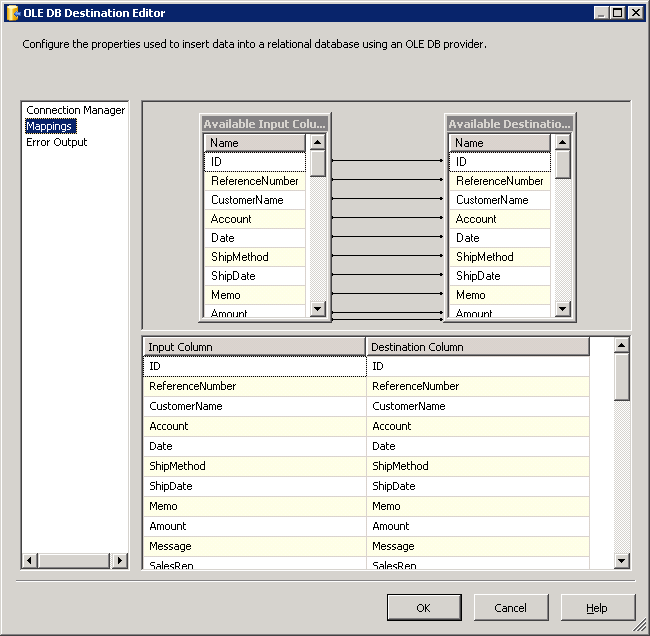
- Close the OLE DB Destination Editor and run the project. After the SSIS task has finished executing, your database will be populated with data obtained from Google Translate data.