






Connect Google Translate to IBM WebSphere Using the CData JDBC Driver

IBM WebSphere is a powerful application server that runs many enterprise level Java applications and services. When paired with the CData API Driver for JDBC, IBM WebSphere applications can connect to Google Translate and work with data using standard SQL queries instead of complex APIs. This simplifies integration, reduces development effort, and provides secure, real-time access to critical business data.
Prerequisites
- Access to a Google Translate account (with API permissions)
- IBM WebSphere Application Server (configured and running)
- CData API Driver for JDBC
- Java Servlet WAR application ready for deployment
Note: This article uses Salesforce as a demonstration data source, but the same steps can be followed to connect to any of the 250+ JDBC Drivers available in our portfolio.
Getting Started
Step 1: Download and install the CData API Driver for JDBC
Download and install the CData API Driver for JDBC, which provides a .jar file: cdata.jdbc.api.jar
Step 2: Install and configure IBM Websphere
- Create an account in IBM WebSphere using the official IBM site.
- Install and configure the IBM Websphere Application server in the local system using the documentation: IBM Websphere Application Server
- Once the application server is installed, start the WebSphere Server using the Admin Console in your browser: https://your-server:9043/ibm/console
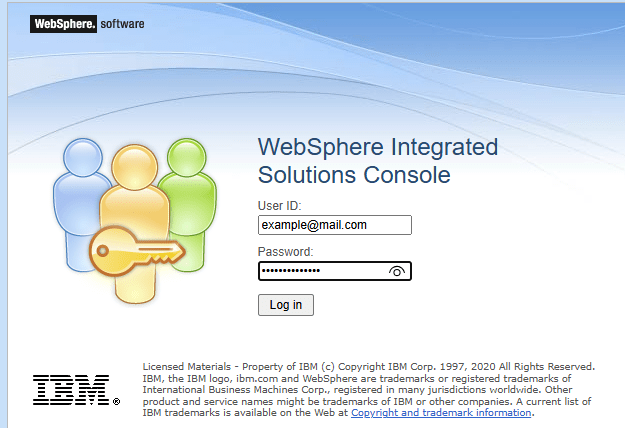
Step 3: Set up the JDBC provider and data source for Google Translate
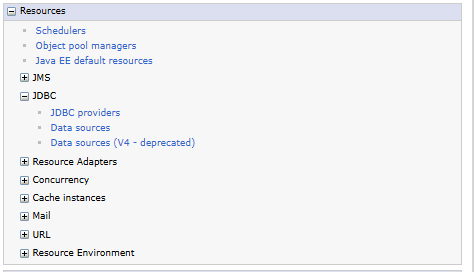
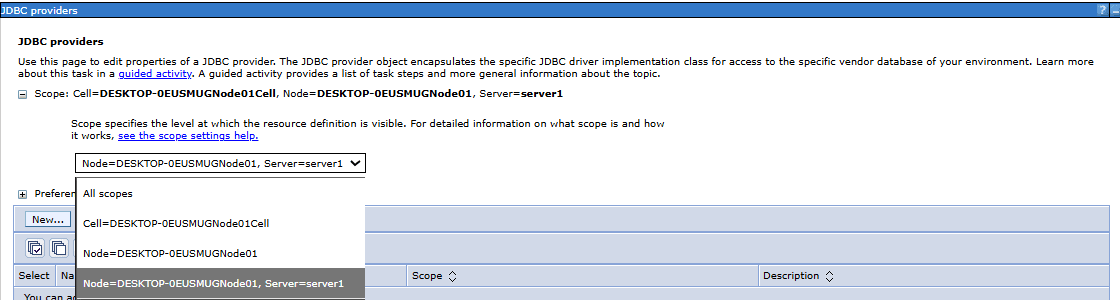
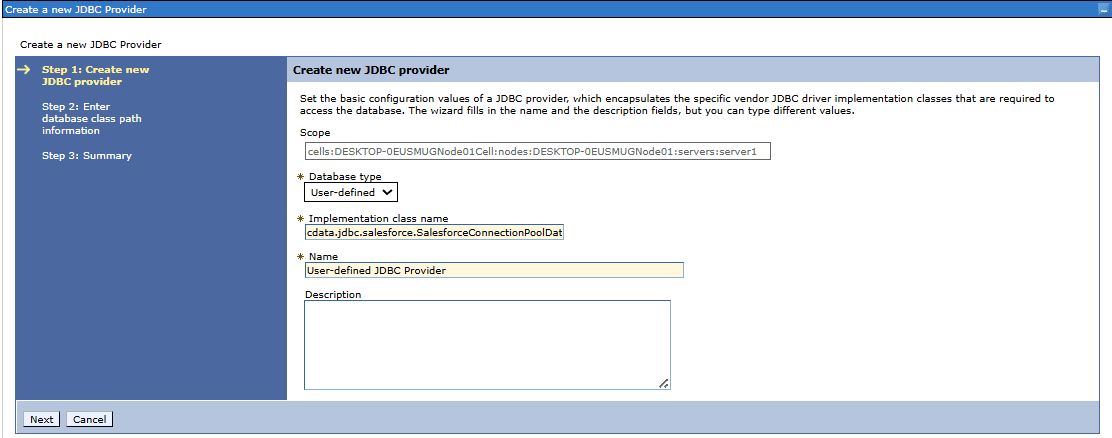
- Go to Resources, expand the JDBC section, and then select JDBC providers to create a new provider
- Select the appropriate scope from the drop down menu
- Click New to add a JDBC provider
- Choose User defined as the database type
- Enter cdata.jdbc.api.APIConnectionPoolDataSource as the implementation class name
- Type a name for the provider, for example User defined JDBC Provider
- Enter the full path of the JDBC driver JAR file in the classpath field
- Click Next, then Finish, and save the changes to the master configuration.
- Once the JDBC provider is created, add a JDBC data source.
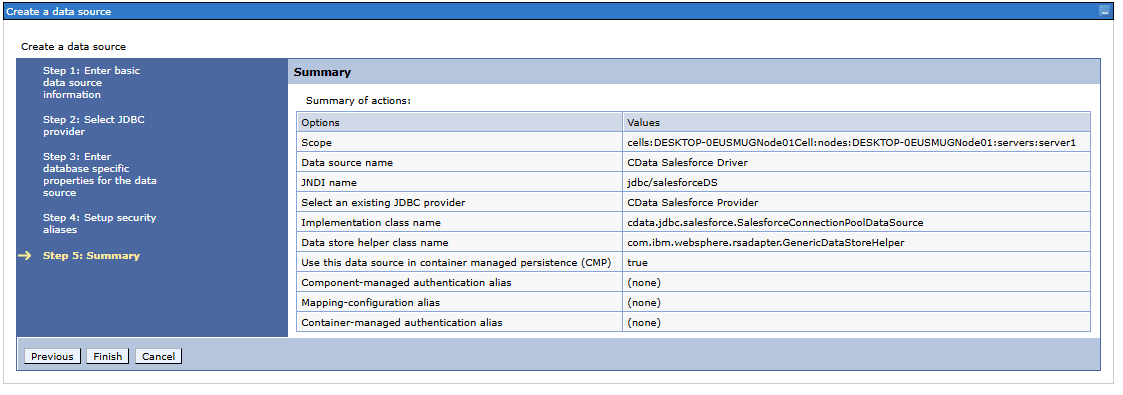
- Enter the basic details such as Data Source Name and JNDI name
- Select the existing JDBC provider created earlier (e.g., CData Google Translate Provider)
- Provide the Implementation class name: cdata.jdbc.api.APIConnectionPoolDataSource
- Add the Data Store Helper Class Name: com.ibm.websphere.rsadapter.GenericDataStoreHelper
- Configure security by setting authentication aliases if required
- Review the Summary page to verify all details and click Finish to complete the data source creation
- Select the newly created data source from the list and open Custom properties
-
Add the JDBC connection string under the URL property and press OK. For example:
jdbc:api:RTK=5246...;Profile=C:\profiles\GoogleTranslate.apip;AuthScheme=OAuth;InitiateOAuth=GETANDREFRESH;OAuthClientId=your_client_id;OAuthClientSecret=your_client_secret;CallbackUrl=your_callback_url;
Authentication
Google Cloud Translation API requires OAuth 2.0 authentication to ensure secure access to translation services, datasets, glossaries, and adaptive MT resources. This authentication method allows you to securely connect to your Google Cloud project and manage translation resources with proper authorization.
OAuth 2.0 Setup and Configuration
Step 1: Create Google Cloud Project and Enable API
To set up OAuth authentication:
- Visit the Google Cloud Console
- Create a new project or select an existing project
- Note down your Project ID (required for all API calls)
- Navigate to "APIs & Services" > "Library"
- Search for and enable the "Cloud Translation API"
- Go to "APIs & Services" > "Credentials"
- Click "Create Credentials" and select "OAuth Client ID"
- Configure the OAuth consent screen if prompted
- Select "Desktop application" or "Web application" as appropriate
- Set the authorized redirect URI (CallbackURL)
- Copy the Client ID and Client Secret for use in your connection
Required Connection Properties
- AuthScheme: Set this to OAuth (required)
- OAuthClientId: Client ID from Google Cloud Console (required)
- OAuthClientSecret: Client secret from Google Cloud Console (required)
- CallbackURL: Redirect URI specified in your OAuth application (required)
- InitiateOAuth: Set to GETANDREFRESH for automatic token management (recommended)
- ProjectId: Your Google Cloud project ID or project number (required for queries)
Required OAuth Scopes
The Google Cloud Translation API Profile requires the following OAuth scope:
- https://www.googleapis.com/auth/cloud-translation - Full access to Cloud Translation API resources including translation, datasets, glossaries, and adaptive MT
Built-in Connection String Designer
For assistance in constructing the JDBC URL, use the connection string designer built into the Google Translate JDBC Driver. Either double-click the JAR file or execute the jar file from the command-line.
java -jar cdata.jdbc.api.jarFill in the connection properties and copy the connection string to the clipboard.

Note: If the URL property is not available, create it and then add the JDBC connection string.
Tip: Always test the connection string with the driver before entering it in the URL property.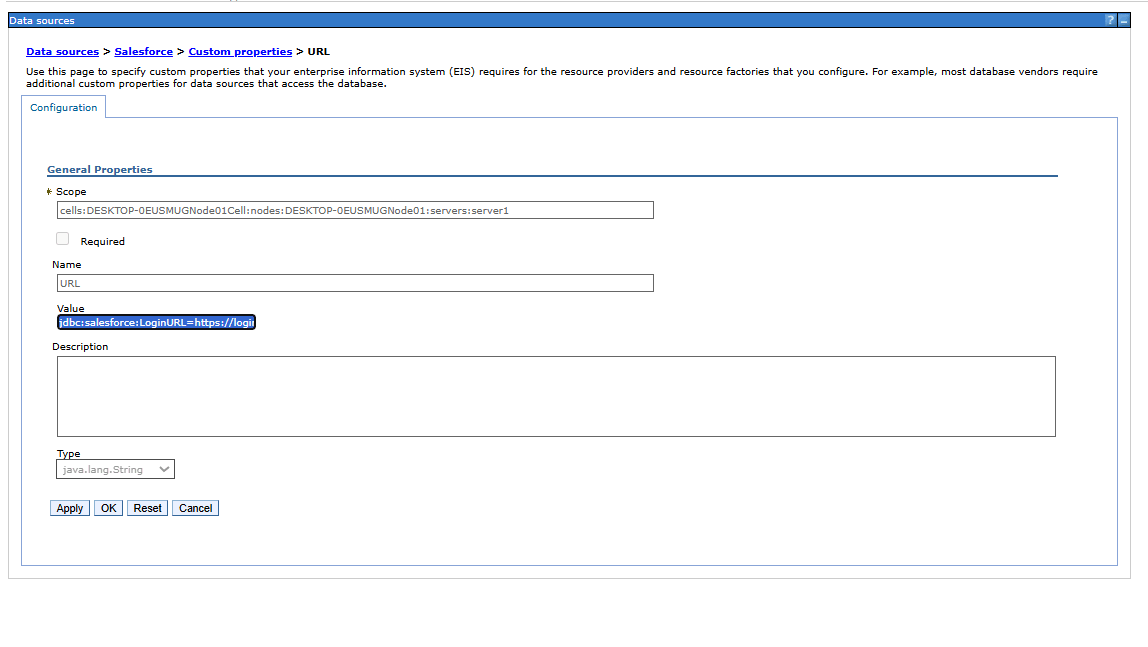
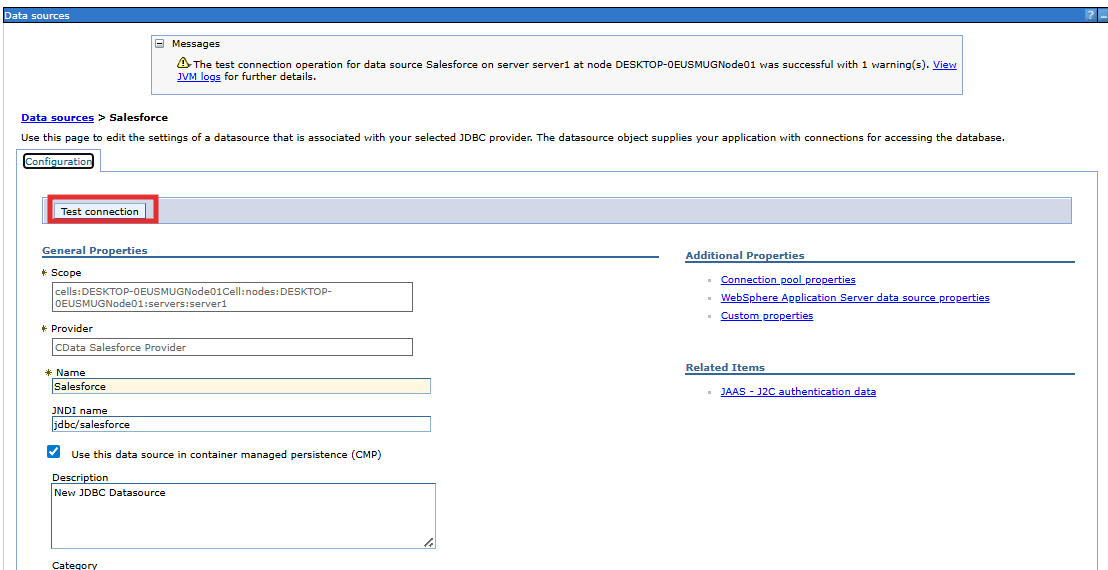
- Now open the data source and choose Test Connection
Step 4: Build the web application
- Build the web application using preferred Java framework (Servlet, JSP, or Spring). The resulting .war file will typically follow a structure like this:
- Define the data access logic using JDBC or JPA, referencing the data source through a JNDI name
- This article explains how to set up a JDBC connection and deploy a Java Servlet application
- Package the project as a WAR (Web Application Archive) or EAR (Enterprise Archive) file for deployment
- In a terminal compile the java file using the command:
cd webcontent jar cvf ..\Google TranslateServletApp.war *
		Google TranslateServletApp.war
		|--webcontent
		|  |--index.jsp                 -- JSP page (entry point)
		|  |
		|  |--WEB-INF/                  --Hidden from direct browser access
		|     |--web.xml                 -- Deployment descriptor
		|     |
		|     |--classes/                  --Compiled .class files
		|       |--com/example/Google Translate/
		|          |--Google TranslateServlet.class
		|
		|--lib/                      --Dependency JARs
		|--cdata.jdbc.googletranslate.jar
Step 5: Deploy the Google Translate application in WebSphere
- In the WebSphere admin console, go to Applications and select Install New Application
- Browse and upload the WAR file, then continue with the installation wizard.
Step 6: Retrieve Google Translate data through WebSphere
- Access the application using its context root: http://hostname:port/context-root/page
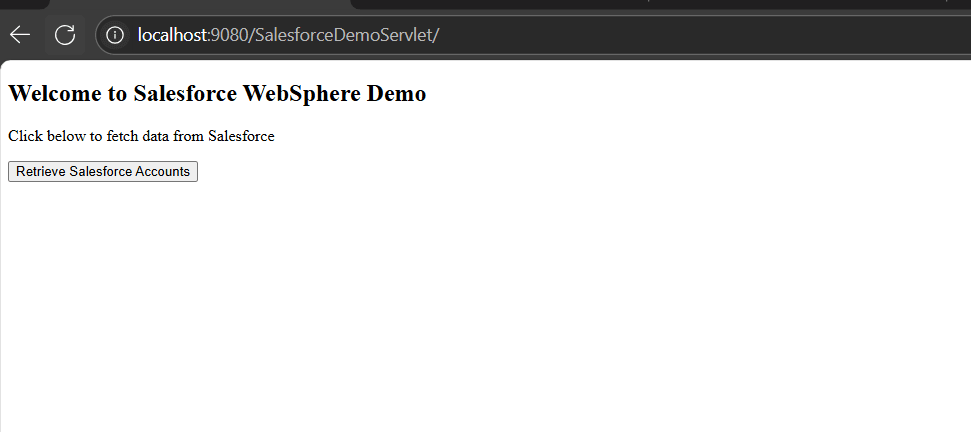 Note: Ensure the deployed application is started before opening it in the browser.
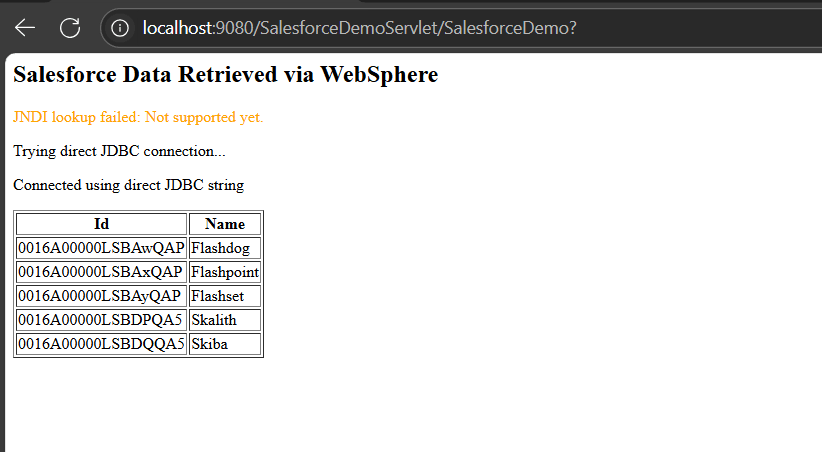
We can now view the retrieved data from the source. The data is accessible directly through IBM WebSphere. This setup demonstrates how a servlet can be deployed in WebSphere to retrieve Google Translate data using the JDBC driver, creating a strong foundation for building advanced Google Translate powered enterprise applications.
Get Started with Connecting Google Translate to IBM WebSphere
Start connecting Google Translate to IBM WebSphere with the CData JDBC Connector today. Download the free 30-day trial and explore how easy it is to enable secure, real-time data access for your applications. As always, our world-class Support Team is available to help with any questions you may have.