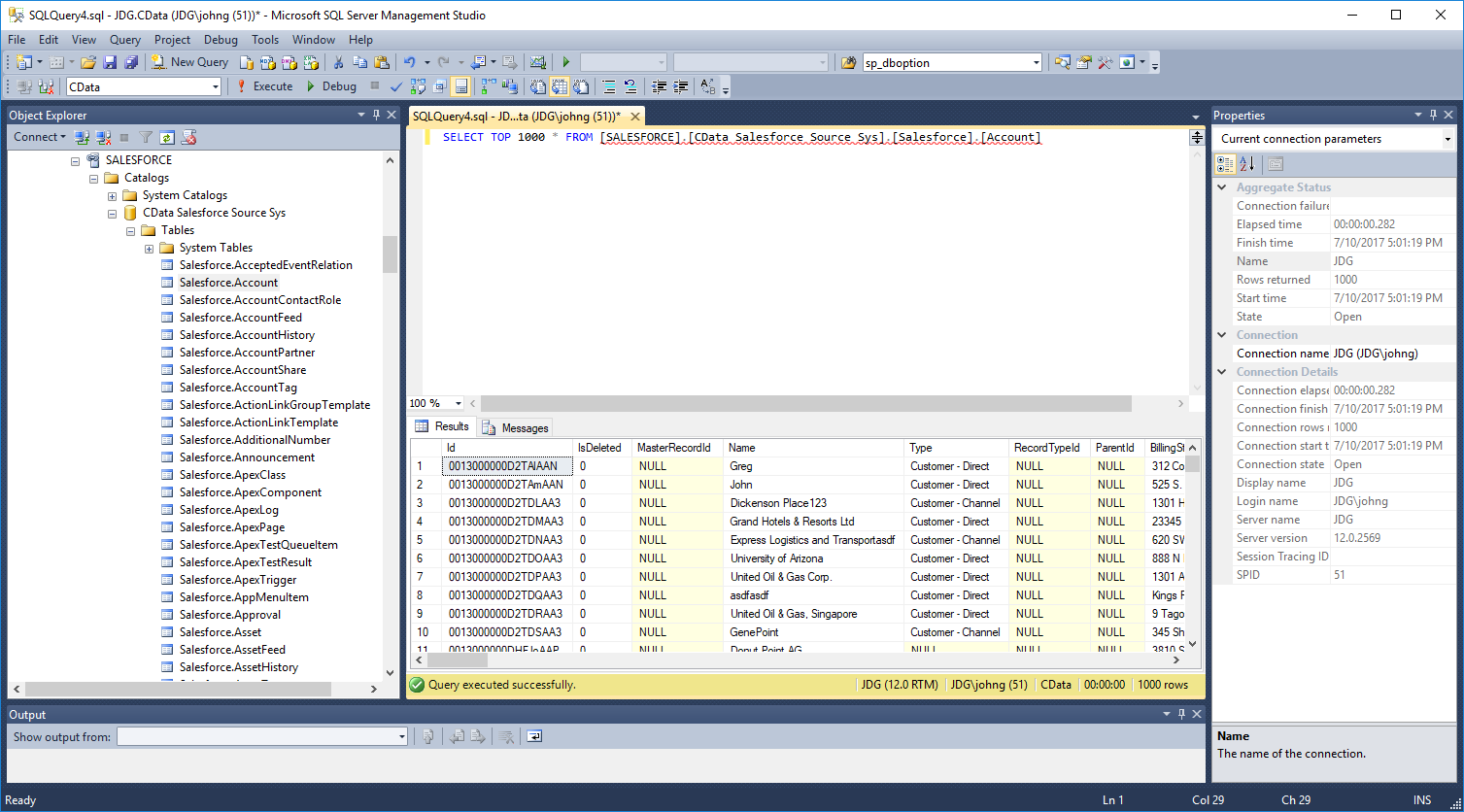
Connect to Google Translate Data as a Linked Server via SQL Gateway

You can use the SQL Gateway to configure a TDS (SQL Server) remoting service and set up a linked server for Google Translate data. After you have started the service, you can use the UI in SQL Server Management Studio or call stored procedures to create the linked server. You can then work with Google Translate data just as you would a linked SQL Server instance.
Connect to Google Translate as an ODBC Data Source
If you have not already, first specify connection properties in an ODBC DSN (data source name). This is the last step of the driver installation. You can use the Microsoft ODBC Data Source Administrator to create and configure ODBC DSNs.
Authentication
Google Cloud Translation API requires OAuth 2.0 authentication to ensure secure access to translation services, datasets, glossaries, and adaptive MT resources. This authentication method allows you to securely connect to your Google Cloud project and manage translation resources with proper authorization.
OAuth 2.0 Setup and Configuration
Step 1: Create Google Cloud Project and Enable API
To set up OAuth authentication:
- Visit the Google Cloud Console
- Create a new project or select an existing project
- Note down your Project ID (required for all API calls)
- Navigate to "APIs & Services" > "Library"
- Search for and enable the "Cloud Translation API"
- Go to "APIs & Services" > "Credentials"
- Click "Create Credentials" and select "OAuth Client ID"
- Configure the OAuth consent screen if prompted
- Select "Desktop application" or "Web application" as appropriate
- Set the authorized redirect URI (CallbackURL)
- Copy the Client ID and Client Secret for use in your connection
Required Connection Properties
- AuthScheme: Set this to OAuth (required)
- OAuthClientId: Client ID from Google Cloud Console (required)
- OAuthClientSecret: Client secret from Google Cloud Console (required)
- CallbackURL: Redirect URI specified in your OAuth application (required)
- InitiateOAuth: Set to GETANDREFRESH for automatic token management (recommended)
- ProjectId: Your Google Cloud project ID or project number (required for queries)
Required OAuth Scopes
The Google Cloud Translation API Profile requires the following OAuth scope:
- https://www.googleapis.com/auth/cloud-translation - Full access to Cloud Translation API resources including translation, datasets, glossaries, and adaptive MT
Configure the TDS Remoting Service
See the SQL Gateway Overview for a guide to configure a TDS remoting service in the SQL Gateway UI. The TDS remoting service is a daemon process that listens for TDS requests from clients.
Create a Linked Server for Google Translate Data
After you have configured and started the daemon, create the linked server and connect. You can use the UI in SQL Server Management Studio or call stored procedures.
Create a Linked Server from the UI
Follow the steps below to create a linked server from the Object Explorer.
- Open SQL Server Management Studio and connect to an instance of SQL Server.
- In the Object Explorer, expand the node for the SQL Server database. In the Server Objects node, right-click Linked Servers and click New Linked Server. The New Linked Server dialog is displayed.
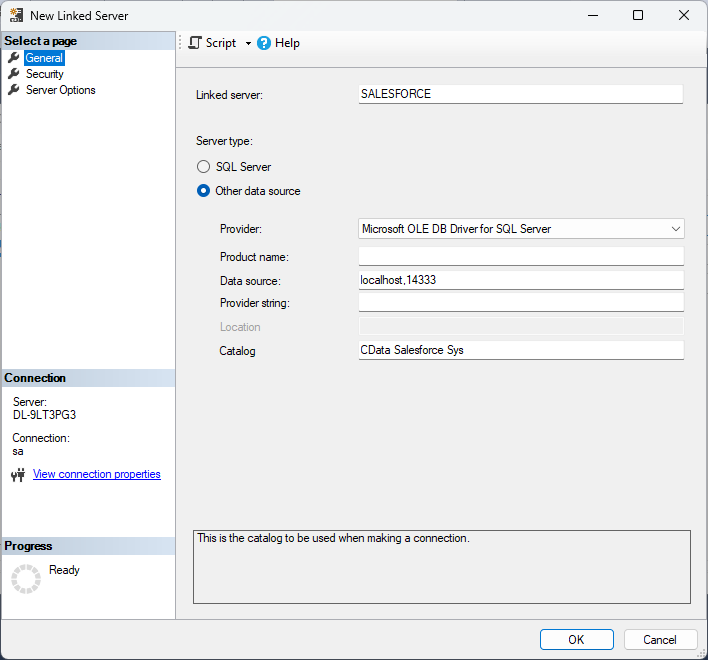
- In the General section, click the Other Data Source option and enter the following information after naming the linked server:
- Provider: Select "Microsoft ODBC Driver for SQL Server" or "Microsoft OLE DB Driver for SQL Server"
Data Source: Enter the host and port the TDS remoting service is running on, separated by a comma.
Note that a value of "localhost" in this input refers to the machine where SQL Server is running so be careful when creating a linked server in Management Studio when not running on the same machine as SQL Server.
-
Catalog:
- Option 1: If you enabled the "Support multiple catalogs and schemas" option while creating and configuring the TDS Remoting Service in previous steps, enter CData as the catalog.
- Option 2: For single schema support, enter the name of the data source's system DSN as CData API Sys.
-
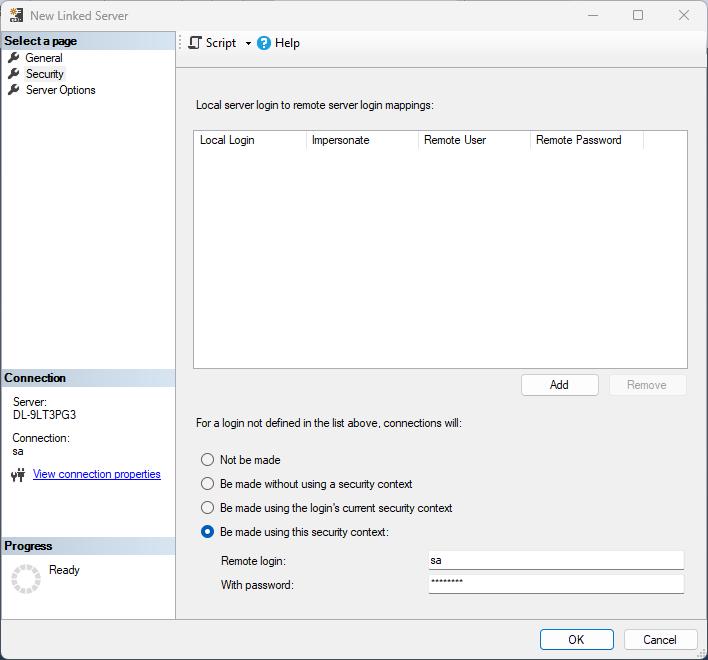
In the Security section, select the option to have the connection "made using this security context" and enter the username and password of a user you created in the Users tab of the SQL Gateway.
Create a Linked Server Programmatically
In addition to using the SQL Server Management Studio UI to create a linked server, you can use stored procedures. The following inputs are required:
- server: The linked server name.
- provider: Enter "MSOLEDBSQL", for the Microsoft OLE DB Driver for SQL Server.
datasrc: The host and port the service is running on, separated by a comma.
Note that a value of "localhost" in the datasrc input refers to the machine where SQL Server is running, so be careful when creating a linked server in Management Studio when not running on the same machine as SQL Server.
- catalog: Enter the system DSN configured for the service.
- srvproduct: Enter the product name of the data source; this can be an arbitrary value, such as "CData SQL Gateway" or an empty string.
-
Call sp_addlinkedserver to create the linked server:
EXEC sp_addlinkedserver @server='API',
  @provider='MSOLEDBSQL',
  @datasrc='< MachineIPAddress >,1434',
  @catalog='CData API Sys',
  @srvproduct='';
GO
-
Call the sp_addlinkedsrvlogin stored procedure to allow SQL Server users to connect with the credentials of an authorized user of the service. Note that the credentials you use to connect to the service must specify a user you configured on the Users tab of the SQL Gateway.
EXEC sp_addlinkedsrvlogin @rmtsrvname='API',
  @rmtuser='admin',
  @rmtpassword='test',
  @useself='FALSE',
  @locallogin=NULL;
GO
Connect from SQL Server Management Studio
SQL Server Management Studio uses the SQL Server Client OLE DB provider, which requires the ODBC driver to be used inprocess. You must enable the "Allow inprocess" option for the SQL Server Native Client Provider in Management Studio to query the linked server from SQL Server Management Studio. To do this, open the properties for the provider you are using under Server Objects -> Linked Servers -> Providers. Check the "Allow inprocess" option and save the changes.
Execute Queries
You can now execute queries to the Google Translate linked server from any tool that can connect to SQL Server. Set the table name accordingly:
SELECT * FROM [linked server name].[CData API Sys].[API].[SupportedLanguages]