






Create Power BI Reports on Real-Time Google Translate Data

With built-in support for ODBC on Microsoft Windows, the CData ODBC Drivers provide self-service integration with self-service analytics tools such as Microsoft Power BI. The CData ODBC Driver for Google Translate links your Power BI reports to operational Google Translate data. You can monitor Google Translate data through dashboards and ensure that your analysis reflects Google Translate data in real time by scheduling refreshes or refreshing on demand. This article details how to use the ODBC driver to create real-time visualizations of Google Translate data in Microsoft Power BI Desktop and then upload to Power BI.
The CData ODBC Drivers offer unmatched performance for interacting with live Google Translate data in Power BI due to optimized data processing built into the driver. When you issue complex SQL queries from Power BI to Google Translate, the driver pushes supported SQL operations, like filters and aggregations, directly to Google Translate and utilizes the embedded SQL Engine to process unsupported operations (often SQL functions and JOIN operations) client-side. With built-in dynamic metadata querying, you can visualize and analyze Google Translate data using native Power BI data types.
Connect to Google Translate as an ODBC Data Source
If you have not already, first specify connection properties in an ODBC DSN (data source name). This is the last step of the driver installation. You can use the Microsoft ODBC Data Source Administrator to create and configure ODBC DSNs.
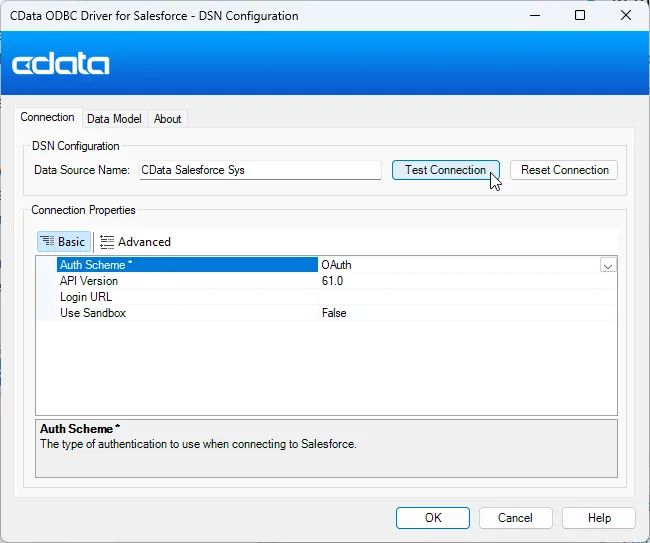
Authentication
Google Cloud Translation API requires OAuth 2.0 authentication to ensure secure access to translation services, datasets, glossaries, and adaptive MT resources. This authentication method allows you to securely connect to your Google Cloud project and manage translation resources with proper authorization.
OAuth 2.0 Setup and Configuration
Step 1: Create Google Cloud Project and Enable API
To set up OAuth authentication:
- Visit the Google Cloud Console
- Create a new project or select an existing project
- Note down your Project ID (required for all API calls)
- Navigate to "APIs & Services" > "Library"
- Search for and enable the "Cloud Translation API"
- Go to "APIs & Services" > "Credentials"
- Click "Create Credentials" and select "OAuth Client ID"
- Configure the OAuth consent screen if prompted
- Select "Desktop application" or "Web application" as appropriate
- Set the authorized redirect URI (CallbackURL)
- Copy the Client ID and Client Secret for use in your connection
Required Connection Properties
- AuthScheme: Set this to OAuth (required)
- OAuthClientId: Client ID from Google Cloud Console (required)
- OAuthClientSecret: Client secret from Google Cloud Console (required)
- CallbackURL: Redirect URI specified in your OAuth application (required)
- InitiateOAuth: Set to GETANDREFRESH for automatic token management (recommended)
- ProjectId: Your Google Cloud project ID or project number (required for queries)
Required OAuth Scopes
The Google Cloud Translation API Profile requires the following OAuth scope:
- https://www.googleapis.com/auth/cloud-translation - Full access to Cloud Translation API resources including translation, datasets, glossaries, and adaptive MT
Create Data Visualizations
After creating an ODBC DSN, follow the steps below to connect to the Google Translate ODBC DSN from Power BI Desktop:
-
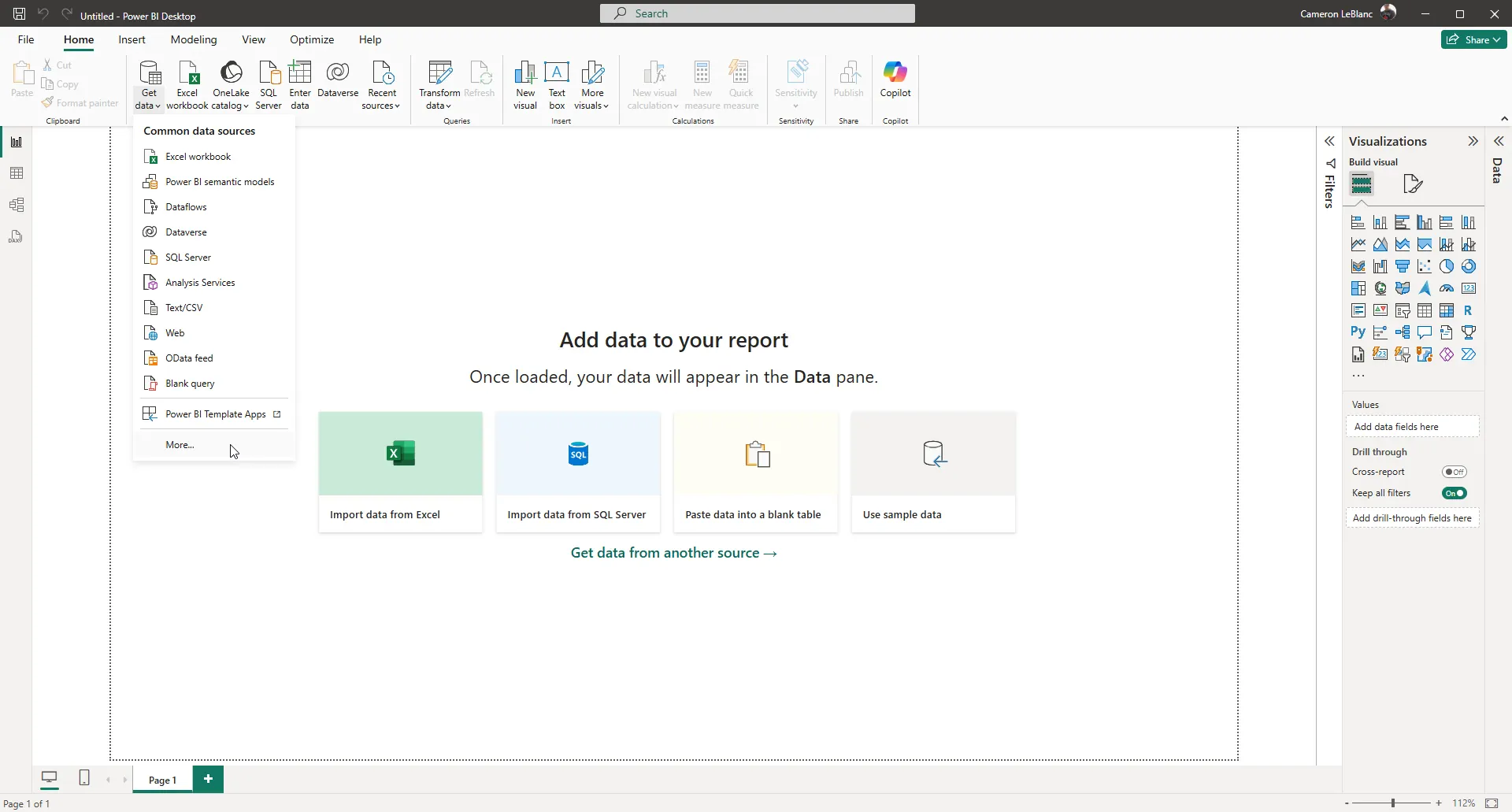
Open Power BI Desktop and click Get Data -> More... to open the Get Data window.
-
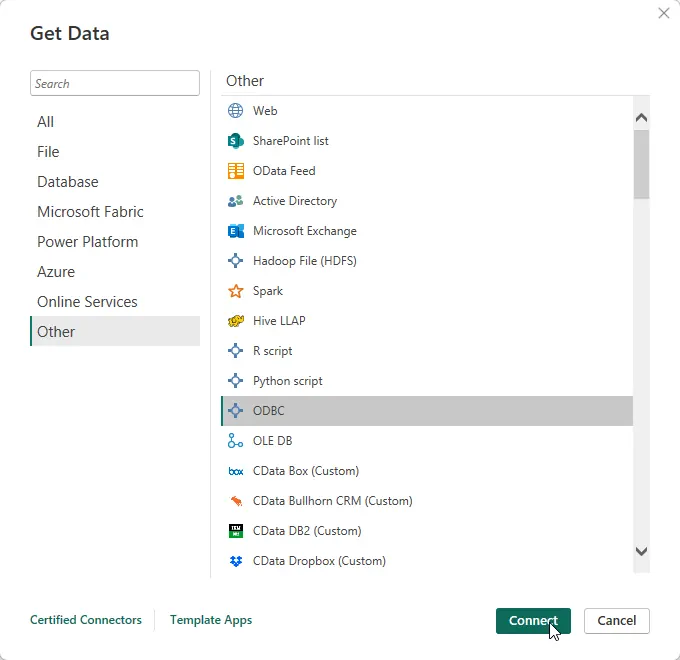
In the Get Data window select Other -> ODBC to open the next window.
-
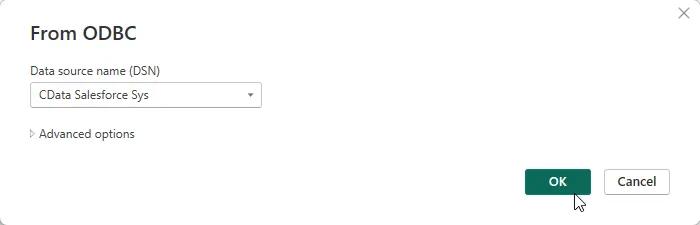
Select the DSN in the menu. If you know the SQL query you want to use to import data, you can expand the Advanced options node and enter the query in the SQL Statement box. Otherwise, click OK to continue.
-
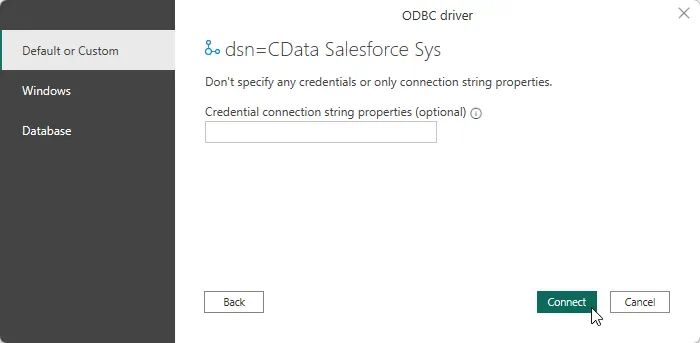
Choose Default or Custom as the authentication option and click Connect.
-
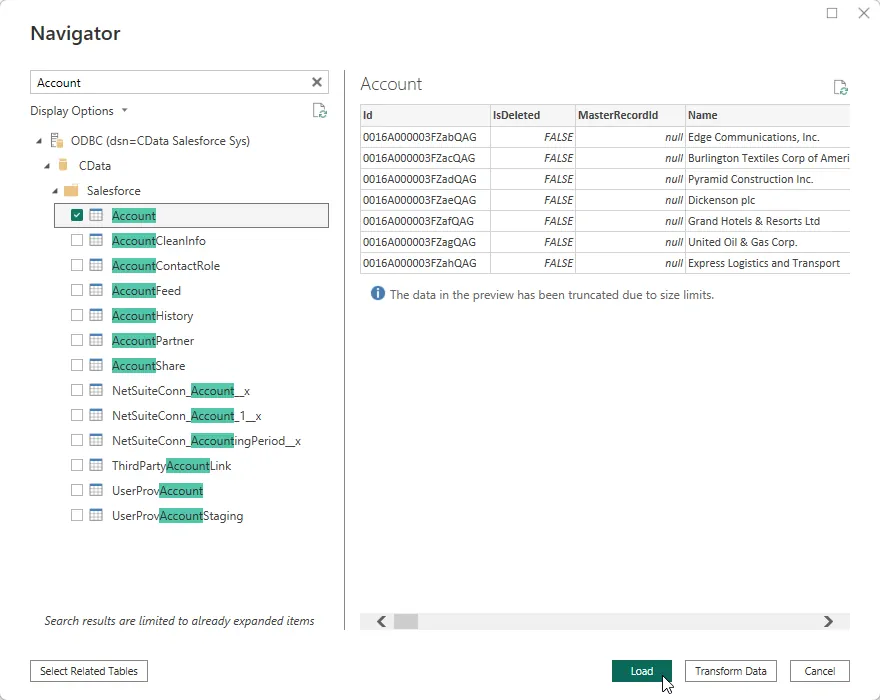
Select tables in the Navigator dialog.
-
Click Transform Data to edit the query. The table you imported is displayed in the Power Query Editor. In the Power Query Editor, you can enrich your local copy of Google Translate data with other data sources, pivot Google Translate columns, and more. Power BI detects each column's data type from the Google Translate metadata retrieved by the driver.
Power BI records your modifications to the query in the Applied Steps section, adjusting the underlying data retrieval query that is executed to the remote Google Translate data. When you click Close and Apply, Power BI executes the data retrieval query.
Otherwise, click Load to pull the data into Power BI.
Create Data Visualizations
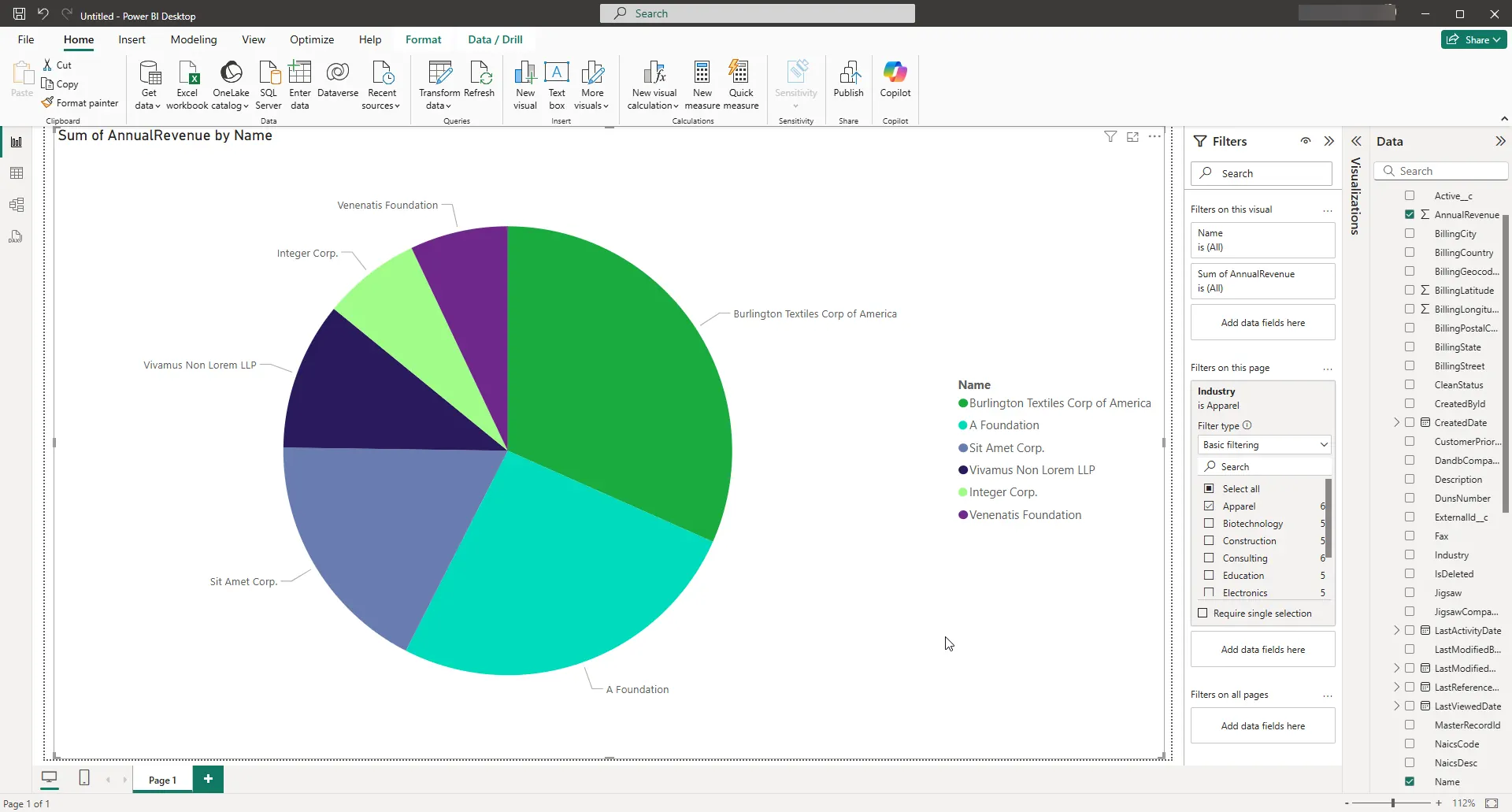
After pulling the data into Power BI, you can create data visualizations in the Report view by dragging fields from the Fields pane onto the canvas. Follow the steps below to create a pie chart (Salesforce shown):
- Select the pie chart icon in the Visualizations pane.
- Select a dimension in the Fields pane: for example, Name.
- Select a measure in the Fields pane: for example, Annual Revenue.
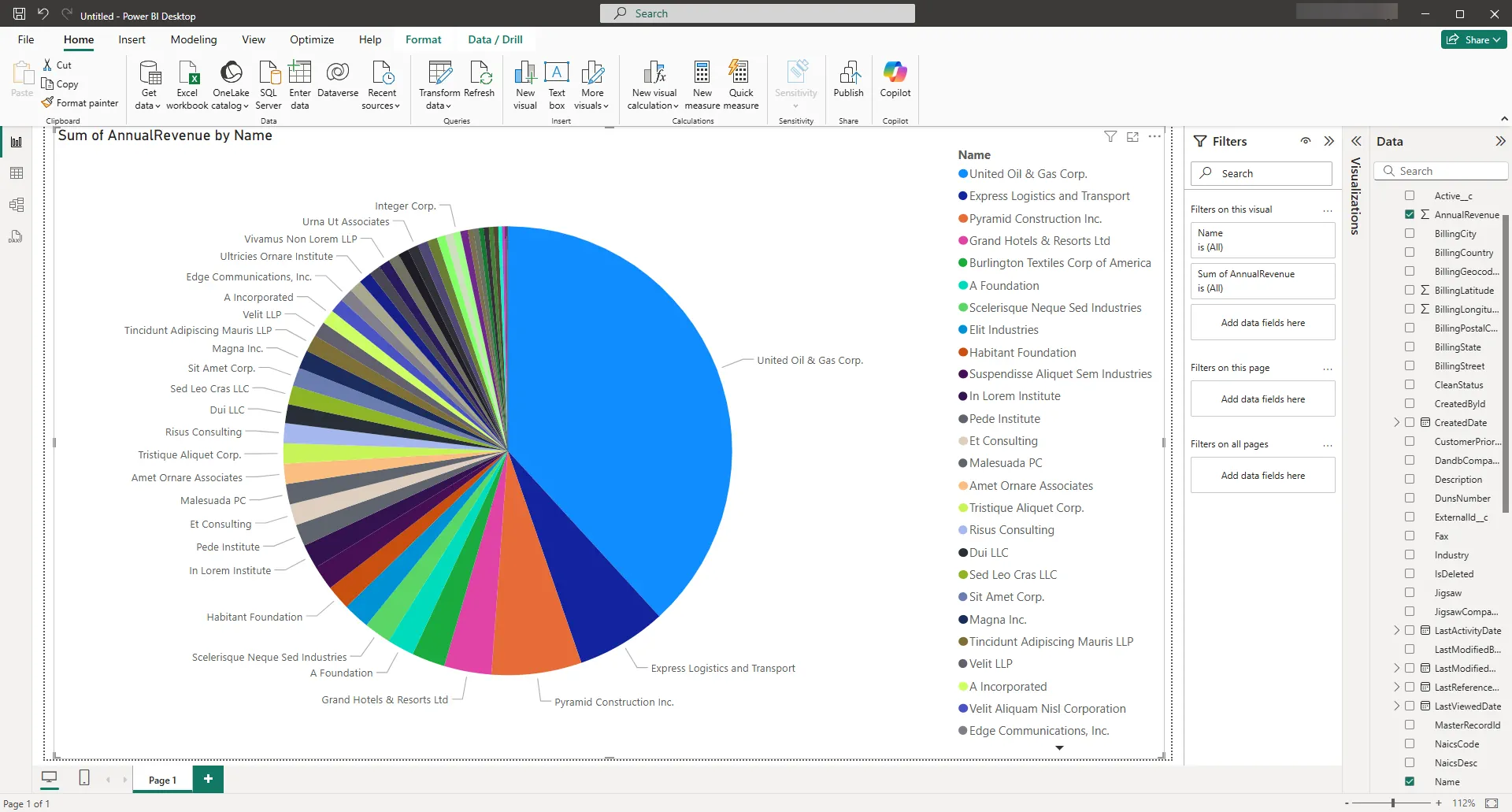
You can change sort options by clicking the ellipsis (...) button for the chart. Options to select the sort column and change the sort order are displayed.
You can use both highlighting and filtering to focus on data. Filtering removes unfocused data from visualizations; highlighting dims unfocused data. You can highlight fields by clicking them:
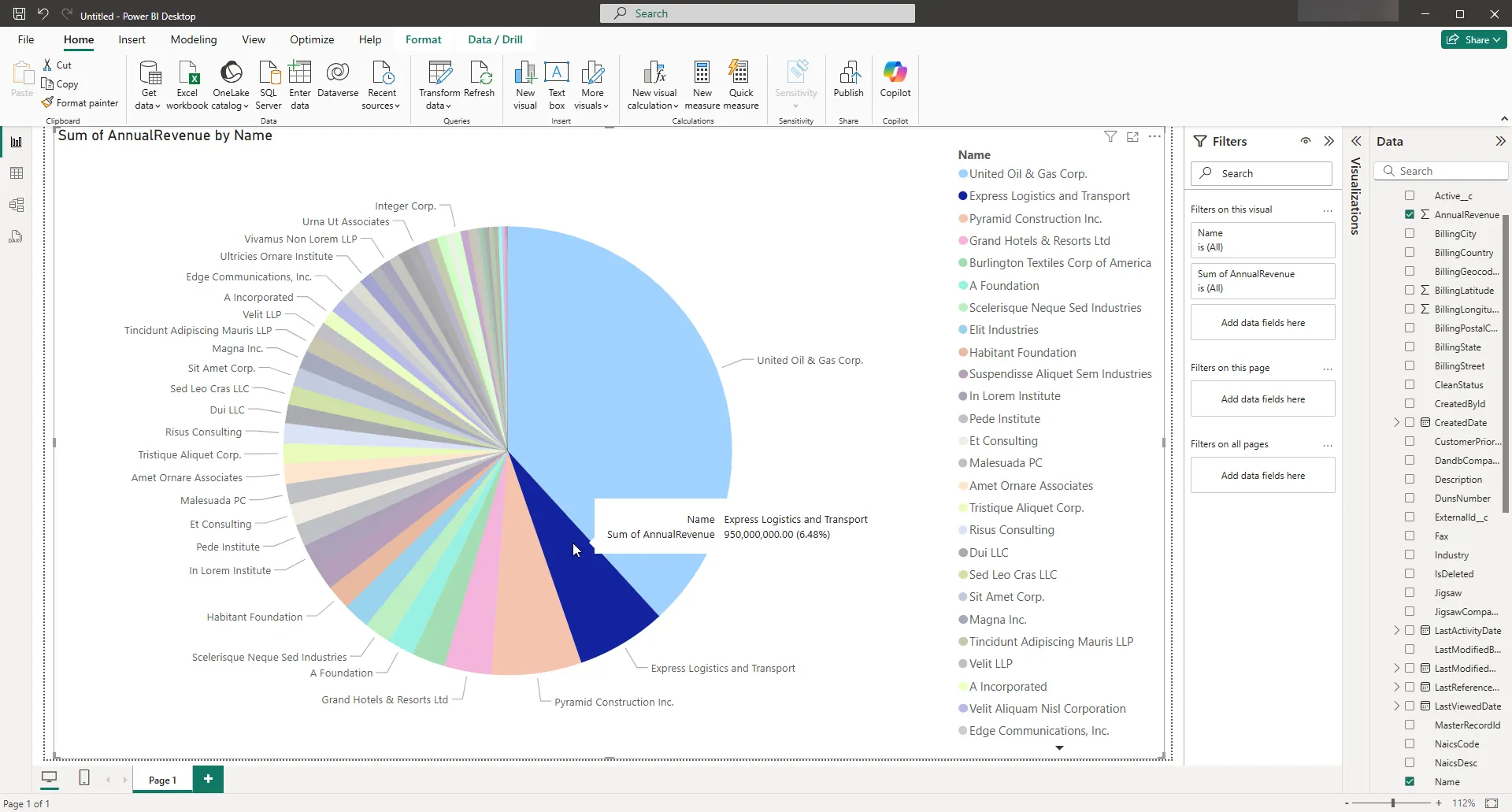
You can apply filters at the page level, at the report level, or to a single visualization by dragging fields onto the Filters pane. To filter on the field's value, select one of the values that are displayed in the Filters pane.
Click Refresh to synchronize your report with any changes to the data.
Free Trial & More Information
If you are interested in connecting to your Google Translate data from Microsoft Power BI, or any applications that support ODBC connectivity, download a free, 30-day trial of the CData ODBC Driver for Google Translate. As always, our world-class support team is ready to answer any questions you may have.