






How to Visualize Google Translate Data in Python with pandas

The rich ecosystem of Python modules lets you get to work quickly and integrate your systems more effectively. With the CData API Driver for Python, the pandas & Matplotlib modules, and the SQLAlchemy toolkit, you can build Google Translate-connected Python applications and scripts for visualizing Google Translate data. This article shows how to use the pandas, SQLAlchemy, and Matplotlib built-in functions to connect to Google Translate data, execute queries, and visualize the results.
With built-in optimized data processing, the CData Python Connector offers unmatched performance for interacting with live Google Translate data in Python. When you issue complex SQL queries from Google Translate, the driver pushes supported SQL operations, like filters and aggregations, directly to Google Translate and utilizes the embedded SQL engine to process unsupported operations client-side (often SQL functions and JOIN operations).
Connecting to Google Translate Data
Connecting to Google Translate data looks just like connecting to any relational data source. Create a connection string using the required connection properties. For this article, you will pass the connection string as a parameter to the create_engine function.
Authentication
Google Cloud Translation API requires OAuth 2.0 authentication to ensure secure access to translation services, datasets, glossaries, and adaptive MT resources. This authentication method allows you to securely connect to your Google Cloud project and manage translation resources with proper authorization.
OAuth 2.0 Setup and Configuration
Step 1: Create Google Cloud Project and Enable API
To set up OAuth authentication:
- Visit the Google Cloud Console
- Create a new project or select an existing project
- Note down your Project ID (required for all API calls)
- Navigate to "APIs & Services" > "Library"
- Search for and enable the "Cloud Translation API"
- Go to "APIs & Services" > "Credentials"
- Click "Create Credentials" and select "OAuth Client ID"
- Configure the OAuth consent screen if prompted
- Select "Desktop application" or "Web application" as appropriate
- Set the authorized redirect URI (CallbackURL)
- Copy the Client ID and Client Secret for use in your connection
Required Connection Properties
- AuthScheme: Set this to OAuth (required)
- OAuthClientId: Client ID from Google Cloud Console (required)
- OAuthClientSecret: Client secret from Google Cloud Console (required)
- CallbackURL: Redirect URI specified in your OAuth application (required)
- InitiateOAuth: Set to GETANDREFRESH for automatic token management (recommended)
- ProjectId: Your Google Cloud project ID or project number (required for queries)
Required OAuth Scopes
The Google Cloud Translation API Profile requires the following OAuth scope:
- https://www.googleapis.com/auth/cloud-translation - Full access to Cloud Translation API resources including translation, datasets, glossaries, and adaptive MT
Follow the procedure below to install the required modules and start accessing Google Translate through Python objects.
Install Required Modules
Use the pip utility to install the pandas & Matplotlib modules and the SQLAlchemy toolkit:
pip install pandas
pip install matplotlib
pip install sqlalchemy
Be sure to import the module with the following:
import pandas
import matplotlib.pyplot as plt
from sqlalchemy import create_engine
Visualize Google Translate Data in Python
You can now connect with a connection string. Use the create_engine function to create an Engine for working with Google Translate data.
engine = create_engine("api:///?Profile=C:\profiles\GoogleTranslate.apip&AuthScheme=OAuth&InitiateOAuth=GETANDREFRESH&OAuthClientId=your_client_id&OAuthClientSecret=your_client_secret&CallbackUrl=your_callback_url")
Execute SQL to Google Translate
Use the read_sql function from pandas to execute any SQL statement and store the resultset in a DataFrame.
df = pandas.read_sql("SELECT LanguageCode, DisplayName FROM SupportedLanguages WHERE ProjectId = 'my-project-12345'", engine)
Visualize Google Translate Data
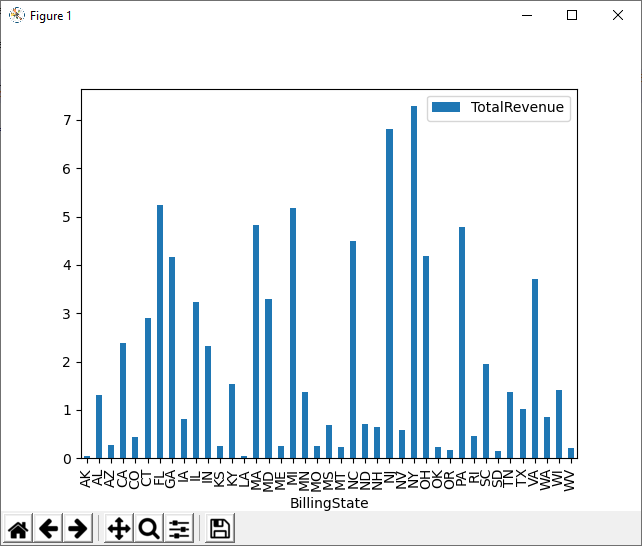
With the query results stored in a DataFrame, use the plot function to build a chart to display the Google Translate data. The show method displays the chart in a new window.
df.plot(kind="bar", x="LanguageCode", y="DisplayName")
plt.show()
Free Trial & More Information
Download a free, 30-day trial of the CData API Driver for Python to start building Python apps and scripts with connectivity to Google Translate data. Reach out to our Support Team if you have any questions.
Full Source Code
import pandas
import matplotlib.pyplot as plt
from sqlalchemy import create_engin

engine = create_engine("api:///?Profile=C:\profiles\GoogleTranslate.apip&AuthScheme=OAuth&InitiateOAuth=GETANDREFRESH&OAuthClientId=your_client_id&OAuthClientSecret=your_client_secret&CallbackUrl=your_callback_url")
df = pandas.read_sql("SELECT LanguageCode, DisplayName FROM SupportedLanguages WHERE ProjectId = 'my-project-12345'", engine)

df.plot(kind="bar", x="LanguageCode", y="DisplayName")
plt.show()