Build Data Flows from Grafana to SQL Server using SSIS

Using SQL Server as a backup for critical business data provides an essential safety net against loss. Backing up data to SQL Server enables business users to more easily connect that data with features like reporting, analytics, and more.
This example demonstrates how to use the CData SSIS Tasks for Grafana inside of a SQL Server SSIS workflow to transfer Grafana data into a Microsoft SQL Server database.
Add the Components
To get started, add a new Grafana source and SQL Server ADO.NET destination to a new data flow task.
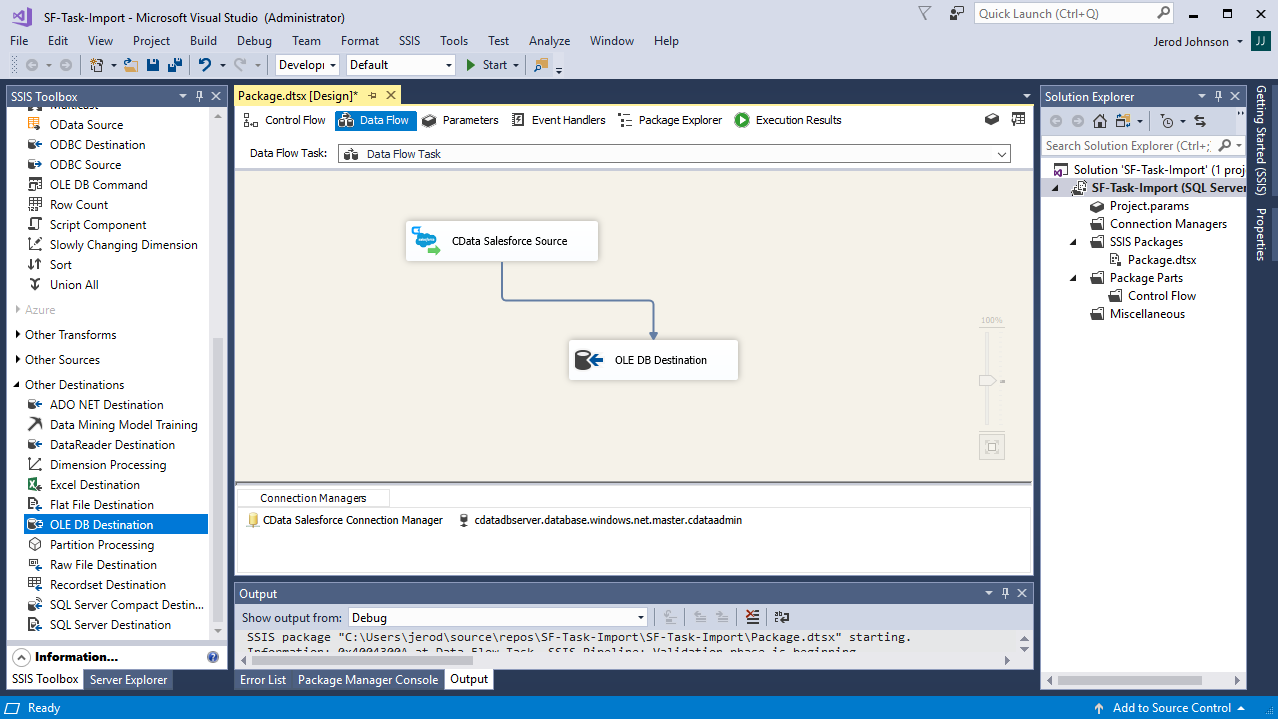
Create a New Connection Manager
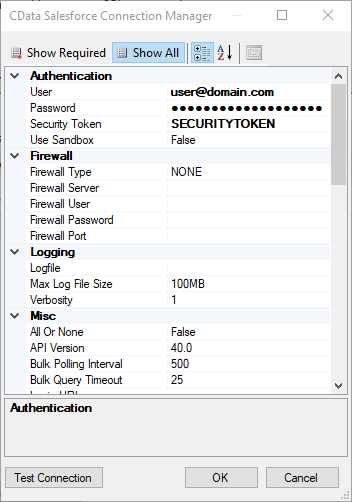
Follow the steps below to save Grafana connection properties in a connection manager.
- In the Connection Manager window, right-click and then click New Connection. The Add SSIS Connection Manager dialog is displayed.
- In the Connection Manager type menu, select API. The CData Grafana Connection Manager is displayed.
- Configure connection properties.
Start by setting the Profile connection property to the location of the Grafana Profile on disk (e.g. C:\profiles\Grafana.apip). Next, set the ProfileSettings connection property to the connection string for Grafana (see below).
Grafana API Profile Settings
In Grafana, navigate to Administration > Users and Access > Service accounts, create a service account, then click Add service account token to generate a token.
Configure the Grafana Source
Follow the steps below to specify the query to be used to extract Grafana data.
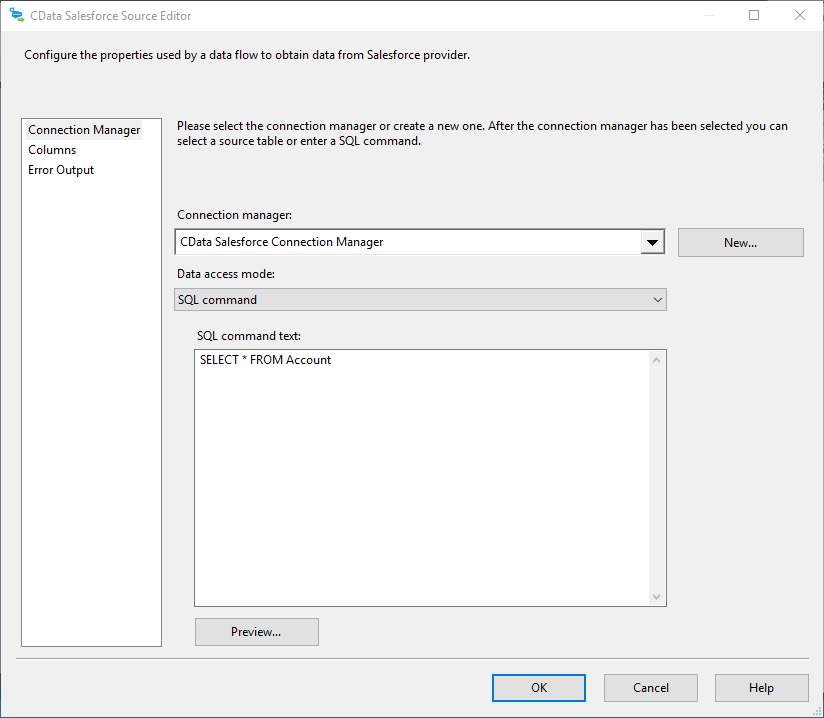
- Double-click the Grafana source to open the source component editor.
- In the Connection Manager menu, select the connection manager previously created.
- Specify the query to use for the data extraction. For example:
SELECT Id, Name FROM Alert WHERE State = 'alerting'
- Close the Grafana Source control and connect it to the ADO.NET Destination.
Configure the SQL Server Destination
Follow the steps below to specify the SQL server table to load the Grafana data into.
- Open the ADO.NET Destination and add a New Connection. Enter your server and database information here.
- In the Data access mode menu, select "table or view".
- In the Table Or View menu, select the table or view to populate.
- Configure any properties you wish to on the Mappings screen.
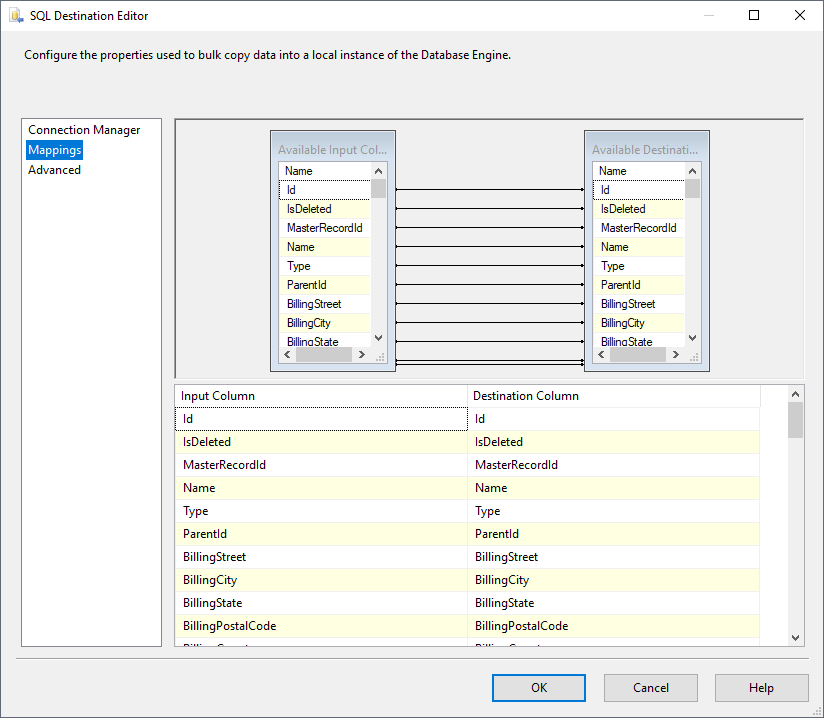
Run the Project
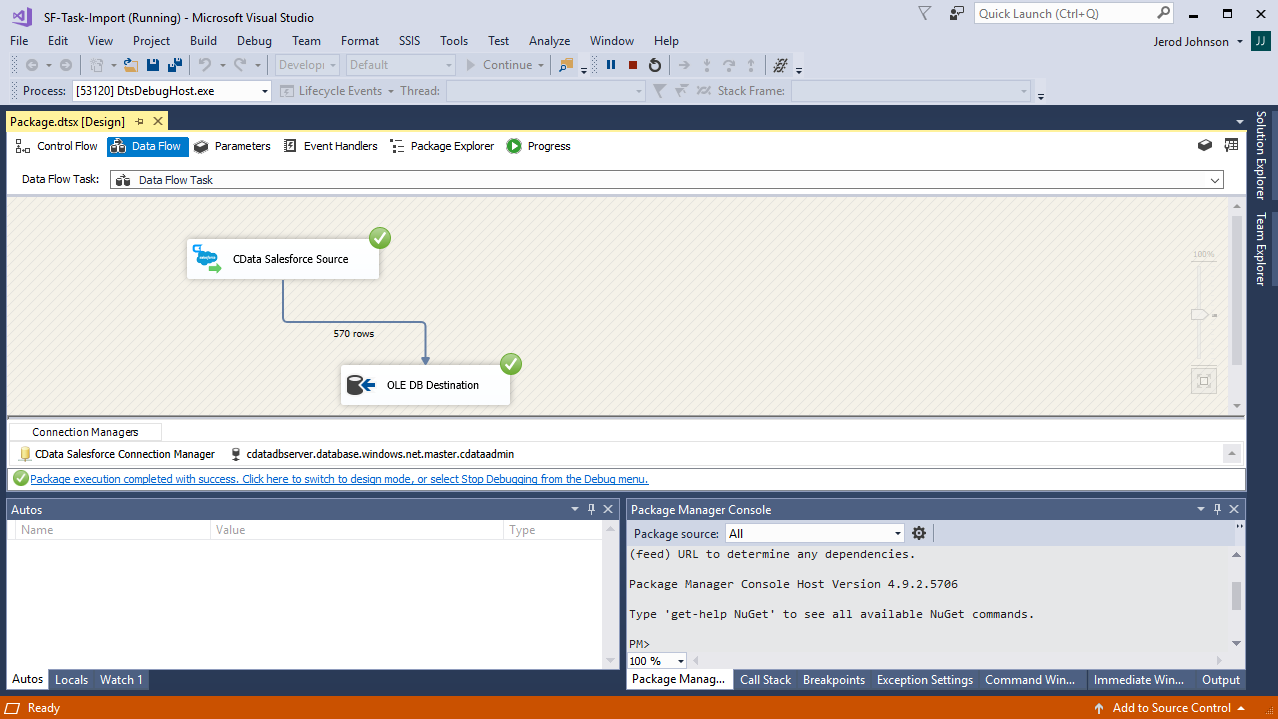
You can now run the project. After the SSIS Task has finished executing, your database will be populated with Grafana data.