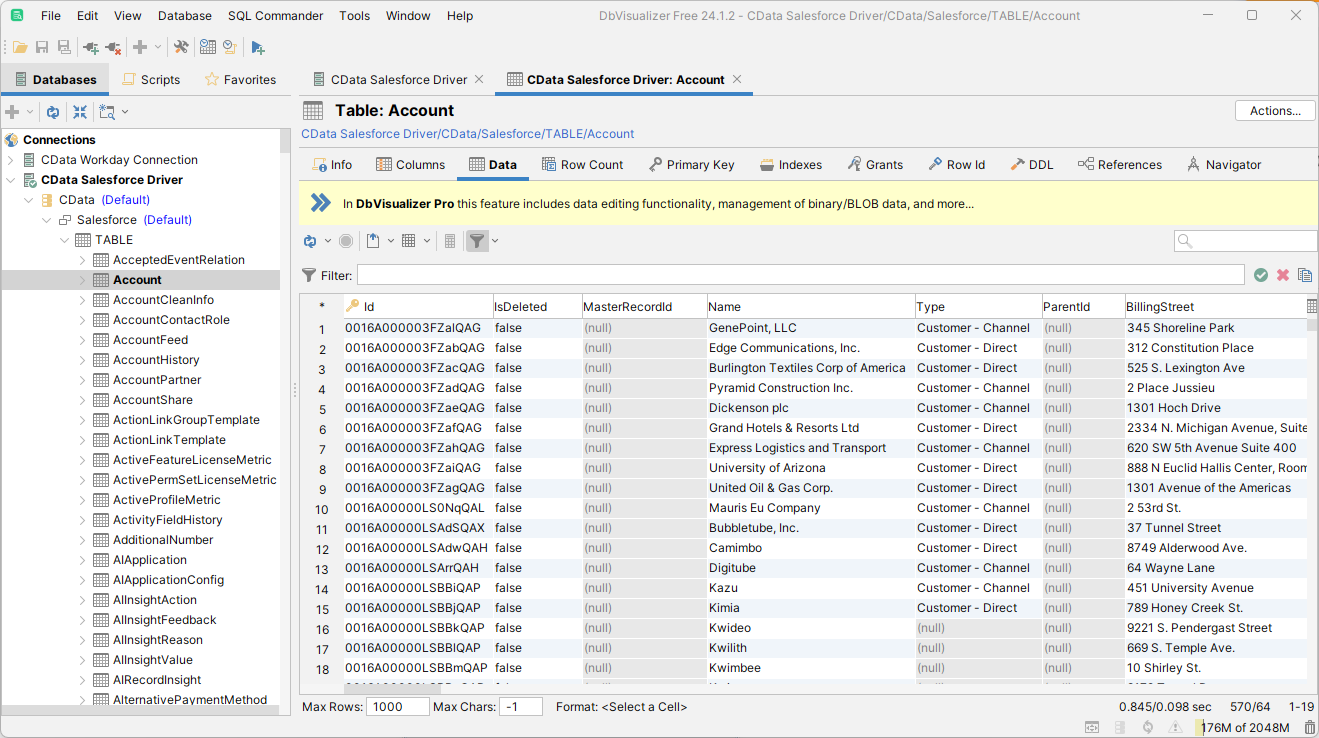
How to connect to Halo Service Desk Data in DBVisualizer

The CData API Driver for JDBC implements JDBC standards to provide connectivity to Halo Service Desk data in applications ranging from business intelligence tools to IDEs. This article shows how to establish a connection to Halo Service Desk data in DBVisualizer and use the table editor to load Halo Service Desk data.
Create a New Driver Definition for Halo Service Desk Data
Follow the steps below to use the Driver Manager to provide connectivity to Halo Service Desk data from DBVisualizer tools.
- In DBVisualizer, click Tools -> Driver Manager.
- Click the plus sign "" to create a new driver.
- Select "Custom" as the template.
- On the Driver Settings tab:
- Set Name to a user-friendly name (e.g. "CData Halo Service Desk Driver")
- Set URL Format to jdbc:api:
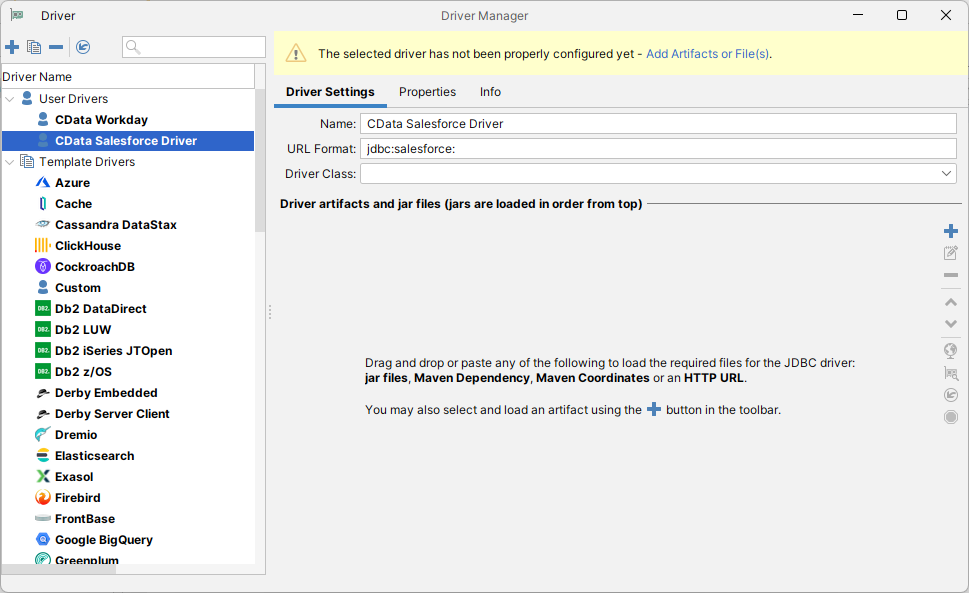
- In Driver artifacts and jar files (jars are loaded in order from top):
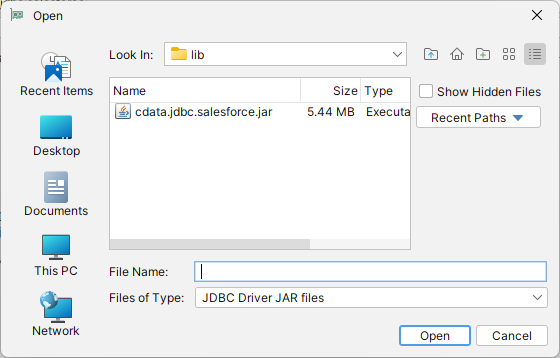
- Click the plus sign "" -> "Add Files"
- Navigate to the "lib" folder in the installation directory (C:\Program Files\CData API Driver for JDBC XXXX\)
- Select the JAR file (cdata.jdbc.API.jar) and click "Open"
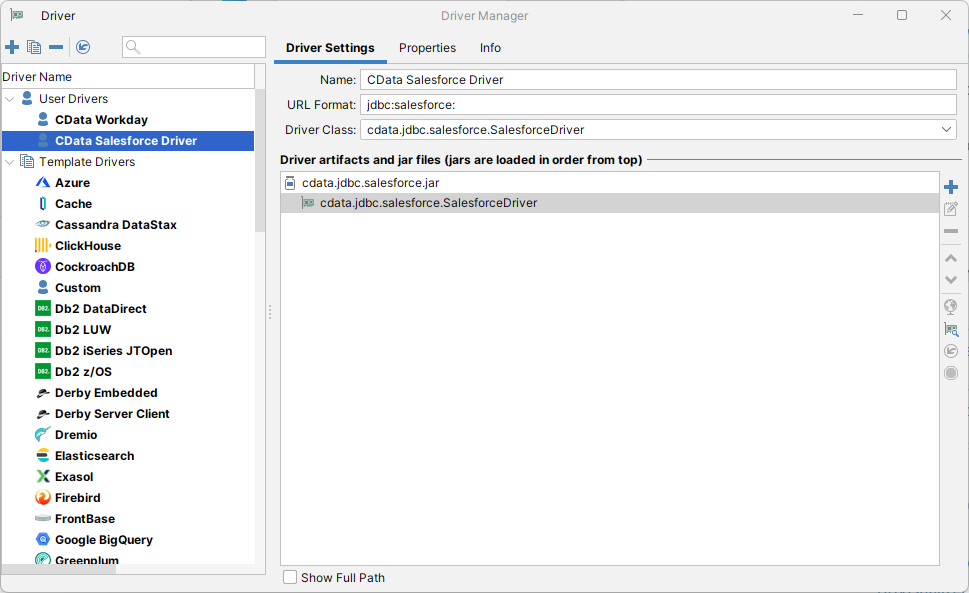
- The Driver Class should populate automatically. If not, select class (cdata.jdbc.api.APIDriver).
Define the Connection to the JDBC Data Source
Close the "Driver Manager" and follow the steps below to save connection properties in the JDBC URL.
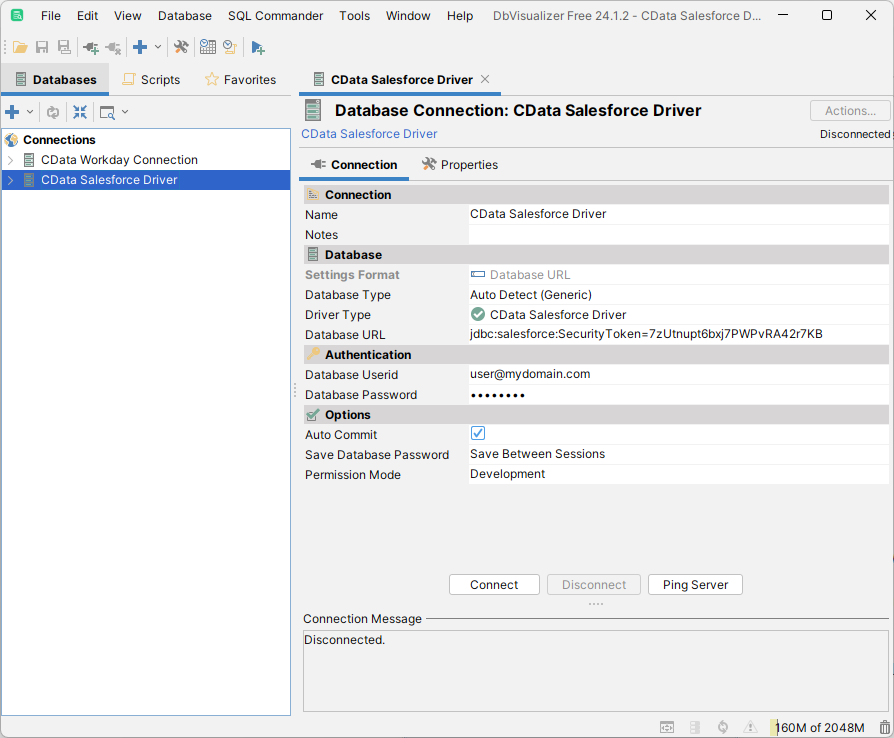
- In the "Databases" tab, click the plus sign "" and select the driver you just created.
In the "Connection" section, set the following options:
- Database Type: If you selected the wizard option, the database type is automatically detected. If you selected the "No Wizard" option, select the Generic or Auto Detect option in the Database Type menu.
- Driver Type: Select the driver you just created.
Database URL: Enter the full JDBC URL. The syntax of the JDBC URL is jdbc:api: followed by the connection properties in a semicolon-separated list of name-value pairs.
Start by setting the Profile connection property to the location of the HaloServiceDesk Profile on disk (e.g. C:\profiles\HaloServiceDesk.apip). Next, set the ProfileSettings connection property to the connection string for HaloServiceDesk (see below).
HaloServiceDesk API Profile Settings
HaloServiceDesk uses API key authentication. You can find or create API keys in HaloServiceDesk under Administration > Integrations > Halo API.
Set the following connection properties to connect:
- AuthScheme: Set this to APIKey.
- APIKey: Set this to the API key from your HaloServiceDesk account.
- Domain: Set this to the hostname of your HaloServiceDesk instance (e.g. yourcompany.haloservicedesk.com).
Built-in Connection String Designer
For assistance in constructing the JDBC URL, use the connection string designer built into the Halo Service Desk JDBC Driver. Either double-click the JAR file or execute the jar file from the command-line.
java -jar cdata.jdbc.api.jarFill in the connection properties and copy the connection string to the clipboard.

When you configure the JDBC URL, you may also want to set the Max Rows connection property. This will limit the number of rows returned, which is especially helpful for improving performance when designing reports and visualizations.
A typical connection string is below:
jdbc:api:Profile=C:\profiles\HaloServiceDesk.apip;AuthScheme=APIKey;ProfileSettings='APIKey=your_api_key;Domain=yourcompany.haloservicedesk.com';- NOTE: Since Halo Service Desk does not require a User or Password to authenticate, you may use whatever values you wish for Database Userid and Database Password.
- On the Connection tab, click Connect.
To browse through tables exposed by the Halo Service Desk JDBC Driver, right-click a table and click "Open in New Tab."
To execute SQL queries, use the SQL Commander tool: Click SQL Commander -> New SQL Commander. Select the Database Connection, Database, and Schema from the available menus.
See the "Supported SQL" chapter in the help documentation for more information on the supported SQL. See the "Data Model" chapter for table-specific information.