





Visualize Halo Service Desk Data in Tableau

The CData ODBC Driver for Halo Service Desk enables you to access live Halo Service Desk data in business intelligence tools like Tableau. In this article, you will integrate Halo Service Desk data into a dashboard that reflects changes to Halo Service Desk data in real time.
The CData ODBC drivers offer unmatched performance for interacting with live Halo Service Desk data in Tableau due to optimized data processing built into the driver. When you issue complex SQL queries from Tableau to Halo Service Desk, the driver pushes supported SQL operations, like filters and aggregations, directly to Halo Service Desk and utilizes the embedded SQL engine to process unsupported operations (often SQL functions and JOIN operations) client-side. With built-in dynamic metadata querying, you can visualize and analyze Halo Service Desk data using native Tableau data types.
Connect to Halo Service Desk as an ODBC Data Source
If you have not already, first specify connection properties in an ODBC DSN (data source name). This is the last step of the driver installation. You can use the Microsoft ODBC Data Source Administrator to create and configure ODBC DSNs.
Start by setting the Profile connection property to the location of the HaloServiceDesk Profile on disk (e.g. C:\profiles\HaloServiceDesk.apip). Next, set the ProfileSettings connection property to the connection string for HaloServiceDesk (see below).
HaloServiceDesk API Profile Settings
HaloServiceDesk uses API key authentication. You can find or create API keys in HaloServiceDesk under Administration > Integrations > Halo API.
Set the following connection properties to connect:
- AuthScheme: Set this to APIKey.
- APIKey: Set this to the API key from your HaloServiceDesk account.
- Domain: Set this to the hostname of your HaloServiceDesk instance (e.g. yourcompany.haloservicedesk.com).
When you configure the DSN, you may also want to set the Max Rows connection property. This will limit the number of rows returned, which is especially helpful for improving performance when designing reports and visualizations.
Add Halo Service Desk Data to a Dashboard
- Click Connect to Data -> More Servers -> Other Databases (ODBC).
Select the CData Data Source Name (for example: CData API Source). - In the Database menu, select CData.
- In the Table box, enter a table name or click New Custom SQL to enter an SQL query. This article retrieves the Assets table.
- Drag the table onto the join area. At this point, you can include multiple tables, leveraging the built-in SQL engine to process complex data requests.
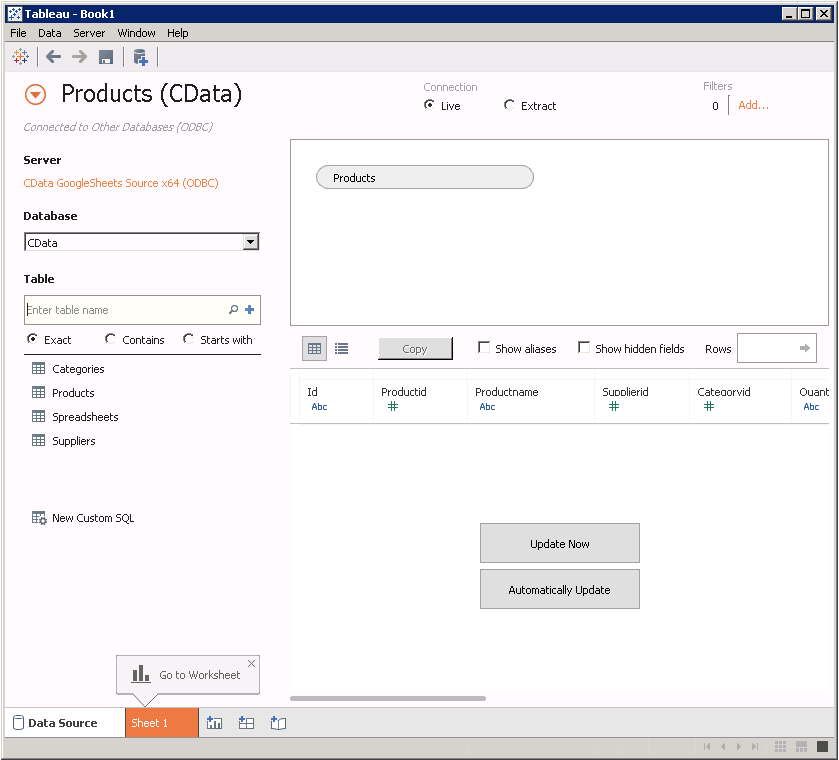
- In the Connection menu, select the Live option, so that you skip loading a copy of the data into Tableau and instead work on real-time data. The optimized data processing native to CData ODBC drivers enables unmatched performance in live connectivity.
- Click the tab for your worksheet. Columns are listed as Dimensions and Measures, depending on the data type. The CData driver discovers data types automatically, allowing you to leverage the powerful data processing and visualization features of Tableau.
- Drop the Id column in the Dimensions pane onto the dashboard. When you select dimensions, Tableau builds a query to the driver. The results are grouped based on that dimension. In Tableau, the raw query is automatically modified as you select dimensions and measures.
Drag the InventoryNumber column in the Measures field onto the Detail and Color buttons. Tableau executes the following query:
SELECT Id, SUM(InventoryNumber) FROM Assets GROUP BY IdWhen you select a measure, Tableau executes a command to the driver to calculate a summary function, such as SUM, AVG, etc., on the grouped values. The SQL engine (embedded within the driver) is leveraged to process the aggregation of the data, where needed, providing a seamless experience in Tableau, regardless of the data source.
To change the summary function, open the InventoryNumber menu and select the summary you want in the Measure command.
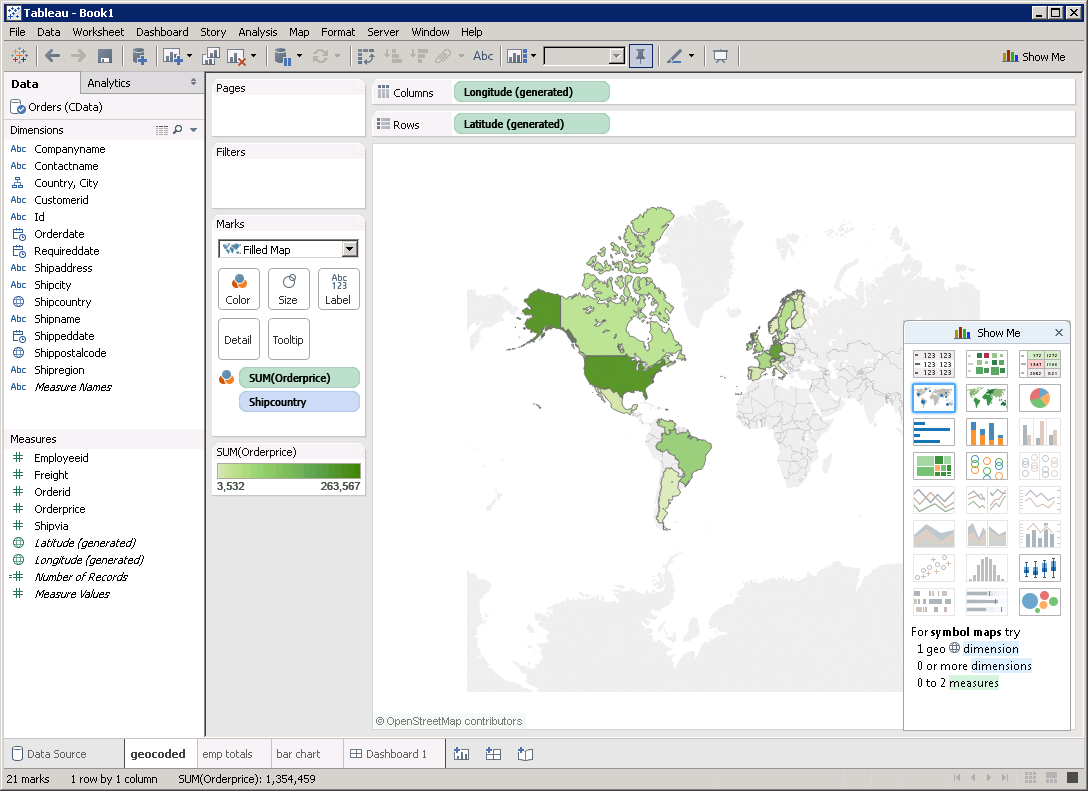
You can create other charts using dimensions and measures to build SQL queries visually:
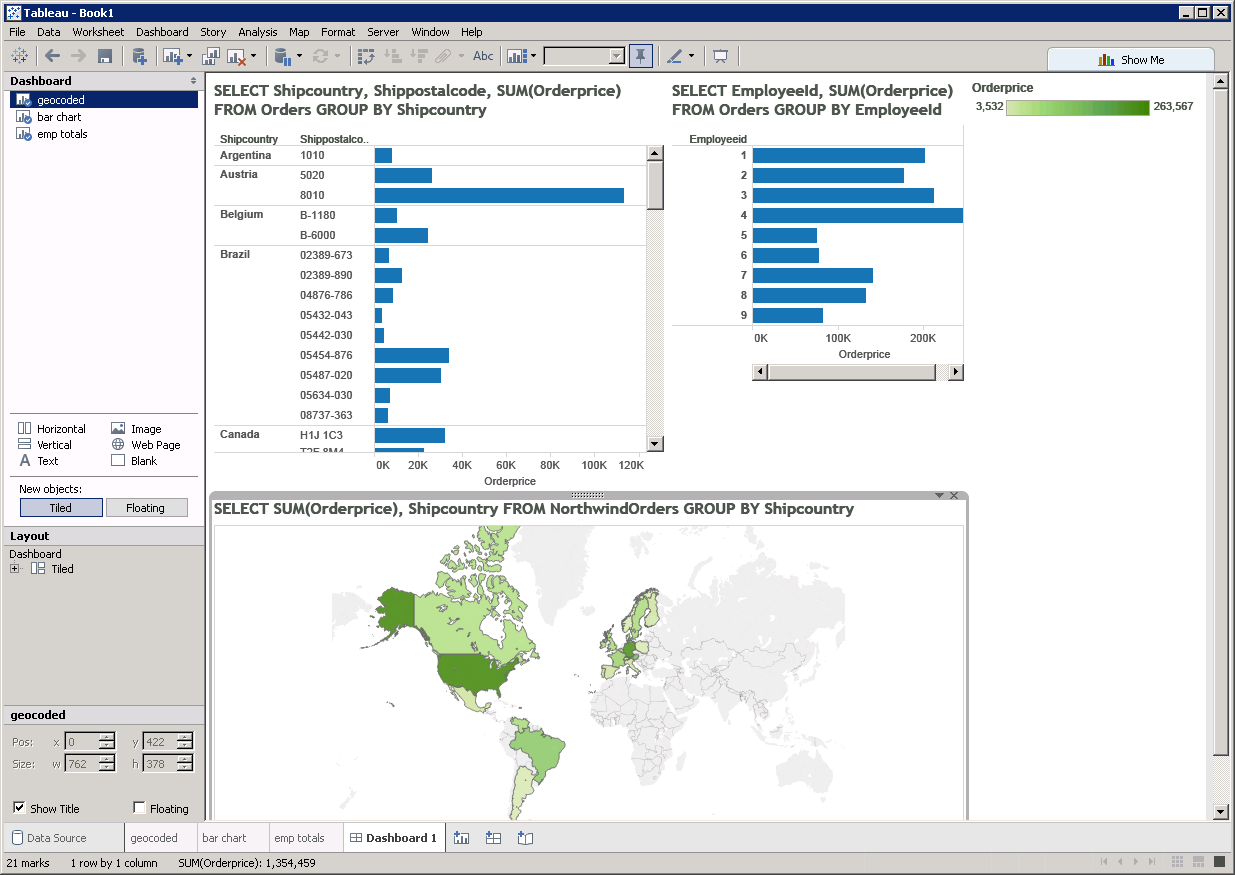
With the CData ODBC Driver for Halo Service Desk, you get live connectivity to your Halo Service Desk data, allowing you to build real-time charts, graphs, and more.