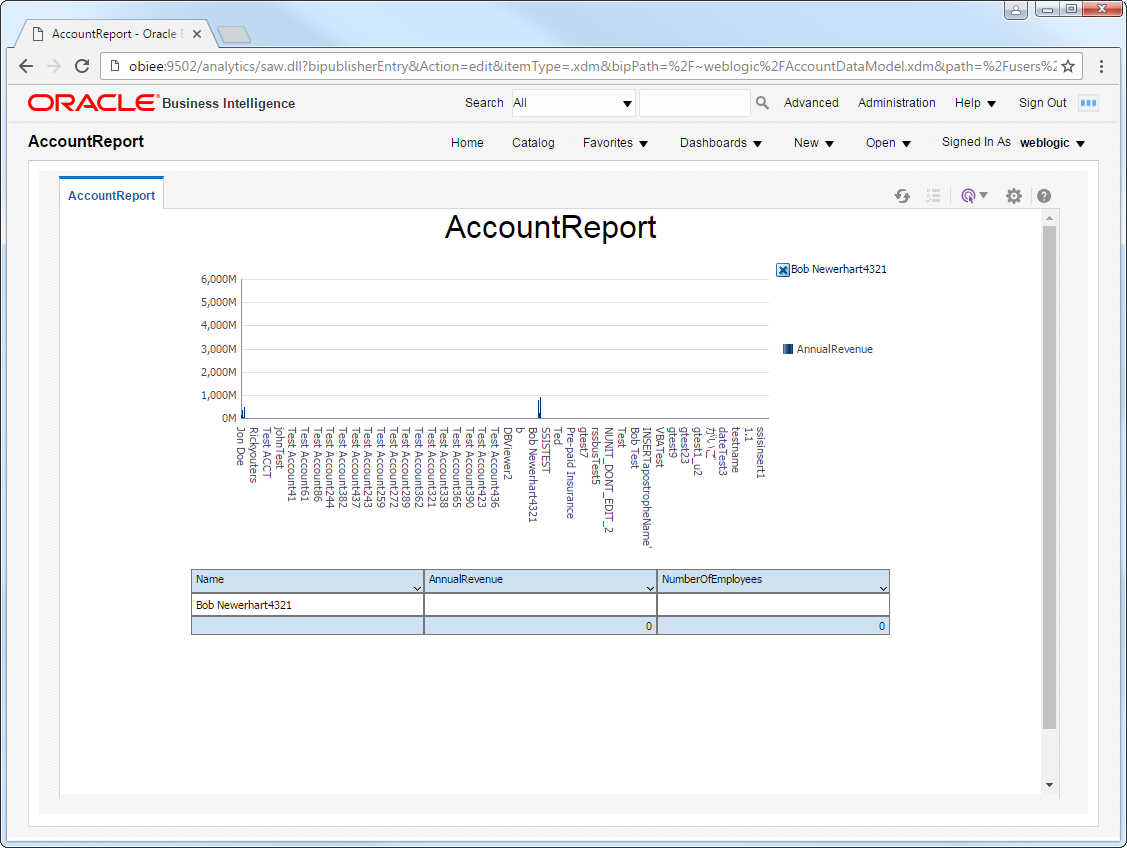
Hugging Face Reporting in OBIEE with the Hugging Face JDBC Driver

The CData JDBC Driver for Hugging Face is a standard database driver that can integrate real-time access to Hugging Face data into your Java-based reporting server. This article shows how to deploy the driver to Oracle Business Intelligence Enterprise Edition (OBIEE) and create reports on Hugging Face data that reflect any changes.
Deploy the JDBC Driver
Follow the steps below to add the JDBC driver to WebLogic's classpath.
For WebLogic 12.2.1, simply place the driver JAR and .lic file into DOMAIN_HOME\lib; for example, ORACLE_HOME\user_projects\domains\MY_DOMAIN\lib. These files will be added to the server classpath at startup.
You can also manually add the driver to the classpath: This is required for earlier versions. Prepend the following to PRE_CLASSPATH in setDomainEnv.cmd (Windows) or setDomainEnv.sh (Unix). This script is located in the bin subfolder of the folder for that domain. For example: ORACLE_HOME\user_projects\domains\MY_DOMAIN\bin.
set PRE_CLASSPATH=your-installation-directory\lib\cdata.jdbc.api.jar;%PRE_CLASSPATH%
Restart all servers; for example, run the stop and start commands in DOMAIN_HOME\bitools\bin.
Create a JDBC Data Source for Hugging Face
After deploying the JDBC driver, you can create a JDBC data source from BI Publisher.
- Log into BI Publisher, at the URL http://localhost:9502/analytics, for example, and click Administration -> Manage BI Publisher.
- Click JDBC Connection -> Add Data Source.
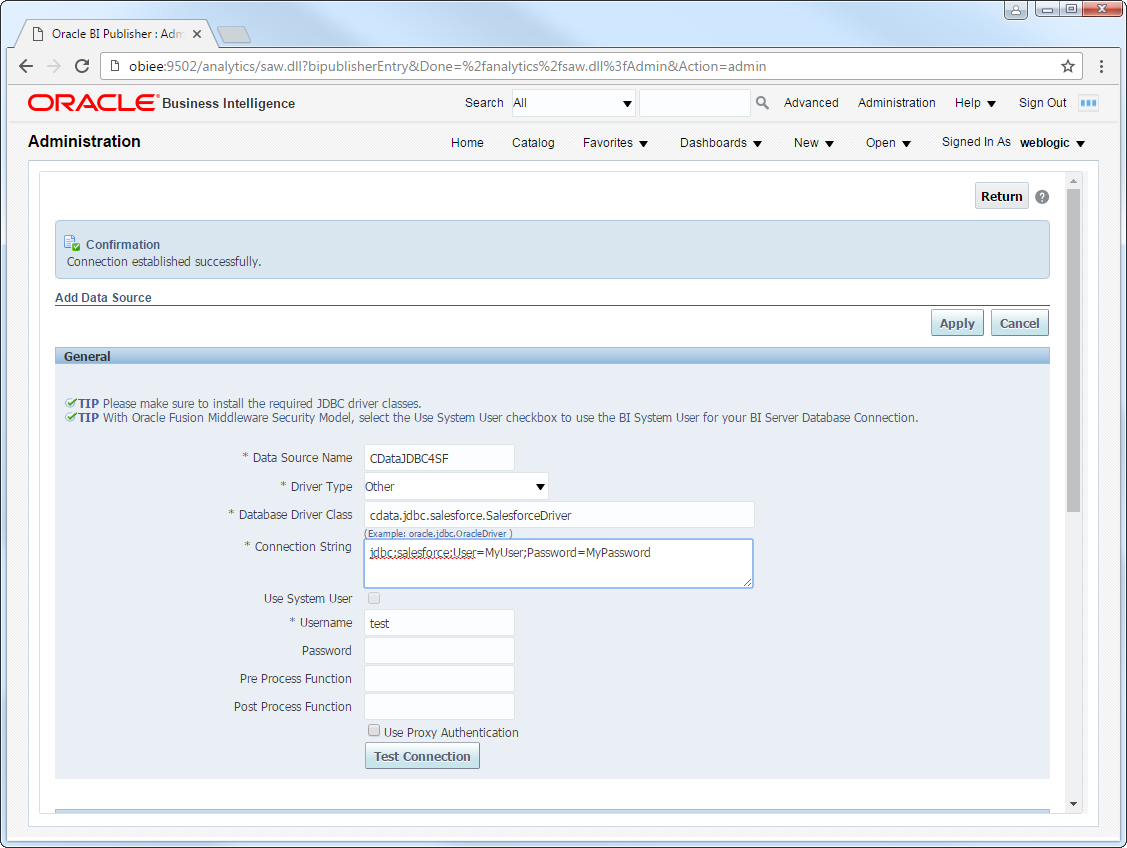
- Enter the following information:
- Data Source Name: Enter the name that users will create connections to in their reports.
- Driver Type: Select Other.
- Database DriverClass: Enter the driver class, cdata.jdbc.api.APIDriver.
- Connection String: Enter the JDBC URL.
HuggingFace Hub uses token-based authentication to enable access to its API. The API provides access to machine learning models, datasets, spaces, papers, and other resources on the HuggingFace Hub platform.
Using API Key Authentication
To authenticate to HuggingFace Hub, you will need to provide an API Key (Access Token). To obtain your access token:
- Log in to your HuggingFace account at https://huggingface.co
- Navigate to Settings > Access Tokens
- Click "New token" to create a new access token
- Select the appropriate permissions (read or write)
- Copy the token value
After obtaining your access token, set the following connection properties:
- AuthScheme: Set this to APIKey.
- APIKey: Set this to your HuggingFace access token.
Example connection string
Profile=C:\profiles\HuggingFace.apip;ProfileSettings='APIKey=hf_xxxxxxxxxxxxxxxxxxxx';
Built-in Connection String Designer
For assistance in constructing the JDBC URL, use the connection string designer built into the Hugging Face JDBC Driver. Either double-click the JAR file or execute the jar file from the command-line.
java -jar cdata.jdbc.api.jar
Fill in the connection properties and copy the connection string to the clipboard.

When you configure the JDBC URL, you may also want to set the Max Rows connection property. This will limit the number of rows returned, which is especially helpful for improving performance when designing reports and visualizations.
A typical JDBC URL is below:
jdbc:api:Profile=C:\profiles\HuggingFace.apip;ProfileSettings='APIKey=hf_xxxxxxxxxxxxxxxxxxxx';
- Username: Enter the username.
- Password: Enter the password.
- In the Security section, select the allowed user roles.
Create Real-Time Hugging Face Reports
You can now create reports and analyses based on real-time Hugging Face data. Follow the steps below to use the standard report wizard to create an interactive report that reflects any changes to Hugging Face data.
- On the global header, click New -> Data Model.
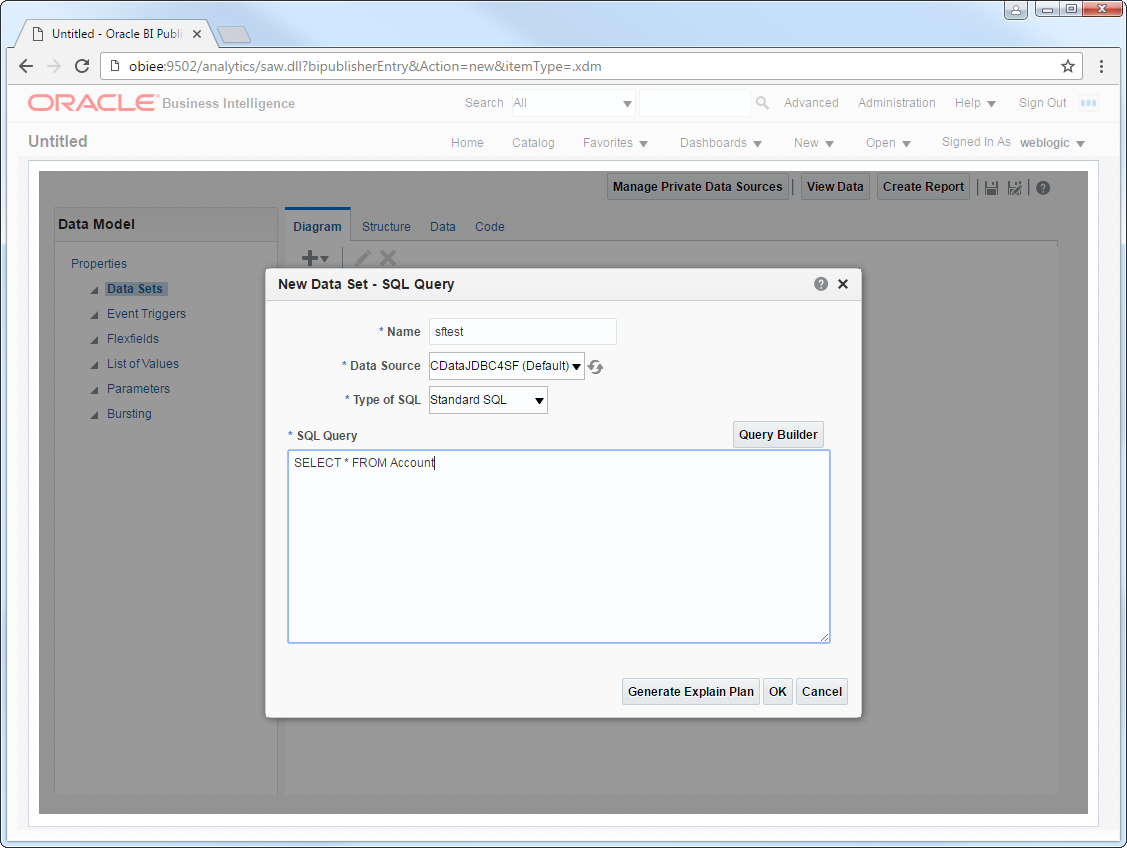
- On the Diagram tab, select SQL query in the menu.
- Enter a name for the query and in the Data Source menu select the Hugging Face JDBC data source you created.
- Select standard SQL and enter a query like the following:
SELECT , FROM Collections WHERE = ''
- Click View Data to generate the sample data to be used as you build your report.
- Select the number of rows to include in the sample data, click View, and then click Save As Sample Data.
- Click Create Report -> Use Data Model.
- Select Guide Me and on the Select Layout page select the report objects you want to include. In this example we select Chart and Table.
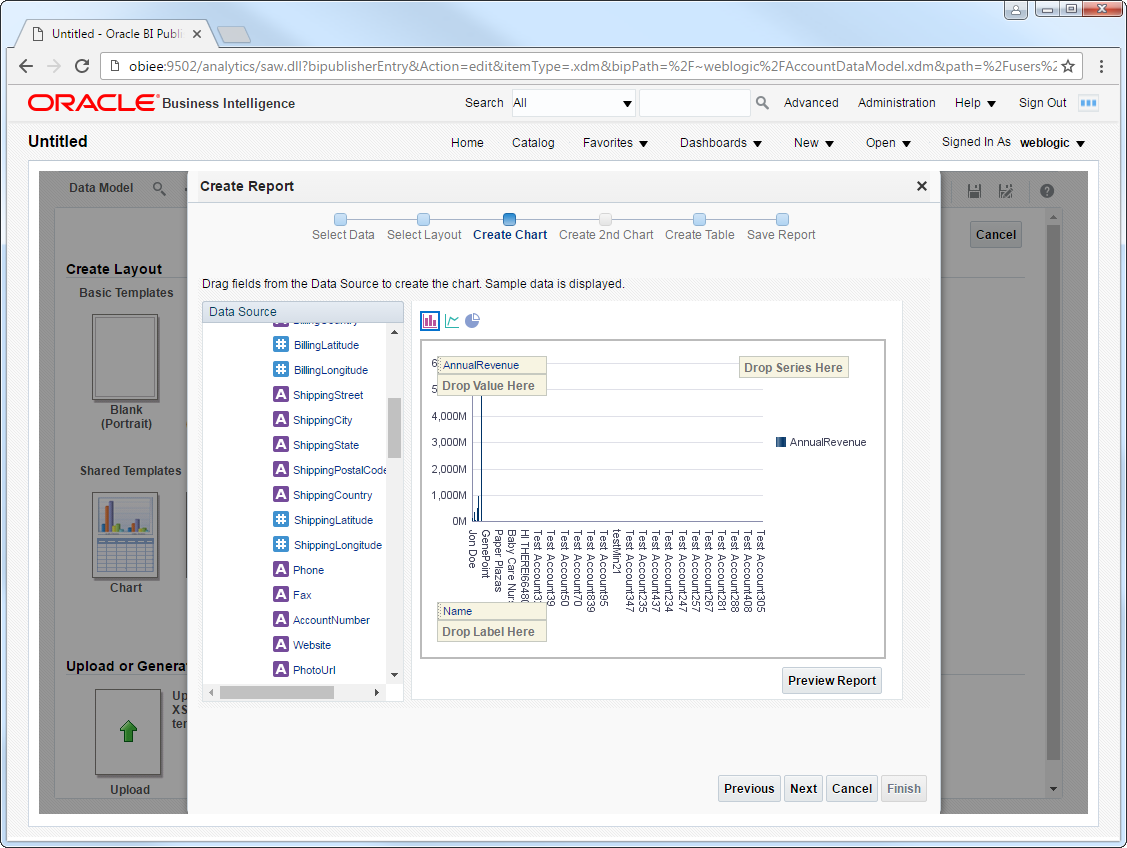
- Drop a numeric column like onto the Drop Value Here box on the y-axis. Drop a dimension column like onto the Drop Label Here box on the x-axis.
- Click Refresh to pick up any changes to the Hugging Face data.