




Publish Crystal Reports on JD Edwards Data

The CData ADO.NET Provider for JD Edwards is fully integrated into the SAP Crystal Reports for Visual Studio development environment. You can employ standard ADO.NET components to construct reports, much like you would with SQL Server, but with the added advantage of real-time connectivity to JD Edwards. This article will guide you through the essential three steps to incorporate JD Edwards data into a report that refreshes upon opening.
Note: You will need to install SAP Crystal Reports, developer version for Visual Studio to follow this tutorial.
Create a Crystal Reports Application
To follow this article, you will also need a Visual Studio Crystal Reports project. This article will add a report to a WPF application. You can create one by clicking File -> New Project and then selecting the Crystal Reports WPF Application template. In the resulting wizard, select the option to create a blank report.
Connect to JD Edwards
Creating an ADO.NET data source for JD Edwards from Server Explorer makes it easy to create a DataSet that can be used in Crystal Reports wizards and the Crystal Reports Designer. You can find a guide to working with JD Edwards data in Server Explorer in the "Getting Started" chapter of the help documentation.
The driver connects to JD Edwards through your Application Interface Services (AIS) Server. Set the following connection properties:
- URL: The base HTTPS URL of your AIS Server (e.g., https://jde-ais.example.com:8300).
- User: Your JD Edwards username.
- Password: Your JD Edwards password.
- Environment (optional): The JD Edwards environment to use (e.g., PD920 for production or DV920 for development). If not specified, the AIS Server's default environment is used.
- Role (optional): The JD Edwards role for the session. If not specified, the AIS Server's default role is used.
- DeviceName (optional): An identifier for the connecting device or application, used for auditing and logging on the AIS Server.
- Jasserver (optional): The specific Java Application Server (JAS) instance to route requests through, useful in clustered environments.
Choosing Which Data Is Exposed
JD Edwards organizes tables and business views by System Code, and the driver exposes each System Code as its own schema. Use these properties to control which schemas are available:
- DataModel: One or more ERP modules (comma-separated) whose System Codes are exposed as schemas, or All to expose every System Code in the connected instance. Defaults to FinancialManagement.
- SystemCodes: A comma-separated list of additional System Codes to expose alongside those from DataModel (e.g., 42,43).
When you connect, the driver sends your credentials to the AIS Server to obtain a session token and caches it. The driver requests a new token automatically before the session expires.
When you configure the connection, you may also want to set the Max Rows connection property. This will limit the number of rows returned, which is especially helpful for improving performance when designing reports and visualizations.
Create a DataSet
Follow the steps below to use the Visual Studio ADO.NET DataSet Designer to create an ADO.NET DataSet object. Crystal Reports will bind to the DataSet object, which contains JD Edwards table metadata. Note that this approach also adds a connection string to App.config; you will use this connection string later to load data into the report.
- In the Solution Explorer, right-click your project and then click Add -> New Item.
- Select DataSet. The DataSet Designer is then displayed.
- Drag and drop tables from Server Explorer onto the DataSet Designer. This article uses the AccountsPayable.AccountLedger table.
Add JD Edwards Fields to the Report
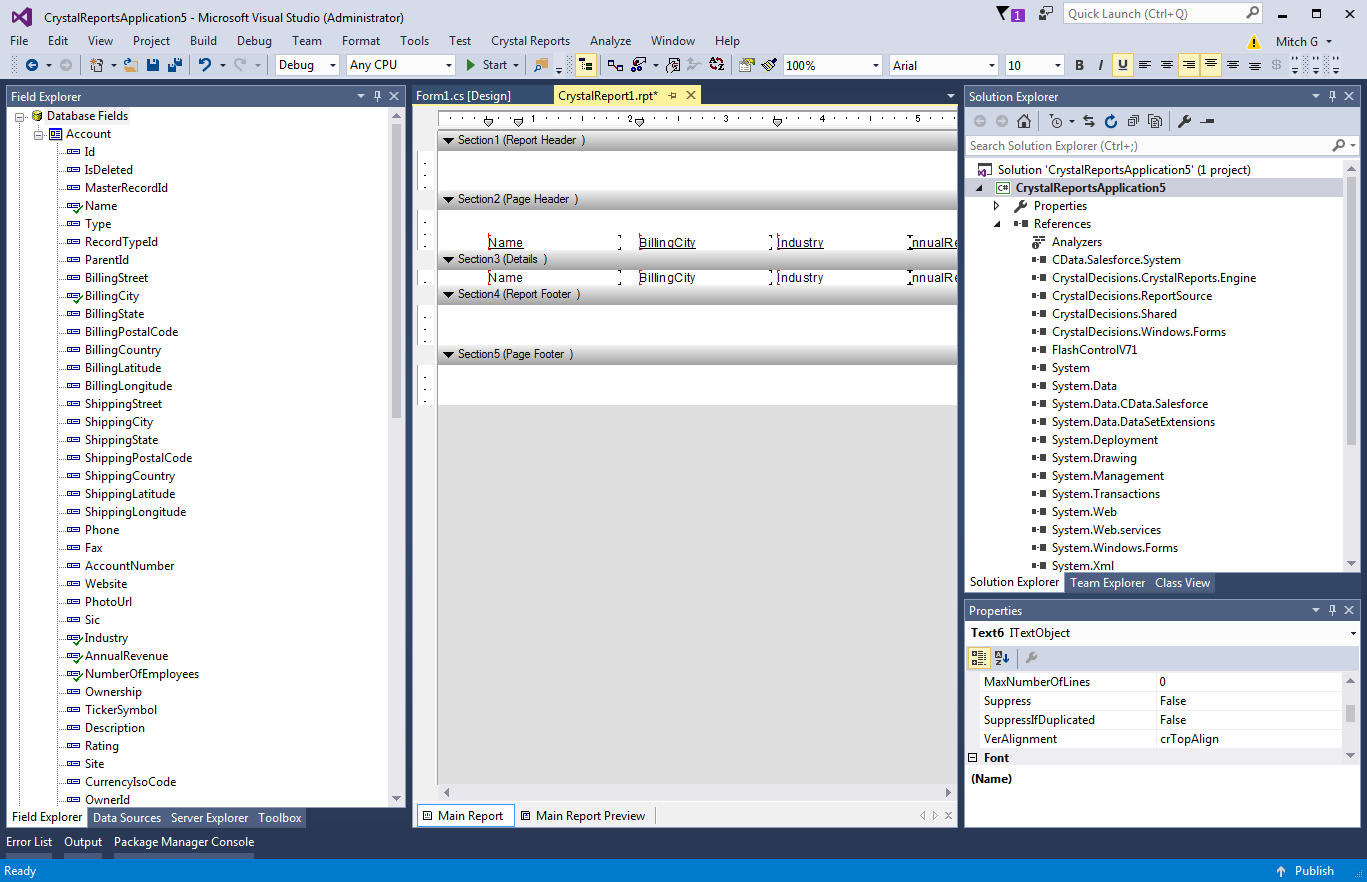
Follow the steps below to add columns from the DataSet to the report:
- Double-click the .rpt file in the Solution Explorer to open the Crystal Reports Designer.
- Right-click the designer and click Database -> Database Expert.
- Expand the Project Folder and ADO.NET DataSets nodes and drag the DataSet you created into the Selected Tables box. The fields are now accessible from the Field Explorer.
- Drag and drop fields from the Field Explorer to the Details section or another section of your report.
Load Data into the Report
Having created the DataSet, which will only contain the metadata, you will now need to create the DataTable containing the actual data. You can use the JDEdwardsDataAdapter to fill a DataTable with the results of an SQL query.
- Add a reference to System.Configuration.dll to your project to be able to use the connection string from App.config.
- In App.config, add the following code to the configuration node for compatibility with Crystal Reports when working with .NET 4.0:
  <startup useLegacyV2RuntimeActivationPolicy="true">
    <supportedRuntime version="v4.0" sku=".NETFramework,Version=v4.0"/>
  </startup>
Add the following references in your Window.xaml.cs file:
using System.Configuration;
using CrystalDecisions.CrystalReports.Engine;
using CrystalDecisions.Shared;
using System.Data.CData.JDEdwards;
using System.Data;
-
Add the following Window_Loaded method in your Window.xaml.cs to execute the SQL query that will return the DataTable. Note that your query needs to select at least the same columns used in your report.
private void Window_Loaded(object sender, RoutedEventArgs e) {
  ReportDocument report = new ReportDocument();
  report.Load("../../CrystalReport1.rpt");
 var connectionString = ConfigurationManager.ConnectionStrings["MyAppConfigConnectionStringName"].ConnectionString;
  using (JDEdwardsConnection connection = new JDEdwardsConnection(connectionString)) {
    JDEdwardsDataAdapter dataAdapter = new JDEdwardsDataAdapter(
    "SELECT DocumentNumber, Amount FROM AccountsPayable.AccountLedger WHERE BusinessUnit = '100'", connection);
     DataSet set = new DataSet("_set");
     DataTable table = set.Tables.Add("_table");
     dataAdapter.Fill(table);
     report.SetDataSource(table);
  }
  reportViewer.ViewerCore.ReportSource = report;
}
In the Window.xaml file, add the Loaded event so that your Window tag resembles the following:
<Window x:Class="CrystalReportWpfApplication4.Window1" xmlns="http://schemas.microsoft.com/winfx/2006/xaml/presentation" xmlns:x="http://schemas.microsoft.com/winfx/2006/xaml" xmlns:cr="clr-namespace:SAPBusinessObjects.WPF.Viewer;assembly=SAPBusinessObjects.WPF.Viewer" Title="WPF Crystal Report Viewer" Height="600" Width="800" Loaded="Window_Loaded"> ... </Window>- Run the report. When the report is loaded, the provider executes the query to retrieve the current data.
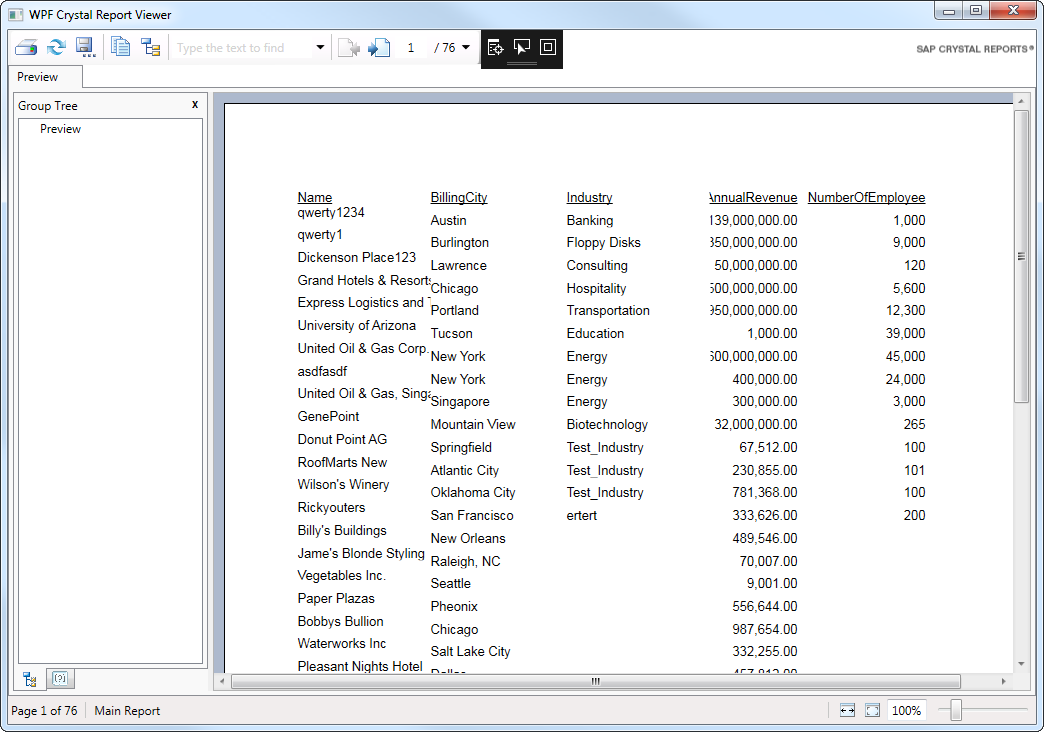
Chart JD Edwards Data
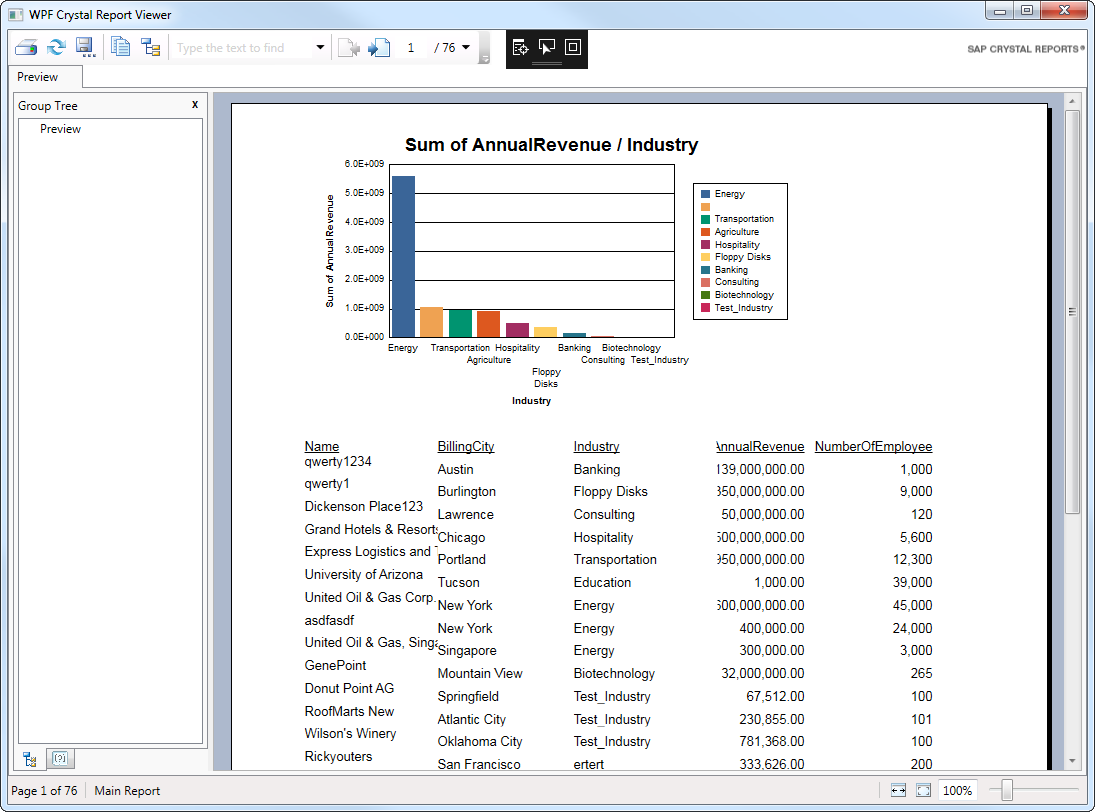
You can also use the DataSet with experts like the Chart Expert:
- Right-click in the Crystal Reports Designer and click Insert -> Chart.
- Select the Report Header or Report Footer section. The Chart Expert is then displayed.
- On the Type tab, select the chart type. This article uses a side-by-side bar chart.
- On the Data tab, select the column and conditions for the x-axis. For example, drag the DocumentNumber column in the DataSet node onto the box under the On Change Of menu.
- Select the x-axis column and click the TopN and Order buttons to configure sorting and limiting.
- Select the columns and summary operations for the y-axis. For example, drag the Amount column in the DataSet node into the Show Values box.
- Run the report.
Note that Crystal Reports performs the aggregation on the data already loaded into DataTable, instead of, for example, executing a GROUP BY to the JD Edwards API. This will also be true for the report creation wizards.
You could gain more control over the queries executed to JD Edwards by creating another DataSet and populating it with a different query. See the help documentation for more information on the driver's SQL engine.
Ready to get started?
Download a free trial of the JD Edwards Data Provider to get started:
Download NowLearn more:
 JD Edwards ADO.NET Provider
Rapidly create and deploy powerful .NET applications that integrate with JD Edwards data including AccountLedger, ProposalofPayment, ContractRevenueSummary, EmployeeEnrollment, RentIncreaseAmounts, and more!