




Analyze JD Edwards Data in Cognos Analytics

Cognos Analytics, powered by IBM Watson®, empowers users to cleanse and establish connections with their data while creating visualizations. When integrated with CData Connect AI, users gain immediate, real-time connectivity between cloud-based data sources and Cognos Analytics, facilitating data management, visualization, analytics, and more. This article provides step-by-step guidance on connecting to JD Edwards via CData Connect AI and subsequently analyzing JD Edwards data within Cognos Analytics.
NOTE: These instructions require Cognos Analytics 11.2.4 or higher
CData Connect AI offers a dedicated cloud-to-cloud interface for JD Edwards, enabling users to perform real-time analysis on JD Edwards data within Cognos without the need to replicate data to a natively supported database. Equipped with built-in optimized data processing capabilities, CData Connect AI efficiently directs all supported SQL operations, including filters and JOINs, directly to JD Edwards. This harnesses server-side processing to promptly provide the requested JD Edwards data.
Configure JD Edwards Connectivity for Cognos Analytics
Connectivity to JD Edwards from Cognos Analytics is made possible through CData Connect AI. To work with JD Edwards data from Cognos Analytics, we start by creating and configuring a JD Edwards connection.
- Log into Connect AI, click Sources, and then click Add Connection
- Select "JD Edwards" from the Add Connection panel
-
Enter the necessary authentication properties to connect to JD Edwards.
The driver connects to JD Edwards through your Application Interface Services (AIS) Server. Set the following connection properties:
- URL: The base HTTPS URL of your AIS Server (e.g., https://jde-ais.example.com:8300).
- User: Your JD Edwards username.
- Password: Your JD Edwards password.
- Environment (optional): The JD Edwards environment to use (e.g., PD920 for production or DV920 for development). If not specified, the AIS Server's default environment is used.
- Role (optional): The JD Edwards role for the session. If not specified, the AIS Server's default role is used.
- DeviceName (optional): An identifier for the connecting device or application, used for auditing and logging on the AIS Server.
- Jasserver (optional): The specific Java Application Server (JAS) instance to route requests through, useful in clustered environments.
Choosing Which Data Is Exposed
JD Edwards organizes tables and business views by System Code, and the driver exposes each System Code as its own schema. Use these properties to control which schemas are available:
- DataModel: One or more ERP modules (comma-separated) whose System Codes are exposed as schemas, or All to expose every System Code in the connected instance. Defaults to FinancialManagement.
- SystemCodes: A comma-separated list of additional System Codes to expose alongside those from DataModel (e.g., 42,43).
When you connect, the driver sends your credentials to the AIS Server to obtain a session token and caches it. The driver requests a new token automatically before the session expires.

- Click Save & Test
-
Navigate to the Permissions tab in the Add JD Edwards Connection page and update the User-based permissions.



Add a Personal Access Token
When connecting to Connect AI through the REST API, the OData API, or the Virtual SQL Server, a Personal Access Token (PAT) is used to authenticate the connection to Connect AI. It is best practice to create a separate PAT for each service to maintain granularity of access.
- Click on the Gear icon () at the top right of the Connect AI app to open the settings page.
- On the Settings page, go to the Access Tokens section and click Create PAT.
-
Give the PAT a name and click Create.

- The personal access token is only visible at creation, so be sure to copy it and store it securely for future use.
With the connection configured and a PAT generated, you are ready to connect to JD Edwards data from Cognos Analytics.
Connect to JD Edwards from Cognos Analytics
The steps below outline connecting to CData Connect AI from Cognos Analytics to analyze live JD Edwards data.
Download and install the CData Connect AI JDBC driver
- Open the Integrations page of CData Connect AI.
- Search for and select JDBC.
- Download and run the setup file.
- When the installation is complete, copy the JAR file (cdata.jdbc.connect.jar) from the installation directory (e.g., C:\Program Files\CData\JDBC Driver for CData Connect\lib) to the "drivers" folder in your Cognos Analytics installation directory.
Configure the Connection to CData Connect AI
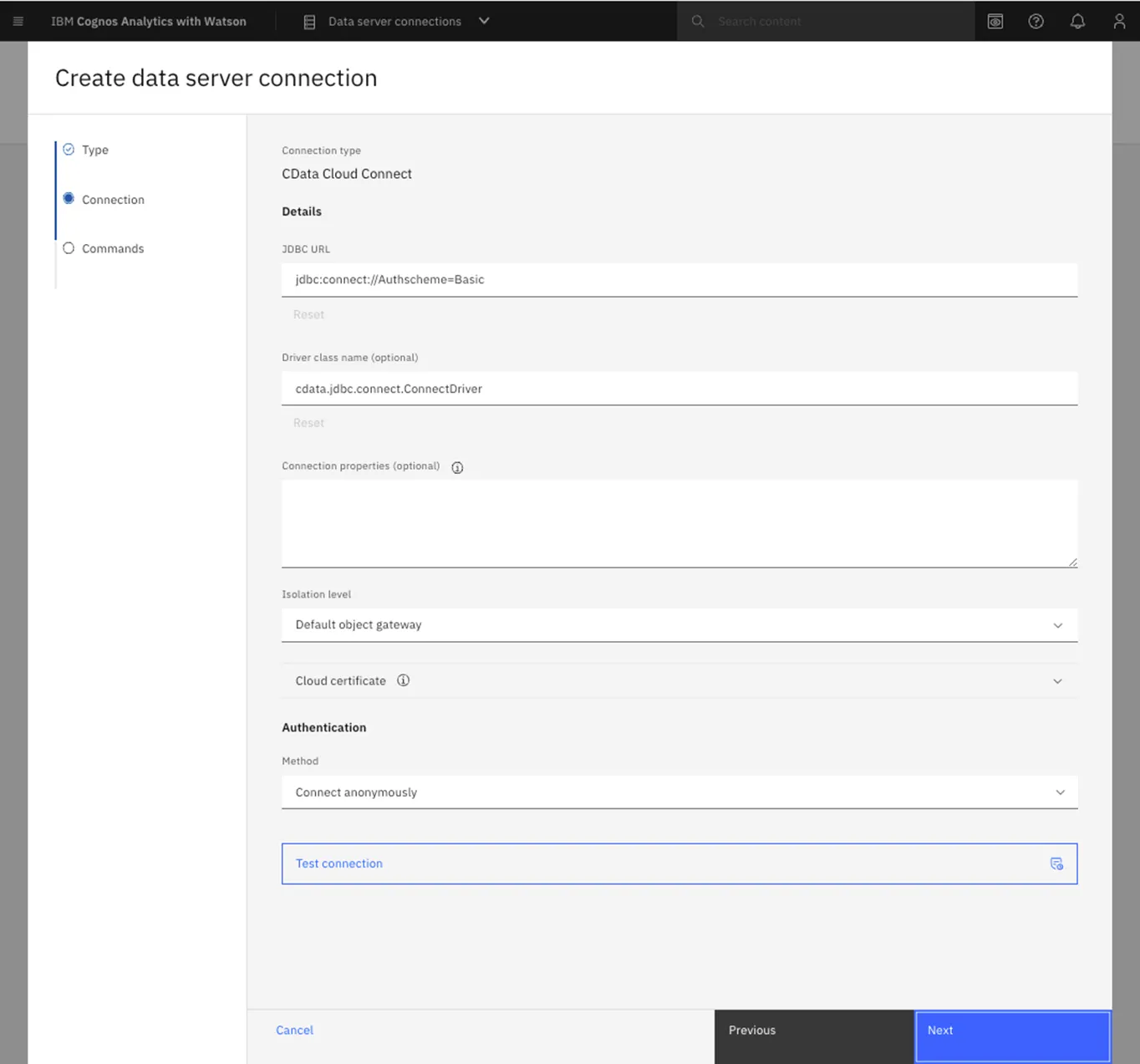
- Open IBM Cognos and navigate to Manage > Data server connections.
- Click the icon to add a data server.
- Select CData Connect AI.
- Set JDBC URL to the appropriate connection string. For example:
jdbc:connect:AuthScheme=Basic;user=username;password=PAT; - Set Driver class name to "cdata.jdbc.connect.ConnectDriver"
- Create and store authenticate credentials by selecting an authentication method
- Set Username to your CData Connect AI username (e.g., [email protected])
- Set Password to the PAT you previously generated.
- Click Test connection to confirm that the connection succeeds.
At this point, you are ready to analyze and visualize JD Edwards data in Cognos Analytics. For more information about using Cognos Analytics, please refer to the Cognos Analytics documentation.
Live Access to JD Edwards Data for Analytics
Now you have a direct, cloud-to-cloud connection to live JD Edwards data from Cognos Analytics. You can create new visualizations, build reports, and more — without replicating JD Edwards data.
Try CData Connect AI and get real-time data access to hundreds of SaaS, Big Data, and NoSQL sources directly from your cloud applications.