




Integrate Goose with Live JD Edwards Data via CData Connect AI

Goose is an open source AI agent that runs locally on your machine and works with a wide range of LLM providers. It supports the model context protocol (MCP) through its extensions framework, so you can add external tools and data sources and give the agent access to live systems beyond the model's training data.
By integrating Goose with CData Connect AI through the built-in MCP Server, Goose gains governed, real-time access to live JD Edwards data. You can list catalogs, explore schemas, and query records from JD Edwards data using natural language prompts, with all data access running securely against authorized sources.
This article explains how to configure JD Edwards connectivity in Connect AI, generate the required personal access token, install and set up Goose, add the Connect AI MCP Server as a custom extension, and verify the integration by querying live JD Edwards data from the Goose chat.
Step 1: Configure JD Edwards connectivity for Goose
Connectivity to JD Edwards from Goose is made possible through Connect AI's Remote MCP Server. To interact with JD Edwards data from Goose, start by creating and configuring a JD Edwards connection in Connect AI.
- Log into Connect AI, click Sources, and then click Add Connection
- Select JD Edwards from the Add Connection panel
-
Enter the necessary authentication properties to connect to JD Edwards.
The driver connects to JD Edwards through your Application Interface Services (AIS) Server. Set the following connection properties:
- URL: The base HTTPS URL of your AIS Server (e.g., https://jde-ais.example.com:8300).
- User: Your JD Edwards username.
- Password: Your JD Edwards password.
- Environment (optional): The JD Edwards environment to use (e.g., PD920 for production or DV920 for development). If not specified, the AIS Server's default environment is used.
- Role (optional): The JD Edwards role for the session. If not specified, the AIS Server's default role is used.
- DeviceName (optional): An identifier for the connecting device or application, used for auditing and logging on the AIS Server.
- Jasserver (optional): The specific Java Application Server (JAS) instance to route requests through, useful in clustered environments.
Choosing Which Data Is Exposed
JD Edwards organizes tables and business views by System Code, and the driver exposes each System Code as its own schema. Use these properties to control which schemas are available:
- DataModel: One or more ERP modules (comma-separated) whose System Codes are exposed as schemas, or All to expose every System Code in the connected instance. Defaults to FinancialManagement.
- SystemCodes: A comma-separated list of additional System Codes to expose alongside those from DataModel (e.g., 42,43).
When you connect, the driver sends your credentials to the AIS Server to obtain a session token and caches it. The driver requests a new token automatically before the session expires.

- Click Save & Test
- Navigate to the Permissions tab and update user-based permissions



Add a Personal Access Token
A Personal Access Token (PAT) is used to authenticate the connection to Connect AI from Goose. It is best practice to create a separate PAT for each integration to maintain granular access control.
- Click the gear icon () at the top right of the Connect AI app to open Settings
- On the Settings page, go to the Access Tokens section and click Create PAT
- Give the PAT a descriptive name and click Create
- Copy the token when displayed and store it securely. It will not be shown again

With the JD Edwards connection configured and a PAT generated, Goose can now connect to JD Edwards data through Connect AI.
Step 2: Install and set up Goose
Next, install Goose, choose an LLM provider, and add the Connect AI Remote MCP Server as a custom extension so the agent can discover and call live data tools through Connect AI.
- Download and install Goose by following the official installation guide, then launch the application
-
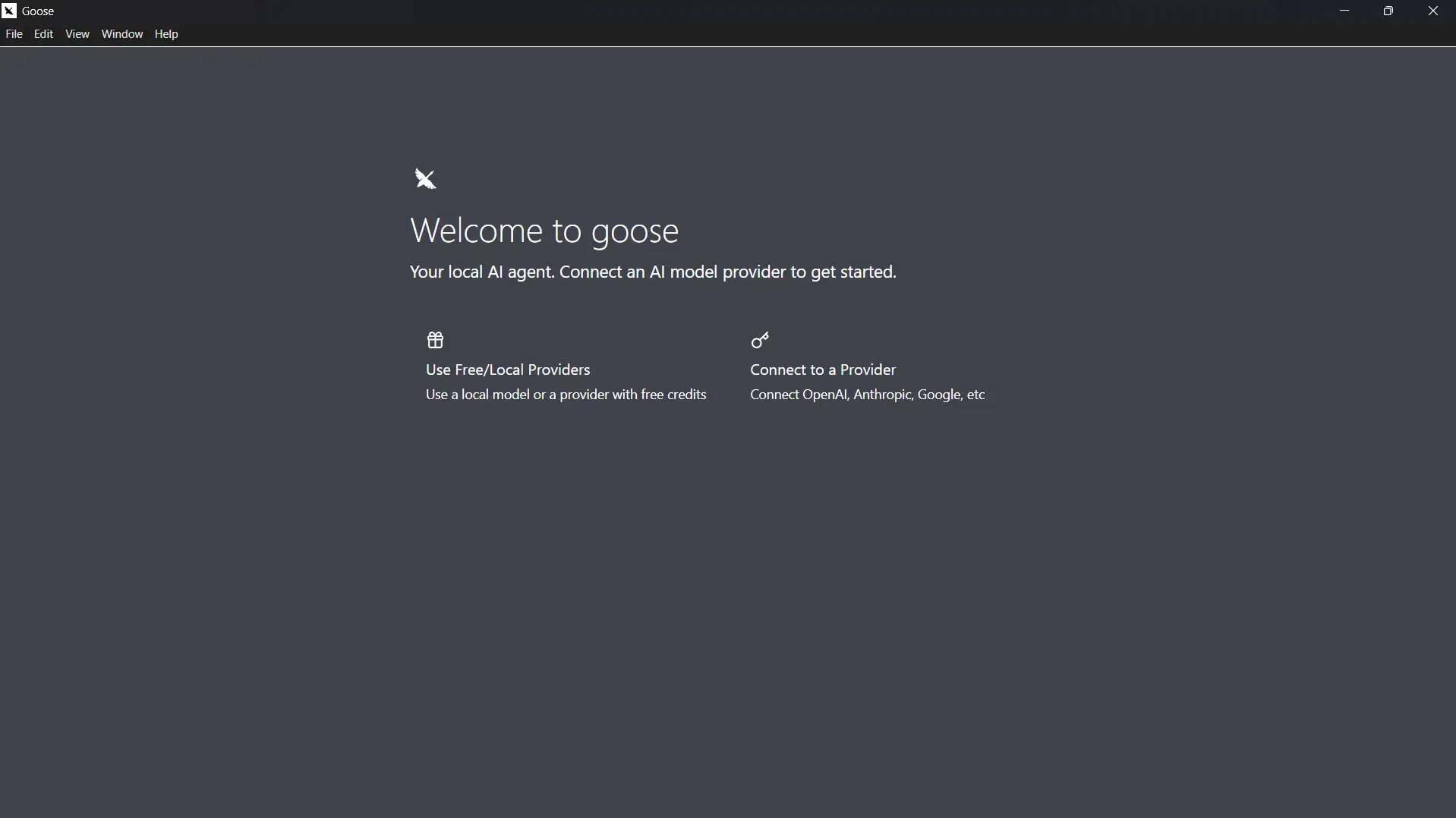
On the Welcome to goose screen, choose an AI provider. Select Use Free/Local Providers to run a local model, or Connect to a Provider to configure a provider such as OpenAI, Anthropic, or Google, and enter the required API key
-
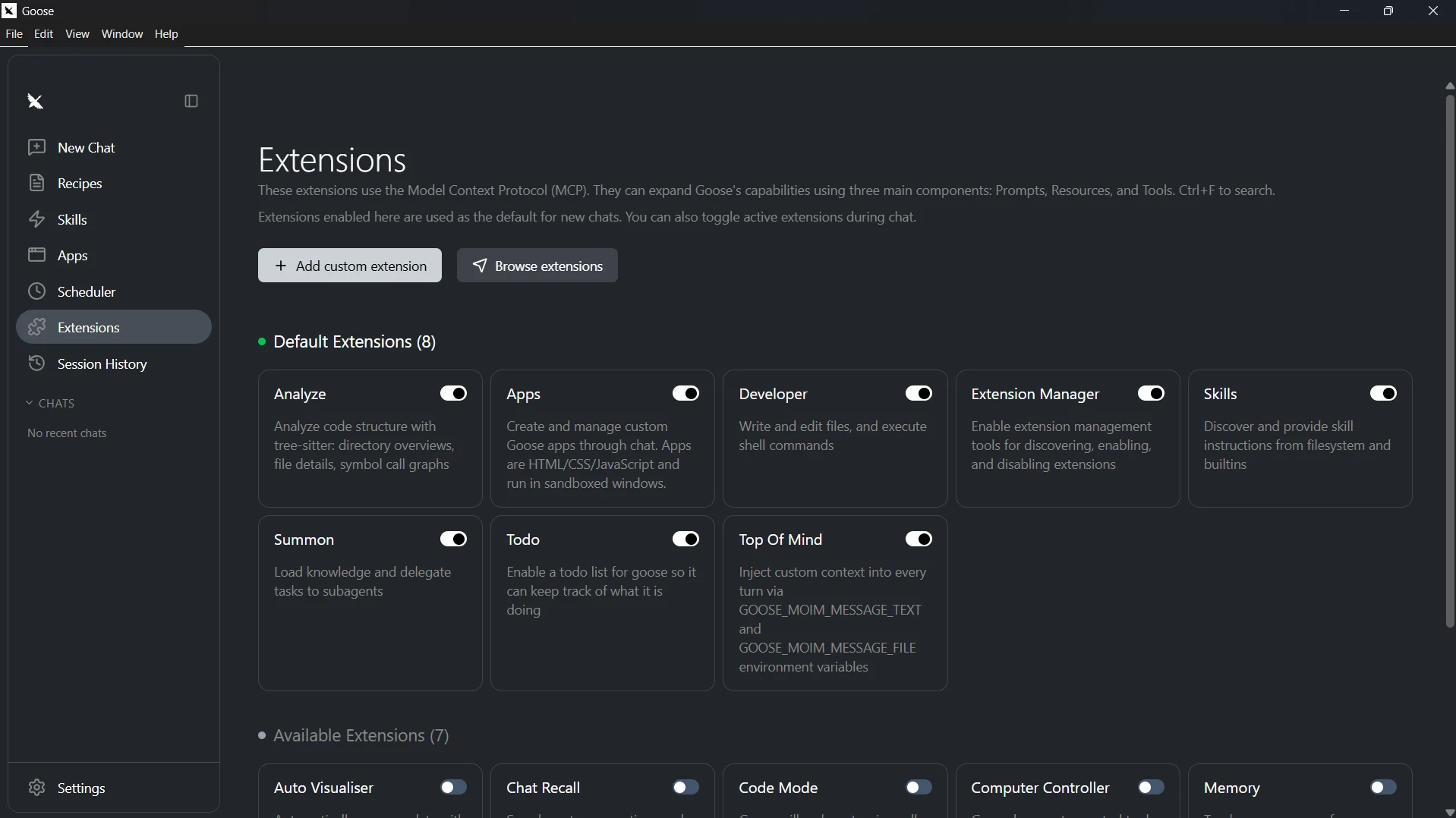
In the left navigation, click Extensions, then click + Add custom extension
-
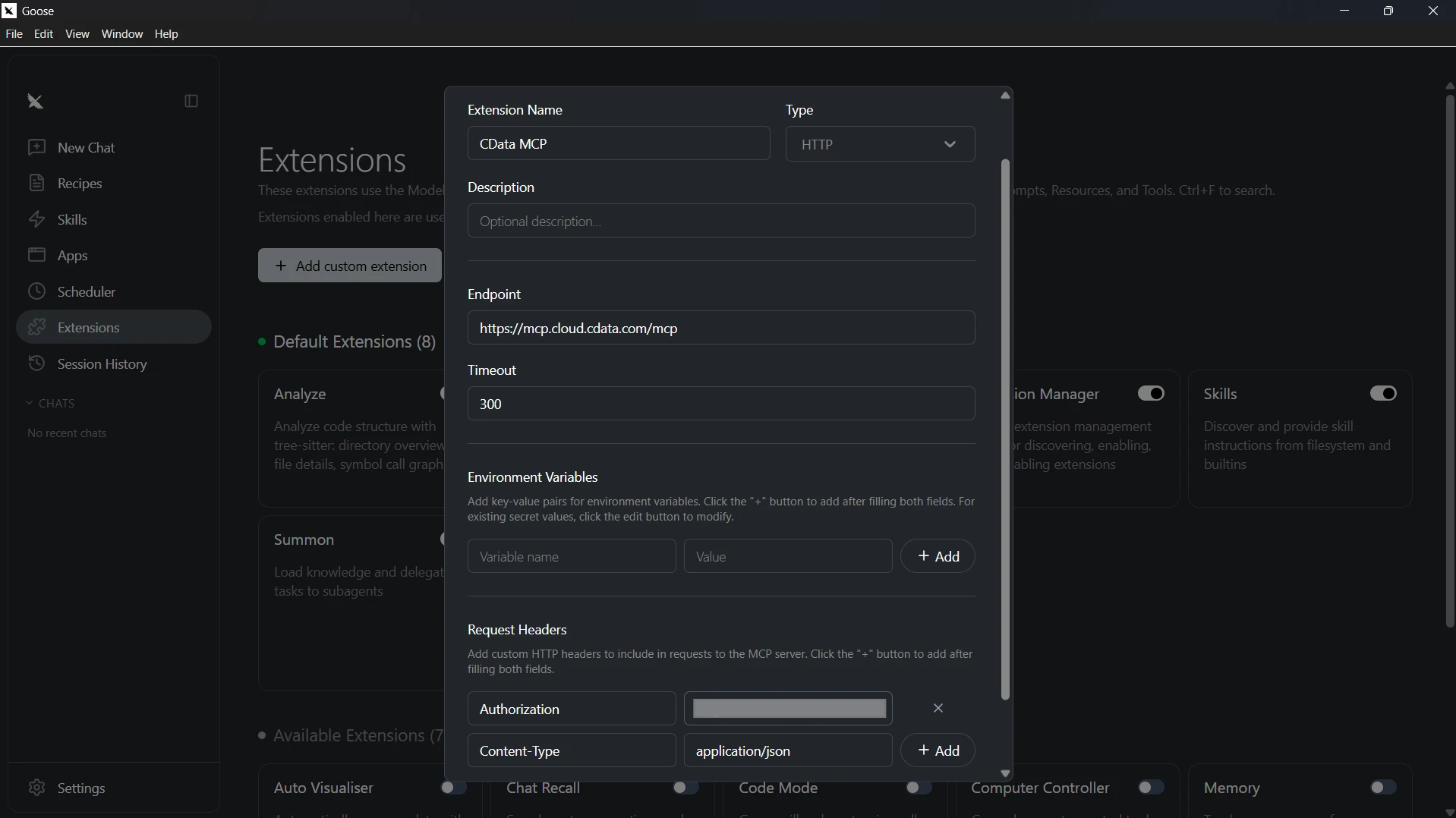
In the extension dialog, configure the server with the following values:
- Extension Name: CData MCP, or any name of your choice
- Type: Streamable HTTP
- Endpoint: https://mcp.cloud.cdata.com/mcp
-
Under Request Headers, add the following two headers and click + Add after each pair:
- Authorization: Basic your_base64_encoded_email_PAT
- Content-Type: application/json
Note: Goose will use Basic authentication with Connect AI. Combine your Connect AI user email and the PAT you created earlier in the format email:PAT, base64 encode the combined string, and prefix it with Basic. For example, given [email protected]:ABC123...XYZ789, the Authorization header value becomes something like: Basic dXNlckBkb21haW4uY29tOkFCQzEyMy4uLlhZWjc4OQ==
- Click Save to save the configuration
-
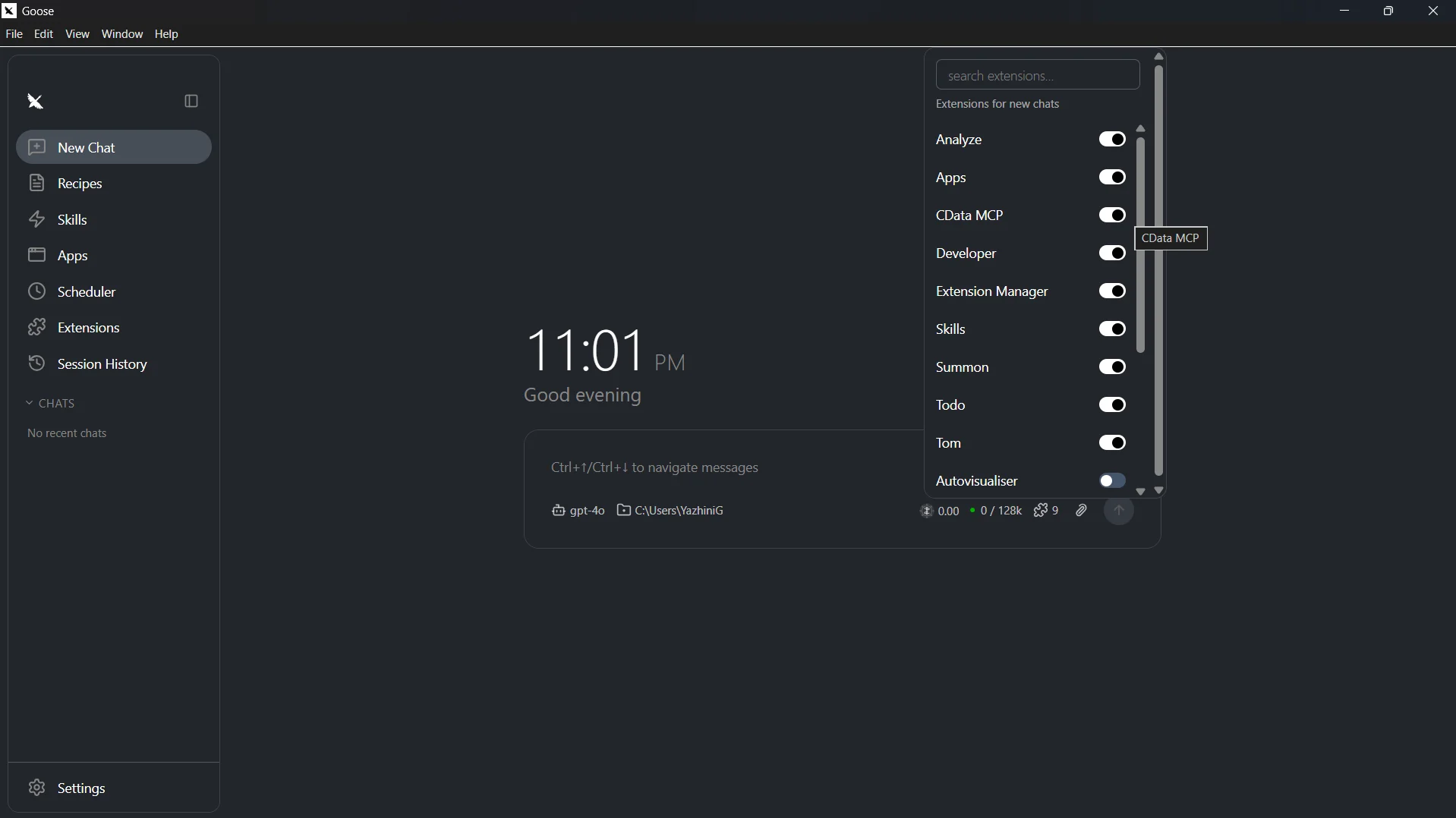
Return to the chat, click the extensions icon at the bottom of the chat input, and confirm that the configured MCP is enabled
With the MCP server added and an LLM provider configured, Goose is ready to query live JD Edwards data through Connect AI.
Step 3: Query live JD Edwards data from Goose
With the integration complete, use the Goose chat to interact with live JD Edwards data through natural language prompts handled by the configured LLM.
-
With the CData MCP extension enabled, type a prompt in the chat, for example:
- List catalogs from my CData MCP
- Show the available schemas and tables for JD Edwards
- Query the top 5 records from a table in JD Edwards data
-
Goose calls the Connect AI MCP Server and returns live results from JD Edwards data
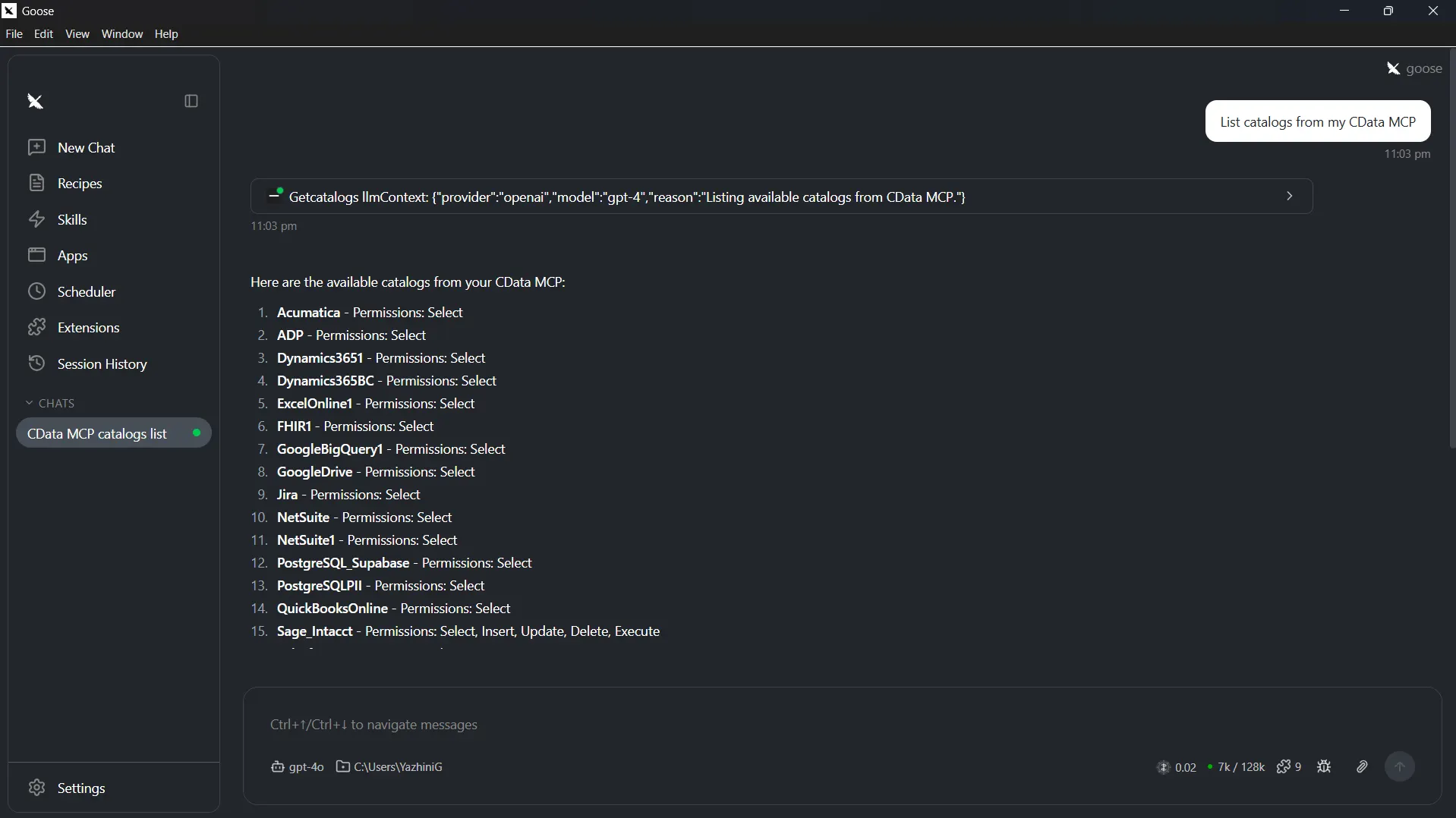
At this point, your Goose agent communicates with the Connect AI MCP Server and retrieves live JD Edwards data through remote MCP tools directly from the chat.
Get CData Connect AI
To access hundreds of SaaS, big data, and NoSQL sources directly from your cloud applications, try CData Connect AI today. Download a free 14-day trial of CData Connect AI, and our Support Team is available to help with any questions you have.