




Build JD Edwards-Connected Applications in Kiro with CData Connect AI MCP Server

Kiro is an agentic AI IDE from AWS that takes a spec-driven approach to software development, turning a natural language prompt into a detailed spec, then into working code, tests, and documentation. Available as a desktop IDE and CLI, Kiro supports remote MCP servers natively across all plans, letting agents pull live context from enterprise systems while they build.
By integrating Kiro with CData Connect AI through the MCP (Model Context Protocol), Kiro agents gain the ability to query, analyze, and act on live JD Edwards data directly inside any coding session. Connect AI manages authentication, security, and query optimization so you can focus on building intelligent applications, while Kiro handles spec generation, code writing, and task execution.
This article outlines the steps to configure JD Edwards connectivity in Connect AI, generate the required authentication credentials, register the Connect AI MCP Server in Kiro, and verify that your agent can successfully interact with live JD Edwards data during coding sessions.
Prerequisites
- Kiro account
- CData Connect AI account
- JD Edwards account with valid credentials.
Step 1: Configure JD Edwards Connectivity for Kiro
Connectivity to JD Edwards from Kiro is made possible through Connect AI's Remote MCP Server. To interact with JD Edwards data from your Kiro agent sessions, start by creating and configuring a JD Edwards connection in Connect AI.
-
Log into Connect AI, click Sources, and then click Add Connection.

-
Select JD Edwards from the Add Connection panel.

-
Enter the necessary authentication properties to connect to JD Edwards.
The driver connects to JD Edwards through your Application Interface Services (AIS) Server. Set the following connection properties:
- URL: The base HTTPS URL of your AIS Server (e.g., https://jde-ais.example.com:8300).
- User: Your JD Edwards username.
- Password: Your JD Edwards password.
- Environment (optional): The JD Edwards environment to use (e.g., PD920 for production or DV920 for development). If not specified, the AIS Server's default environment is used.
- Role (optional): The JD Edwards role for the session. If not specified, the AIS Server's default role is used.
- DeviceName (optional): An identifier for the connecting device or application, used for auditing and logging on the AIS Server.
- Jasserver (optional): The specific Java Application Server (JAS) instance to route requests through, useful in clustered environments.
Choosing Which Data Is Exposed
JD Edwards organizes tables and business views by System Code, and the driver exposes each System Code as its own schema. Use these properties to control which schemas are available:
- DataModel: One or more ERP modules (comma-separated) whose System Codes are exposed as schemas, or All to expose every System Code in the connected instance. Defaults to FinancialManagement.
- SystemCodes: A comma-separated list of additional System Codes to expose alongside those from DataModel (e.g., 42,43).
When you connect, the driver sends your credentials to the AIS Server to obtain a session token and caches it. The driver requests a new token automatically before the session expires.

- Click Save & Test.
-
Navigate to the Permissions tab in the Add JD Edwards Connection page and update the User-based permissions.

Add a Personal Access Token
A Personal Access Token (PAT) is used to authenticate the connection to Connect AI from Kiro. It is best practice to create a separate PAT for each integration to maintain granular access control.
- Click the Gear icon at the top right of the Connect AI app to open Settings.
- On the Settings page, go to the Access Tokens section and click Create PAT.
-
Give the PAT a descriptive name (e.g., Kiro MCP) and click Create.

With the JD Edwards connection configured and a PAT generated, Kiro can now connect to JD Edwards data through Connect AI.
Step 2: Register the CData Connect AI MCP Server in Kiro
Kiro connects to external data sources through MCP servers configured in a file called mcp.json. In this step, you will open that file, add the Connect AI server details, and verify the connection.
-
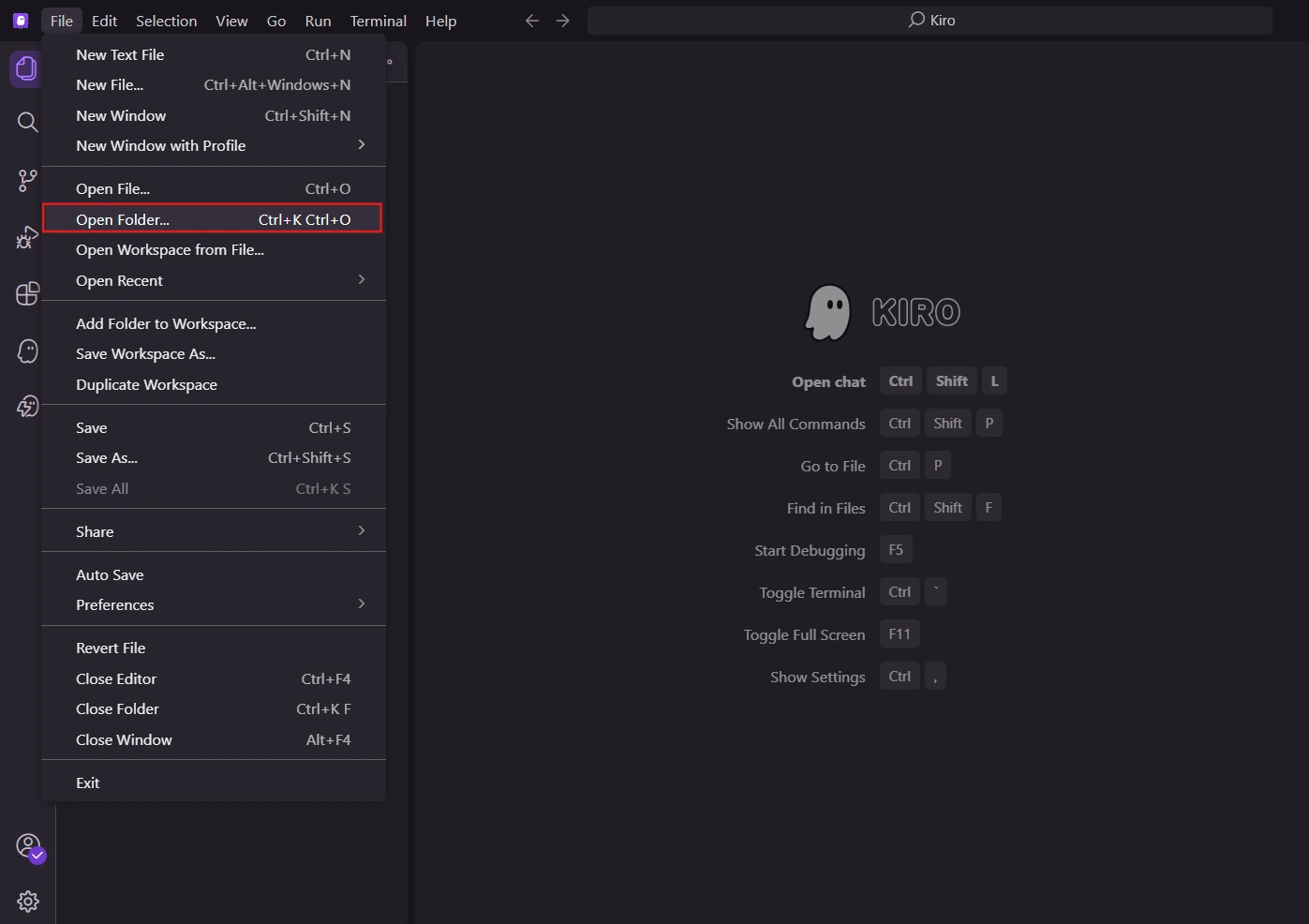
Open a project folder. Kiro requires an open project before its agent features activate. When Kiro launches, click Open a project on the Getting started screen (or click Open Folder in the Explorer panel on the left). You can open any existing folder or create a new empty one, it just needs to be open.
-
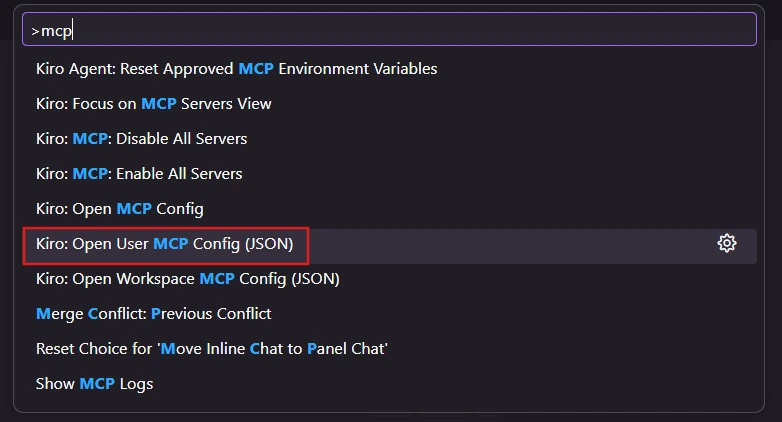
Open the MCP config file. Press Ctrl + Shift + P (Windows) or Cmd + Shift + P (Mac) to open the command palette. Type MCP and select Kiro: Open user MCP config (JSON). This opens the mcp.json file where you register MCP servers for Kiro.
-
Generate your Base64 credentials. Kiro authenticates with Connect AI using your email and PAT, encoded together as a single Base64 string. Open a terminal and run the command for your operating system. Replace [email protected] with your Connect AI login email and YourPAT with the PAT you created in Step 1.
Windows (PowerShell):
[Convert]::ToBase64String([Text.Encoding]::UTF8.GetBytes("[email protected]:YourPAT"))Mac/Linux (Terminal):
echo -n "[email protected]:YourPAT" | base64Copy the output string. You will paste it into the config file in the next step.
-
Add the Connect AI server to mcp.json. Paste the following block into your mcp.json file. Replace your_base64_string with the string you copied in the previous step:
{
  "mcpServers": {
    "cdata-connect-ai": {
      "url": "https://mcp.cloud.cdata.com/mcp",
      "headers": {
        "Authorization": "Basic your_base64_string"
      }
    }
  }
}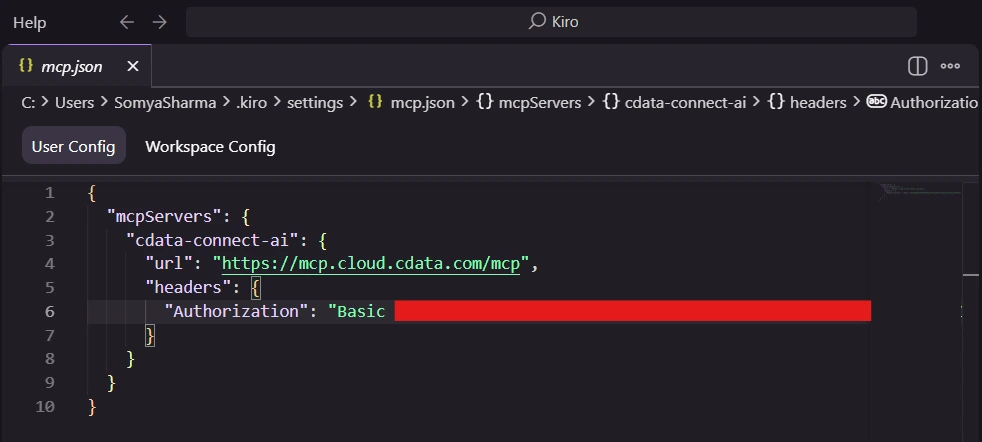
- Save the file. Press Ctrl + S (Windows) or Cmd + S (Mac). Kiro picks up changes to mcp.json automatically, no restart is needed.
-
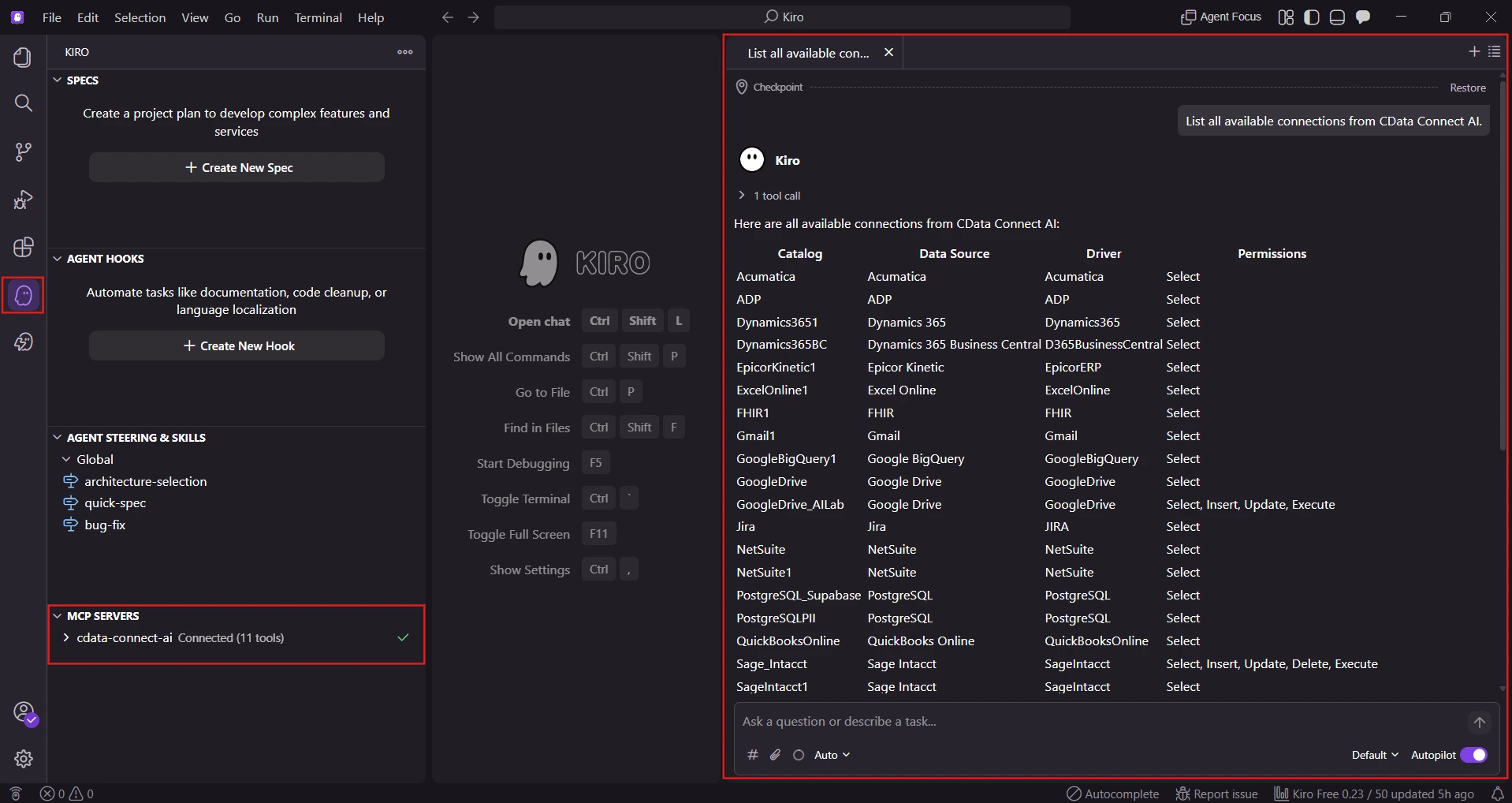
Verify the connection. Click the ghost icon in the left sidebar to open the Kiro panel. Under MCP SERVERS, you should see cdata-connect-ai with a green connected indicator. You can also confirm by typing the following in the Kiro chat panel:
List all available connections from Connect AI.If your JD Edwards connection appears in the response, the MCP server is set up correctly and you are ready to query live data.
Step 3: Query Live JD Edwards Data from Kiro
With the MCP server registered and verified, Kiro agents can now access your live JD Edwards data directly in any session. Open the Kiro chat panel and use the following prompts to interact with your data.
The integration uses the following Connect AI MCP tools in sequence:
| MCP tool | Purpose |
|---|---|
| getCatalogs | Retrieves all available connections from Connect AI |
| getSchemas | Retrieves the database schemas for the selected connection |
| getTables | Retrieves all tables and views for the selected schema |
| queryData | Executes the generated SQL query and returns live results |
Open the Kiro chat panel and try the following prompts to interact with your JD Edwards data:
- "What tables are available in my JD Edwards connection?"
- "What are the top records in JD Edwards data ordered by revenue?"
- "List all active JD Edwards data and their current status."
- "Summarize JD Edwards data activity for this quarter."
Kiro automatically discovers all CData connections, selects the most relevant connection, discovers the schema, generates, and executes the appropriate SQL query, and returns live results directly in the chat.
Build real-time, data-aware applications with Kiro and CData
Kiro and CData Connect AI together enable intelligent, AI-driven development where natural language prompts are automatically translated into live data operations across enterprise systems, without ETL pipelines, data sync jobs, or custom integration logic. This streamlined approach delivers stronger governance, lower operational overhead, and faster, more grounded responses from AI-powered agents.
Start a free trial today to see how CData Connect AI can empower Kiro with live, secure access to hundreds of enterprise systems.