





Visualize Live JD Edwards Data in Power BI (via CData Connect AI)

Power BI transforms your company's data into rich visuals for you to collect and organize so you can focus on what matters to you. When paired with CData Connect AI, you get access to JD Edwards data for visualizations, dashboards, and more. This article shows how to use CData Connect to create a live connection to JD Edwards, connect to JD Edwards data from Power BI and then create reports on JD Edwards data in Power BI.
Configure JD Edwards Connectivity for Power BI
Connectivity to JD Edwards from Power BI is made possible through CData Connect AI. To work with JD Edwards data from Power BI, we start by creating and configuring a JD Edwards connection.
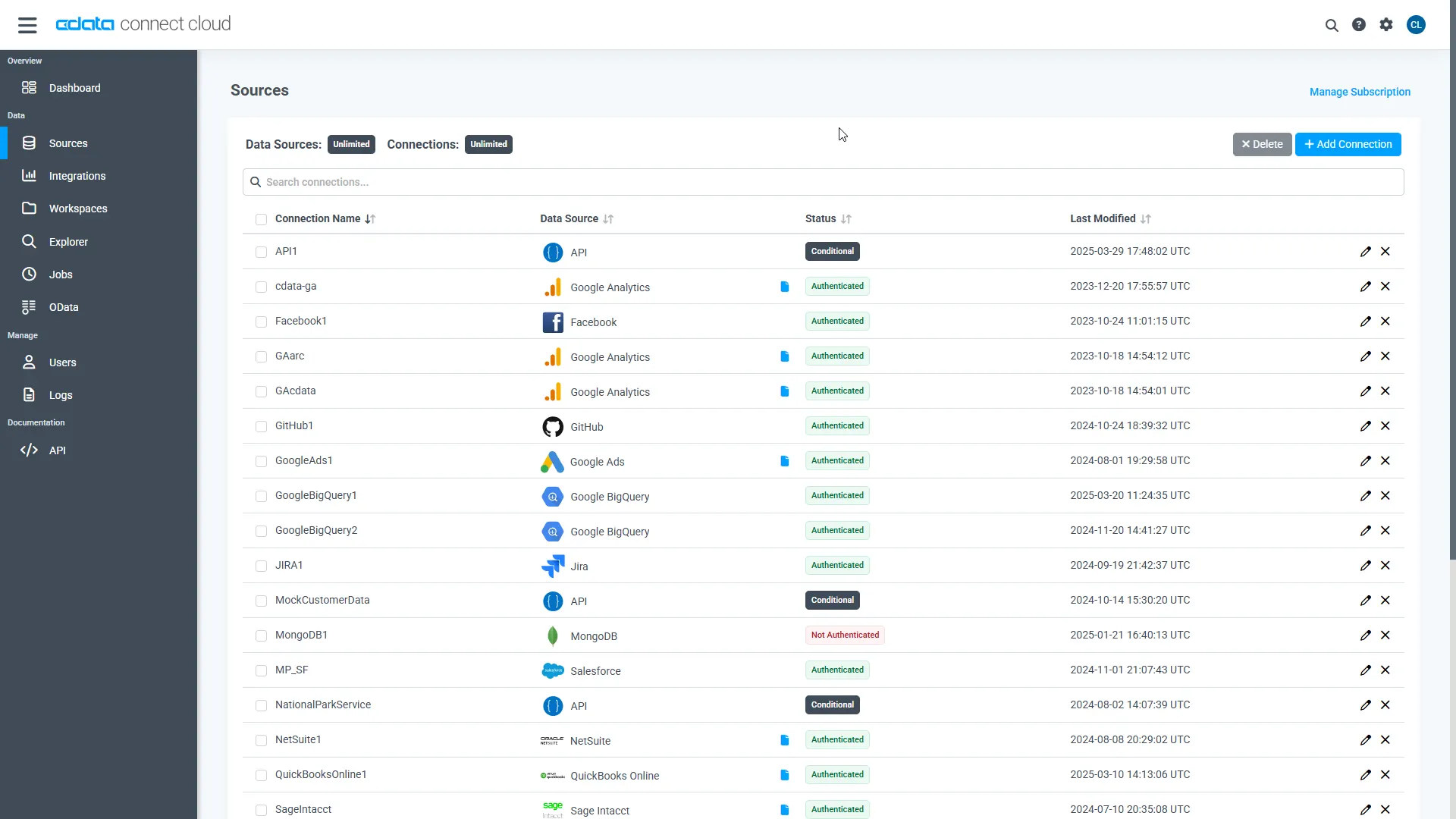
- Log into Connect AI, click Sources, and then click Add Connection
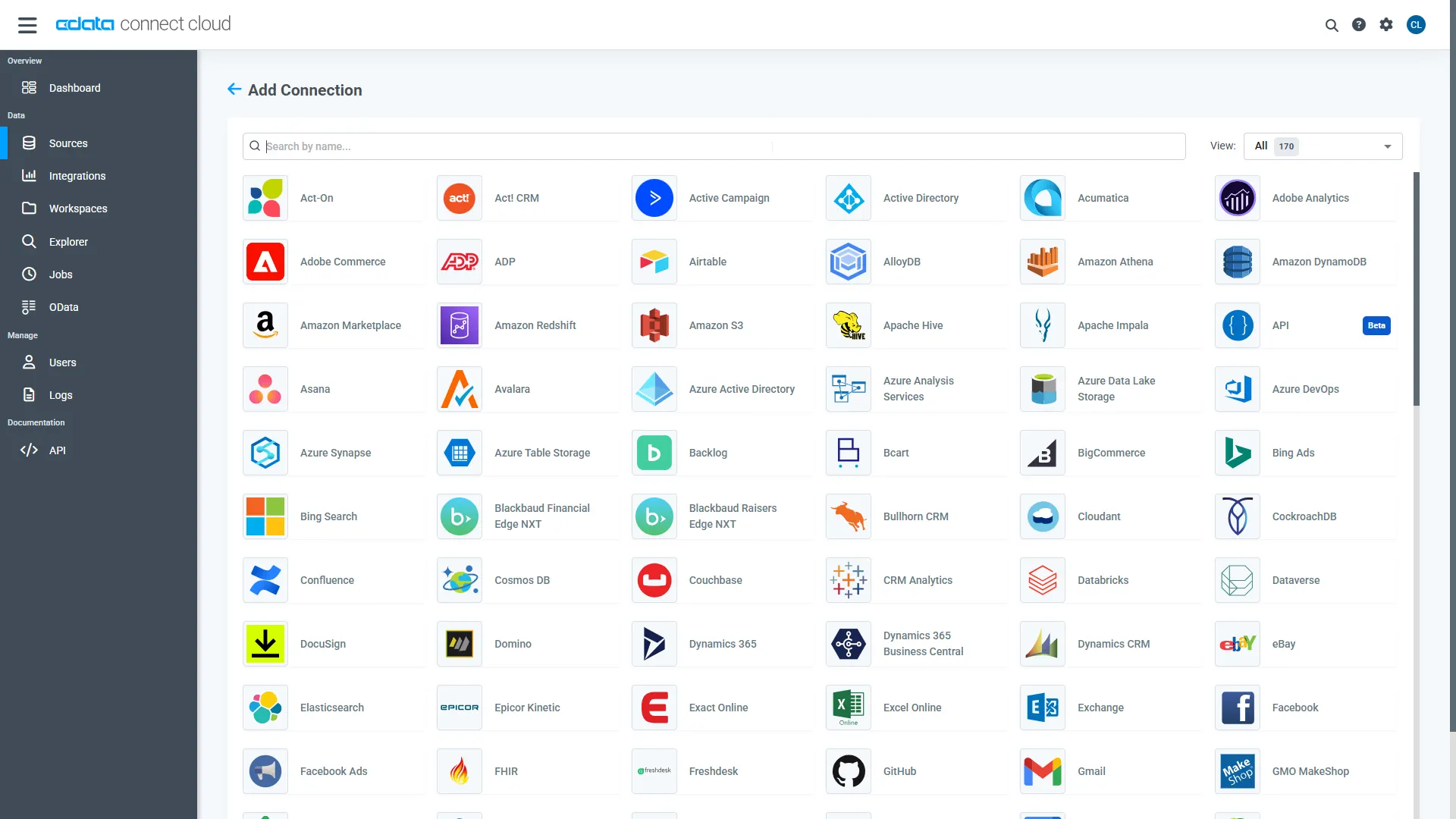
- Select "JD Edwards" from the Add Connection panel
-
Enter the necessary authentication properties to connect to JD Edwards.
The driver connects to JD Edwards through your Application Interface Services (AIS) Server. Set the following connection properties:
- URL: The base HTTPS URL of your AIS Server (e.g., https://jde-ais.example.com:8300).
- User: Your JD Edwards username.
- Password: Your JD Edwards password.
- Environment (optional): The JD Edwards environment to use (e.g., PD920 for production or DV920 for development). If not specified, the AIS Server's default environment is used.
- Role (optional): The JD Edwards role for the session. If not specified, the AIS Server's default role is used.
- DeviceName (optional): An identifier for the connecting device or application, used for auditing and logging on the AIS Server.
- Jasserver (optional): The specific Java Application Server (JAS) instance to route requests through, useful in clustered environments.
Choosing Which Data Is Exposed
JD Edwards organizes tables and business views by System Code, and the driver exposes each System Code as its own schema. Use these properties to control which schemas are available:
- DataModel: One or more ERP modules (comma-separated) whose System Codes are exposed as schemas, or All to expose every System Code in the connected instance. Defaults to FinancialManagement.
- SystemCodes: A comma-separated list of additional System Codes to expose alongside those from DataModel (e.g., 42,43).
When you connect, the driver sends your credentials to the AIS Server to obtain a session token and caches it. The driver requests a new token automatically before the session expires.
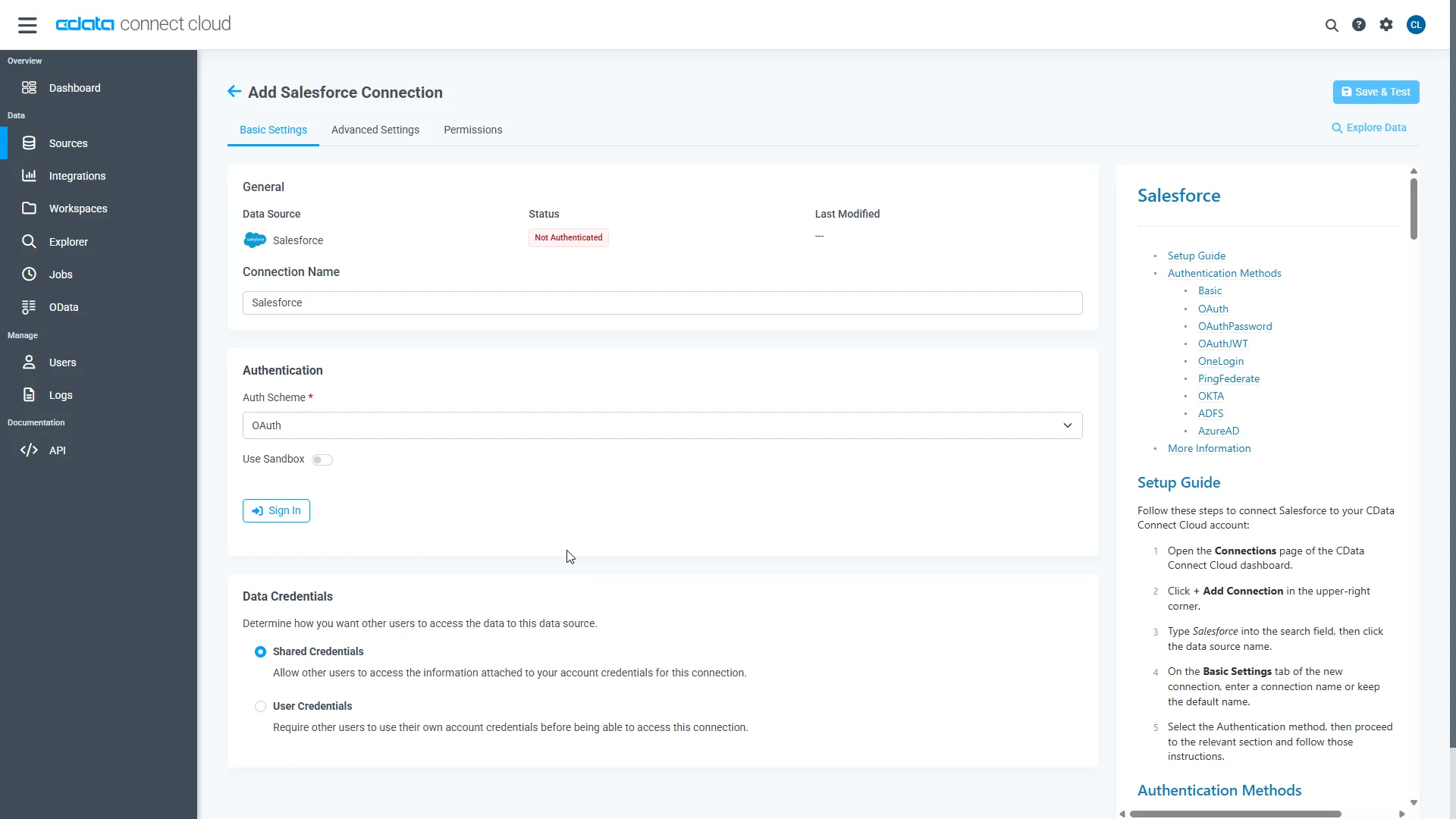
- Click Save & Test
-
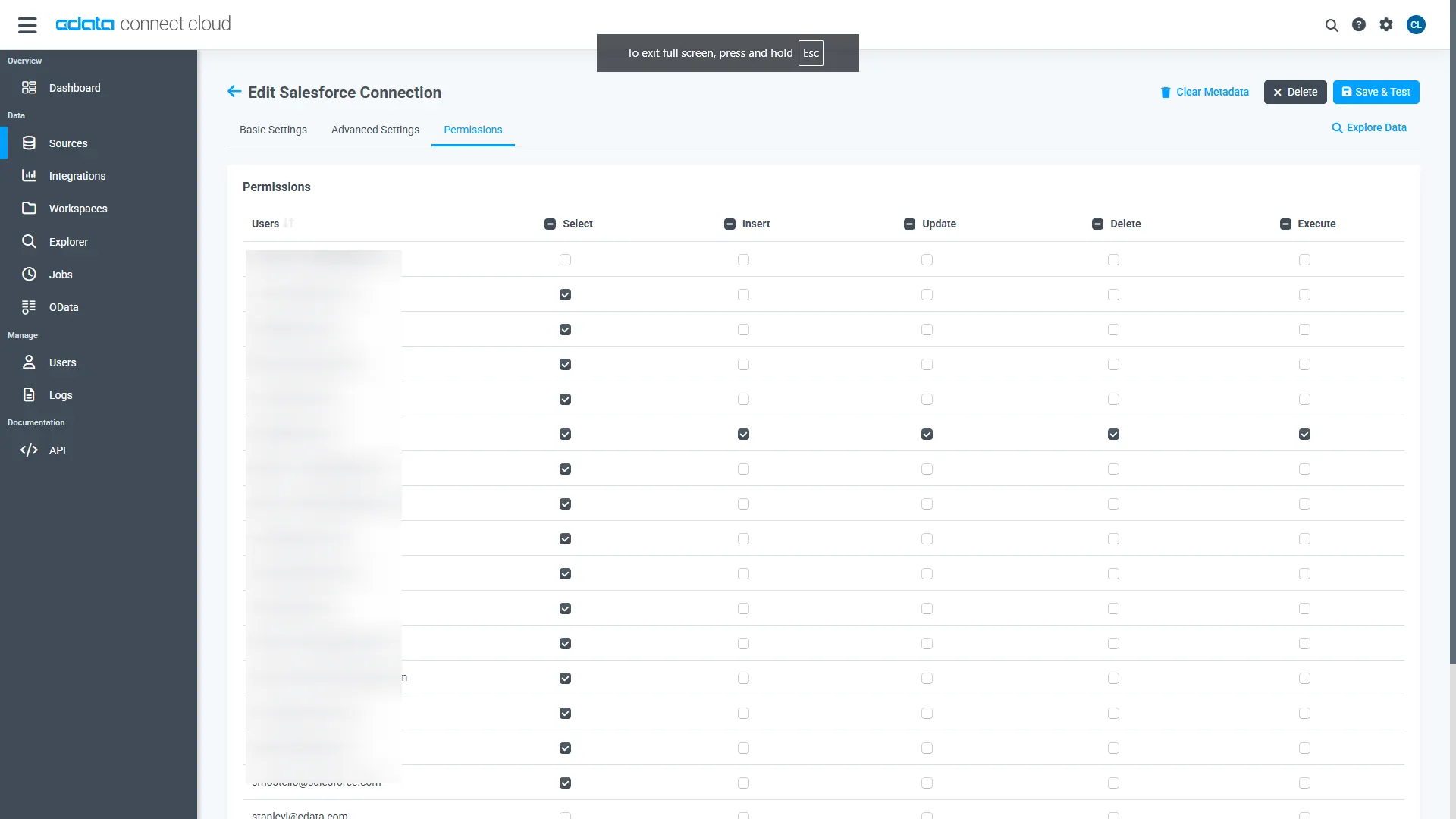
Navigate to the Permissions tab in the Add JD Edwards Connection page and update the User-based permissions.
With the connection configured, you are ready to connect to JD Edwards data from Power BI.
Query JD Edwards Tables
Follow the steps below to build a query to pull JD Edwards data into the report:
- Open Power BI Desktop and click Get Data -> Online Services -> CData Connect AI and click "Connect"
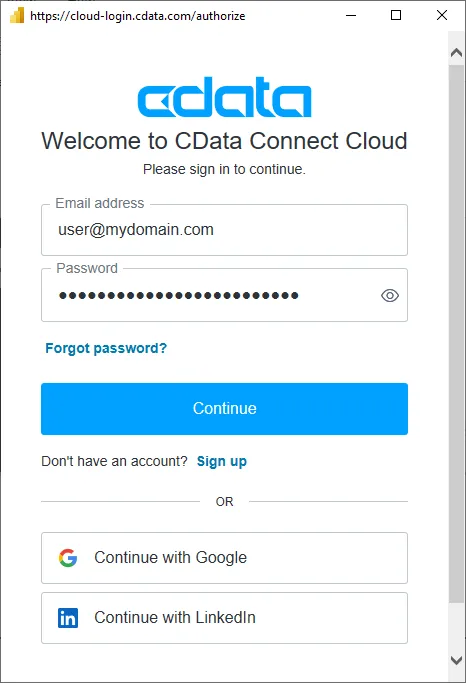
- Click "Sign in" and authenticate with your CData Connect AI account
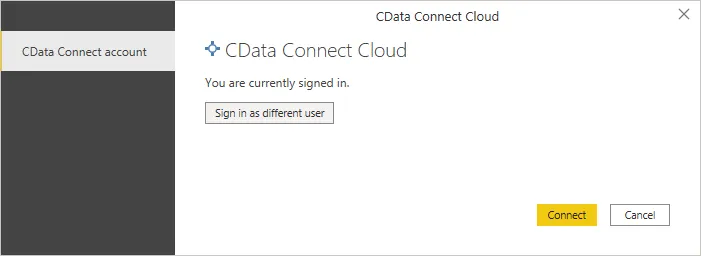
- After signing in, click "Connect"
- Select tables in the Navigator dialog
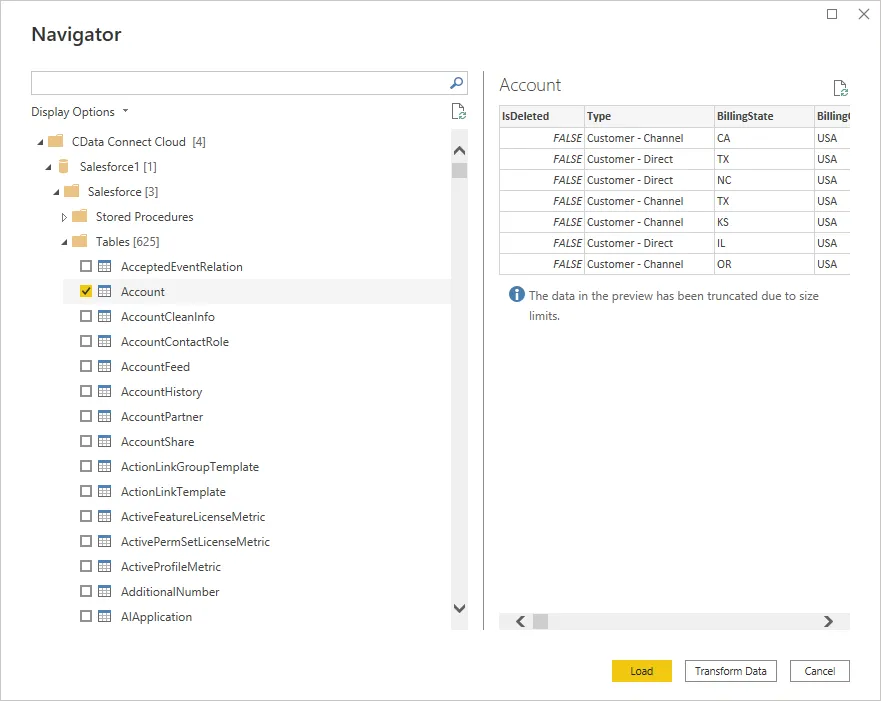
- Click Load to establish the connection to your JD Edwards data from Power BI
Create JD Edwards Data Visualizations
After connecting to the data into Power BI, you can create data visualizations in the Report view by dragging fields from the Fields pane onto the canvas. Select the dimensions and measures you wish to visualize along with the chart type.
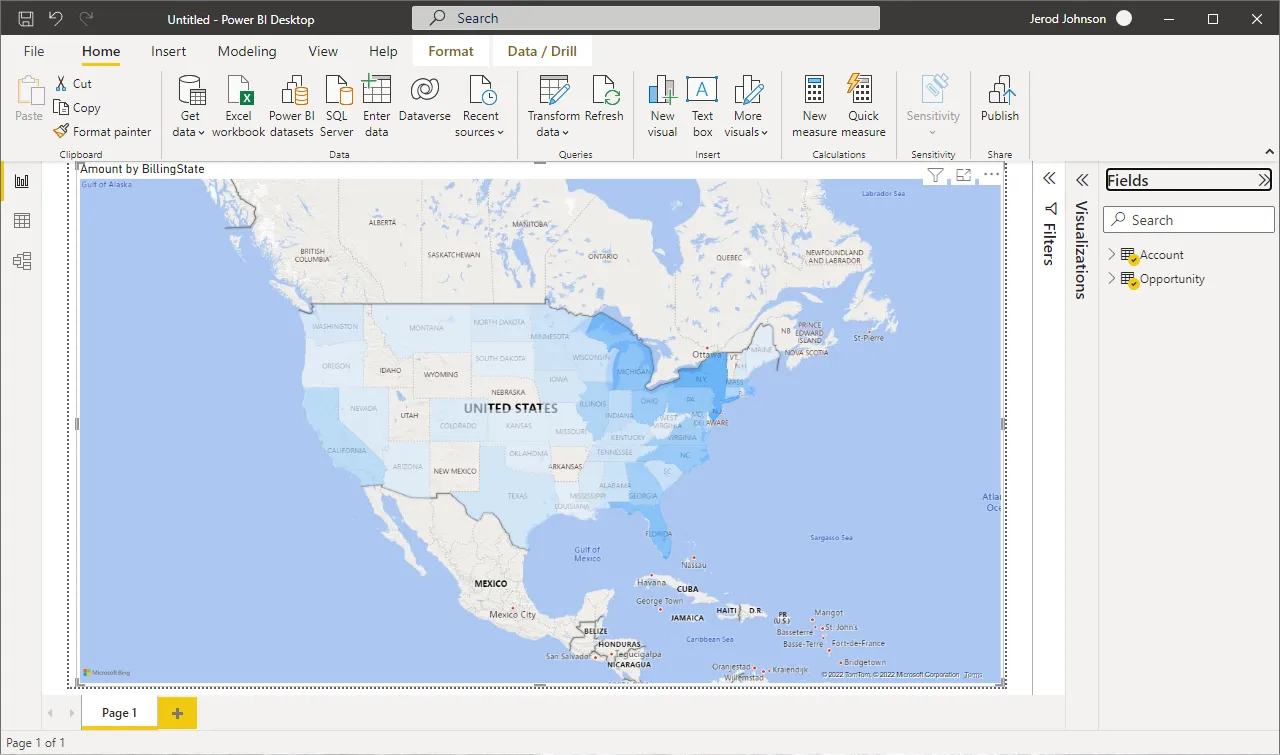
Click Refresh to synchronize your report with any changes to the data.
Live Access to JD Edwards Data from Data Applications
With CData Connect AI you have a direct connection to JD Edwards data from Power BI. You can import more data, create new visualizations, build reports, and more — all without replicating JD Edwards data.
To get SQL data access to hundreds of SaaS, Big Data, and NoSQL sources (including JD Edwards) directly from your on-premise BI, reporting, ETL and other data applications, visit the CData Connect AI page and start a free trial.