




Access Live JD Edwards Data in Coginiti Pro

Coginiti Pro is a single tool for all your SQL data and analytics needs, designed specifically for data engineers, analysts, and data scientists. When paired with the CData JDBC Driver for JD Edwards, Coginiti Pro can access and query live JD Edwards data. This article describes how to connect to and query JD Edwards data from Coginiti Pro.
With built-in optimized data processing, the CData JDBC Driver for JD Edwards offers unmatched performance for interacting with live JD Edwards data. When you issue complex SQL queries to JD Edwards, the driver pushes supported SQL operations, like filters and aggregations, directly to JD Edwards and utilizes the embedded SQL engine to process unsupported operations client-side (often SQL functions and JOIN operations). In addition, its built-in dynamic metadata querying allows you to work with and analyze JD Edwards data using native data types.
Gather Connection Properties and Build a Connection String
Download the CData JDBC Driver for JD Edwards installer, unzip the package, and run the JAR file to install the driver. Then gather the required connection properties.
The driver connects to JD Edwards through your Application Interface Services (AIS) Server. Set the following connection properties:
- URL: The base HTTPS URL of your AIS Server (e.g., https://jde-ais.example.com:8300).
- User: Your JD Edwards username.
- Password: Your JD Edwards password.
- Environment (optional): The JD Edwards environment to use (e.g., PD920 for production or DV920 for development). If not specified, the AIS Server's default environment is used.
- Role (optional): The JD Edwards role for the session. If not specified, the AIS Server's default role is used.
- DeviceName (optional): An identifier for the connecting device or application, used for auditing and logging on the AIS Server.
- Jasserver (optional): The specific Java Application Server (JAS) instance to route requests through, useful in clustered environments.
Choosing Which Data Is Exposed
JD Edwards organizes tables and business views by System Code, and the driver exposes each System Code as its own schema. Use these properties to control which schemas are available:
- DataModel: One or more ERP modules (comma-separated) whose System Codes are exposed as schemas, or All to expose every System Code in the connected instance. Defaults to FinancialManagement.
- SystemCodes: A comma-separated list of additional System Codes to expose alongside those from DataModel (e.g., 42,43).
When you connect, the driver sends your credentials to the AIS Server to obtain a session token and caches it. The driver requests a new token automatically before the session expires.
NOTE: To use the JDBC driver in Coginiti Pro, you may need a license (full or trial) and a Runtime Key (RTK). For more information on obtaining this license (or a trial), contact our sales team.
Built-in Connection String Designer
For assistance constructing the JDBC URL, use the connection string designer built into the JD Edwards JDBC Driver. Double-click the JAR file or execute the jar file from the command line.
java -jar cdata.jdbc.jdedwards.jar

Fill in the connection properties (including the RTK) and copy the connection string to the clipboard.
Create a JDBC Data Source for JD Edwards Data
- Open Coginiti Pro and in the File menu, select "Edit Drivers."
- In the newly opened wizard, click "Add" and select "Generic."
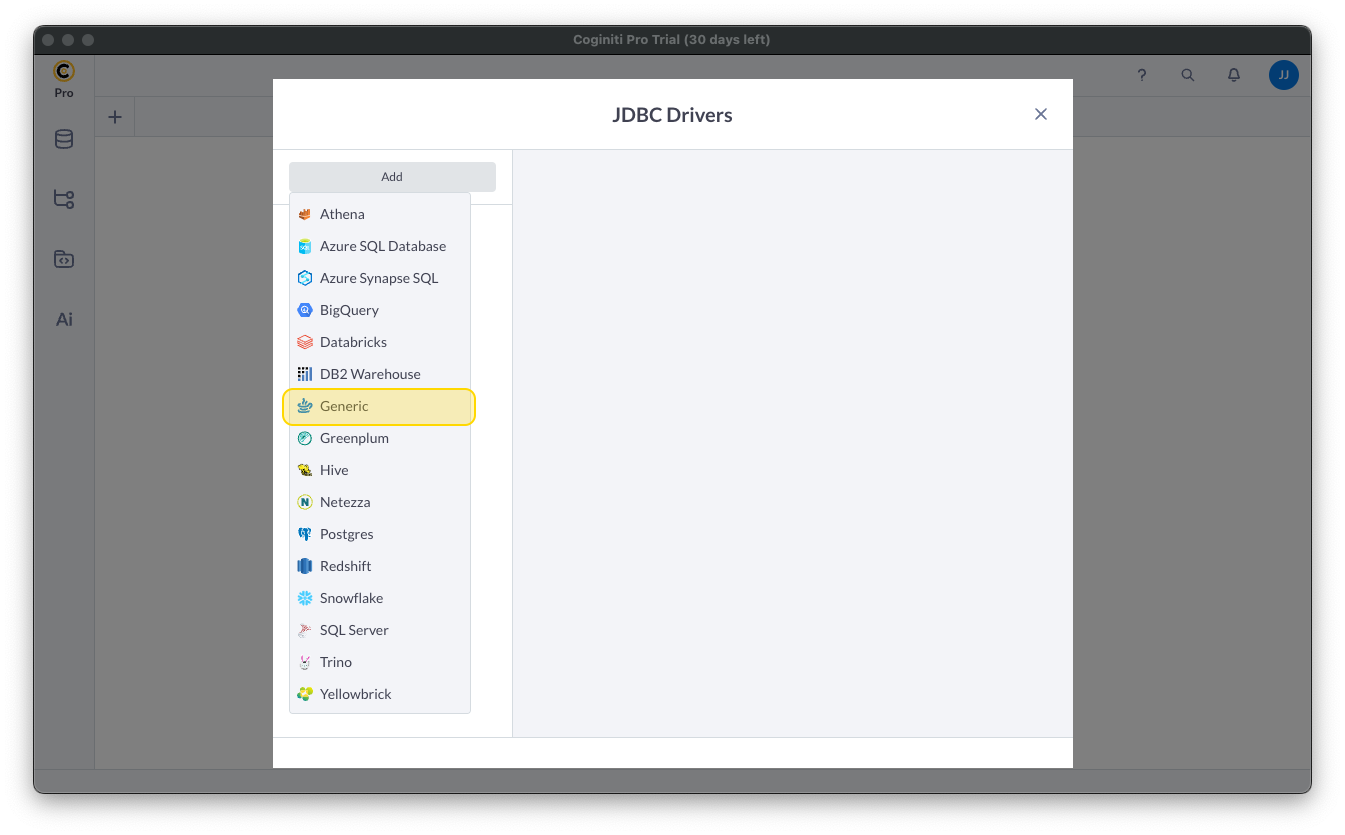
In the "JDBC Drivers" wizard, set the driver properties (below) and click "Create Driver."
- Set JDBC Driver Name to a useful name, like CData JDBC Driver for JD Edwards.
- Click "Add Files" to add the JAR file from the "lib" folder in the installation directory (e.g. cdata.jdbc.jdedwards.jar)
- Select the Class Name: cdata.jdbc.jdedwards.JDEdwardsDriver.
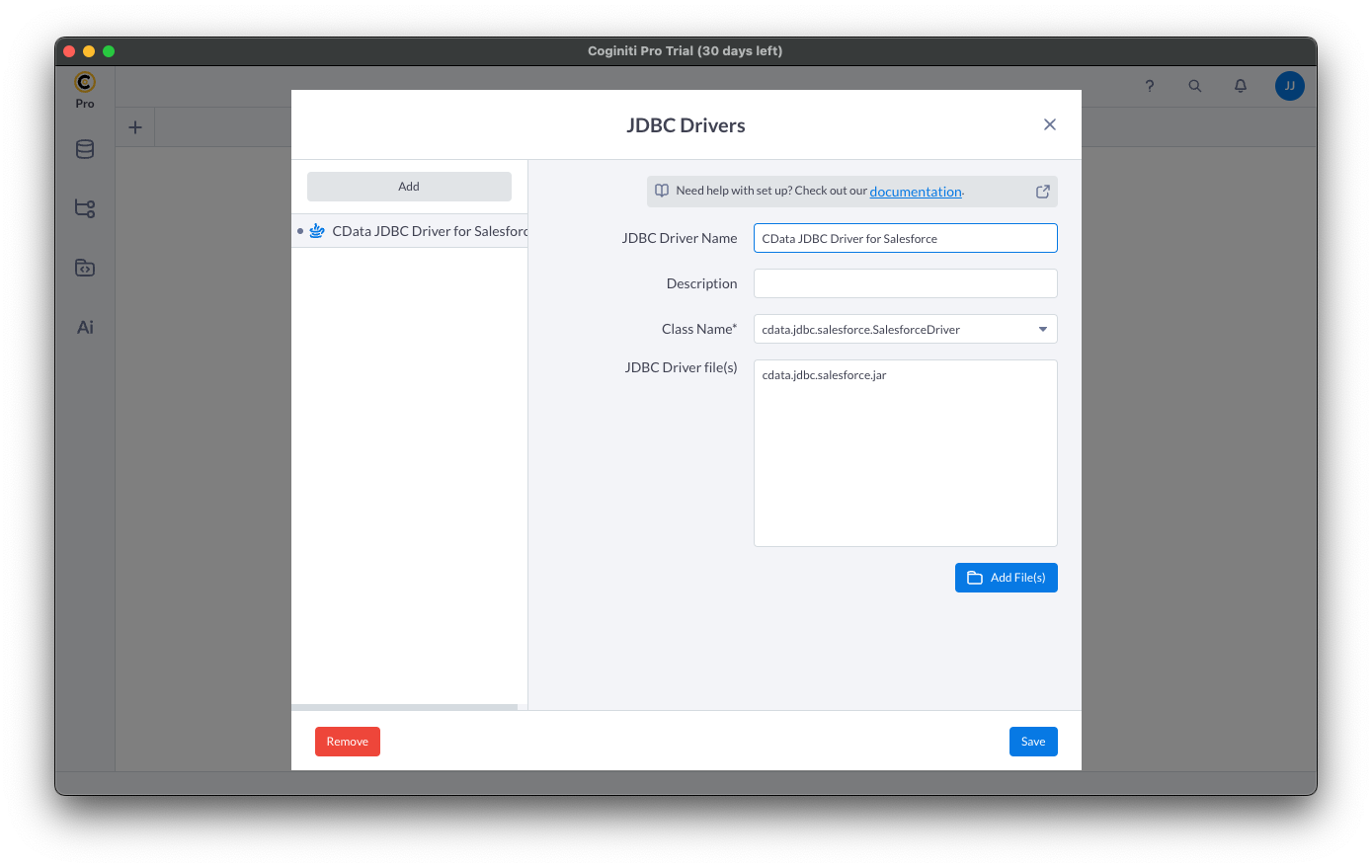
Create a Connection using the CData JDBC Driver for JD Edwards
- In the File menu, click "Edit Connections."
- In the newly opened wizard, click "Add" and select "Generic."
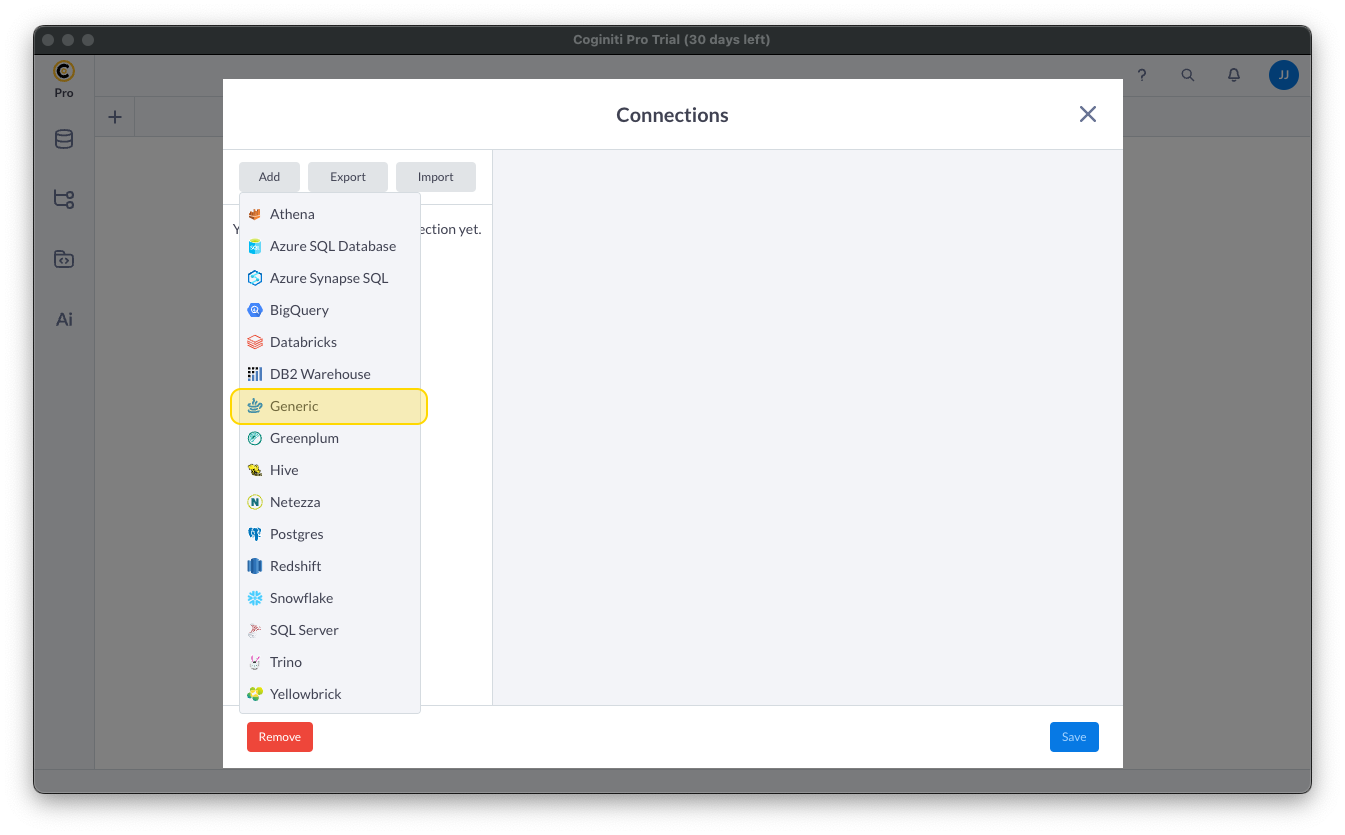
- In the "Connections" wizard, set the connection properties.
- Set Connection name to an identifying name.
- Set Database JDBC driver to the Driver you configured earlier.
- Set JDBC URL to the JDBC URL configured using the built-in connection string designer (e.g. jdbc:jdedwards:URL=https://your-jde-environment-app.example.com;User=admin;Password=myPassword;
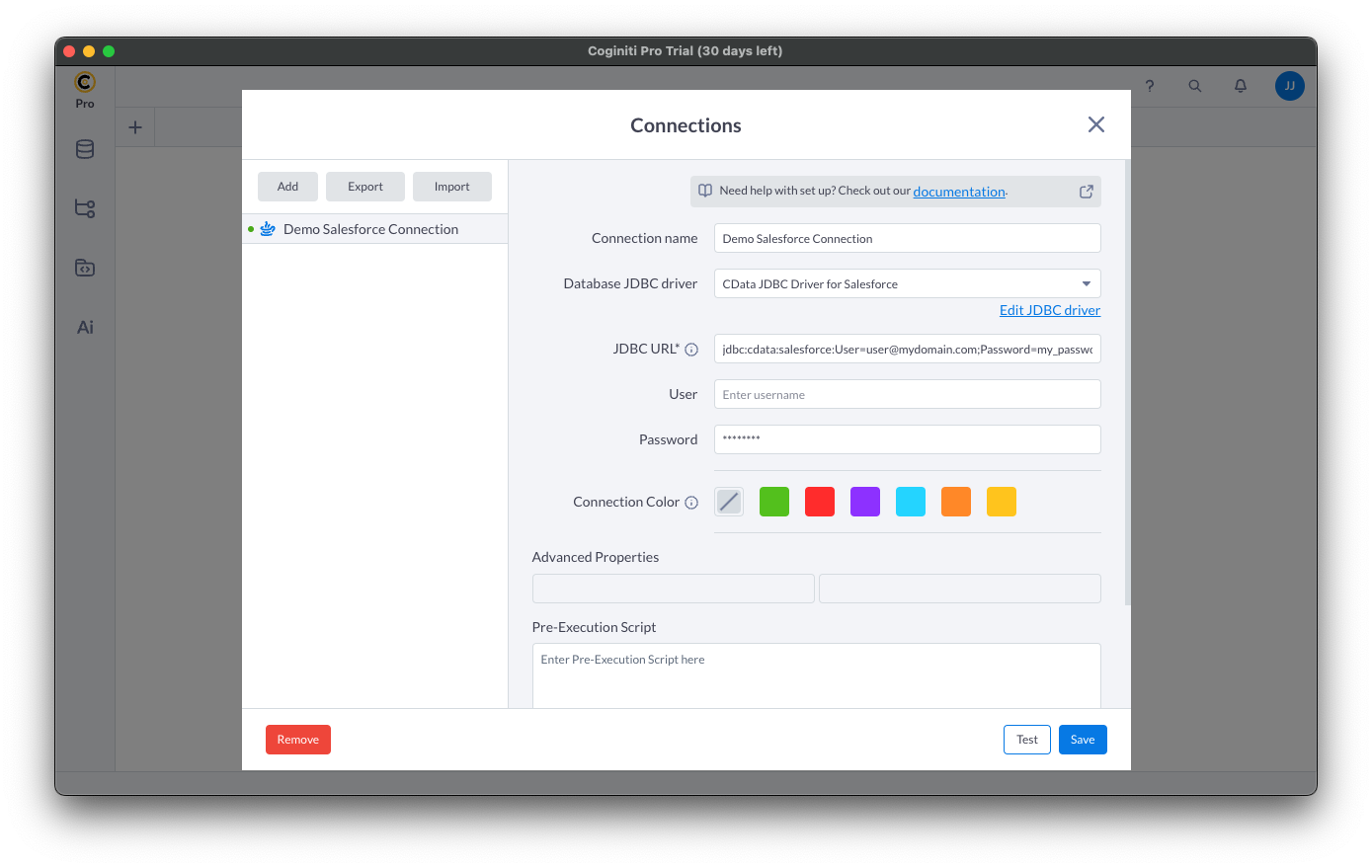
- Click "Test" to ensure the connection is configured properly. Click "Save."
Query JD Edwards Using SQL
- Open the Connections tab by clicking on database icon: .
- Click the plus sign () to add a new query tab.
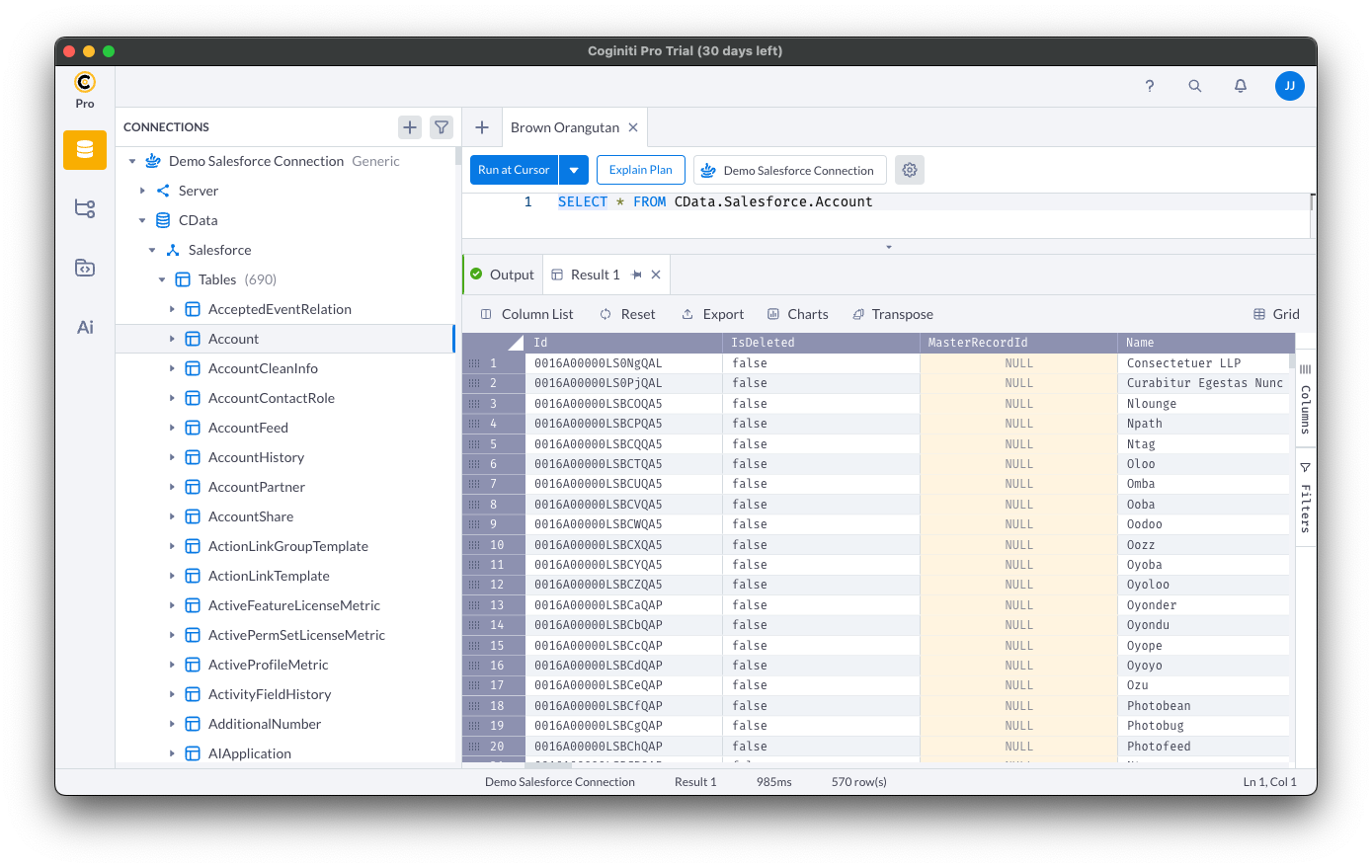
Once the query console is open, write the SQL script you wish to execute and click "Run at Cursor".
NOTE: You can use the explorer on the left to determine table/view names and column names.
Using the explorer
- In the "Select connection" field, select the connection you wish to query.
- Expand your newly created connection, expand the "CData" catalog, and expand the JD Edwards catalog.
- Expand "Tables" or "Views" to find the entity you wish to query.
- Expand your selected entity to explore the fields (columns).
Free Trial & More Information
Download a free, 30-day trial of the CData JDBC Driver for JD Edwards and start working with your live JD Edwards data in Coginiti Pro. Reach out to our Support Team if you have any questions.
Ready to get started?
Download a free trial of the JD Edwards Driver to get started:
Download NowLearn more:
 JD Edwards JDBC Driver
Rapidly create and deploy powerful Java applications that integrate with JD Edwards data including AccountLedger, ProposalofPayment, ContractRevenueSummary, EmployeeEnrollment, RentIncreaseAmounts, and more!