




Connect to JD Edwards Data as an External Source in Dremio

The CData JDBC Driver for JD Edwards implements JDBC Standards and allows various applications, including Dremio, to work with live JD Edwards data. Dremio is a data lakehouse platform designed to empower self-service, interactive analytics on the data lake. With the CData JDBC driver, you can include live JD Edwards data as a part of your enterprise data lake. This article describes how to connect to JD Edwards data from Dremio as an External Source.
The CData JDBC Driver enables high-speed access to live JD Edwards data in Dremio. Once you install the driver, authenticate with JD Edwards and gain immediate access to JD Edwards data within your data lake. By surfacing JD Edwards data using native data types and handling complex filters, aggregations, & other operations automatically, the CData JDBC Driver grants seamless access to JD Edwards data.
Prerequisites
This article assumes you are utilizing Docker to run Dremio. You can create a Docker container with the Dremio service using a command similar to the follow:
docker run -d --name dremio -p 9047:9047 -p 31010:31010 dremio/dremio-oss
Where dremio is the name of the container, 9047 is the container's port for the Dremio web interface and 31010 is the port that maps to the Dremio query service. dremio/dremio-oss specifies the image to use.
Build the ARP Connector
To use the CData JDBC Driver in Dremio, you need to build an Advanced Relation Pushdown (ARP) Connector. You can view the source code for the Connector on GitHub or download the ZIP file (GitHub.com) directly. Once you copy or extract the files, run the following command from the root directory of the connector (the directory containing the pom.xml file) to build the connector.
mvn clean install
NOTE: The CData ARP Connectors are build to be compiled with Java 11. Be sure to install Java 11 and use the correct version. You can update your Java version using a command similar to the following:
sudo update-alternatives --config java
Once the JAR file for the connector is built (in the target directory), you are ready to copy the ARP connector and JDBC Driver to your Dremio instance.
Installing the Connector and JDBC Driver
Install the ARP Connector to %DREMIO_HOME%/jars/ and the JDBC Driver for JD Edwards to %DREMIO_HOME%/jars/3rdparty. You can use commands similar to the following:
ARP Connector
docker cp PATH\TO\dremio-jdedwards-plugin-{DREMIO_VERSION}.jar dremio_image_name:/opt/dremio/jars/
JDBC Driver for JD Edwards
docker cp PATH\TO\cdata.jdbc.jdedwards.jar dremio_image_name:/opt/dremio/jars/3rdparty/
Connecting to JD Edwards
JD Edwards will now appear as an External Source option in Dremio. The ARP Connector built uses a JDBC URL to connect to JD Edwards data. The JDBC Driver has a built-in connection string designer that you can use (see below).
Built-in Connection String Designer
For assistance in constructing the JDBC URL, use the connection string designer built into the JD Edwards JDBC Driver. Double-click the JAR file or execute the jar file from the command line.
java -jar cdata.jdbc.jdedwards.jar
Fill in the connection properties and copy the connection string to the clipboard.
The driver connects to JD Edwards through your Application Interface Services (AIS) Server. Set the following connection properties:
- URL: The base HTTPS URL of your AIS Server (e.g., https://jde-ais.example.com:8300).
- User: Your JD Edwards username.
- Password: Your JD Edwards password.
- Environment (optional): The JD Edwards environment to use (e.g., PD920 for production or DV920 for development). If not specified, the AIS Server's default environment is used.
- Role (optional): The JD Edwards role for the session. If not specified, the AIS Server's default role is used.
- DeviceName (optional): An identifier for the connecting device or application, used for auditing and logging on the AIS Server.
- Jasserver (optional): The specific Java Application Server (JAS) instance to route requests through, useful in clustered environments.
Choosing Which Data Is Exposed
JD Edwards organizes tables and business views by System Code, and the driver exposes each System Code as its own schema. Use these properties to control which schemas are available:
- DataModel: One or more ERP modules (comma-separated) whose System Codes are exposed as schemas, or All to expose every System Code in the connected instance. Defaults to FinancialManagement.
- SystemCodes: A comma-separated list of additional System Codes to expose alongside those from DataModel (e.g., 42,43).
When you connect, the driver sends your credentials to the AIS Server to obtain a session token and caches it. The driver requests a new token automatically before the session expires.

NOTE: To use the JDBC Driver in Dremio, you will need a license (full or trial) and a Runtime Key (RTK). For more information on obtaining this license (or a trial), contact our sales team.
Add the Runtime Key (RTK) to the JDBC URL. You will end up with a JDBC URL similar to the following:
jdbc:jdedwards:RTK=5246...;URL=https://your-jde-environment-app.example.com;User=admin;Password=myPassword;
Access JD Edwards as an External Source
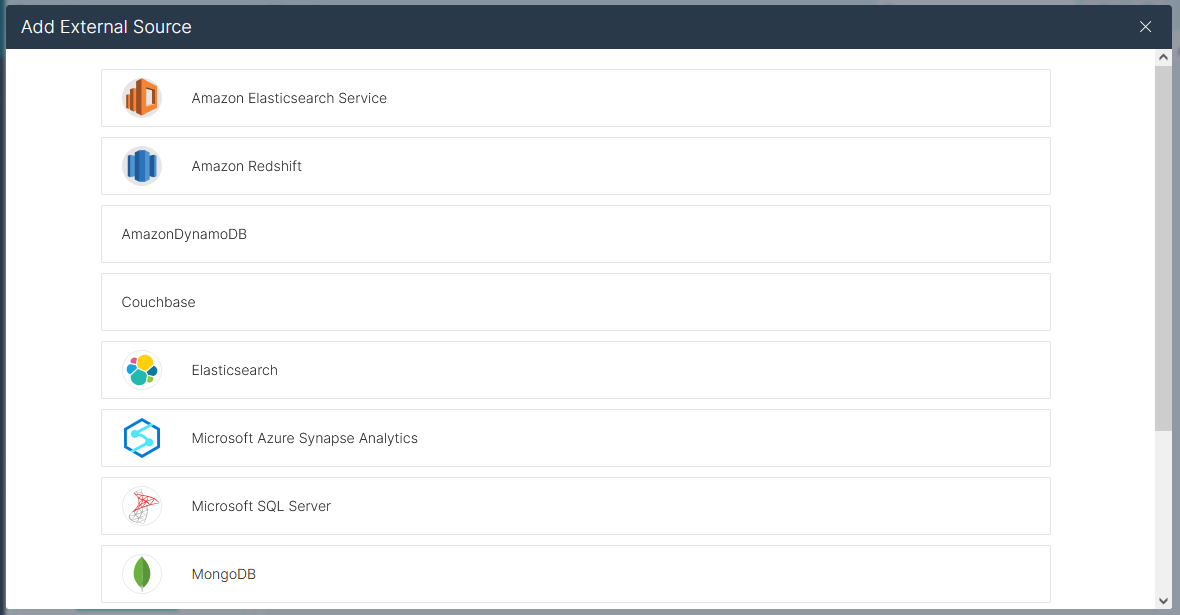
To add JD Edwards as an External Source, click to add a new source and select JDEdwards. Copy the JDBC URL and paste it into the New JDEdwards Source wizard.
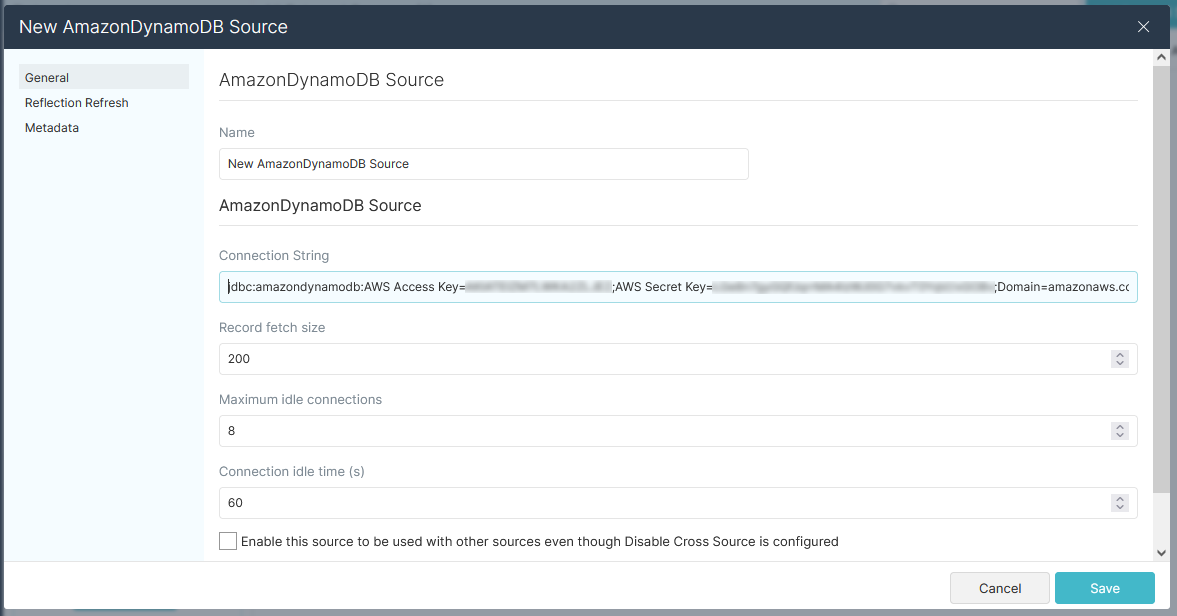
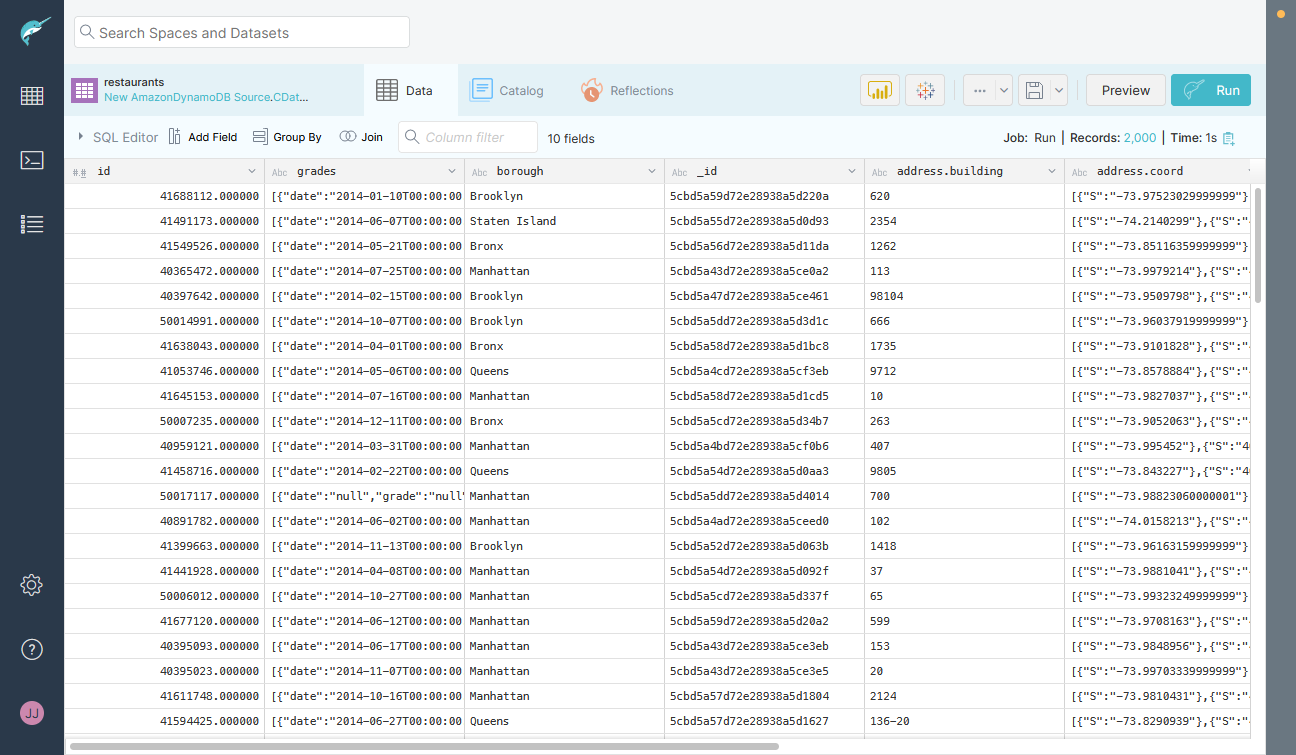
Save the connection and you are ready to query live JD Edwards data in Dremio, easily incorporating JD Edwards data into your data lake.
More Information & Free Trial
Using the CData JDBC Driver for JD Edwards in Dremio, you can incorporate live JD Edwards data into your data lake. Check out our CData JDBC Driver for JD Edwards page for more information about connecting to JD Edwards. Download a free, 30 day trial of the CData JDBC Driver for JD Edwards and get started today.
Ready to get started?
Download a free trial of the JD Edwards Driver to get started:
Download NowLearn more:
 JD Edwards JDBC Driver
Rapidly create and deploy powerful Java applications that integrate with JD Edwards data including AccountLedger, ProposalofPayment, ContractRevenueSummary, EmployeeEnrollment, RentIncreaseAmounts, and more!