




How to load JD Edwards data into Elasticsearch via Logstash

Elasticsearch is a popular distributed full-text search engine. By centrally storing data, you can perform ultra-fast searches, fine-tuning relevance, and powerful analytics with ease. Elasticsearch has a pipeline tool for loading data called "Logstash". You can use CData JDBC Drivers to easily import data from any data source into Elasticsearch for search and analysis.
This article explains how to use the CData JDBC Driver for JD Edwards to load data from JD Edwards into Elasticsearch via Logstash.
Using CData JDBC Driver for JD Edwards with Elasticsearch Logstash
- Install the CData JDBC Driver for JD Edwards on the machine where Logstash is running.
-
The JDBC Driver will be installed at the following path (the year part, e.g. 20XX, will vary depending on the product version you are using). You will use this path later. Place this .jar file (and the .lic file if it's a licensed version) in Logstash.
C:\Program Files\CData\CData JDBC Driver for JDEdwards 20XX\lib\cdata.jdbc.jdedwards.jar
- Next, install the JDBC Input Plugin, which connects Logstash to the CData JDBC driver. The JDBC Plugin comes by default with the latest version of Logstash, but depending on the version, you may need to add it.
https://www.elastic.co/guide/en/logstash/5.4/plugins-inputs-jdbc.html - Move the CData JDBC Driver’s .jar file and .lic file to Logstash's "/logstash-core/lib/jars/".
Sending JD Edwards data to Elasticsearch with Logstash
Now, let's create a configuration file for Logstash to transfer JD Edwards data to Elasticsearch.
- Write the process to retrieve JD Edwards data in the logstash.conf file, which defines data processing in Logstash. The input will be JDBC, and the output will be Elasticsearch. The data loading job is set to run at 30-second intervals.
- Set the CData JDBC Driver's .jar file as the JDBC driver library, configure the class name, and set the connection properties to JD Edwards in the form of a JDBC URL. The JDBC URL allows detailed configuration, so please refer to the product documentation for more specifics.
- URL: The base HTTPS URL of your AIS Server (e.g., https://jde-ais.example.com:8300).
- User: Your JD Edwards username.
- Password: Your JD Edwards password.
- Environment (optional): The JD Edwards environment to use (e.g., PD920 for production or DV920 for development). If not specified, the AIS Server's default environment is used.
- Role (optional): The JD Edwards role for the session. If not specified, the AIS Server's default role is used.
- DeviceName (optional): An identifier for the connecting device or application, used for auditing and logging on the AIS Server.
- Jasserver (optional): The specific Java Application Server (JAS) instance to route requests through, useful in clustered environments.
- DataModel: One or more ERP modules (comma-separated) whose System Codes are exposed as schemas, or All to expose every System Code in the connected instance. Defaults to FinancialManagement.
- SystemCodes: A comma-separated list of additional System Codes to expose alongside those from DataModel (e.g., 42,43).
The driver connects to JD Edwards through your Application Interface Services (AIS) Server. Set the following connection properties:
Choosing Which Data Is Exposed
JD Edwards organizes tables and business views by System Code, and the driver exposes each System Code as its own schema. Use these properties to control which schemas are available:
When you connect, the driver sends your credentials to the AIS Server to obtain a session token and caches it. The driver requests a new token automatically before the session expires.
Executing data movement with Logstash
Now let's run Logstash using the created "logstash.conf" file.
logstash-7.8.0\bin\logstash -f logstash.conf
A log indicating success will appear. This means the JD Edwards data has been loaded into Elasticsearch.
For example, let's view the data transferred to Elasticsearch in Kibana.
    GET jdedwards_table/_search
    {
        "query": {
            "match_all": {}
        }
    }
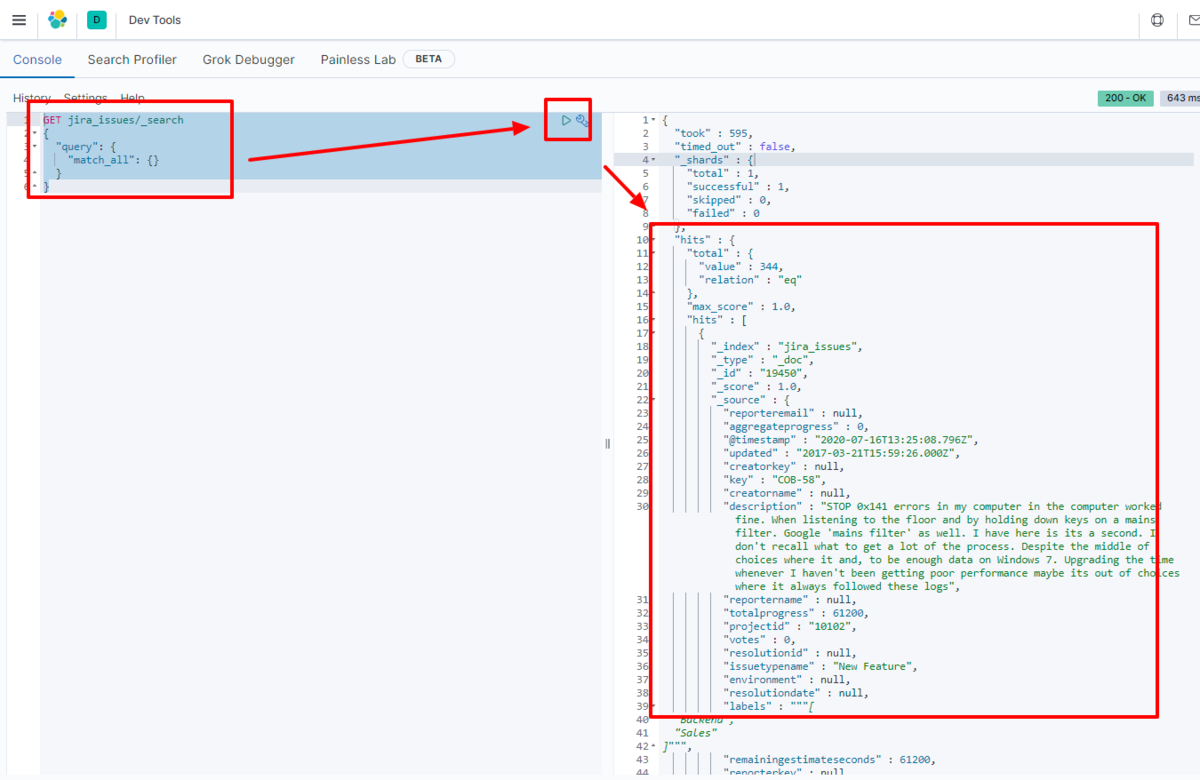
We have confirmed that the data is stored in Elasticsearch.
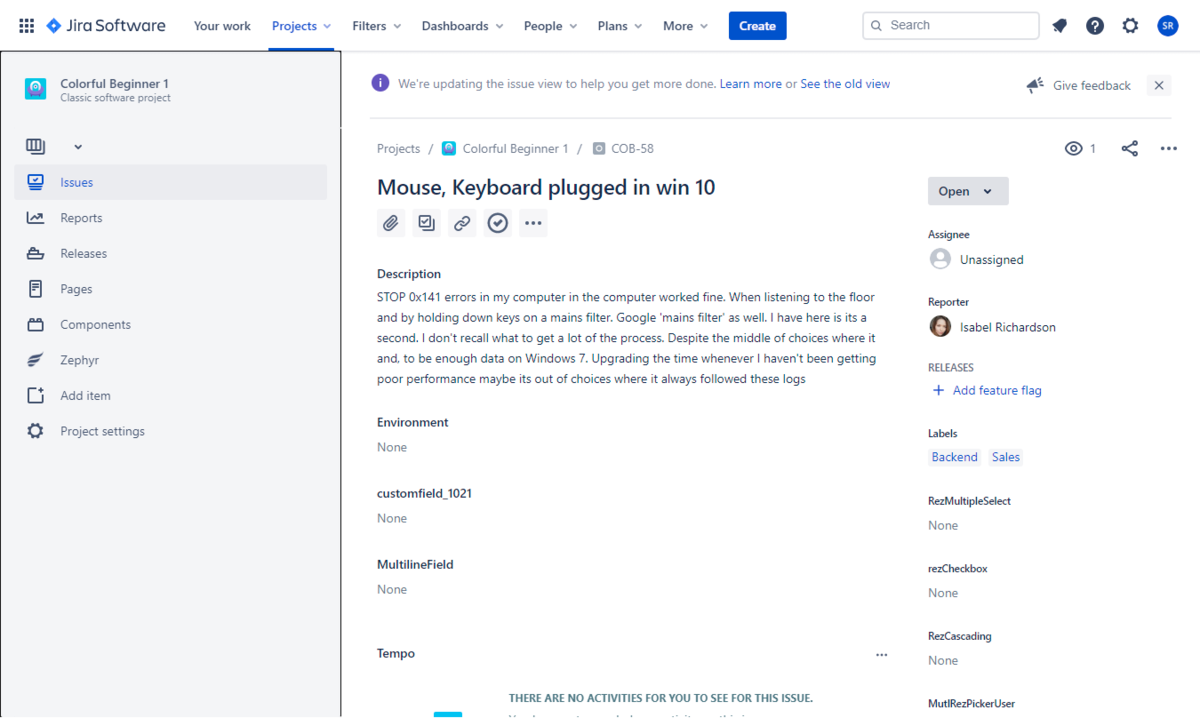
By using the CData JDBC Driver for JD Edwards with Logstash, it functions as a JD Edwards connector, making it easy to load data into Elasticsearch. Please try the 30-day free trial.
Ready to get started?
Download a free trial of the JD Edwards Driver to get started:
Download NowLearn more:
 JD Edwards JDBC Driver
Rapidly create and deploy powerful Java applications that integrate with JD Edwards data including AccountLedger, ProposalofPayment, ContractRevenueSummary, EmployeeEnrollment, RentIncreaseAmounts, and more!