





How to Connect to & Open JD Edwards Data in Microsoft Excel

The CData ODBC driver for JD Edwards uses the standard ODBC interface to link JD Edwards data with applications like Microsoft Access and Excel. Follow the steps below to use Microsoft Query to import JD Edwards data into a spreadsheet and provide values to a parameterized query from cells in a spreadsheet.
If you have not already, first specify connection properties in an ODBC DSN (data source name). This is the last step of the driver installation. You can use the Microsoft ODBC Data Source Administrator to create and configure ODBC DSNs.
The driver connects to JD Edwards through your Application Interface Services (AIS) Server. Set the following connection properties:
- URL: The base HTTPS URL of your AIS Server (e.g., https://jde-ais.example.com:8300).
- User: Your JD Edwards username.
- Password: Your JD Edwards password.
- Environment (optional): The JD Edwards environment to use (e.g., PD920 for production or DV920 for development). If not specified, the AIS Server's default environment is used.
- Role (optional): The JD Edwards role for the session. If not specified, the AIS Server's default role is used.
- DeviceName (optional): An identifier for the connecting device or application, used for auditing and logging on the AIS Server.
- Jasserver (optional): The specific Java Application Server (JAS) instance to route requests through, useful in clustered environments.
Choosing Which Data Is Exposed
JD Edwards organizes tables and business views by System Code, and the driver exposes each System Code as its own schema. Use these properties to control which schemas are available:
- DataModel: One or more ERP modules (comma-separated) whose System Codes are exposed as schemas, or All to expose every System Code in the connected instance. Defaults to FinancialManagement.
- SystemCodes: A comma-separated list of additional System Codes to expose alongside those from DataModel (e.g., 42,43).
When you connect, the driver sends your credentials to the AIS Server to obtain a session token and caches it. The driver requests a new token automatically before the session expires.
You can then work with live JD Edwards data in Excel.
NOTE: In recent versions of Excel, Microsoft Query is not visible by default. To enable visibility, Navigate to Options > Data and check From Microsoft Query (Legacy) under the Show legacy data import wizards section.
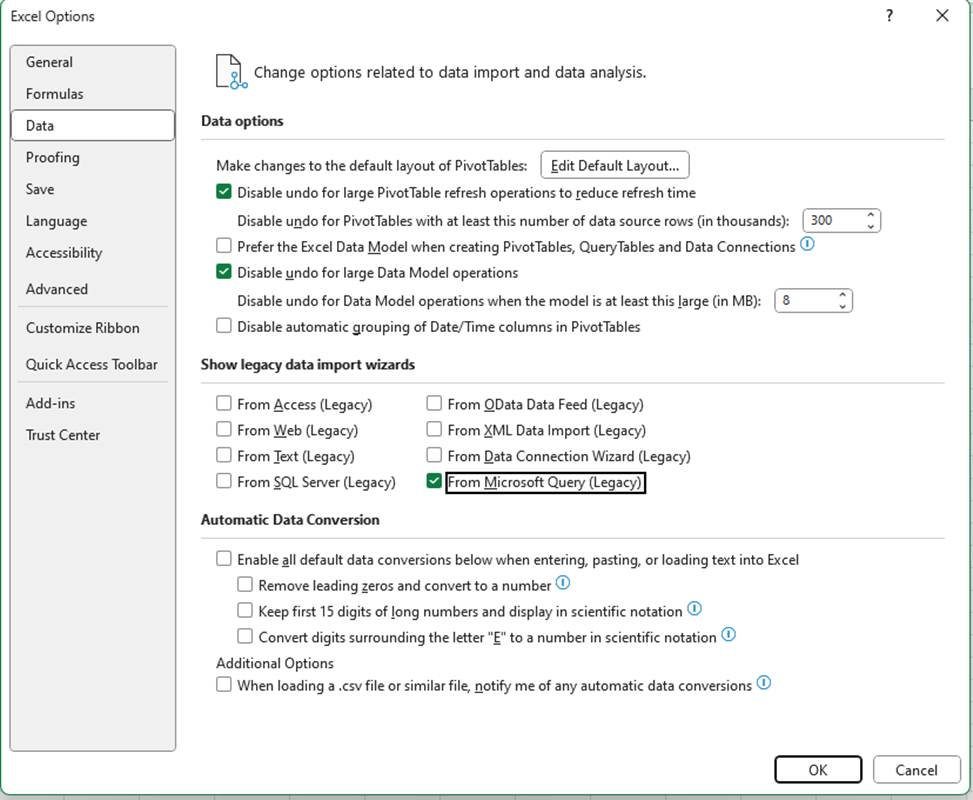
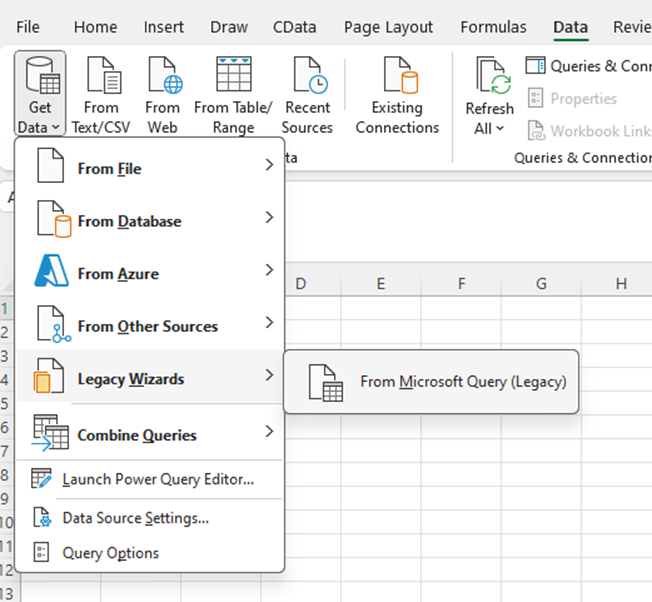
- In Excel, open the Data tab and choose Get Data -> Legacy Wizards -> From Microsoft Query (Legacy).
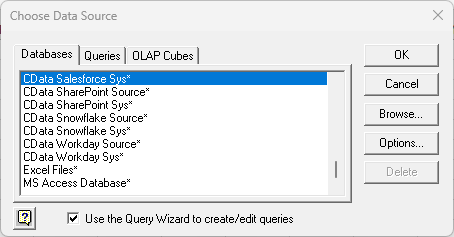
- Choose the JDEdwards DSN. Select the option to use Query Wizard to create/edit queries.
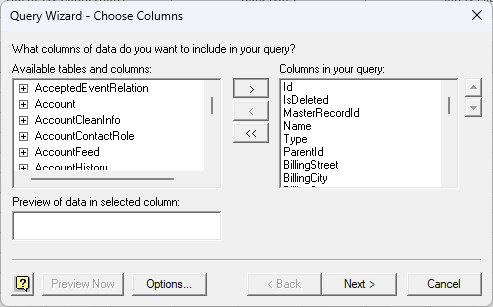
- In the Query Wizard, expand the node for the table you would like to import into your spreadsheet. Select the columns you want to import and click the arrow to add them to your query. Alternatively, select the table name to add all columns for that table.
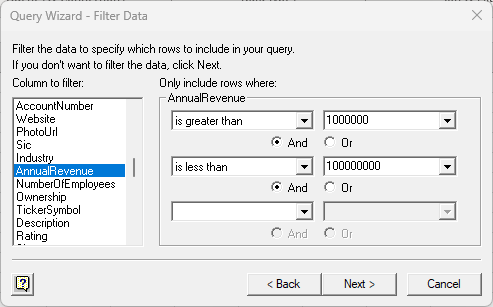
- The Filter Data page allows you to specify criteria. For example, you can limit results by setting a date range.
- If you want to use parameters in your query, select the option to edit the query in Microsoft Query.
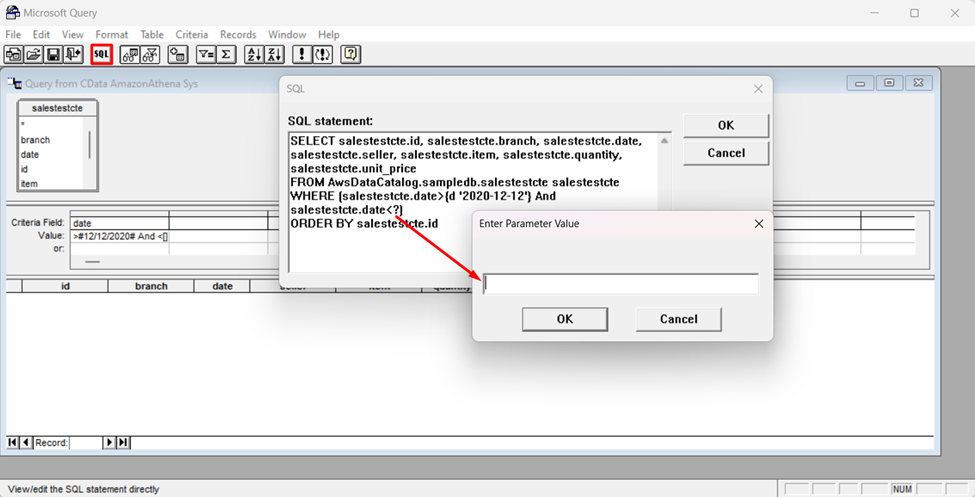
To set a parameter in the query, you will need to modify the SQL statement directly. To do this, click the SQL button in the Query Editor. If you set filter criteria earlier, you should have a WHERE clause already in the query.
To use a parameter, use a "?" character as the wildcard character for a field's value in the WHERE clause. For example, if you are importing the AccountsPayable.AccountLedger, you can set "BusinessUnit=?".
- Close the SQL dialog when you are finished editing the SQL statement. You will be prompted to enter a parameter value. In the next step, you will select a cell to provide this value. So, leave the box in the dialog blank.
-
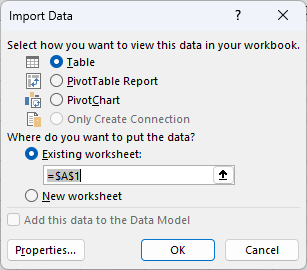
Click File -> Return Data to Microsoft Excel. The Import Data dialog is displayed. Enter a cell where results should be imported.
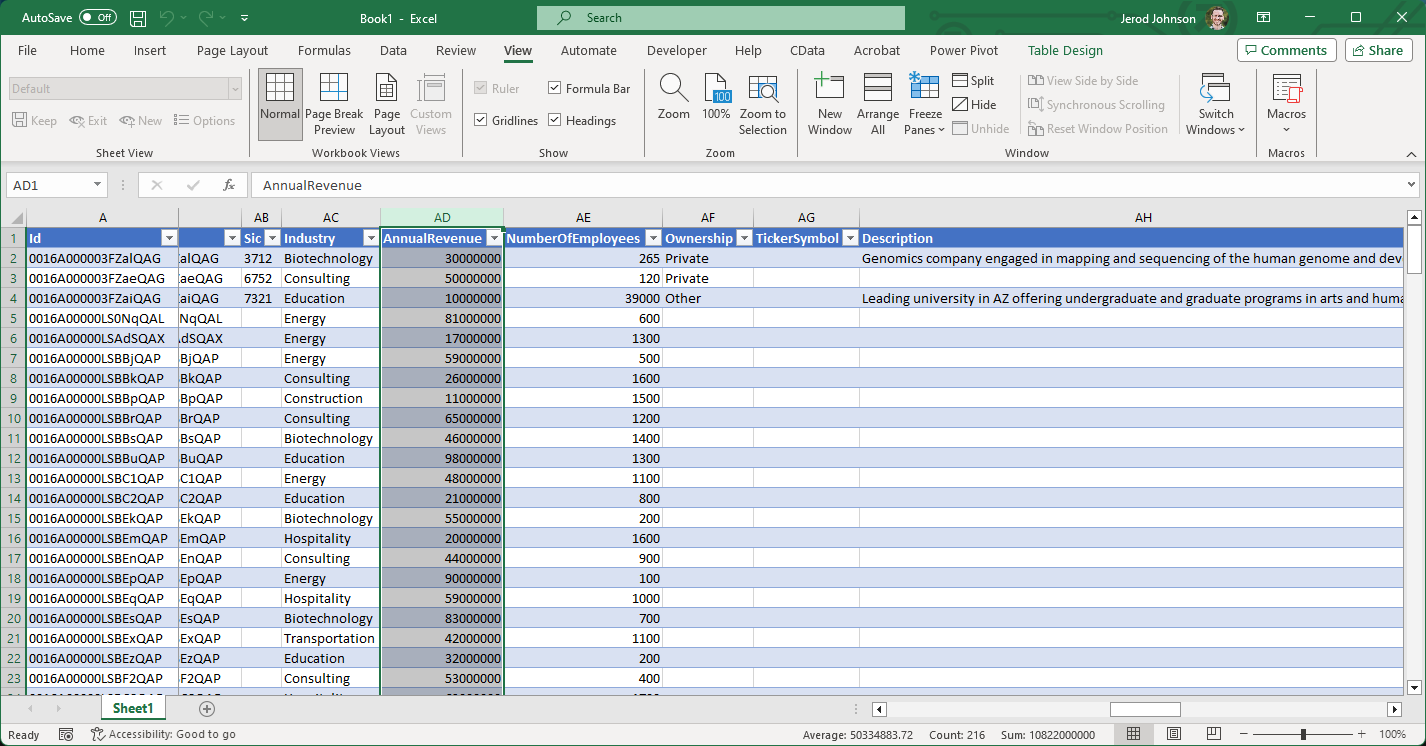
- Close the Import Data dialog. You will be prompted to enter a parameter value. Click the button next to the parameter box to select a cell. Select the option to automatically refresh the spreadsheet when the value changes.
Ready to get started?
Download a free trial of the JD Edwards ODBC Driver to get started:
Download NowLearn more:
 JD Edwards ODBC Driver
The JD Edwards ODBC Driver is a powerful tool that allows you to connect with live data from JD Edwards, directly from any applications that support ODBC connectivity.
Access JD Edwards data like you would a database - read JD Edwards AccountLedger, ProposalofPayment, ContractRevenueSummary, EmployeeEnrollment, RentIncreaseAmounts, etc. through a standard ODBC Driver interface.