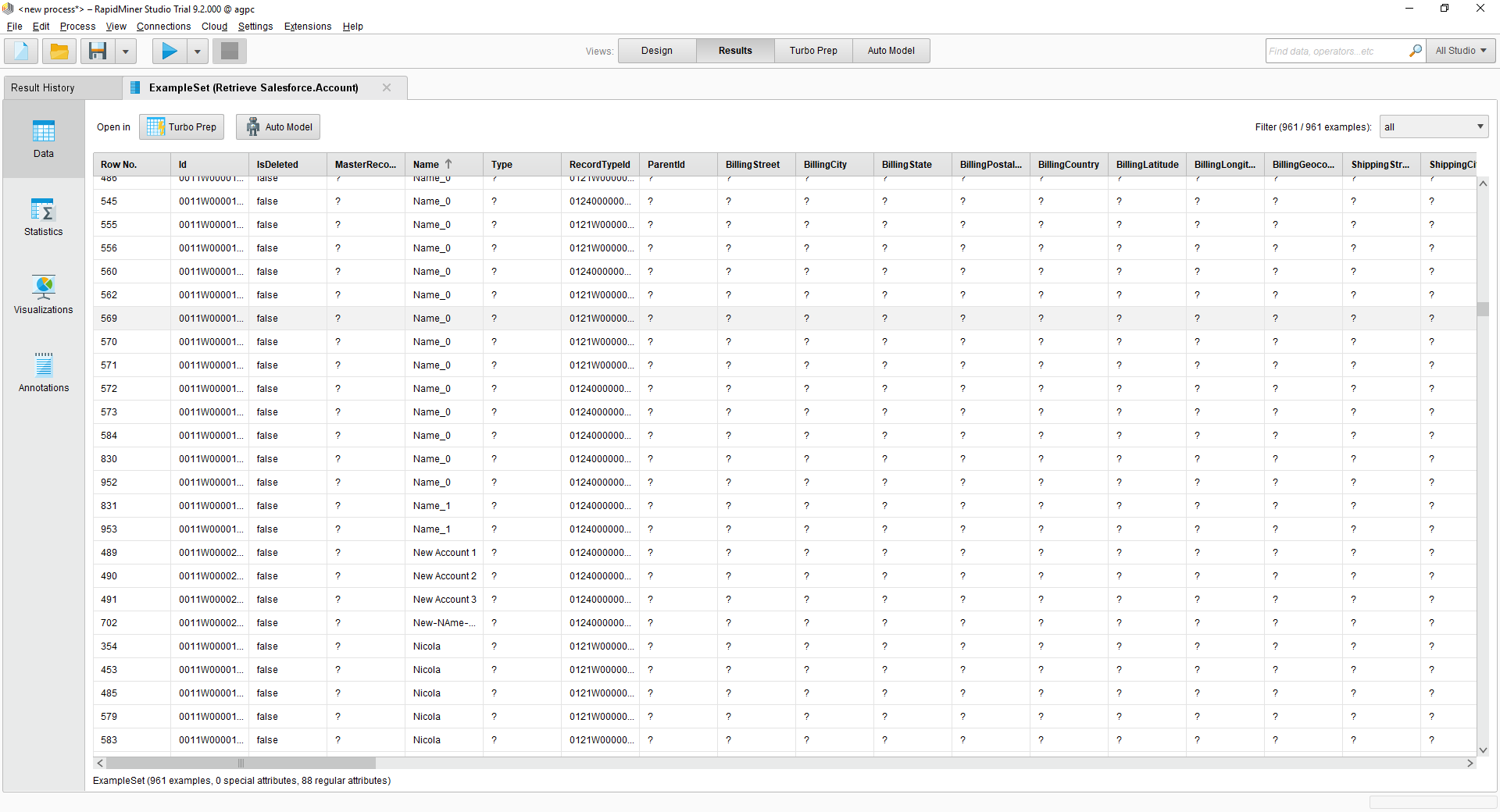
Connect to JobNimbus Data in RapidMiner

This article shows how you can easily integrate the CData JDBC driver for JobNimbus into your processes in RapidMiner. This article uses the CData JDBC Driver for JobNimbus to transfer JobNimbus data to a process in RapidMiner.
Connect to JobNimbus in RapidMiner as a JDBC Data Source
You can follow the procedure below to establish a JDBC connection to JobNimbus:
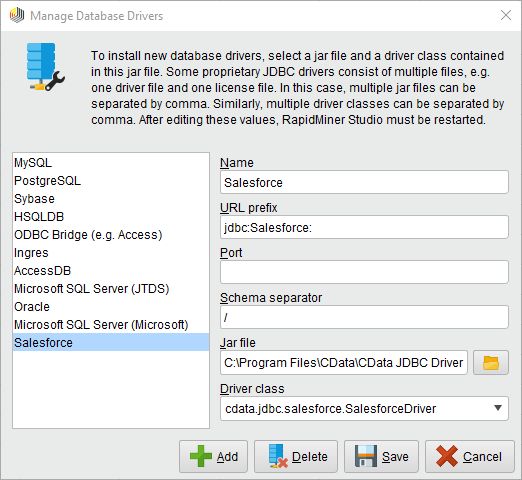
- Add a new database driver for JobNimbus: Click Connections -> Manage Database Drivers.
- In the resulting wizard, click the Add button and enter a name for the connection.
- Enter the prefix for the JDBC URL:
jdbc:api:
- Enter the path to the cdata.jdbc.api.jar file, located in the lib subfolder of the installation directory.
- Enter the driver class:
cdata.jdbc.api.APIDriver
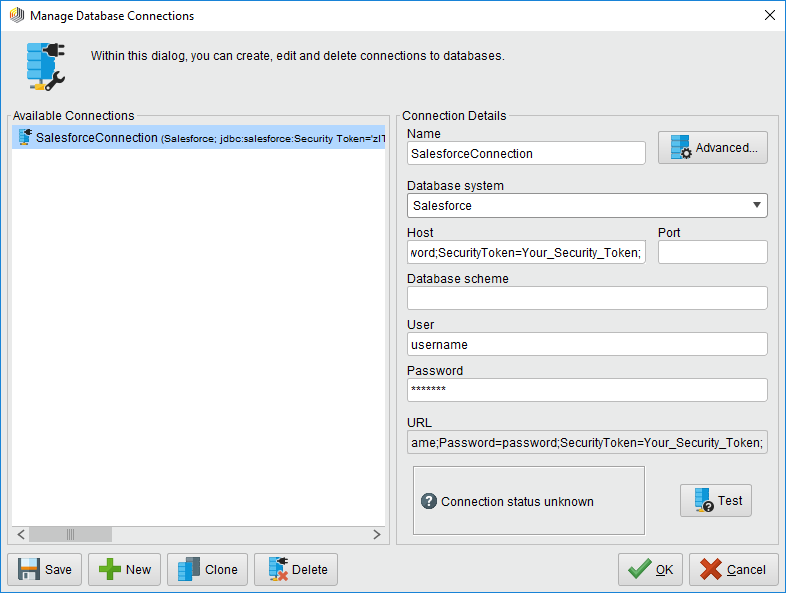
- Create a new JobNimbus connection: Click Connections -> Manage Database Connections.
- Enter a name for your connection.
- For Database System, select the JobNimbus driver you configured previously.
- Enter your connection string in the Host box.
Using API Key Authentication
JobNimbus uses API key authentication to control access to the API. To obtain a JobNimbus API key:
- Log in to your JobNimbus account.
- Navigate to Settings > Integrations > API.
- Generate or copy your existing API key from this page.
After obtaining your API key, set the following connection properties:
- AuthScheme: Set this to APIKey.
- APIKey: Set this to your JobNimbus API key.
Example Connection String
Profile=C:\profiles\JobNimbus.apip;AuthScheme=APIKey;ProfileSettings='APIKey=my_api_key';
Built-in Connection String Designer
For assistance in constructing the JDBC URL, use the connection string designer built into the JobNimbus JDBC Driver. Either double-click the JAR file or execute the jar file from the command-line.
java -jar cdata.jdbc.api.jar
Fill in the connection properties and copy the connection string to the clipboard.

A typical connection string is below:
Profile=C:\profiles\JobNimbus.apip;AuthScheme=APIKey;ProfileSettings='APIKey=my_api_key';
- Enter your username and password if necessary.
You can now use your JobNimbus connection with the various RapidMiner operators in your process. To retrieve JobNimbus data, drag the Retrieve operator from the Operators view.
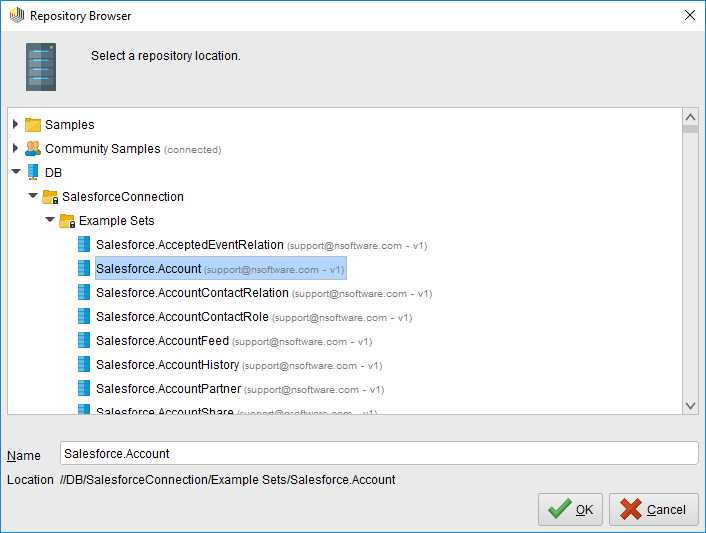 With the Retrieve operator selected, you can then define which table to retrieve in the Parameters view by clicking the folder icon next to the "repository entry." In the resulting Repository Browser, you can expand your connection node to select the desired example set.
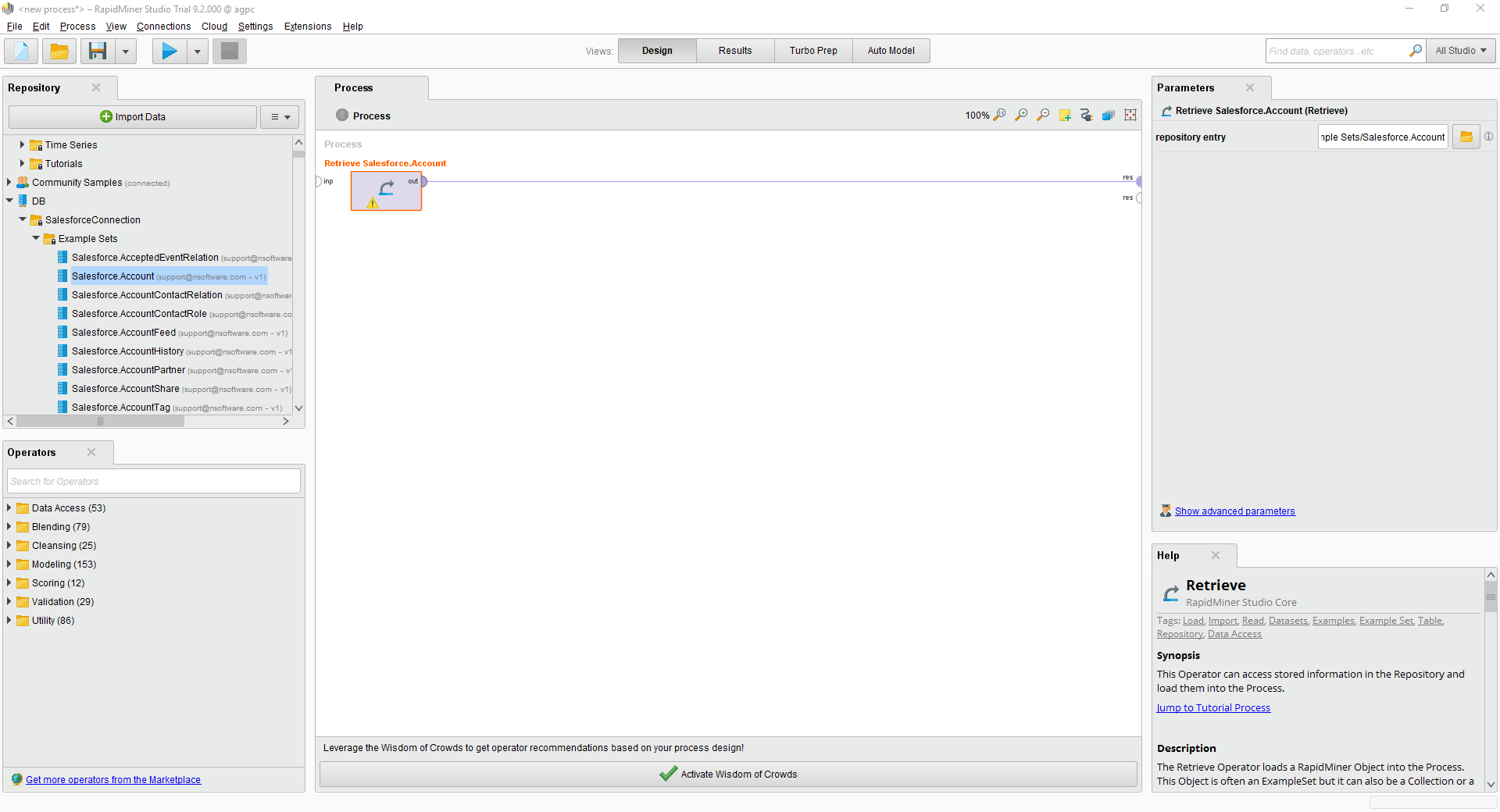
Finally, wire the output to the Retrieve process to a result, and run the process to see the JobNimbus data.