






Build a Singer.io Tap for Kintone With the CData Python Connector

Singer.io is a free, open-source ETL framework that connects data sources to destinations using standardized JSON-based extractors called Taps and loaders called Targets. It extracts data from a source (like a CRM or database) through a Tap and loads it into a Target system (like Snowflake) — all while maintaining data integrity and structure.
CData Python Connectors enhance this process by offering real-time, no-code tools to build custom Taps and Targets for over 350 data sources.
In this guide, we'll build a Tap for Kintone using the CData Python Connector and load the extracted data into a CSV Target (target-csv). We'll use the Free Community License of the CData Python Connector for Kintone along with VSCode, leveraging the sys_tablecolumns system tables to fetch schema and metadata efficiently.
Let's get started!
Prerequisites
- CData Python Connector for Kintone: Request and download a free Community Edition License here. If you already have a license or are using a trial, you can download or update your CData Python Connector for Kintone here.
- Singer.io: Install using pip: pip install singer-python
- An active Kintone account.
- A Python distribution installed on your machine, and VSCode or any preferred text editor or IDE.
Getting Started
Overview
Here's a quick overview of the steps we'll follow:
- Install: Set up the CData Connector for Kintone, Singer.io, and the Singer CSV Target (target-csv).
- Build: Build the Tap, establish the connection to Kintone, and retrieve metadata and schema information.
- Move: Move or replicate the data from Kintone to the CSV Target.
Tip: You're going to be interacting with a lot of files and folders. It's a good idea to create a dedicated folder for this project — for example: Singer-Tap — and place all the project files in it.
Step 1: Install and Configure the CData Connector for Kintone and Singer.io
1.1 Install CData Python Connector for Kintone
Dependencies Note: The Python connector supports Python versions 3.8, 3.9, 3.10, 3.11, and 3.12. If you're using a version outside this range, you may need to create a virtual environment with virtualenv.
- Download and extract the Community Edition connector ZIP to your desired location.
- Open a terminal or command prompt and navigate to the extracted installation directory, or open the terminal directly where the .whl file is located. Example: C:\Users\Public\Downloads\KintonePythonConnector\ CData.Python.Kintone\win\Python312\64
- For Windows: Install the .whl file using pip. Make sure it matches your Python version and architecture. Example: pip install cdata_kintone_connector-24.0.9111-cp312-cp312-win_amd64.whl
- For Linux or macOS: Install the .tar.gz file using pip. Example: pip install cdata_kintone_connector-24.0.####-python3.tar.gz
- Confirm the installation by running pip list. If cdata-kintone-connector appears, the installation is successful.
1.2 Install the License for the CData Connector
This is an optional step. A Free Community Edition license for your machine should already be installed when you install the connector using the .whl file.
However, if you don't see the license or you're using a trial version, install your Free Community Edition license using the key sent to your email.
If you didn't receive it, request one for your Connector here.
On Windows
- Download and extract the ZIP file containing the license.
- Open a terminal or command prompt.
- Navigate to: C:\Users\Username\AppData\Local\Programs\Python\Python312\Lib\site-packages\cdata\installlic_kintone
- Or, if you downloaded it separately, then navigate to extracted directory. For example: C:\Downloads\cdata\installlic_kintone
- Run:
.\license-installer.exe [YOUR LICENSE KEY HERE]
- Enter the name and email registration prompted on the screen to complete the installation.
On macOS/Linux
- Download and extract the ZIP file containing the license.
- Open a terminal inside the extracted directory. Example:
cd ~/Downloads/CData-Python-Kintone
- Navigate to: /usr/local/lib/python3.12/site-packages/cdata/installlic_kintone
- Run:
./license-installer [YOUR LICENSE KEY HERE]
- Enter the name and email registration prompted on the screen to complete the installation.
1.3 Install Singer.io and target-csv
-
Install Singer.io with pip by running:
pip install singer-python
-
Install target-csv by creating a virtual environment in the project folder:
For Windows:
            python -m venv %USERPROFILE%\target-csv
            %USERPROFILE%\target-csv\Scripts\activate
            pip install target-csv
            deactivate
For macOS/Linux:
python3 -m venv ~/.virtualenvs/target-csv source ~/.virtualenvs/target-csv/bin/activate pip install target-csv deactivate -
Conflict: In Python 3.10 and later, the MutableMapping class was moved from
collections to collections.abc, which may cause an AttributeError
in your target-csv virtual environment. To fix:
- Open target_csv.py in a text editor from ~\target-csv\Scripts.
- Replace:
import collections
with:from collections.abc import MutableMapping
- Update this line:
isinstance(v, collections.MutableMapping)
to:isinstance(v, MutableMapping)
Step 2: Build the Tap for Kintone
Now that everything is set up, let's build the actual Singer Tap for Kintone. This Tap will connect to your Kintone instance, retrieve metadata using CData's system tables, and prepare the data for transfer.
You can copy the complete working code at the end of this article, but we'll go through it step by step below.
2.1 Establish the Connection
- Create a new file in your project directory and name it tap-kintone.py. Open the file in your text editor and add the following code:
- At the top of the file, import the required libraries:
import singer import cdata.kintone as mod from datetime import date, datetime -
Define a function to create a connection using your Kintone credentials.
Don't forget to replace the actual connection details with your own:
def create_connection(): return mod.connect( "User=myuseraccount;" "Password=mypassword;" "Url=http://subdomain.domain.com;" "GuestSpaceId=myspaceid;" ) - Run the file to confirm the connection is successful and there are no syntax or authentication errors.
-
Note: If you'd like to explore all available connection parameters or if you're using
advanced authentication (OAuth, SSO, or Proxy), refer to the help.htm file inside the
downloaded connector directory to adjust the AuthScheme and parameters accordingly.
Path: ~\KintonePythonConnector\CData.Python.Kintone\help\help.htm
2.2 Define Query Logic, Schema Mapping, and Data Export
With the connection working, let's define the logic for querying the metadata, mapping data types into Singer-compatible formats, and writing the records to the standard output stdout.
-
Create a reusable query function to fetch data from system tables or target tables:
def query(conn, sql): cur = conn.cursor() cur.execute(sql) return cur.description, cur.fetchall() -
Define the table you'd like to query. For testing, you can also restrict the number of records returned:
TABLE_NAME = 'Opportunity' # Change to your desired object/table RECORD_LIMIT = 50 # Use None or 0 to fetch all rows -
Create a helper function to map source data types to Singer's JSON Schema-compatible types:
def mapping_types(sf_type): t = sf_type.lower() if 'int' in t: return ['integer', 'null'] if 'float' in t or 'decimal' in t or 'double' in t: return ['number', 'null'] if 'bool' in t: return ['boolean', 'null'] if 'date' in t or 'time' in t: return ['string', 'null'] return ['string', 'null'] -
Write the function to fetch metadata, generate schema, and write the data records:
def write_records(): conn = create_connection() # Get columns and types for schema _, cols = query(conn, f"SELECT ColumnName, DataTypeName FROM sys_tablecolumns WHERE TableName = '{TABLE_NAME}'") schema = { 'properties': {col: {'type': mapping_types(dtype)} for col, dtype in cols} } # Build query dynamically based on RECORD_LIMIT limit_clause = f"LIMIT {RECORD_LIMIT}" if RECORD_LIMIT and RECORD_LIMIT > 0 else "" query_cmd = f"SELECT * FROM {TABLE_NAME} {limit_clause}" columns, records = query(conn, query_cmd) stream = TABLE_NAME.lower() singer.write_schema(stream, schema, [columns[0][0]] if columns else []) for row in records: record = { columns[i][0]: (val.isoformat() if isinstance(val, (date, datetime)) else val) for i, val in enumerate(row) } singer.write_record(stream, record) conn.close() -
Finally, call the function in a main block:
if __name__ == '__main__': write_records() - Your Tap is now ready. Update the placeholder credentials and set TABLE_NAME to the object you want to query.
- To load all rows, set RECORD_LIMIT = 0 or remove the LIMIT clause from the query.
Step 3: Move the Data
With your Tap ready, it's time to move the data from your Kintone instance into a usable format. We'll use target-csv to output the data as tab-delimited CSV files.
You'll need a my-config.json file to tell target-csv how to format and where to save the output. It defines configuration settings such as the delimiter, quote character, output path, logging level, and metadata settings.
-
Create a my-config.json in your project folder and configure it using the following:
{ "delimiter": " ", "quotechar": "'", "destination_path": "YOUR/PATH/FOR/CSV/OUTPUTS", "disable_collection": true, "verbosity": 5 } -
Activate the virtual environment for target-csv
Open a terminal or PowerShell and run:
\Singer-Project\target-csv\Scripts\Activate.ps1 -
Run the pipeline
Pipe your tap output into the CSV target:
python tap16.py | .\target-csv\Scripts\target-csv -c my-config.json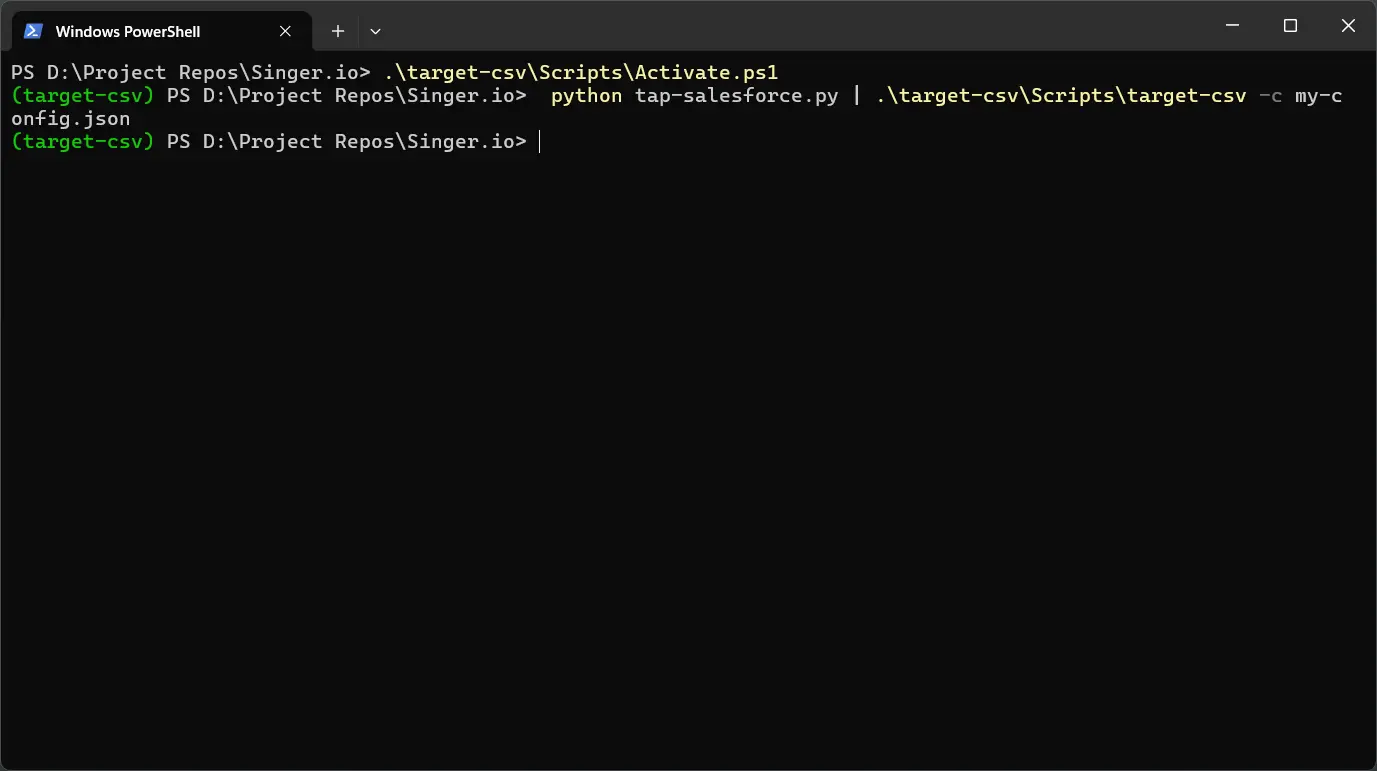
-
Check the output CSV file
Open the output CSV file from your destination_path and review the data.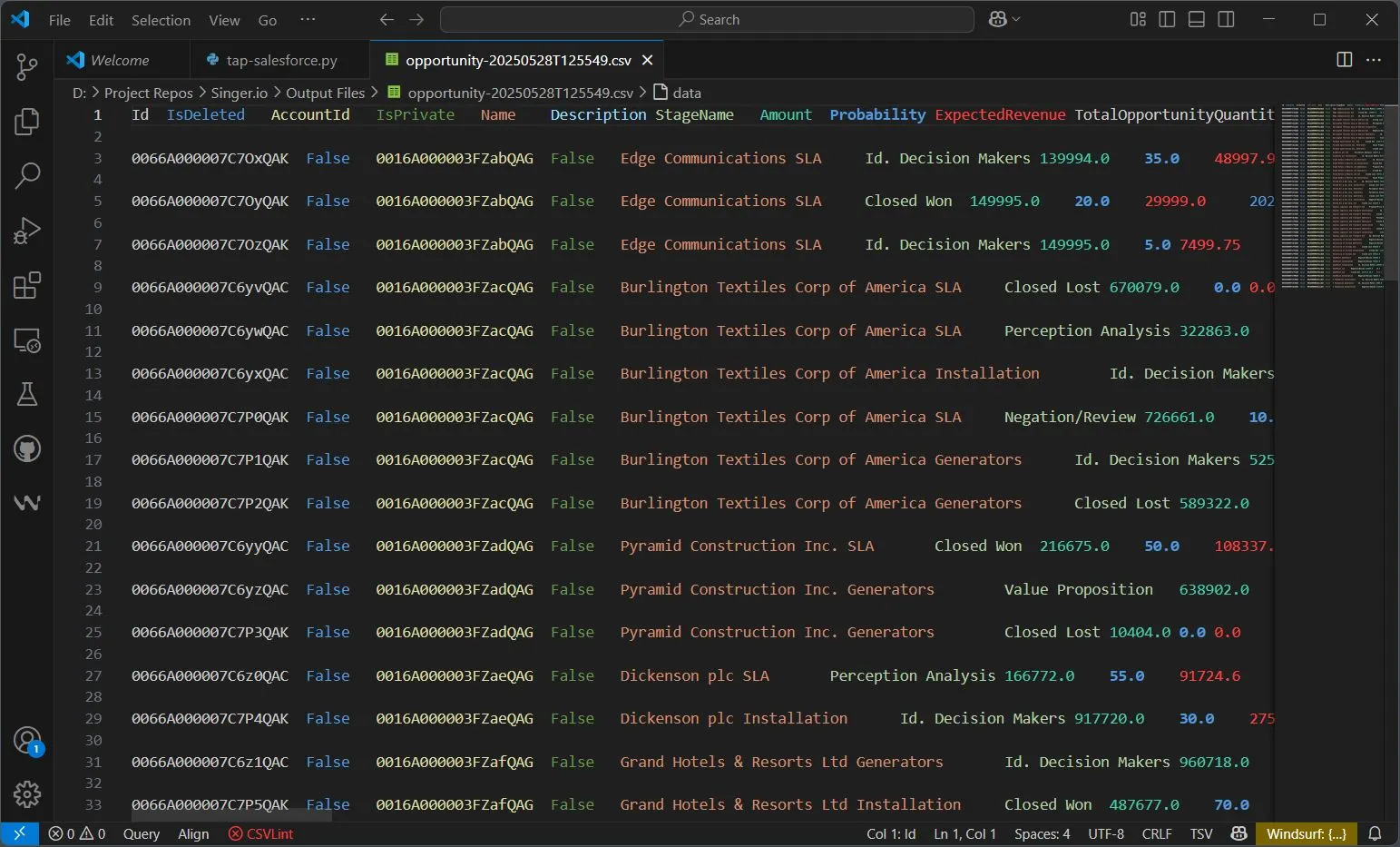
Conclusion: Build More Taps and Targets with CData
Building a custom Singer Tap for Kintone (and for 350+ other data sources) is faster and easier with the CData Python Connector. You get built-in schema discovery, live data access, and plug-and-play connectivity — all with minimal code.
Start your free trial today and simplify your ETL pipelines.
Complete Code
import singer
import cdata.kintone as mod
from datetime import date, datetime

def create_connection():
    return mod.connect(
         "User=myuseraccount;"
         "Password=mypassword;"
         "Url=http://subdomain.domain.com;"
         "GuestSpaceId=myspaceid;"
    )


def query(conn, sql):
cur = conn.cursor()
cur.execute(sql)
return cur.description, cur.fetchall()

TABLE_NAME = 'Opportunity'  # Change to your desired object/table
RECORD_LIMIT = 50           # Change accordingly

def mapping_types(sf_type):
    t = sf_type.lower()
    if 'int' in t:
        return ['integer', 'null']
    if 'float' in t or 'decimal' in t or 'double' in t:
        return ['number', 'null']
    if 'bool' in t:
        return ['boolean', 'null']
    if 'date' in t or 'time' in t:
        return ['string', 'null']
    return ['string', 'null']

def write_records():
    conn = create_connection()

    # Get columns and types for schema
    _, cols = query(conn, f"SELECT ColumnName, DataTypeName FROM sys_tablecolumns WHERE TableName = '{TABLE_NAME}'")
    schema = {
        'properties': {col: {'type': mapping_types(dtype)} for col, dtype in cols}
    }

    # Fetch actual data rows
    columns, records = query(conn, f"SELECT * FROM {TABLE_NAME} LIMIT {RECORD_LIMIT}")
    stream = TABLE_NAME.lower()
    singer.write_schema(stream, schema, [columns[0][0]] if columns else [])

    for row in records:
        record = {
            columns[i][0]: (val.isoformat() if isinstance(val, (date, datetime)) else val)
            for i, val in enumerate(row)
        }
        singer.write_record(stream, record)

    conn.close()

if __name__ == '__main__':
    write_records()
Ready to get started?
Download a Community License of the Kintone Connector to get started:
Download NowLearn more:
 Kintone Python Connector
Python Connector Libraries for Kintone Data Connectivity. Integrate Kintone with popular Python tools like Pandas, SQLAlchemy, Dash & petl.
