






Moving Data from Klipfolio to SQL Server Using Toad Data Point and CData ODBC Driver

Toad Data Point is built for database professionals and enterprise teams who need to query, manage, and move data across multiple systems from a single interface. However, connecting to cloud applications, SaaS platforms, or niche data sources often requires custom middleware or manual exports, adding unnecessary complexity and limiting which systems your workflows can reach.
The CData ODBC Driver bridges this gap by exposing Klipfolio data as a standard ODBC source. Toad Data Point can query, filter, and export live Klipfolio data through the CData driver without replication, custom connectors, or ETL pipelines. The result is a clean, governed data pipeline that runs on schedule and keeps your target database current with minimal moving parts.
This guide outlines the steps required to configure the CData ODBC Driver for Klipfolio, connect Toad Data Point to the live data source, run the Import/Export wizard to move data into SQL Server, and automate the entire workflow on a recurring schedule.
Prerequisites
Before starting, ensure you have:
- Toad Data Point (Desktop edition), download from the Quest website
- CData API Driver for ODBC for Klipfolio
- Microsoft SQL Server instance with write access to the target database
Step 1: Create a System DSN for the CData ODBC Driver
Before Toad Data Point can connect to the data source, you need a System DSN configured in the Windows ODBC Data Source Administrator.
-
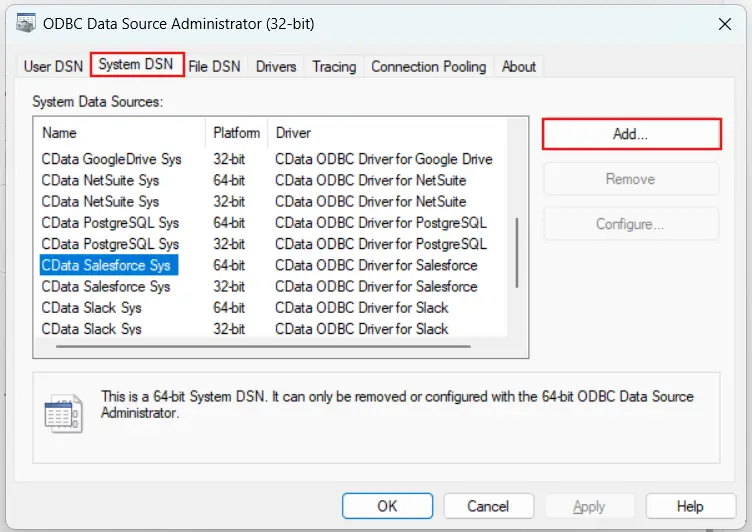
Open the ODBC Data Source Administrator and go to the System DSN tab, then click Add.
-
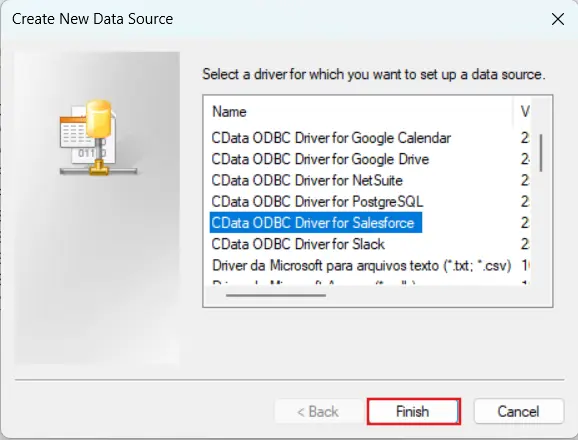
Select CData ODBC Driver for Klipfolio from the driver list and click Finish.
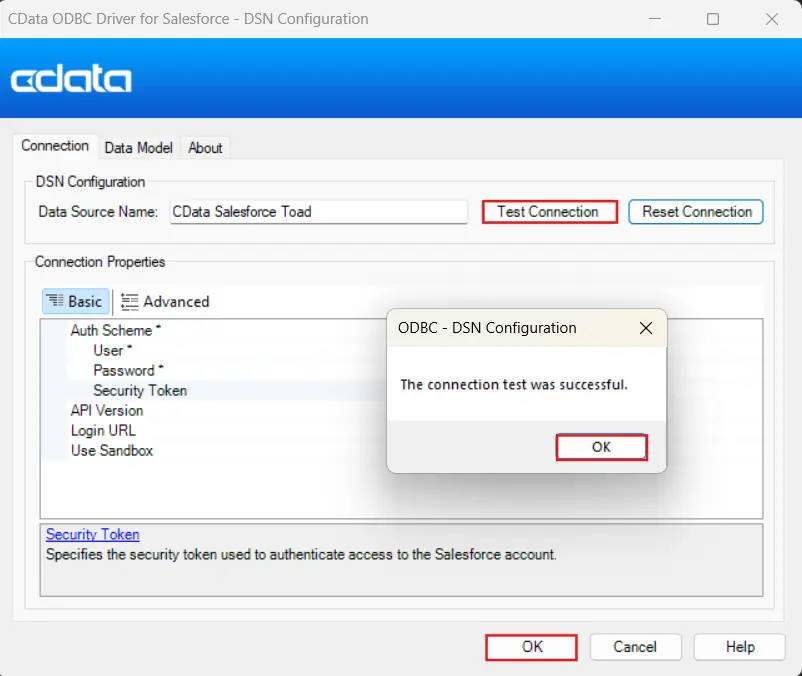
- In the CData DSN configuration dialog, enter your connection properties.
-
Click Test Connection to verify. A Connection successful message confirms the DSN is ready. Click OK to save.
Step 2: Connect Toad Data Point to the CData ODBC data source
-
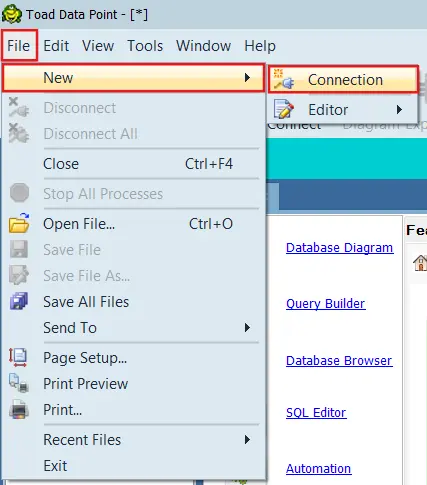
Open Toad Data Point. From the toolbar, click New, then Connection.
-
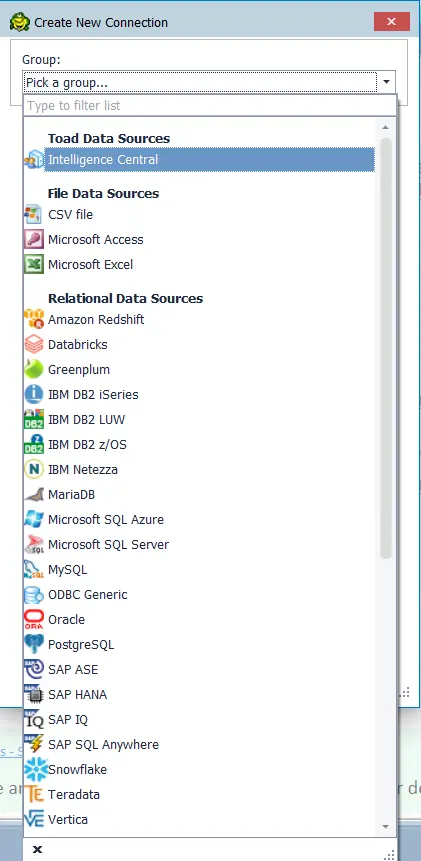
In the New Connection dialog, select ODBC Generic as the connection type.
-
From the DSN dropdown, select the System DSN you created in Step 1, then provide the username and password.
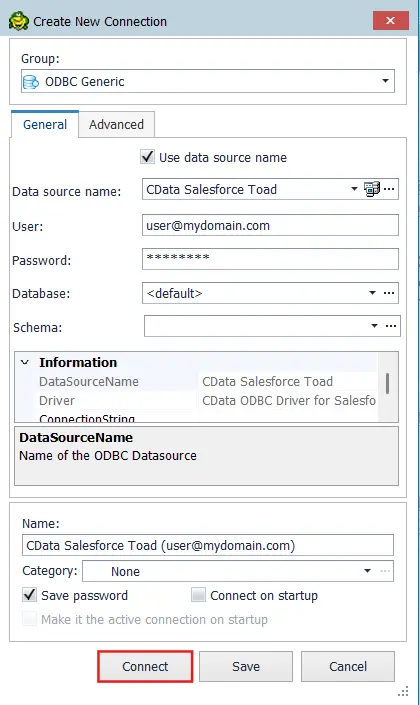
- Click Connect. Toad Data Point connects to the CData ODBC data source and displays available tables in the Object Explorer panel.
Step 3: Connect Toad Data Point to SQL Server
With the source connection in place, add a second connection for the SQL Server destination.
-
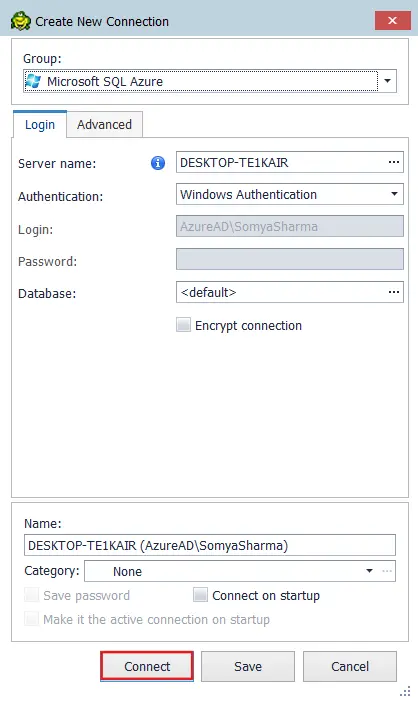
From the toolbar, click Create New Connection, select SQL Server as the connection type, and connect to your instance.
Step 4: Query the source data and export to SQL Server
With both connections active, you can now query live Klipfolio data and move it to SQL Server using the Import/Export wizard.
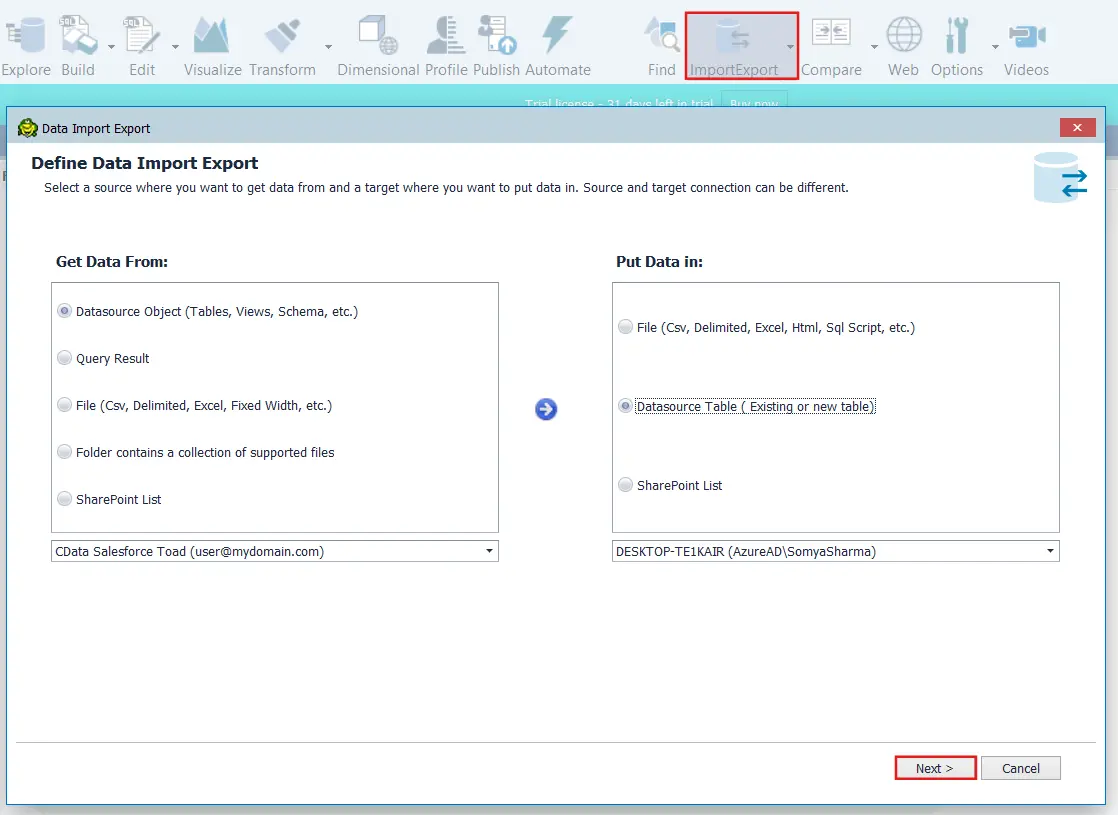
- Select Import/Export Data from the toolbar or menu.
-
Under Get Data From, choose Datasource Object (Tables, Views, Schema, etc.) and under Put Data in, select Datasource Table (Existing or new table). Set your source connection in the bottom-left dropdown and your target connection in the bottom-right dropdown, then click Next.
-
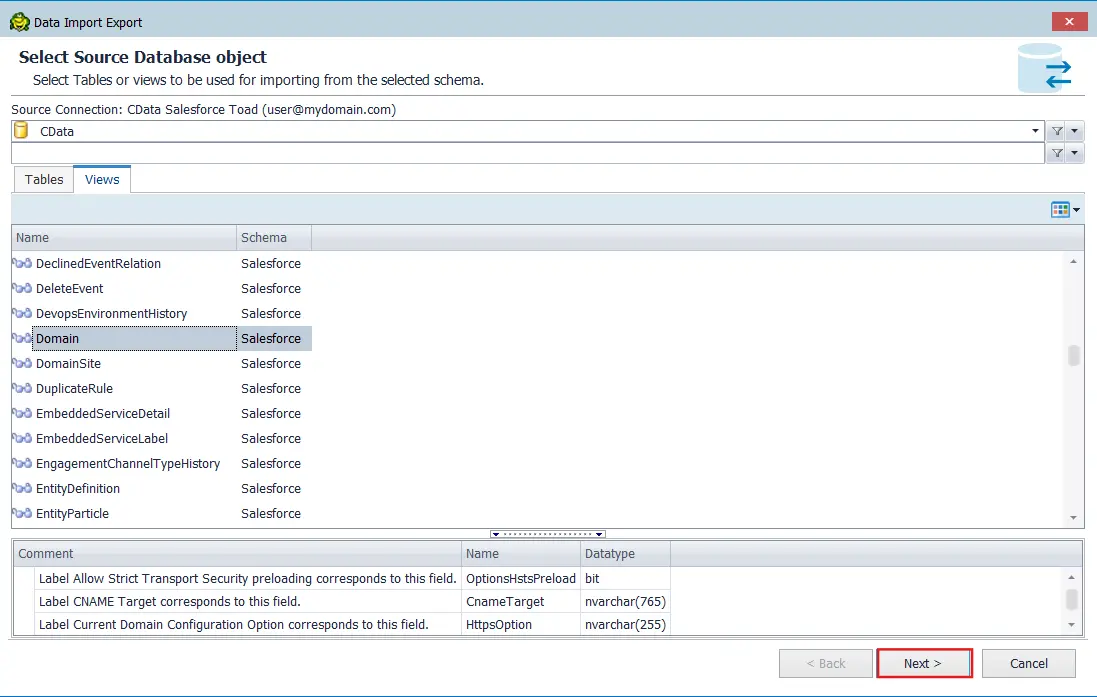
On the Select Source Database Object screen, select your schema from the dropdown at the top. Switch between the Tables and Views tabs to browse available objects, then select the table or view you want to export and click Next.
-
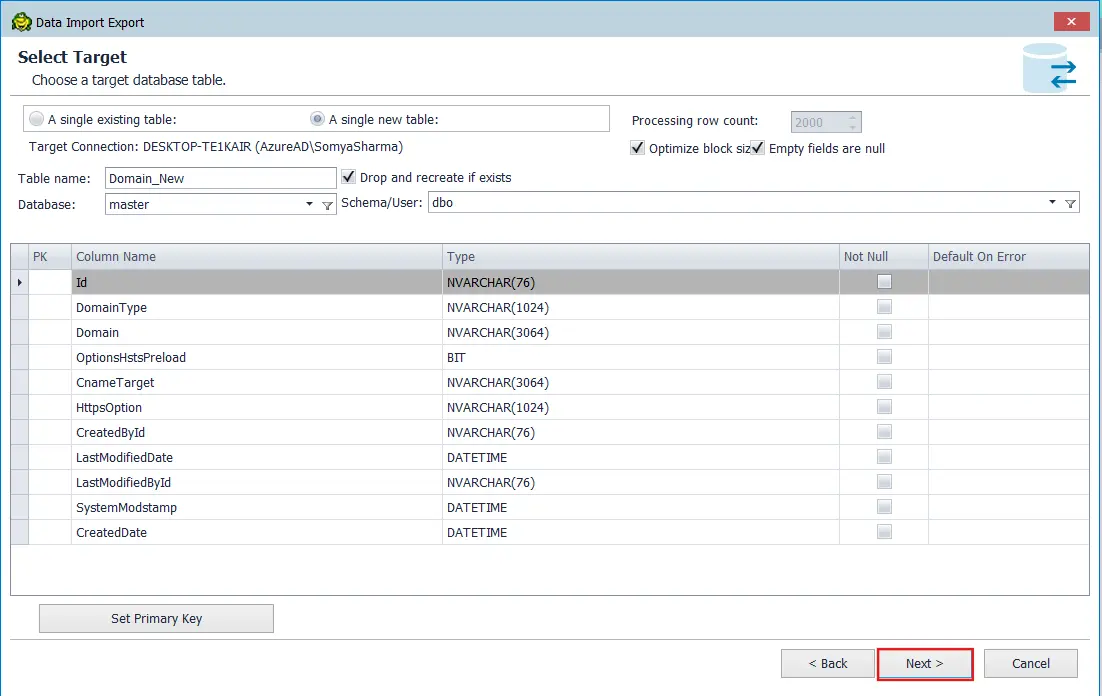
On the Select Target screen, select A single new table and enter a name in the Table name field. Select the target Database and Schema/User. Toad Data Point automatically maps the source columns to the target table. Check Drop and recreate if exists to overwrite the table on each run, then click Next.
Note: Update the column data types to VARCHAR(MAX) (or adjust the size as needed based on your data requirements) to avoid import and data type mismatch issues.
-
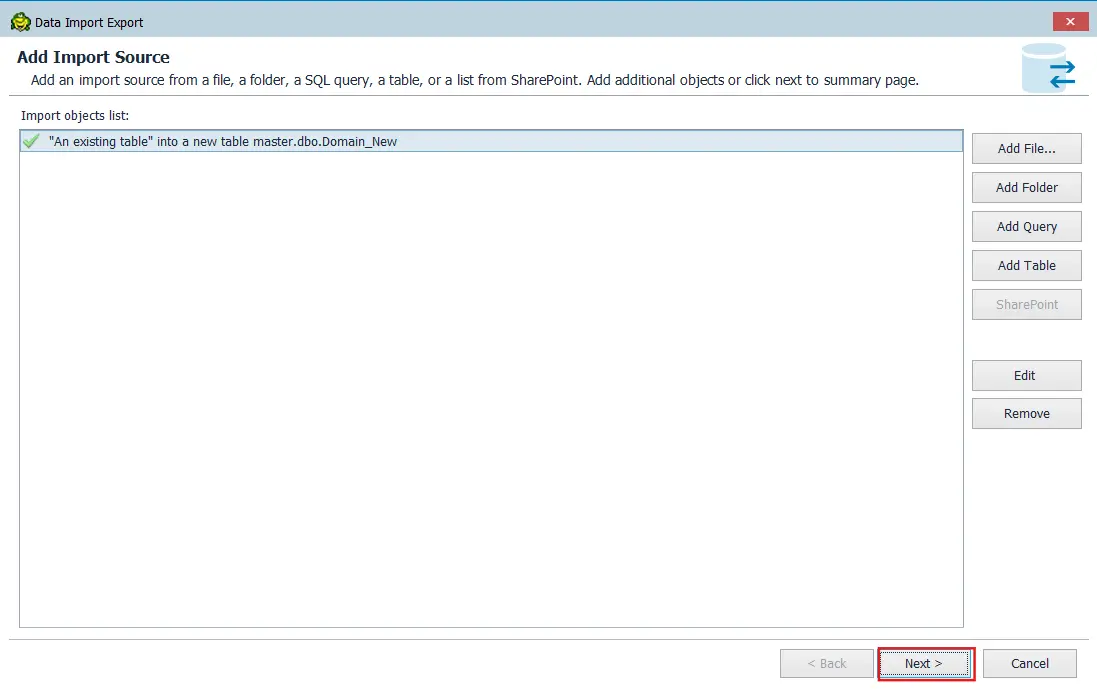
The Add Import Source screen confirms the import object. Verify that a green checkmark appears next to your source entry, then click Next to continue.
- On the destination configuration page, confirm the Put Data In section is set to your Microsoft SQL Server connection, then click Next to open the query editor and write your SELECT statement.
- Select the target table name in the SQL Server database, then click Import Data Now. The data from the CData ODBC source loads into the selected SQL Server table or a new table.
-
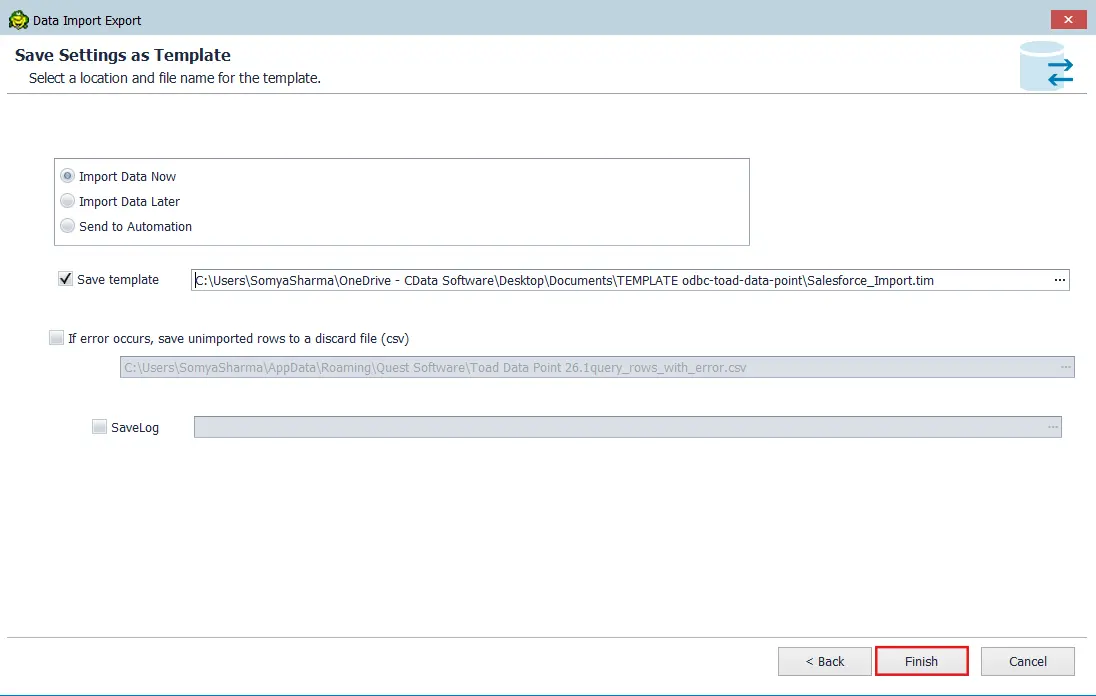
On the final page of the wizard, check Save template to save the import configuration as a reusable .tim file (for example, Klipfolio_to_SQLServer.tim). This saves all your wizard settings so you can reload them the next time you run an import without reconfiguring from scratch.
-
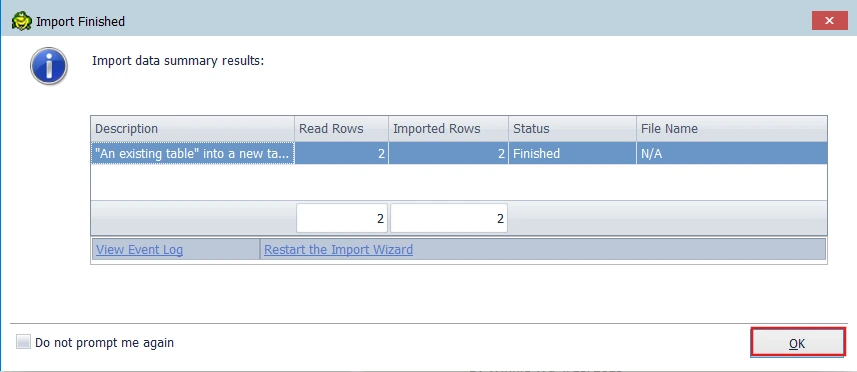
Click Finish. Once the import completes, Toad Data Point displays the Import Finished summary screen showing the total rows read, rows imported, and status for each object. A Finished status confirms that the data was loaded successfully. Click OK to close the dialog.
Step 5: Verify the import
After the import completes, verify that the data landed correctly in SQL Server.
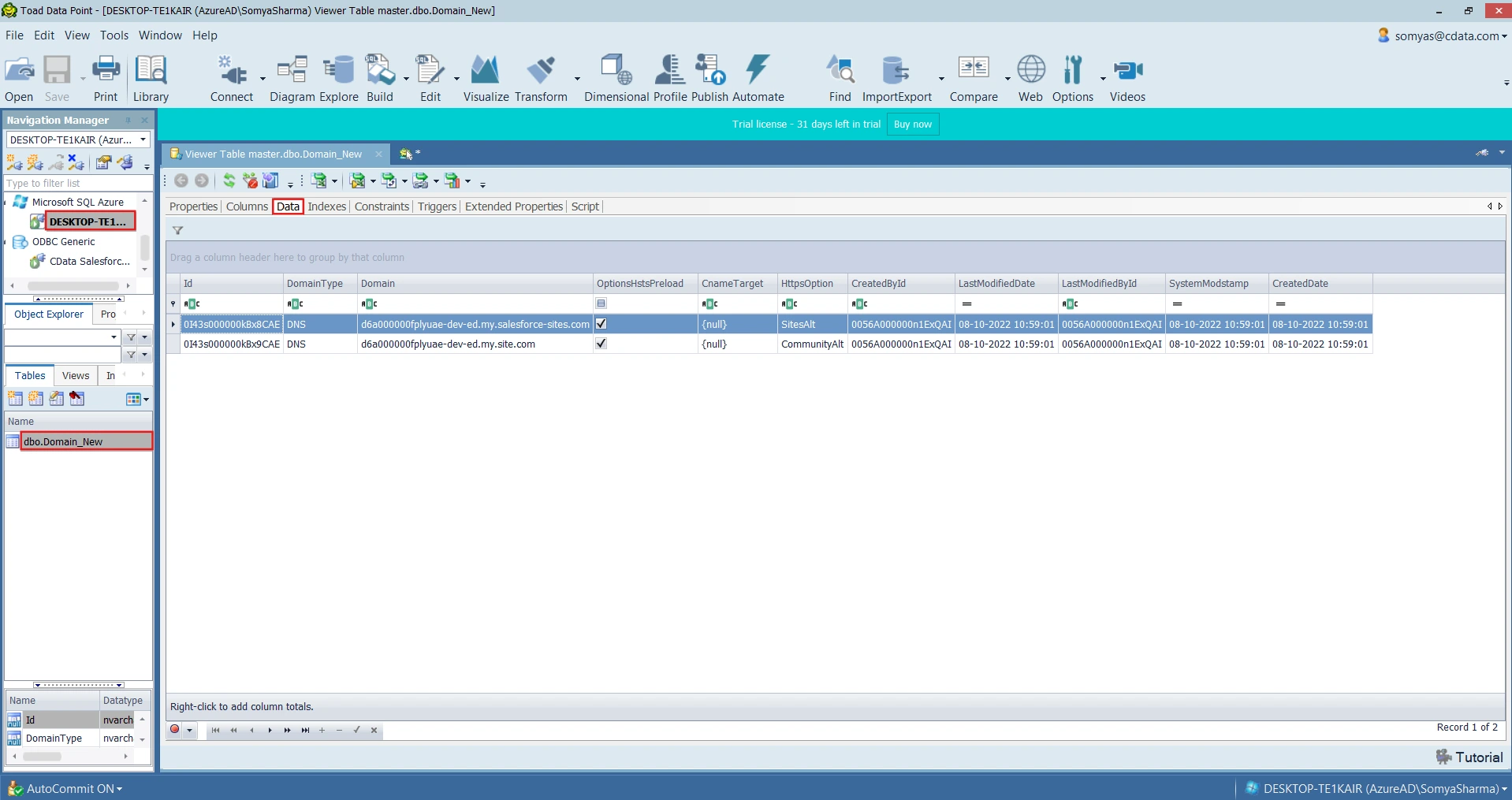
- In the Object Explorer, navigate to the SQL Server connection and expand the target database.
-
Locate the target table (for example, dbo.yourtablename) and open it to review the data.
-
Alternatively, open a new query editor connected to SQL Server and run a verification query:
SELECT TOP 10 * FROM [dbo].[yourtablename];
Step 6: Automate with Toad Data Point automation scripts
For recurring data transfers, Toad Data Point supports Automation Scripts that chain multiple activities into a reusable workflow. This removes the need to run the Import/Export wizard manually each time.
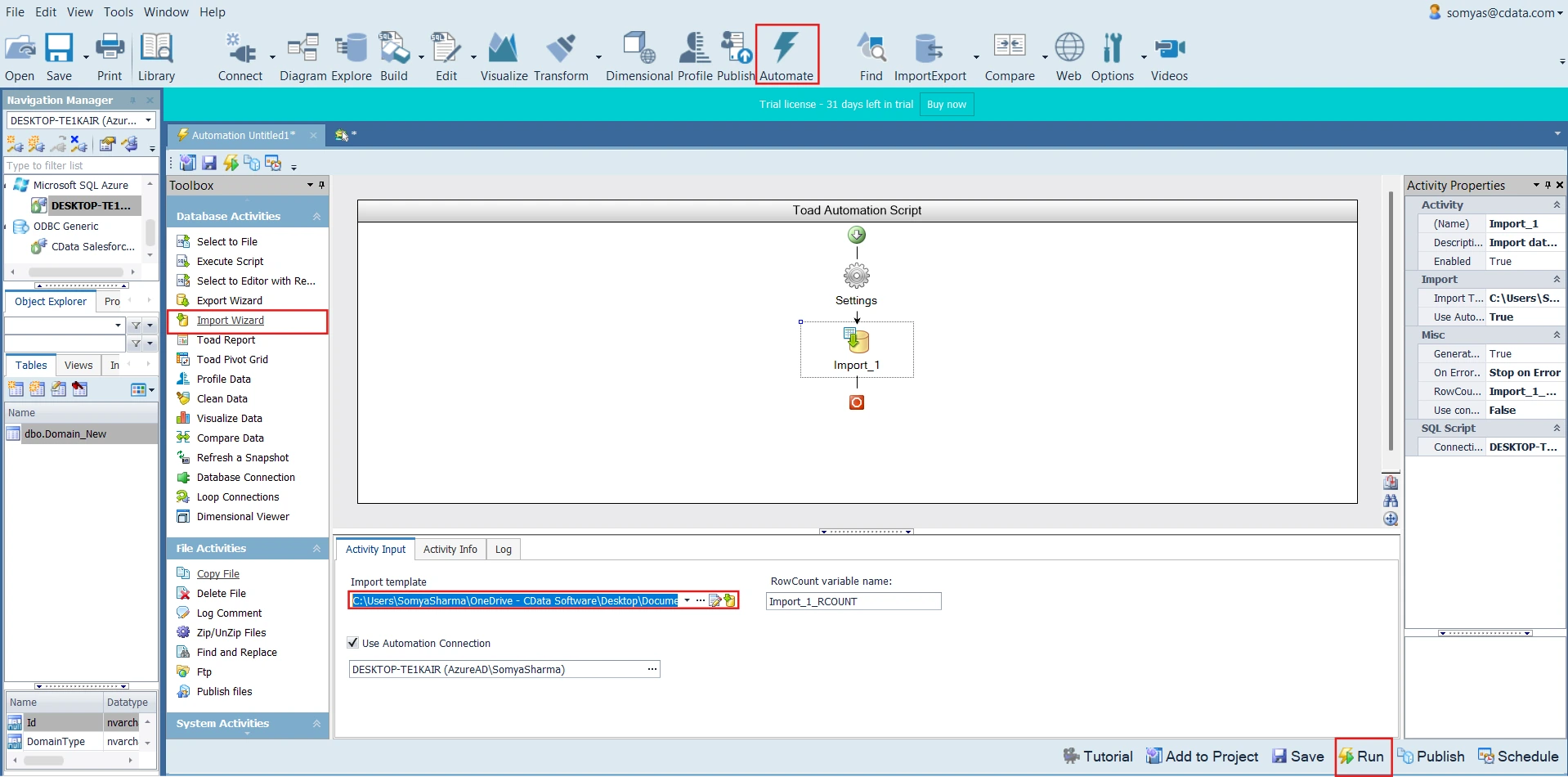
- From the Toad Data Point toolbar, click Automate to open the Automation Designer.
- A new Automation Script canvas opens. The default workflow starts with a Settings activity.
- From the Toolbox panel on the left, under Database Activities, drag the Import Wizard activity onto the canvas below Settings.
- Double-click the Import Wizard activity (labeled Import_1) to configure it. In the import template field, select the .tim file you saved in Step 4.
-
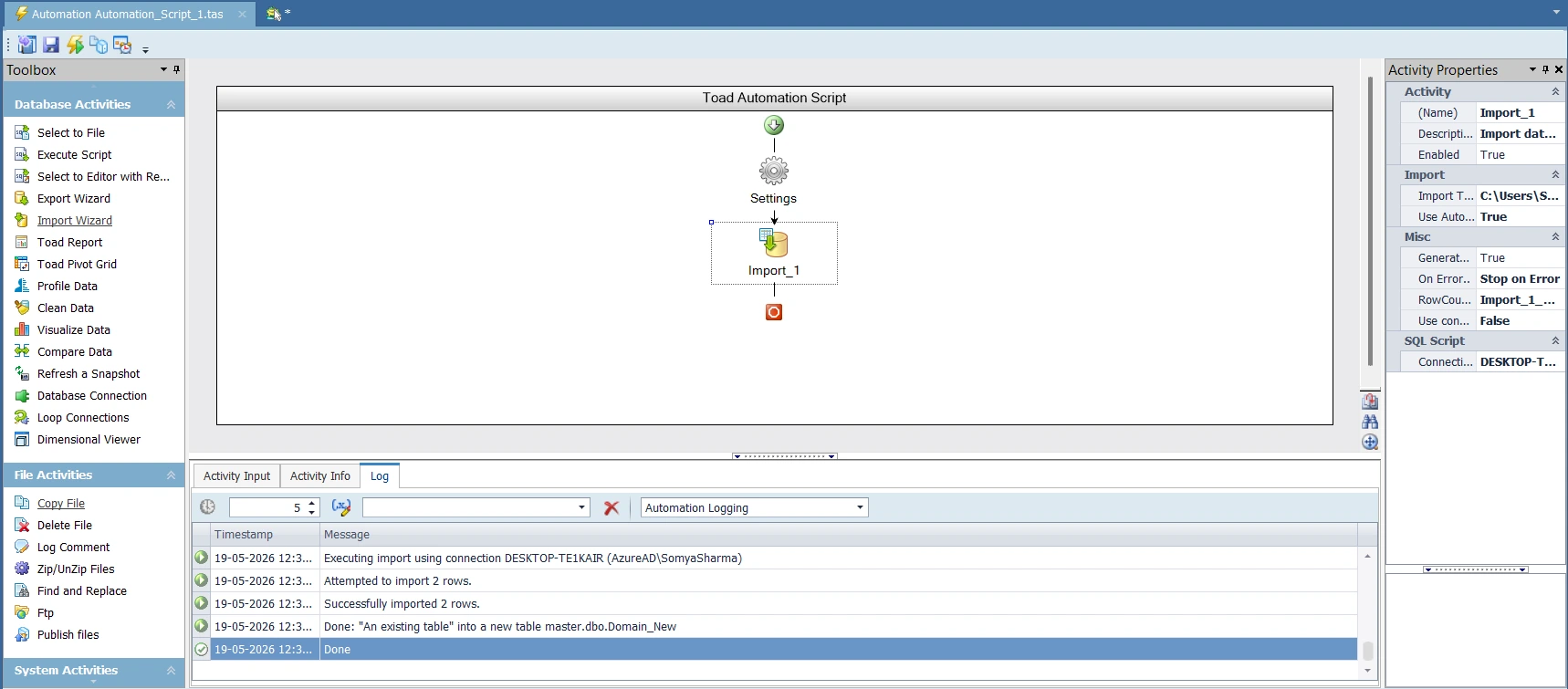
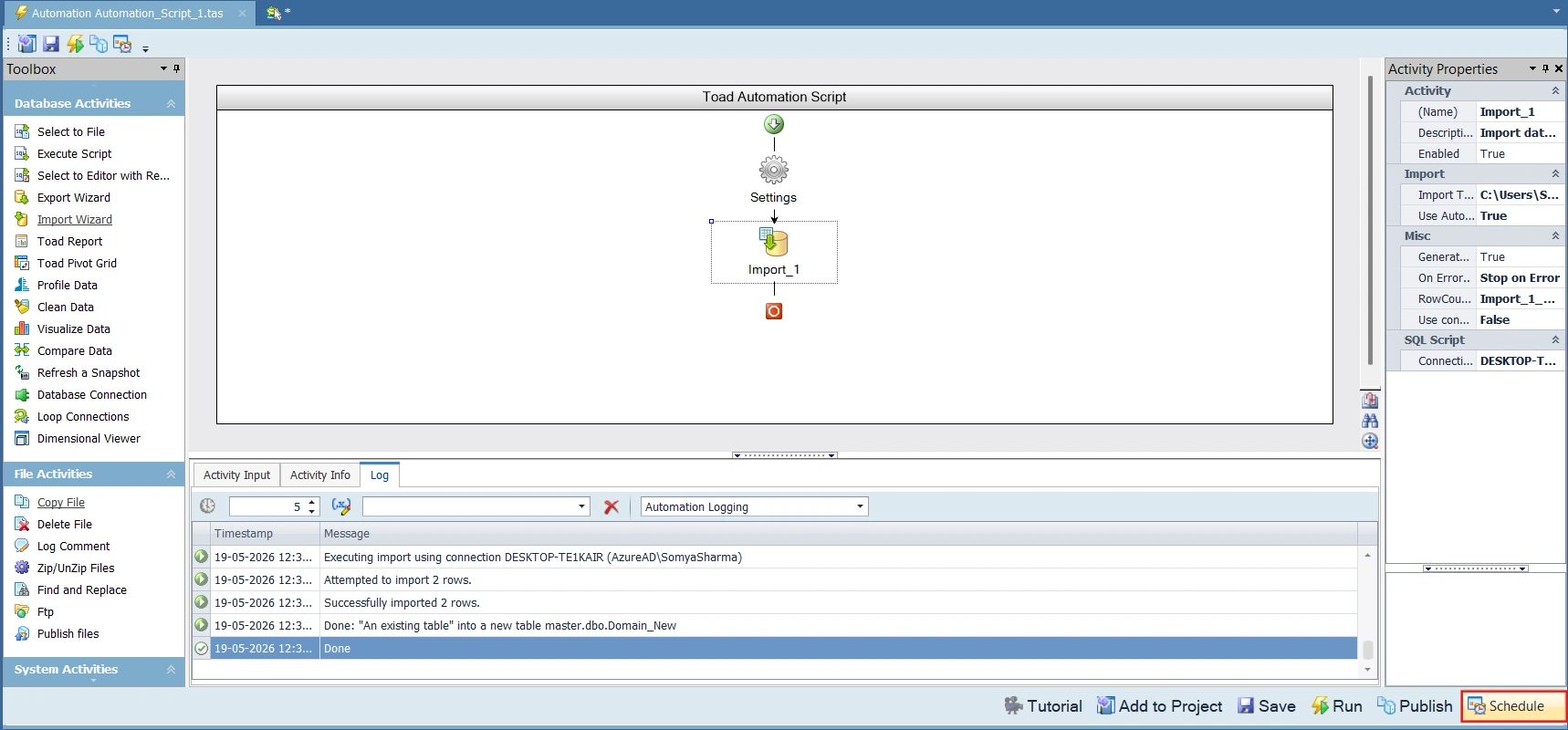
Click Run to test the automation. Check the Log tab for confirmation messages such as Successfully imported N rows and Done.
-
Click Save to save the automation script as a .tas file (for example, Automation_Script_1.tas).
Step 7: Schedule the automation script
Once the automation script is saved and tested, schedule it to run automatically at regular intervals using the Toad Data Point Job Manager.
-
With the automation script open, click the Schedule button at the bottom-right of the Automation Script window.
-
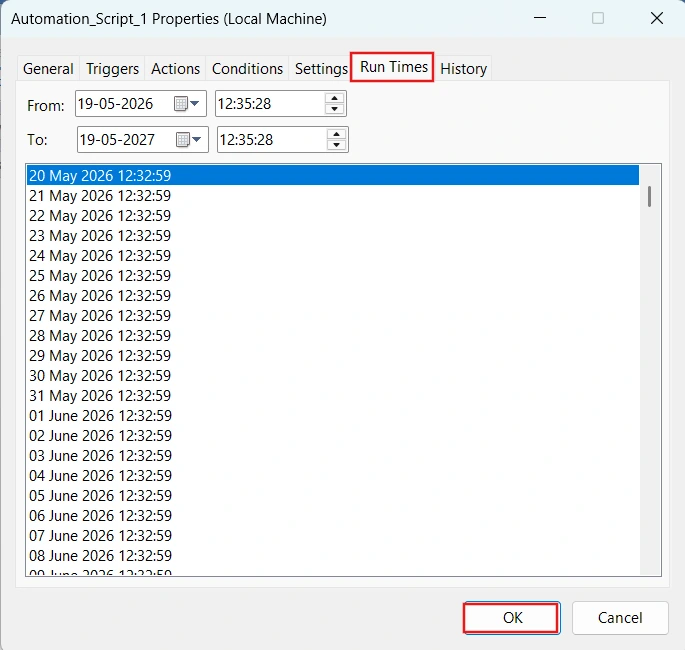
Toad Data Point opens the Windows Task Scheduler integration dialog. Configure the schedule frequency (for example, daily or weekly), start time, and recurrence pattern.
-
Click OK to register the task. The scheduled job now runs unattended at the configured interval.
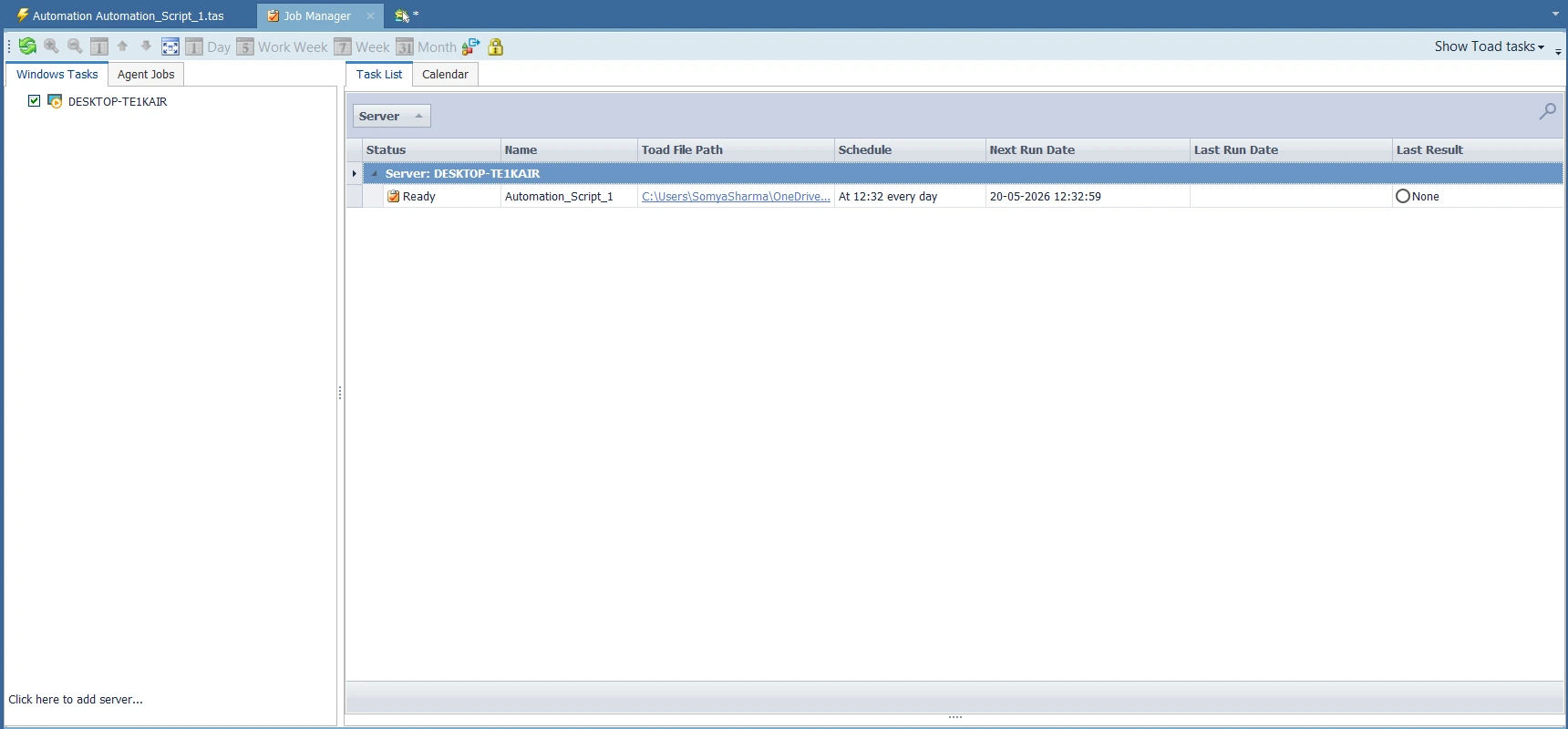
Note: Toad Data Point must remain installed on the machine for scheduled tasks to execute, but the application does not need to stay open. Make sure both the CData ODBC Driver license and the Toad Data Point license remain active for unattended runs to succeed.
Build a live, governed data pipeline with Toad Data Point and CData
Toad Data Point and the CData ODBC Driver together give enterprise teams a reliable, governed pipeline for moving live Klipfolio data into SQL Server without ETL infrastructure, manual exports, or custom integration code.
Start your free trial today to see how CData can empower Toad Data Point with live, secure access to hundreds of external systems.