






Configure a Receive Location for the CData BizTalk Adapter for Lakebase

You can follow the procedure in this article to connect to Lakebase data, configure a static one-way receive location, and use it to perform a simple test: retrieving Lakebase data and writing it to an XML file.
A receive location can execute SQL commands and create BizTalk messages that contain the results. If you want to execute updategram commands, use a send port.
Create the Receive Port
To add a receive location to your application, you first need to add a receive port. Receive ports can receive data from multiple receive locations.
- If you have not already done so, open your application in the BizTalk Administration Console.
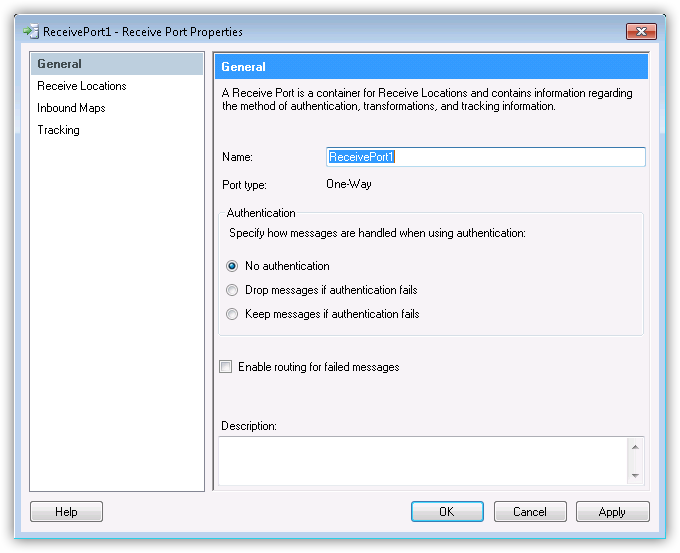
- In your application, right-click Receive Ports and click New -> Static One-Way Receive Port. The Receive Port Properties dialog is displayed.
- In the Name menu, enter a name for the receive port.
Create the Receive Location
After you create the receive port, create the receive location and configure it to use the Lakebase adapter as its transport type.
- Right-click Receive Locations and click New -> One-Way Receive Location.
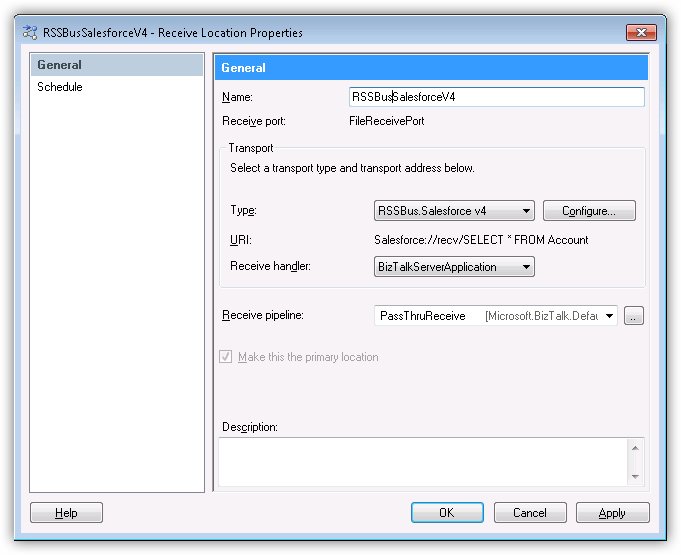
- Select the appropriate receive port of which the new receive location will be a member. The Receive Location Properties dialog is displayed.
- In the Name menu, enter a name for the receive location.
- In the Receive Location properties, select CData.Lakebase in the Transport Type menu.
- In the Receive pipeline menu, select the default option, PassThruReceive.
Configure the Adapter
In the Transport Properties dialog, specify the command that the adapter will execute.
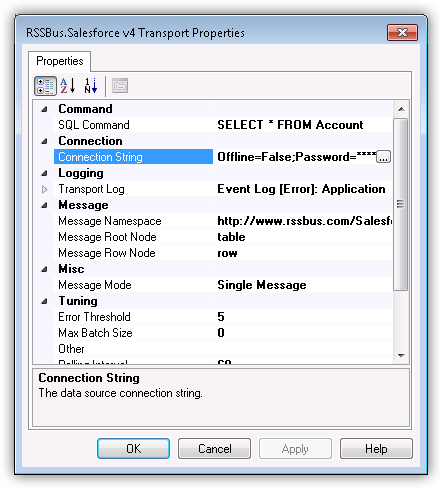
- In the receive location properties, click Configure. The Transport Properties dialog for the adapter is displayed.
- In the SQL Command property, enter the command. This example uses
SELECT ShipName, ShipCity FROM Orders WHERE ShipCountry = 'USA'
Configure the Connection String
Set credentials and other connection properties in the Connection String Options dialog.
- In the receive location properties, click Configure. The adapter properties dialog is displayed.
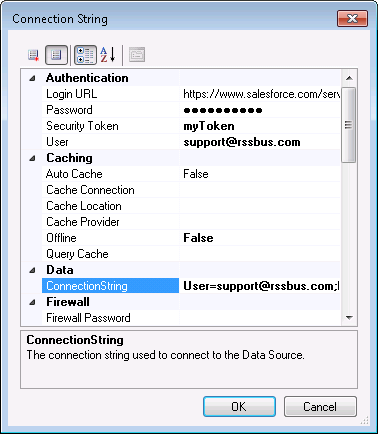
- Click the button in the Connection String property.
- Click the box in the Connection String property. The Connection String Options dialog is displayed.
- Enter connection properties. Below is a typical connection string:
DatabricksInstance=lakebase;Server=127.0.0.1;Port=5432;Database=my_database;InitiateOAuth=GETANDREFRESH;
To connect to Databricks Lakebase, start by setting the following properties:
- DatabricksInstance: The Databricks instance or server hostname, provided in the format instance-abcdef12-3456-7890-abcd-abcdef123456.database.cloud.databricks.com.
- Server: The host name or IP address of the server hosting the Lakebase database.
- Port (optional): The port of the server hosting the Lakebase database, set to 5432 by default.
- Database (optional): The database to connect to after authenticating to the Lakebase Server, set to the authenticating user's default database by default.
OAuth Client Authentication
To authenicate using OAuth client credentials, you need to configure an OAuth client in your service principal. In short, you need to do the following:
- Create and configure a new service principal
- Assign permissions to the service principal
- Create an OAuth secret for the service principal
For more information, refer to the Setting Up OAuthClient Authentication section in the Help documentation.
OAuth PKCE Authentication
To authenticate using the OAuth code type with PKCE (Proof Key for Code Exchange), set the following properties:
- AuthScheme: OAuthPKCE.
- User: The authenticating user's user ID.
For more information, refer to the Help documentation.
- Click Test Connection to verify the connection values and test connectivity.
Refer to the help documentation for a description of the various properties and their functions.
Use a Send Port to Write Data to an XML File
The Static One-Way Receive Location is now ready for use with a send port: A send port must be associated with the BizTalk message that is created by the receive location. To write data to a file, create a file send port.
- In the BizTalk Administration console, right-click Send Ports -> New -> Static One-Way Send Port.
Enter a name for the send port at the top of the configuration window and select FILE from the Type menu.
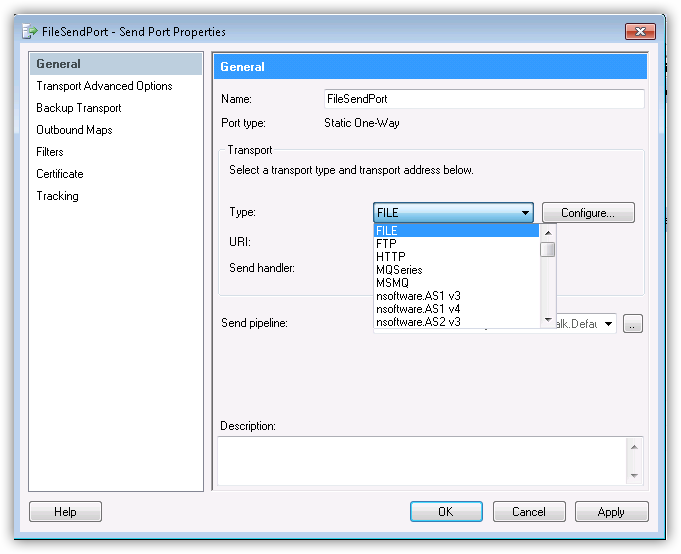
- Configure a destination folder; this will be the location where the files are created on disk.
For the file name, a macro can be used to easily identify what day the file was created. By default, %MessageId%.xml is used. However, this is not a very user-friendly name, as it is a randomly generated BizTalk Id. To produce a file in the format Orders_yyyy-MM-dd.xml, enter Orders_%Date%.xml.
Note: For additional information regarding macros, visit the BizTalk Configuration section in the help documentation.
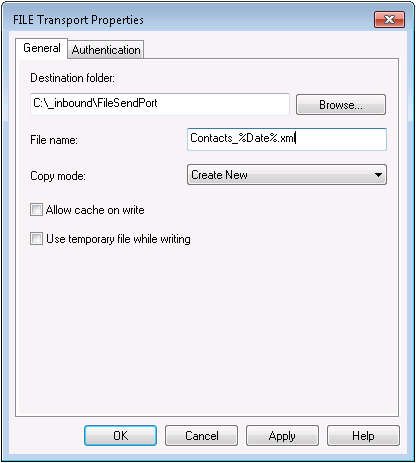
- Click OK. The URI field should now contain a value.
- Click Filters in the left-hand side of the configuration screen for the send port.
- Set the following properties:
- Property: Select "BTS.InboundTransportLocation" from the menu.
- Operator: Select "==" from the menu.
- Value: Enter the URI of the receive location. The URI is shown in the receive location properties.
- Operator: Select "==" from the menu.
- Property: Select "BTS.InboundTransportLocation" from the menu.
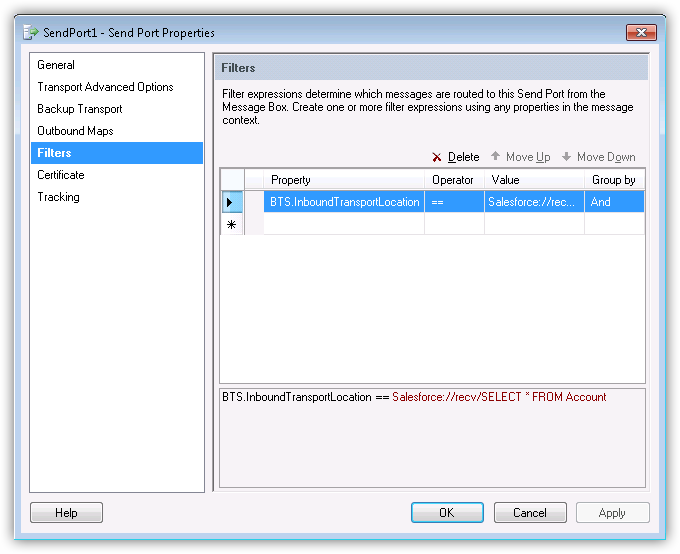
You can now use the send port to write files that have been sent from the receive location.
Enlist and Enable the Locations and Ports
The final step is to enlist the send port and enable the receive location: Right-click the send port and click Enlist. Then right-click the receive location and click Enable.
Note: Enable the receive location last: This makes sure the file gets picked up for writing by the send port.
Troubleshooting
To check if errors are occurring, expand "Event Viewer (Local)" in the navigation tree in the Administration Console. Expand Windows Logs and click Applications.
The log will include error messages for all applications on the system, so it is important to check that the source of the error message is "CData BizTalk Lakebase Receive Adapter". Details of the error message should provide insight into why the error is occurring. For guidance on resolving the error, contact [email protected].