Rapidly Develop LINE-Driven Apps with Active Query Builder

Write standard .NET to expose LINE data through an SQL interface: Active Query Builder helps developers write SQL interfaces; the CData ODBC Driver for LINE enables standards-based access to LINE. This integration uses the Microsoft ADO.NET Provider for ODBC as a bridge between the ODBC Driver and the Active Query Builder objects to build a visual SQL composer.
Connect to LINE as an ODBC Data Source
If you have not already, first specify connection properties in an ODBC DSN (data source name). This is the last step of the driver installation. You can use the Microsoft ODBC Data Source Administrator to create and configure ODBC DSNs.
Start by setting the Profile connection property to the location of the LINE Profile on disk (e.g. C:\profiles\LINE.apip). Next, set the ProfileSettings connection property to the connection string for LINE (see below).
LINE API Profile Settings
The LINE Messaging API uses Channel Access Token authentication. To obtain a Channel Access Token:
- Log in to the LINE Developers Console at https://developers.line.biz
- Select your provider and open your Messaging API channel.
- Navigate to the Messaging API tab.
- Under Channel access token, click Issue to generate a long-lived token.
- Copy the generated token.
After obtaining your Channel Access Token, set the following connection properties:
- AuthScheme: Set this to APIKey.
Set the following in the ProfileSettings connection property:
- APIKey: Set this to your LINE Channel Access Token.
Use SQL to Interact with LINE
Follow the steps below to create a WinForms visual query builder.
- Open Active Query Builder for .NET WinForms.
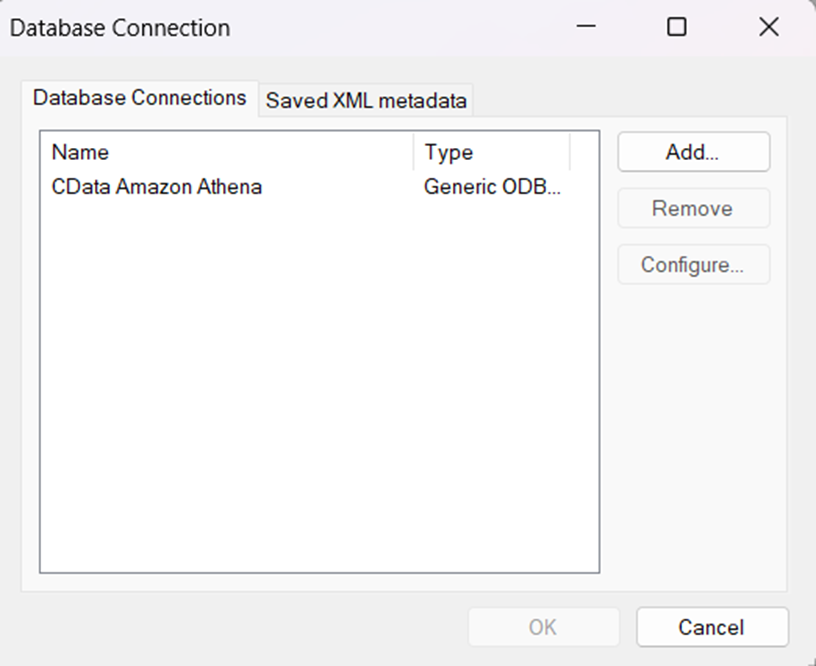
- In the new Windows Forms project go to the "File" menu and click "Connect..."
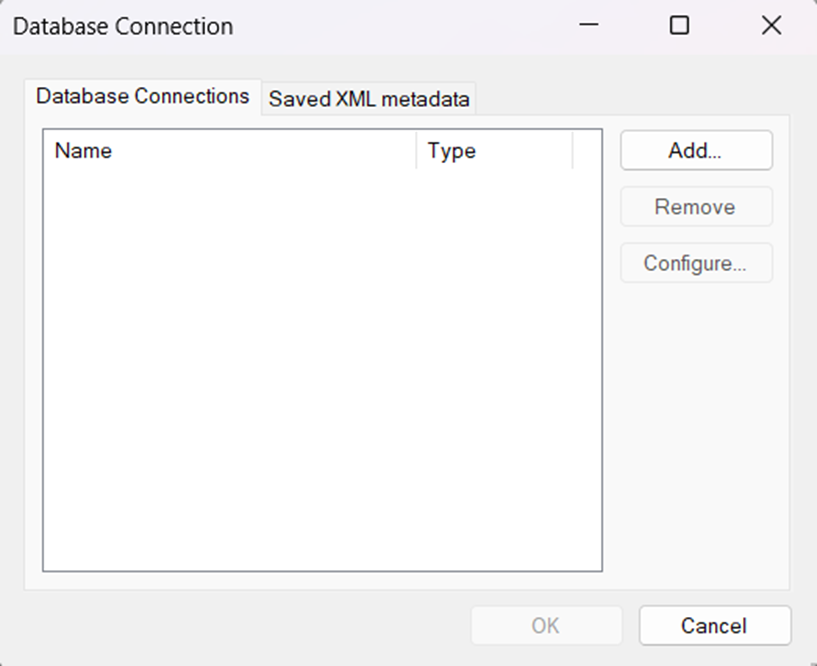
- Under Database Connections, click "Add..."
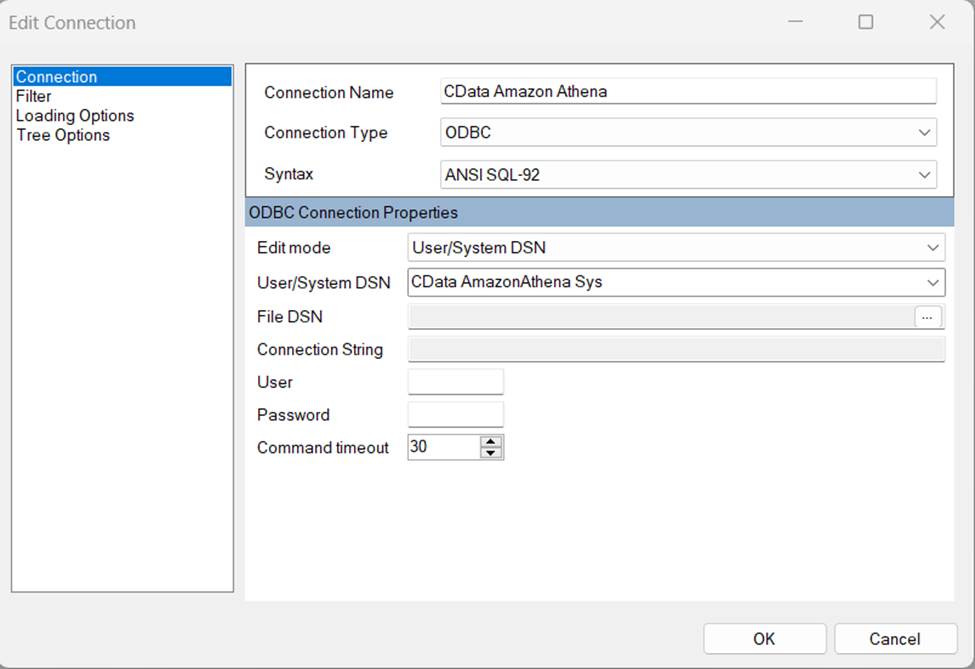
- Set your desired Connection Name (e.g. CData LINE), set Connection Type to "ODBC" and locate your previously configured DSN in the "User/System" DSN dropdown.
- Click "OK" to save the new connection.
- Back in the Database Connection wizard, select the newly created connection and click "OK."
- Click "File" > "New Query" to create a QueryBuilder
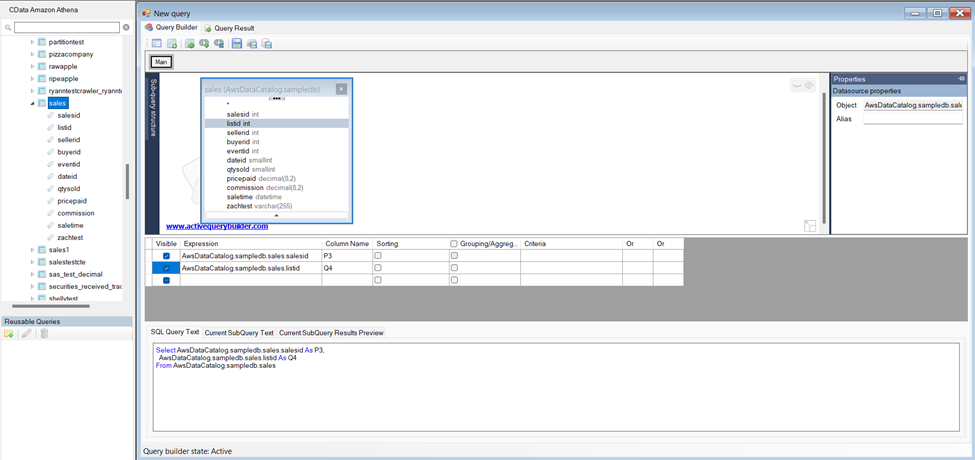
You can now build queries visually: Double-click a table in the Columns Pane Area and an entity/relationship diagram is displayed in the Query Building Area. Columns that you select in the diagram are added to the query.