





Connect to LINE Data from PowerBuilder via ODBC

The CData ODBC Driver for LINE can be used from any platform or development technology that supports ODBC, including PowerBuilder. This article shows how to connect to LINE data and execute queries from the Database Painter and controls such as the DataWindow.
Connect to LINE as an ODBC Data Source
If you have not already, first specify connection properties in an ODBC DSN (data source name). This is the last step of the driver installation. You can use the Microsoft ODBC Data Source Administrator to create and configure ODBC DSNs.
Start by setting the Profile connection property to the location of the LINE Profile on disk (e.g. C:\profiles\LINE.apip). Next, set the ProfileSettings connection property to the connection string for LINE (see below).
LINE API Profile Settings
The LINE Messaging API uses Channel Access Token authentication. To obtain a Channel Access Token:
- Log in to the LINE Developers Console at https://developers.line.biz
- Select your provider and open your Messaging API channel.
- Navigate to the Messaging API tab.
- Under Channel access token, click Issue to generate a long-lived token.
- Copy the generated token.
After obtaining your Channel Access Token, set the following connection properties:
- AuthScheme: Set this to APIKey.
Set the following in the ProfileSettings connection property:
- APIKey: Set this to your LINE Channel Access Token.
Create a Profile for the ODBC Driver for LINE
Follow the steps below to use the Database Painter tool to create a database profile based on an ODBC DSN (data source name) for LINE. In the Database Painter, you can use wizards and the UI to work with LINE data.
- In PowerBuilder, click Tools -> Database Painter.
- In the Objects window in the Database Painter, right-click the ODBC node and click New Profile.
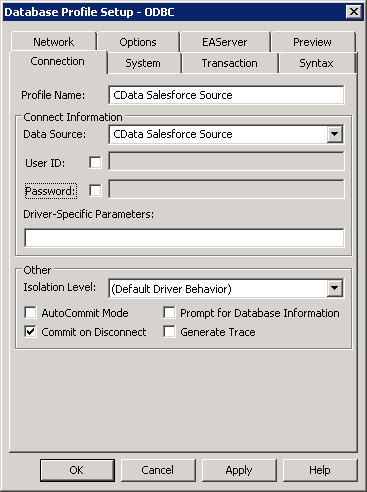
- On the Connection tab, enter a name for the profile and select the LINE DSN in the Data Source menu.
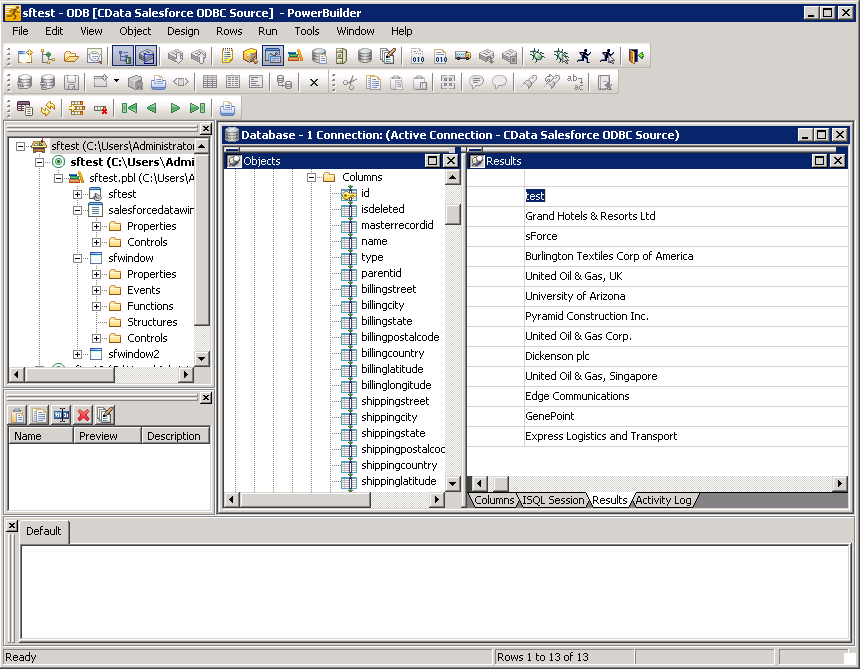
- To view and modify a table, right-click a table and then click Edit Data -> Grid.
Using LINE Data with PowerBuilder Controls
You can use standard PowerBuilder objects to connect to ODBC data sources and execute queries. The following example shows how to retrieve LINE data into a DataWindow. You can add the following code to the open method:
SQLCA.DBMS = "ODBC"
SQLCA.DBParm = "ConnectString='DSN=CData API Source'"
CONNECT USING SQLCA;
dw_replymessagedelivery.SetTransObject(SQLCA);
dw_replymessagedelivery.Retrieve();