




Deploy the ADO.NET Provider for Linear on an SSRS Report Server

In this article, we will guide you through the deployment process of the CData ADO.NET Provider for Linear on an SQL Server Reporting Services (SSRS) report server. Additionally, you will learn how to establish a shared data source, which facilitates connectivity to real-time Linear data from various reports. You can then access these shared data sources from the Report Designer within Visual Studio. For detailed instructions on creating datasets in Report Designer using ADO.NET, please refer to the "Using ADO.NET" section in the help documentation.
Deploy the ADO.NET Provider
The provider installation automatically deploys the provider on report servers in native mode. On report servers in SharePoint mode, you can use the install-sprs.ps1 PowerShell script to deploy. Simply run the script from the lib subfolder in the installation directory, or pass in the "path" parameter.
Create a Shared Data Source for Linear
You can create shared data sources directly from a report server or SharePoint site. Alternatively, you can use Report Designer to create shared data sources.
Report Designer
You can use Report Designer to create shared data sources on native mode report servers and report servers on a SharePoint server farm.
- In a Report Server Project in Visual Studio, right-click Shared Data Sources in Solution Explorer and click Add New Data Source.
- Enter a name for the data source and in the Type menu select CData Linear Report.
- In the Connection String box, enter the connection string to connect to Linear. A typical connection string is below:
AuthScheme=APIKey;APIKey=myAPIKey;You can authenticate to Linear with a personal API key or with OAuth 2.0. The API key is the simplest option for connecting with your own Linear account.
Authenticating with an API Key
Set the following connection properties:
- AuthScheme: Set this to APIKey.
- APIKey: A Linear personal API key.
To create a personal API key, log in to Linear, open Settings > Security & access > Personal API keys, select New API key, and create it. Copy the key immediately, because Linear shows it only once.
Authenticating with OAuth
OAuth requires a custom OAuth application registered in Linear (Settings > API > OAuth applications), which provides the OAuthClientId and OAuthClientSecret. Two flows are supported:
- Authorization code: Set AuthScheme to OAuth, InitiateOAuth to GETANDREFRESH, and provide OAuthClientId, OAuthClientSecret, and the CallbackURL defined in your application (e.g., http://localhost:33333). The driver opens Linear in your browser so you can grant access.
- Client credentials: Set AuthScheme to OAuthClient and provide OAuthClientId and OAuthClientSecret. This authenticates the application itself, with no browser interaction, and suits machine-to-machine integrations.
By default, the driver requests the read,write scopes. The driver refreshes the access token automatically when it expires.
When you configure the connection, you may also want to set the Max Rows connection property. This will limit the number of rows returned, which is especially helpful for improving performance when designing reports and visualizations.
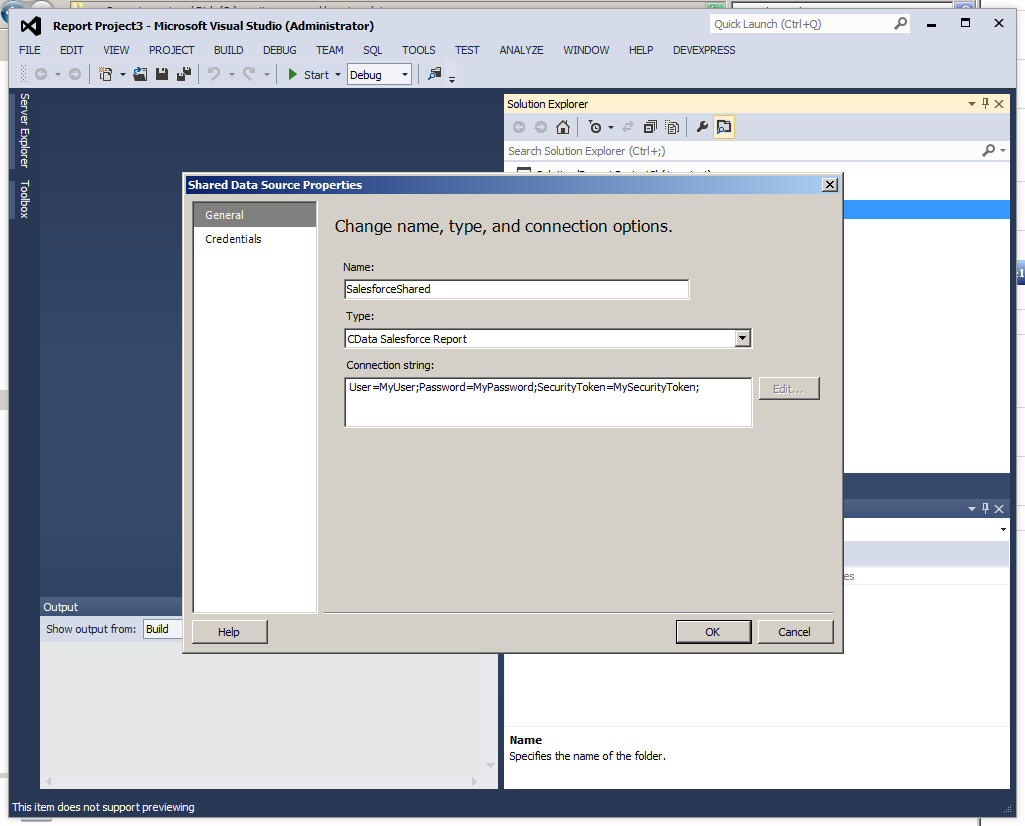
- Set the folder and server URL in your project properties. If you are publishing to SharePoint, the values for all properties must be fully qualified URLs. For example:
- Report Server: http://MyServerName/ReportServer
- SharePoint: http://MyServerName/MySite/MySubsite
- Right-click the shared data source and click Deploy.
Report Manager
On native mode installations of report server, you can use Report Manager to create shared data sources. You must have permissions to manage data sources on the report server.
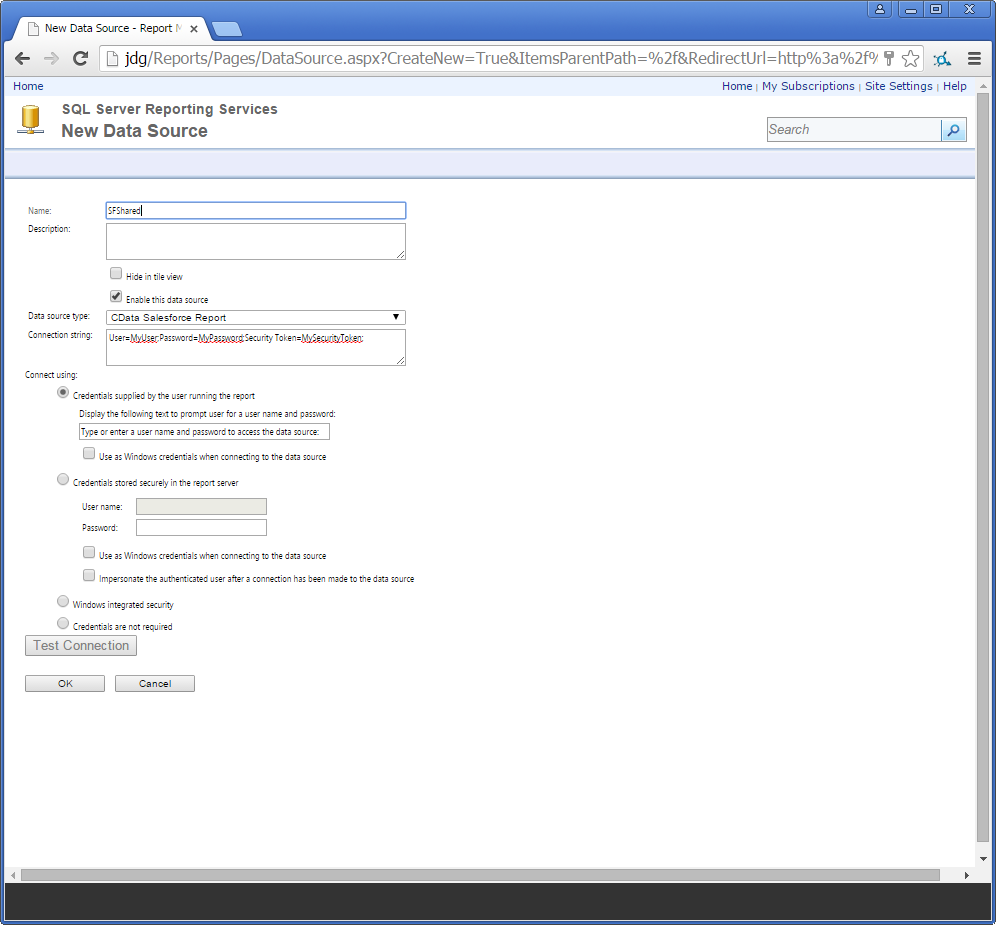
- From the Home page in Report Manager, click New Data Source. The New Data Source page is displayed.
- Enter a name for the data source and in the Data Source Type menu, select CData Linear Report.
- In the Connection String box, enter the connection string to connect to Linear. A typical connection string is below:
AuthScheme=APIKey;APIKey=myAPIKey;You can authenticate to Linear with a personal API key or with OAuth 2.0. The API key is the simplest option for connecting with your own Linear account.
Authenticating with an API Key
Set the following connection properties:
- AuthScheme: Set this to APIKey.
- APIKey: A Linear personal API key.
To create a personal API key, log in to Linear, open Settings > Security & access > Personal API keys, select New API key, and create it. Copy the key immediately, because Linear shows it only once.
Authenticating with OAuth
OAuth requires a custom OAuth application registered in Linear (Settings > API > OAuth applications), which provides the OAuthClientId and OAuthClientSecret. Two flows are supported:
- Authorization code: Set AuthScheme to OAuth, InitiateOAuth to GETANDREFRESH, and provide OAuthClientId, OAuthClientSecret, and the CallbackURL defined in your application (e.g., http://localhost:33333). The driver opens Linear in your browser so you can grant access.
- Client credentials: Set AuthScheme to OAuthClient and provide OAuthClientId and OAuthClientSecret. This authenticates the application itself, with no browser interaction, and suits machine-to-machine integrations.
By default, the driver requests the read,write scopes. The driver refreshes the access token automatically when it expires.
SharePoint
Follow the steps below to create a shared data source on a SharePoint site. Note that this step has the following prerequisites in SharePoint 2013:
- The Reporting Services add-in for SharePoint
- The Report Server Integration site collection feature
Follow the steps below to add the report server content types to your library:
- Log into SharePoint and open the library where you want to save the .rsds file.
- Click Library on the ribbon and then click Library Settings.
- In the General Settings section, click Advanced Settings.
- In the Content Types section, select Yes to allow the management of content types. The Content Types section is added to the Library Settings page.
- On the Library Settings page, click Add from existing site content types.
- In the Available Site Content Types list, select Report Data Source and click Add.
You can then create the shared data source. You will create an .rsds file that contains the connection information to Linear.
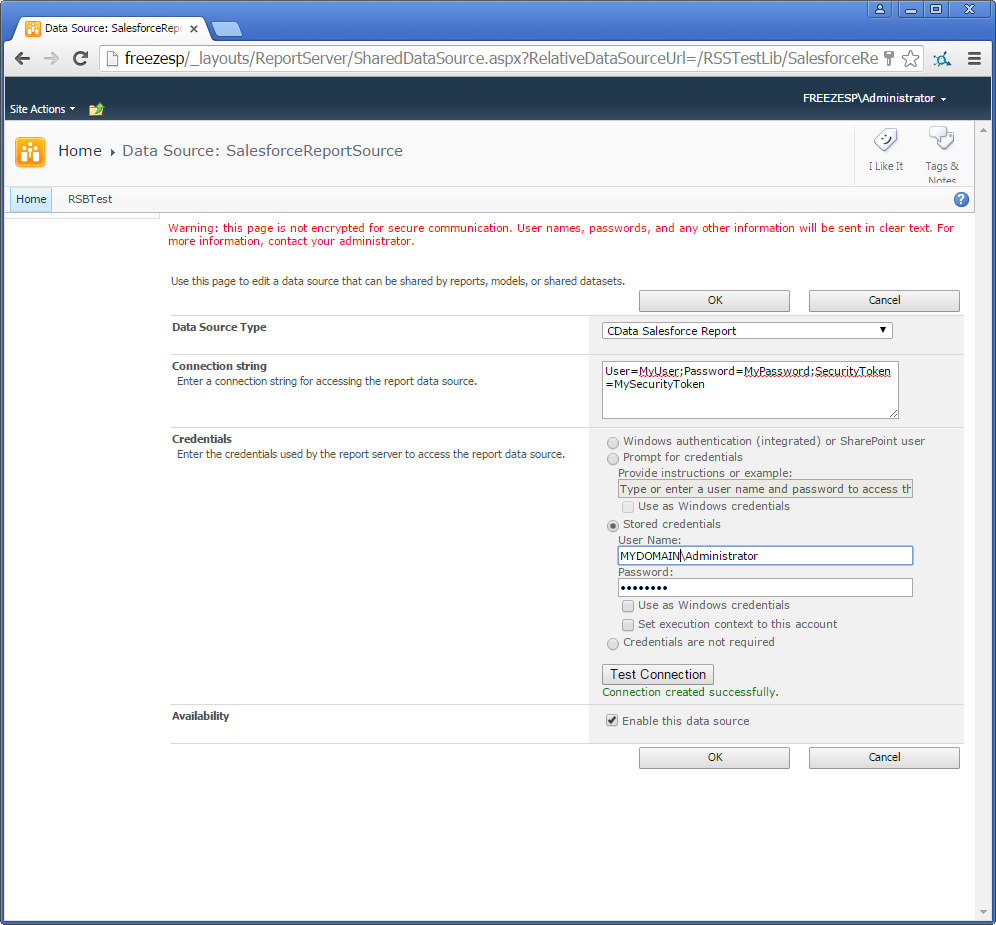
- Log into SharePoint and open the library where you want to save the .rsds file.
- On the ribbon click Documents -> New Document -> Report Data Source.
- Enter a name for the data source.
- In the Data Source Type menu, select CData Linear Report.
- In the Connection String box, enter the connection string to connect to Linear. A typical connection string is below:
AuthScheme=APIKey;APIKey=myAPIKey;You can authenticate to Linear with a personal API key or with OAuth 2.0. The API key is the simplest option for connecting with your own Linear account.
Authenticating with an API Key
Set the following connection properties:
- AuthScheme: Set this to APIKey.
- APIKey: A Linear personal API key.
To create a personal API key, log in to Linear, open Settings > Security & access > Personal API keys, select New API key, and create it. Copy the key immediately, because Linear shows it only once.
Authenticating with OAuth
OAuth requires a custom OAuth application registered in Linear (Settings > API > OAuth applications), which provides the OAuthClientId and OAuthClientSecret. Two flows are supported:
- Authorization code: Set AuthScheme to OAuth, InitiateOAuth to GETANDREFRESH, and provide OAuthClientId, OAuthClientSecret, and the CallbackURL defined in your application (e.g., http://localhost:33333). The driver opens Linear in your browser so you can grant access.
- Client credentials: Set AuthScheme to OAuthClient and provide OAuthClientId and OAuthClientSecret. This authenticates the application itself, with no browser interaction, and suits machine-to-machine integrations.
By default, the driver requests the read,write scopes. The driver refreshes the access token automatically when it expires.
Ready to get started?
Download a free trial of the Linear Data Provider to get started:
Download NowLearn more:
 Linear ADO.NET Provider
Rapidly create and deploy powerful .NET applications that integrate with Linear data including AgentSession, Comment, Customer, Cycle, Initiative, Integration, Issue, ProjectStatus, Release, Team, User, and more!