




Build Pipelines with Live Linear Data in Google Cloud Data Fusion (via CData Connect AI)

Google Cloud Data Fusion simplifies building and managing data pipelines by offering a visual interface to connect, transform, and move data across various sources and destinations, streamlining data integration processes. When combined with CData Connect AI, it provides access to Linear data for building and managing ELT/ETL data pipelines. This article explains how to use CData Connect AI to create a live connection to Linear and how to connect and access live Linear data from the Cloud Data Fusion platform.
Configure Linear Connectivity for Cloud Data Fusion
Connectivity to Linear from Cloud Data Fusion is made possible through CData Connect AI. To work with Linear data from Cloud Data Fusion, we start by creating and configuring a Linear connection.
- Log into Connect AI, click Sources, and then click Add Connection
- Select "Linear" from the Add Connection panel
-
Enter the necessary authentication properties to connect to Linear.
You can authenticate to Linear with a personal API key or with OAuth 2.0. The API key is the simplest option for connecting with your own Linear account.
Authenticating with an API Key
Set the following connection properties:
- AuthScheme: Set this to APIKey.
- APIKey: A Linear personal API key.
To create a personal API key, log in to Linear, open Settings > Security & access > Personal API keys, select New API key, and create it. Copy the key immediately, because Linear shows it only once.
Authenticating with OAuth
OAuth requires a custom OAuth application registered in Linear (Settings > API > OAuth applications), which provides the OAuthClientId and OAuthClientSecret. Two flows are supported:
- Authorization code: Set AuthScheme to OAuth, InitiateOAuth to GETANDREFRESH, and provide OAuthClientId, OAuthClientSecret, and the CallbackURL defined in your application (e.g., http://localhost:33333). The driver opens Linear in your browser so you can grant access.
- Client credentials: Set AuthScheme to OAuthClient and provide OAuthClientId and OAuthClientSecret. This authenticates the application itself, with no browser interaction, and suits machine-to-machine integrations.
By default, the driver requests the read,write scopes. The driver refreshes the access token automatically when it expires.

- Click Save & Test
-
Navigate to the Permissions tab in the Add Linear Connection page and update the User-based permissions.



Add a Personal Access Token
When connecting to Connect AI through the REST API, the OData API, or the Virtual SQL Server, a Personal Access Token (PAT) is used to authenticate the connection to Connect AI. It is best practice to create a separate PAT for each service to maintain granularity of access.
- Click on the Gear icon () at the top right of the Connect AI app to open the settings page.
- On the Settings page, go to the Access Tokens section and click Create PAT.
-
Give the PAT a name and click Create.

- The personal access token is only visible at creation, so be sure to copy it and store it securely for future use.
With the connection configured and a PAT generated, you are ready to connect to Linear data from Cloud Data Fusion.
Connecting to Linear from Cloud Data Fusion
Follow these steps to establish a connection from Cloud Data Fusion to Linear through the CData Connect AI JDBC driver:
- Download and install the CData Connect AI JDBC driver:
- Open the Integrations page of CData Connect AI.
- Search for and select JDBC.
- Download and run the setup file.
- When the installation is complete, copy the JAR file(cdata.jdbc.connect.jar) from the installation directory (e.g., C:\Program Files\CData\JDBC Driver for CData Connect\lib).
- Log into Cloud Data Fusion.
- Click the green "+" button at the top right to add an entity.
- Under Driver, click Upload.
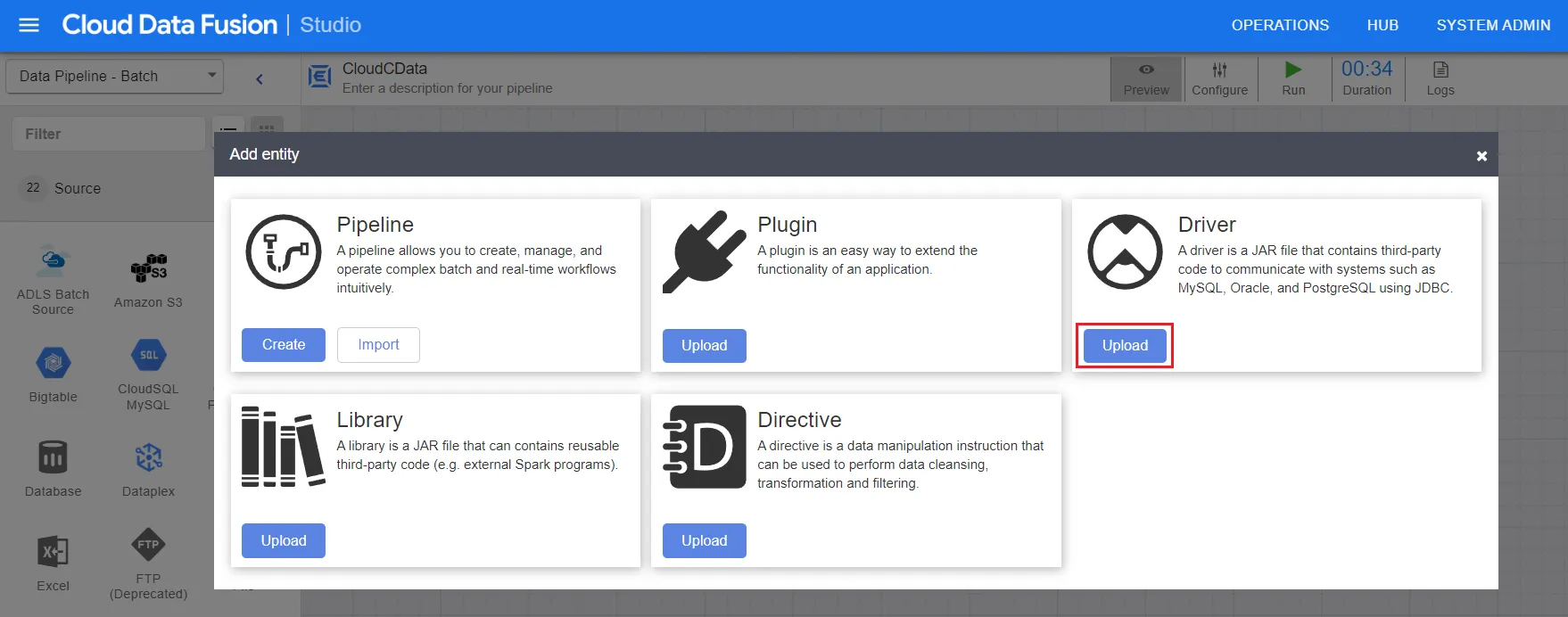
- Now, upload the CData Connect AI JDBC driver (JAR file).
- Enter the driver settings:
- Name: Enter the name of the driver
- Class name: Enter "cdata.jdbc.connect.ConnectDriver"
- Version: Enter the driver version
- Description (optional): Enter a description for the driver
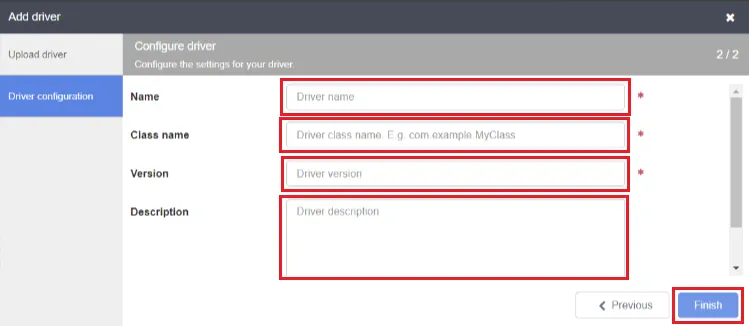
- Click on Finish.
- Enter source configuration settings:
- Label: Helps to identify the connection
- JDBC driver name: Enter the JDBC driver name to identify the driver configured in Step 6.
- Connection string: Enter the JDBC connection string, for example:
jdbc:connect:AuthScheme=Basic;user=username;password=PAT; - User: Enter your CData Connect AI username, displayed in the top-right corner of the CData Connect AI interface. For example, "[email protected]"
- Password: Enter the PAT you generated on the Settings page.
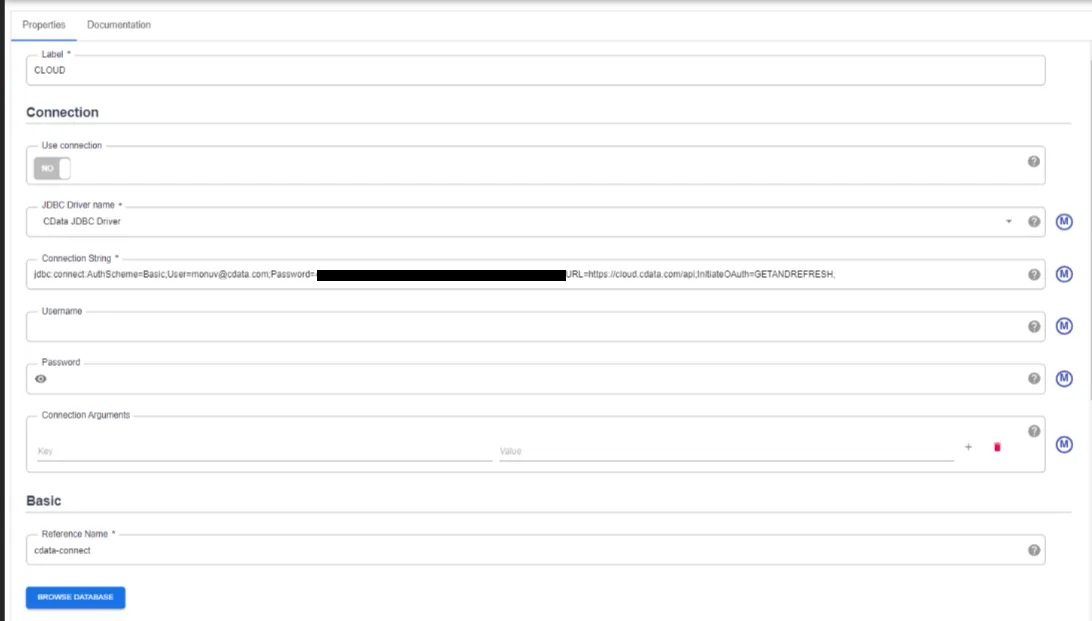
- Click Validate in the top right corner.
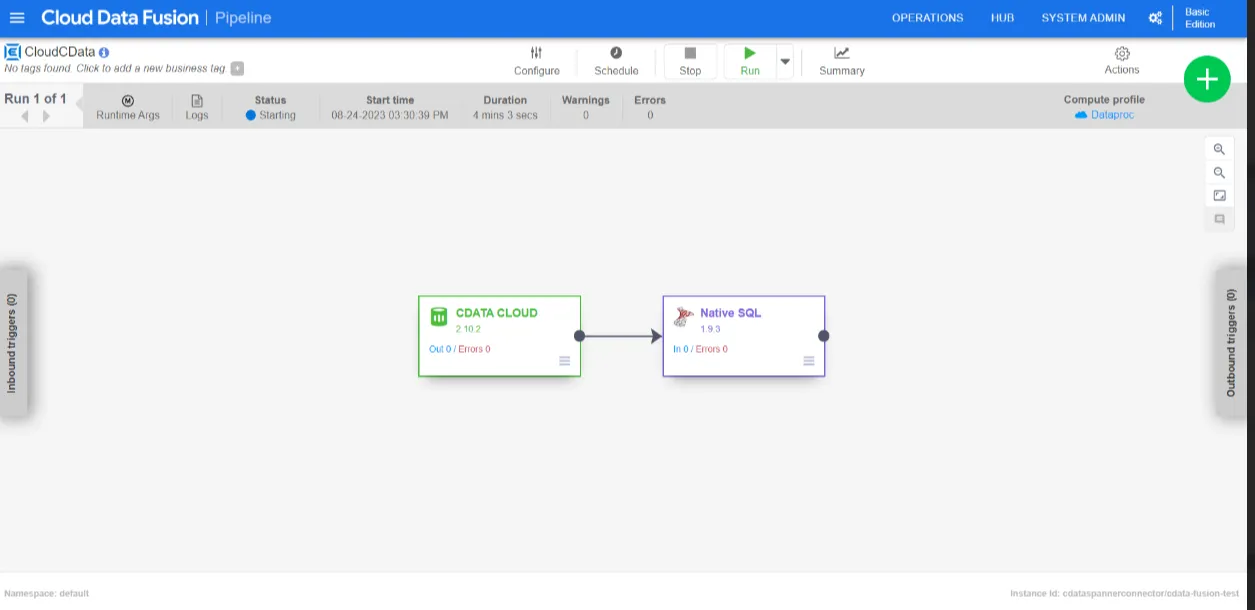
- If the connection is successful, you can manage the pipeline by editing it through the UI.
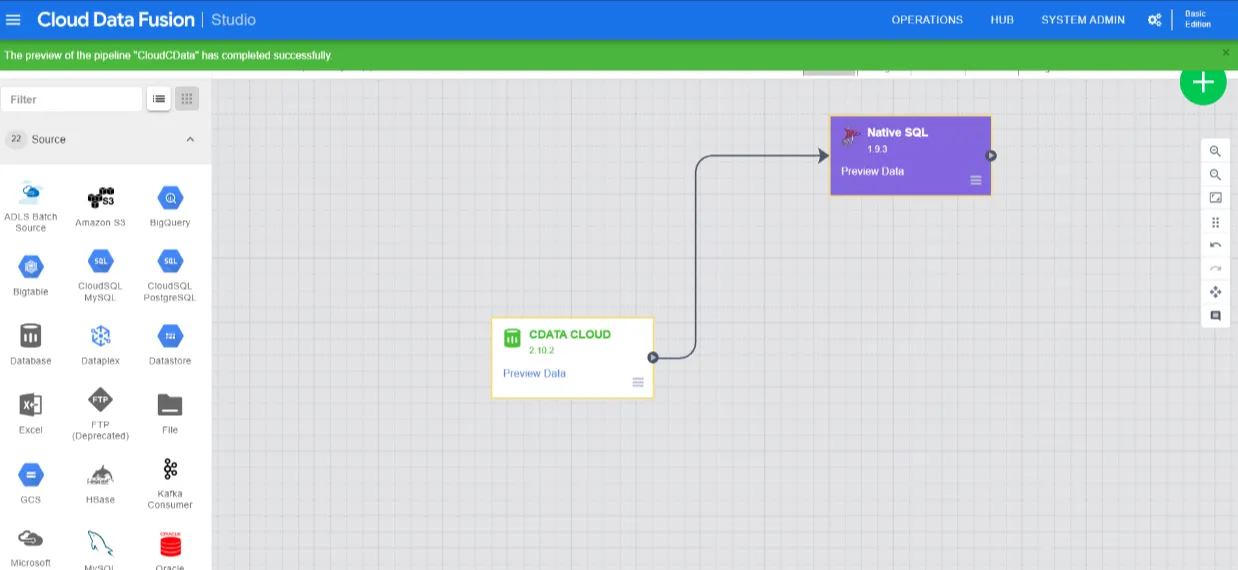
- Run the pipepline created.
Troubleshooting
Please be aware that there is a known issue in Cloud Data Fusion where "int" types from source data are automatically cast as "long".
Live Access to Linear Data from Cloud Applications
Now you have a direct connection to live Linear data from from Google Cloud Data Fusion. You can create more connections to ensure a smooth movement of data across various sources and destinations, thereby streamlining data integration processes - all without replicating Linear data.
To get real-time data access to hundreds of SaaS, Big Data, and NoSQL sources (including Linear) directly from your cloud applications, explore the CData Connect AI.